




Names like these, in green, are pages inside your ArmPOS shop. Sign in to your shop to open them.
By the end you will have your cash and your bank account in ArmPOS with their balances, and you will have moved money from one to the other.
Accounts sit under Accounting, which comes with some plans only. If Accounting isn't in your menu, your plan or your role doesn't include it.
Your money accounts
An account is a place your money sits: the till's cash, a bank account, a mobile money wallet. When a payment, an expense or a deposit names an account, ArmPOS changes its balance:
- a payment from a customer adds to it,
- a payment to a supplier and an expense take from it,
- a deposit adds to it, and a transfer moves money between two of them.
A payment that names no account changes no balance.
Add an account
- Open Accounting › List accounts.
- Click Create.
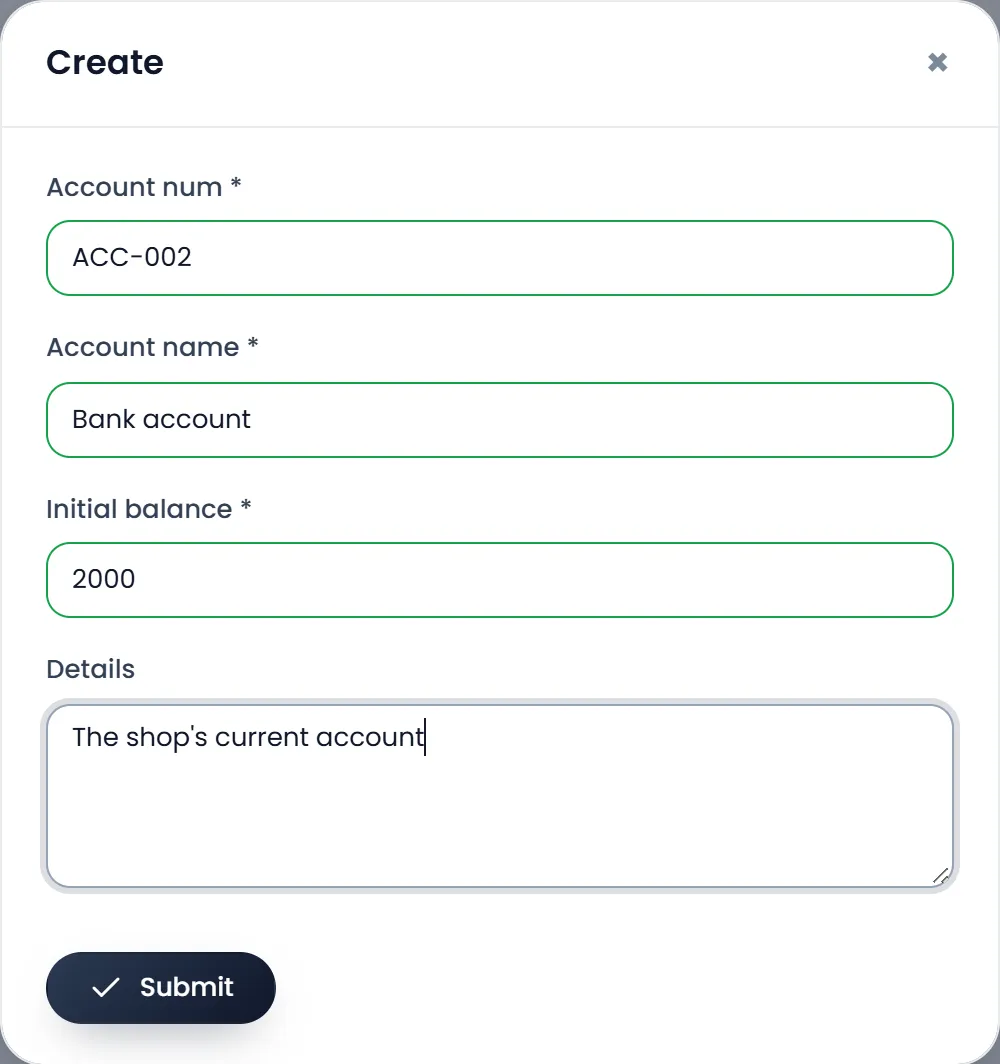
- Fill the Account num and the Account name. Both are required. The number is your own reference, such as ACC-002, or the bank's account number.
- Enter the Initial balance. What the account holds today. It is required, and it can't be changed later.
- Add Details if you like, then click Submit.
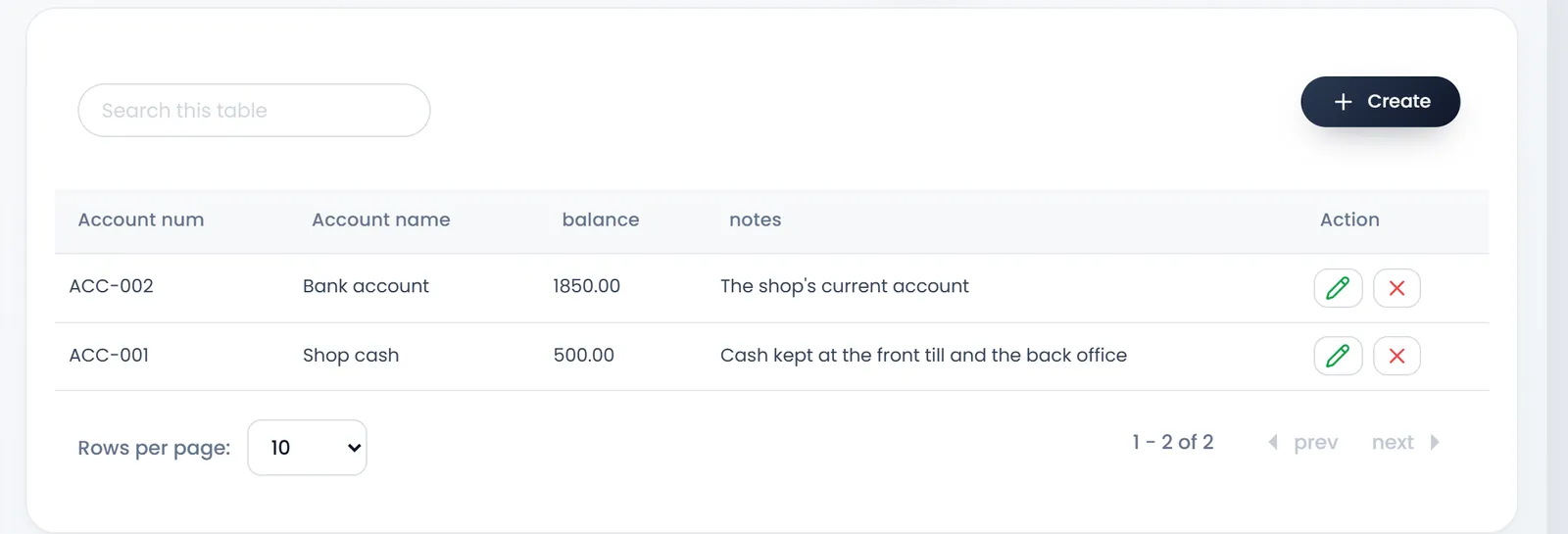
The pencil changes an account's number, name or details. The cross deletes it, without checking what used it: keep an account your team has used.
Move money between accounts
When you take cash to the bank, or bring change from the bank to the till, record a transfer so both balances stay right.
- Open Accounting › Transfers Money.
- Click Create.
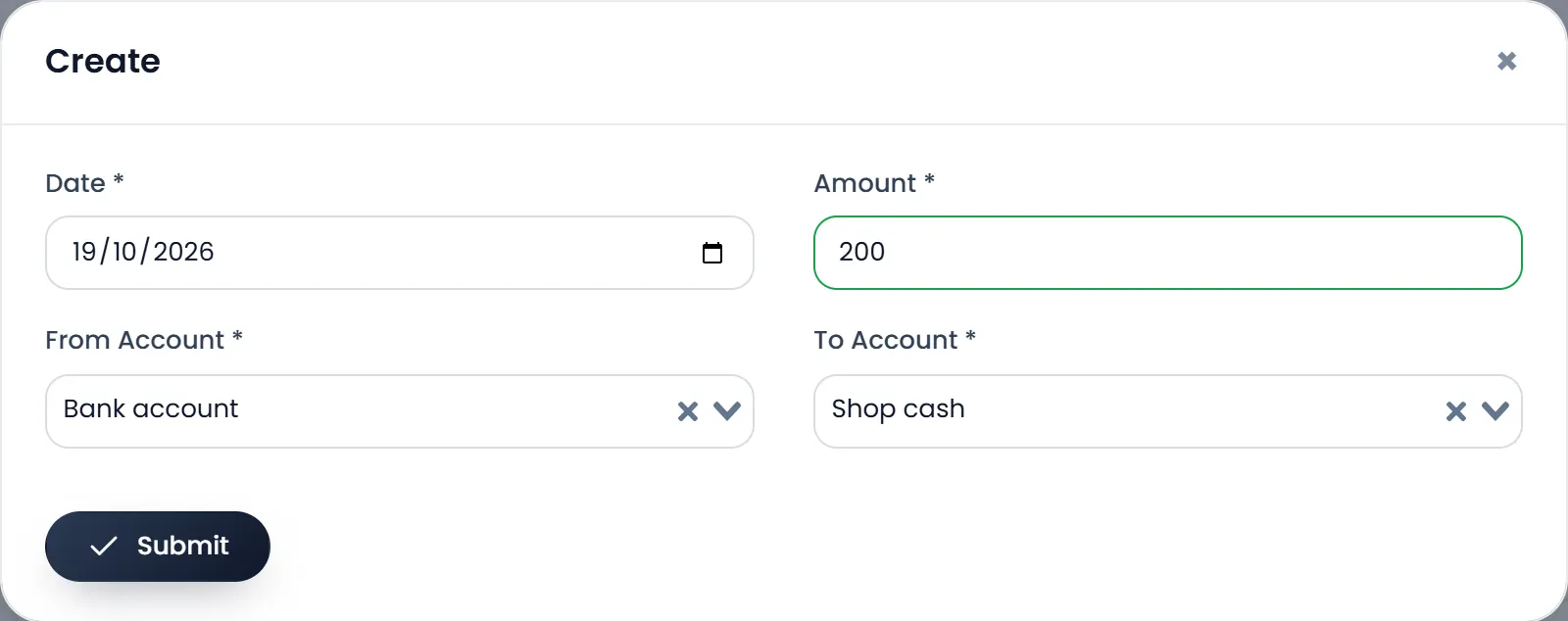
- Check the Date and enter the Amount. Both are required.
- Pick the From Account and the To Account. They must be two different accounts.
- Click Submit. The amount leaves the first account and arrives in the second.
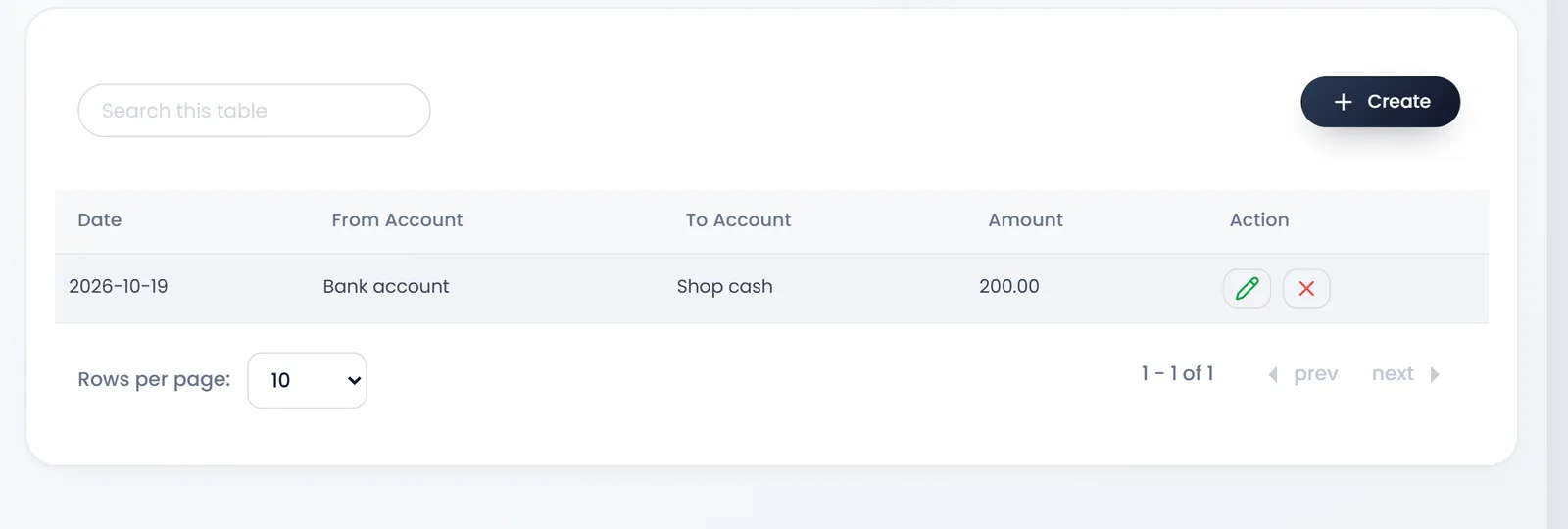
A transfer is refused when the From Account doesn't hold enough. Editing a transfer changes only its date and amount; deleting it puts both balances back.
What's next
Record money that comes in without a sale in Record income that isn't a sale.
Still stuck?
Write to us and a person answers. If you already have a shop, Ask support inside it sends us the page you're on.
Contact usAsk your AI assistant
ChatGPT, Claude and Gemini can read every guide and walk you through it.
Set it up