




Names like these, in green, are pages inside your ArmPOS shop. Sign in to your shop to open them.
By the end you will have made a promotion with a code, such as 10% off breakfast shopping for a week, and seen it taken off a sale at the till.
Promotions come with some plans only. If Promotions isn't under Customers in your menu, your plan or your role doesn't include it.
Promotions work at the POS and on Add sale. They don't apply in the online store.
Make a promotion
Open Customers › Promotions and click Create. The form has six parts, and the Preview on the right shows the result as you type.
- Basics. Type the Name, such as Breakfast week. Leave Type on Discount. Type a Code, such as BREAKFAST10, if customers must say it; leave it empty and the promotion applies by itself. Description is a note for your team.
- Discount value. Pick % Percentage or $ Fixed, and type the Value.
- Validity. Set Starts at and Ends at, or leave them empty for no end. Restrict to specific hours of the day limits it to, say, a happy hour; it can run past midnight.
- Conditions. Minimum cart total and Minimum item count set the least a customer must buy. Product scope is All products, or Specific products to trigger only when one of them is in the cart.
- Warehouse. Tick where it is honoured. A promotion with no warehouse ticked never applies.
- Stacking & limits. Priority decides which wins when several apply; switch on Stackable to let it add to others. Total usage limit and Per-customer limit cap how often it is used; leave them empty for no limit.
Save as Draft keeps it switched off; Save & Activate starts it.
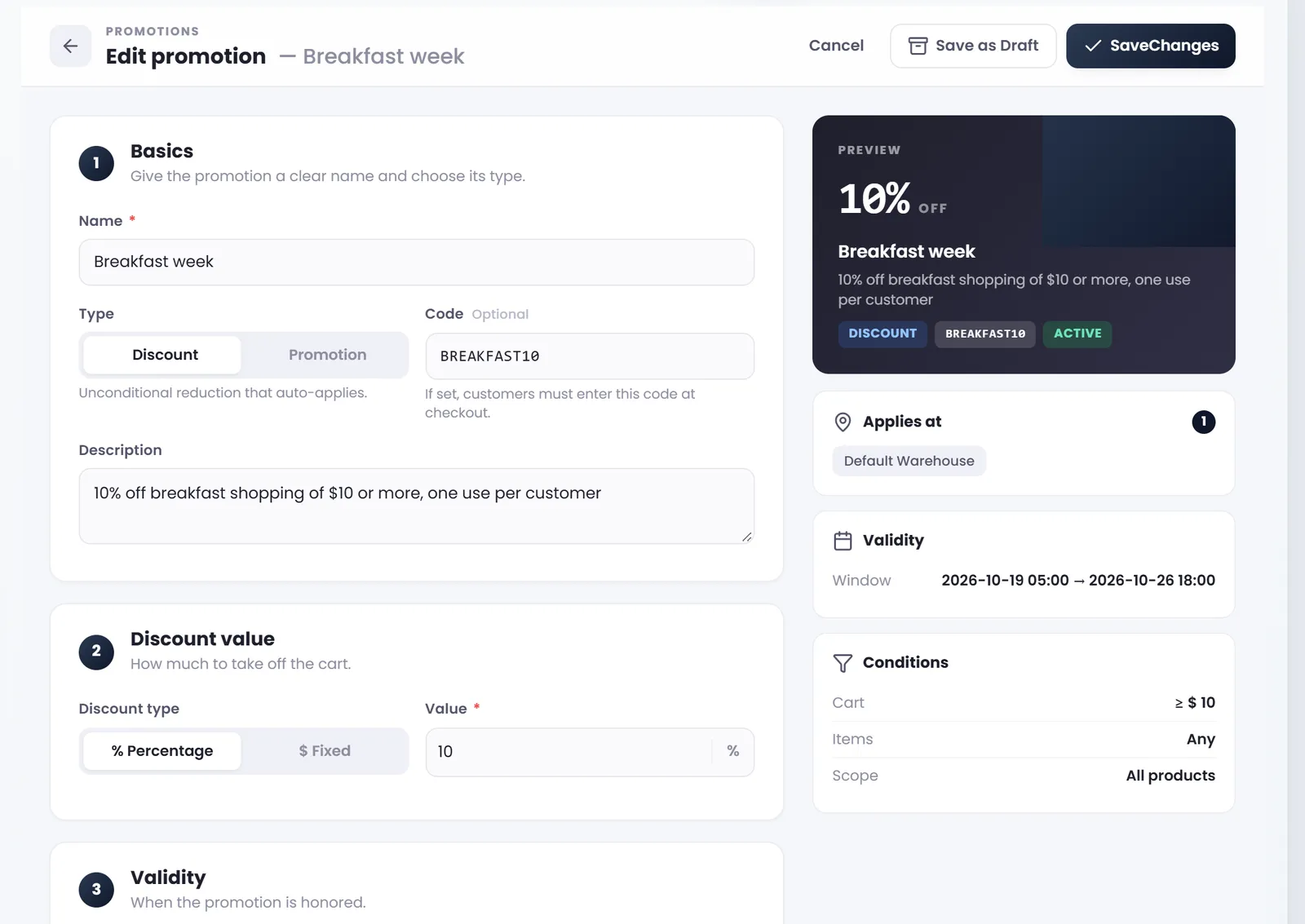
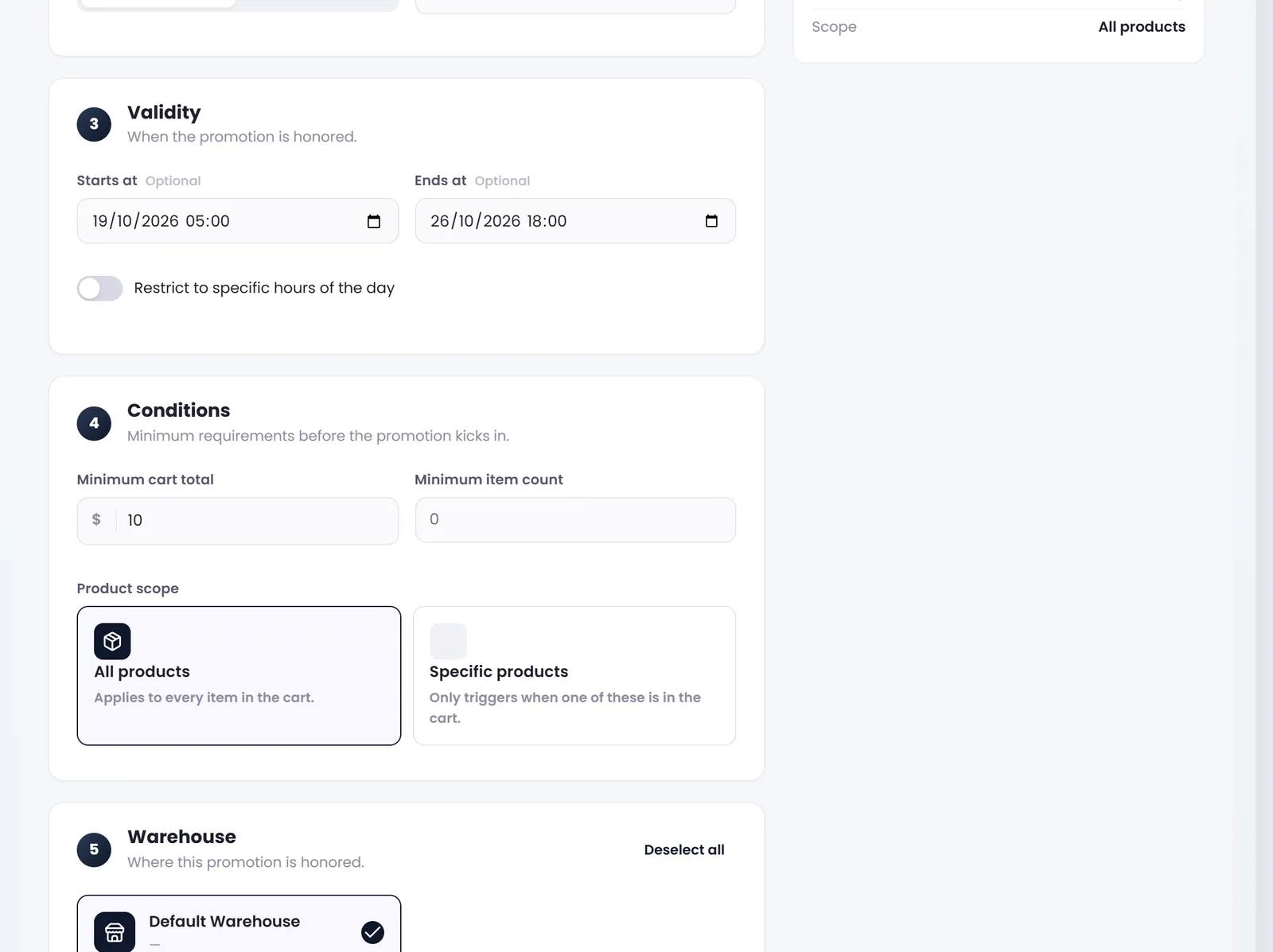
Each time you open a promotion and save it, check Starts at and Ends at first: today the edit page loads them a few hours early, and saving keeps the wrong times. Type your times again before SaveChanges (the button shows its label like this).
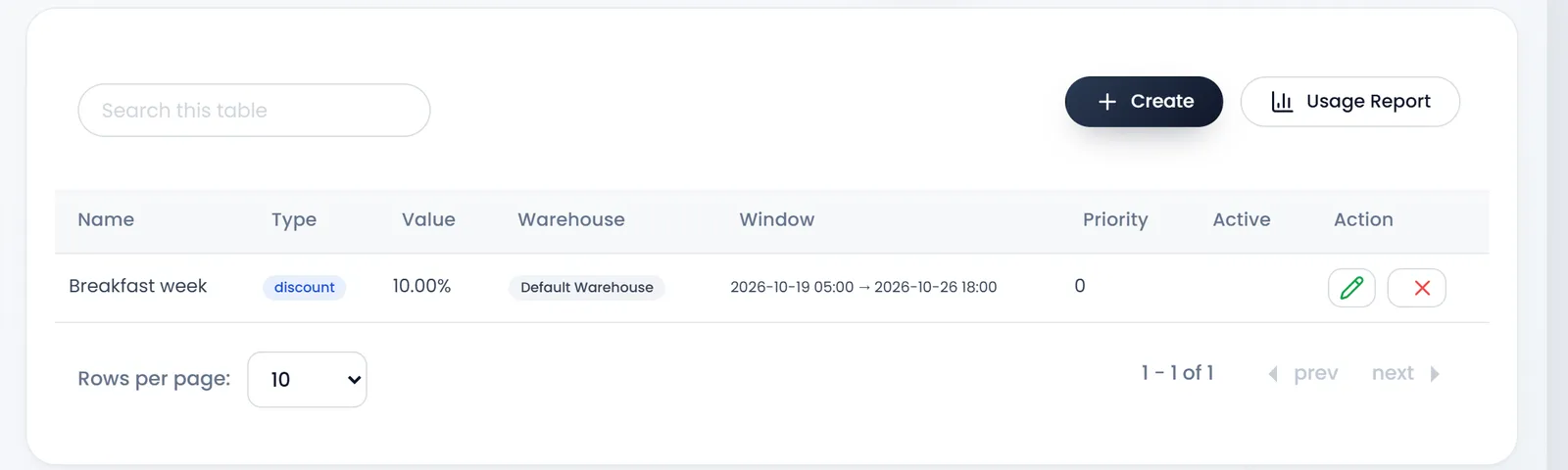
Use the code at the till
- Fill the cart in the POS as usual.
- Type the code in Promo code, under the totals, and click Apply.
- Check the Promotions line. It shows the promotion's name and what it takes off. The × beside Apply removes the code.
- Take the payment. The sale records the promotion.
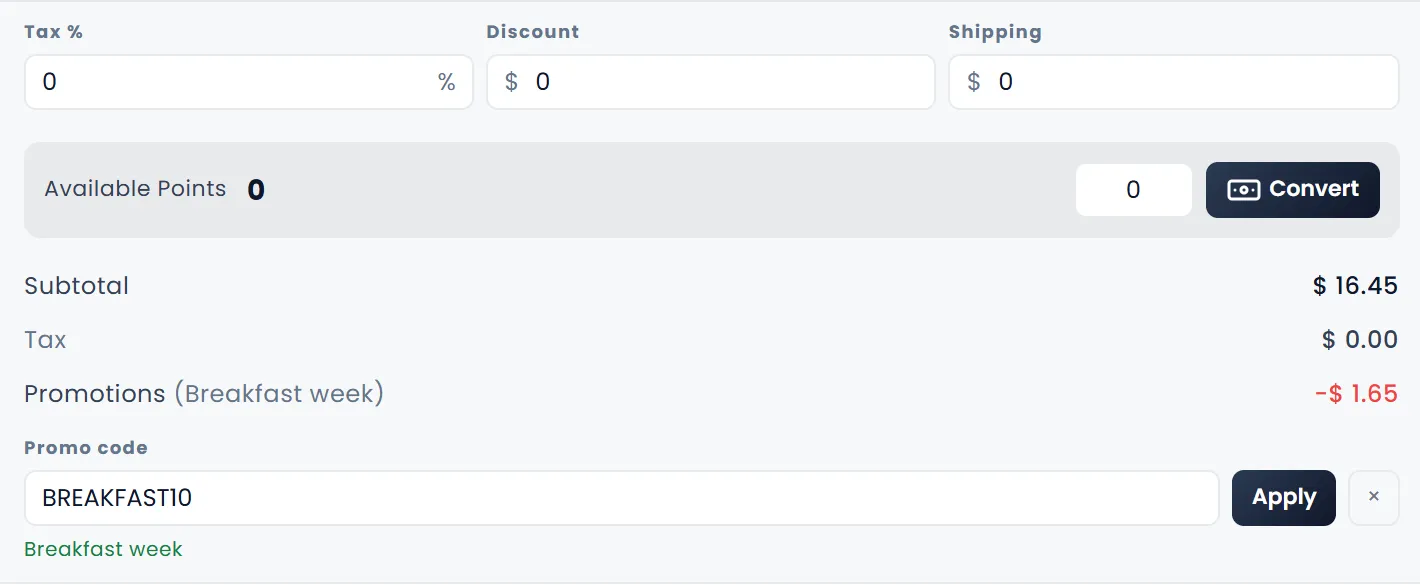
A code that can't be used says why under the box: "Unknown code.", "This code is not yet active.", "This code has expired.", "This code is not valid at this warehouse.", "This code is only valid at certain hours." or "This code has reached its usage limit." A cart under the Minimum cart total gets no promotion.
On Add sale the same Promo code box sits with the totals.
See what it gave away
Usage Report on the promotions list shows the Total uses, the Total discount and how many promotions were used, then each use with its Date, Promotion, Code, Sale, Client, Warehouse and Discount. Narrow it by dates, promotion or warehouse.
What's next
Tell customers about it: Marketing campaigns and customer segments.
Still stuck?
Write to us and a person answers. If you already have a shop, Ask support inside it sends us the page you're on.
Contact usAsk your AI assistant
ChatGPT, Claude and Gemini can read every guide and walk you through it.
Set it up