




Names like these, in green, are pages inside your ArmPOS shop. Sign in to your shop to open them.
By the end you will have picked out a group of customers, such as your regulars in Kampala, and prepared a campaign to them by email, SMS or WhatsApp.
Marketing comes with some plans only. If Marketing isn't under Customers in your menu, your plan or your role doesn't include it.
Connect your channels first
Open Customers › Marketing › Marketing Settings.
- Email / SMTP Configuration: Enable Email is on for a new shop. Emails go out through your shop's mail, as set in Settings › Mail Settings (see Email and SMS settings). From Name and From Email say who the campaign is from.
- SMS Provider Configuration and WhatsApp API Configuration: Enable, then your provider's API URL, API Key, Sender ID or Phone Number ID, and the names your provider uses for the number and the text (Recipient Field Name, Message Field Name). Your provider gives you these. Campaign messages go through your own account with them and don't count towards your plan's WhatsApp messages.
- Campaign Scheduling Settings: switch on Enable Scheduling if you'll send campaigns at a set time. Batch Size is how many go out at once.
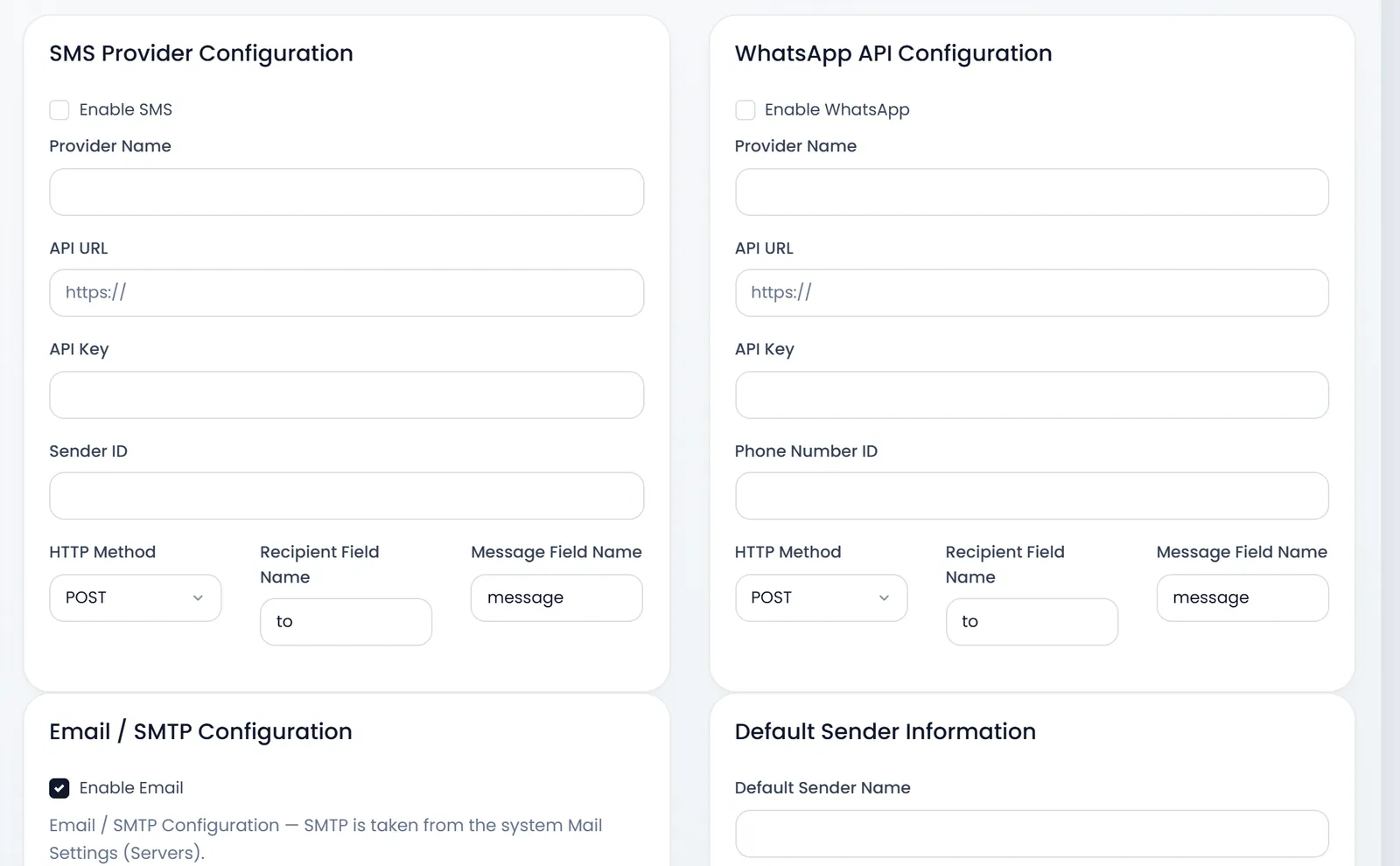
Click Save Settings at the bottom.
Pick your customers: segments
- Open Customers › Marketing › Customer Segments and click New Segment.
- Type the Segment Name, such as Kampala regulars, and a Description.
- Untick All Customers and set the filters. All of them must match: City, the Last Purchase From and To dates, Min. and Max. Total Purchases (how many purchases), Min. and Max. Amount Spent.
- Click Preview Segment. It counts the customers who match today.
- Click Save Segment.
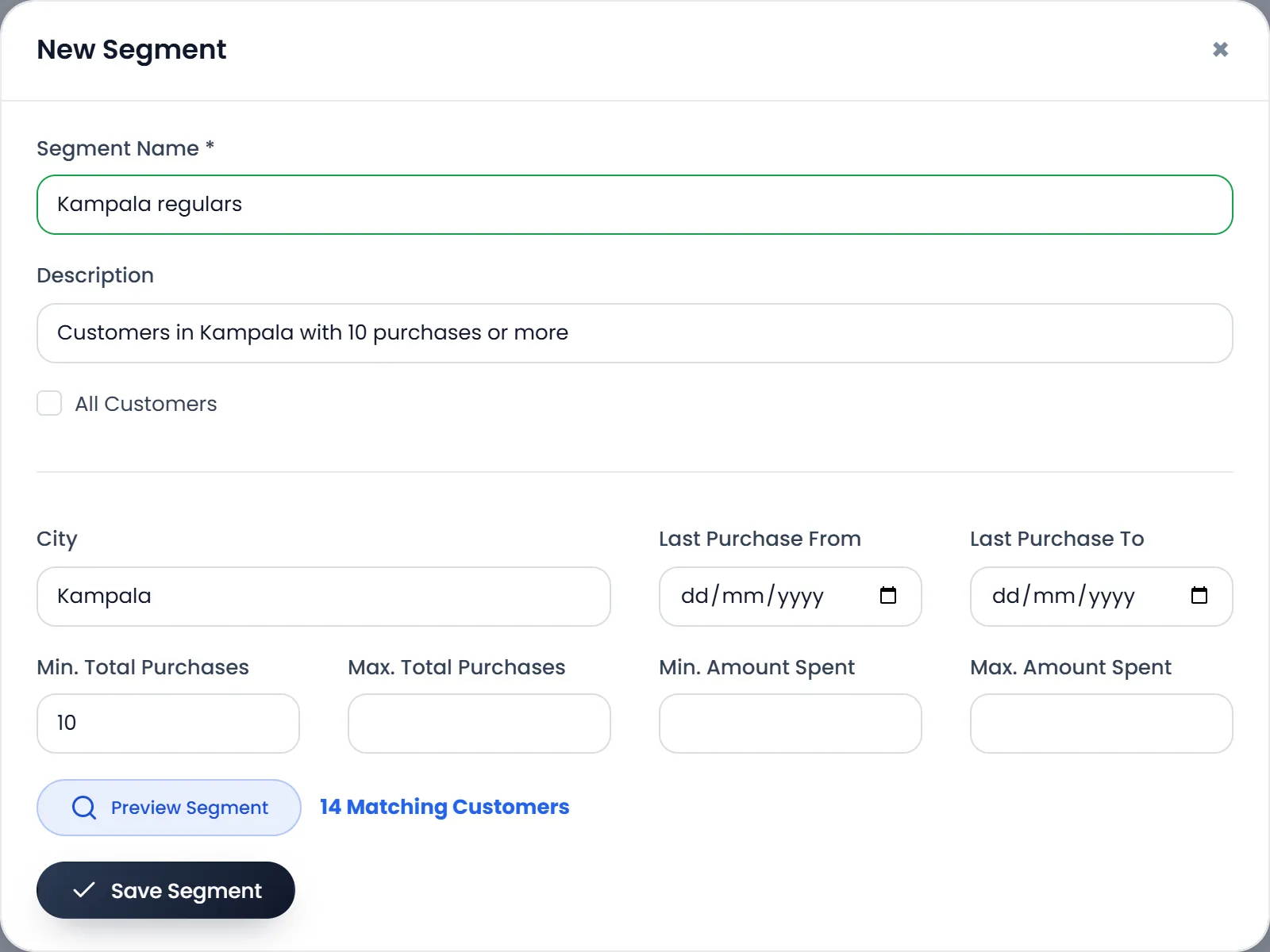
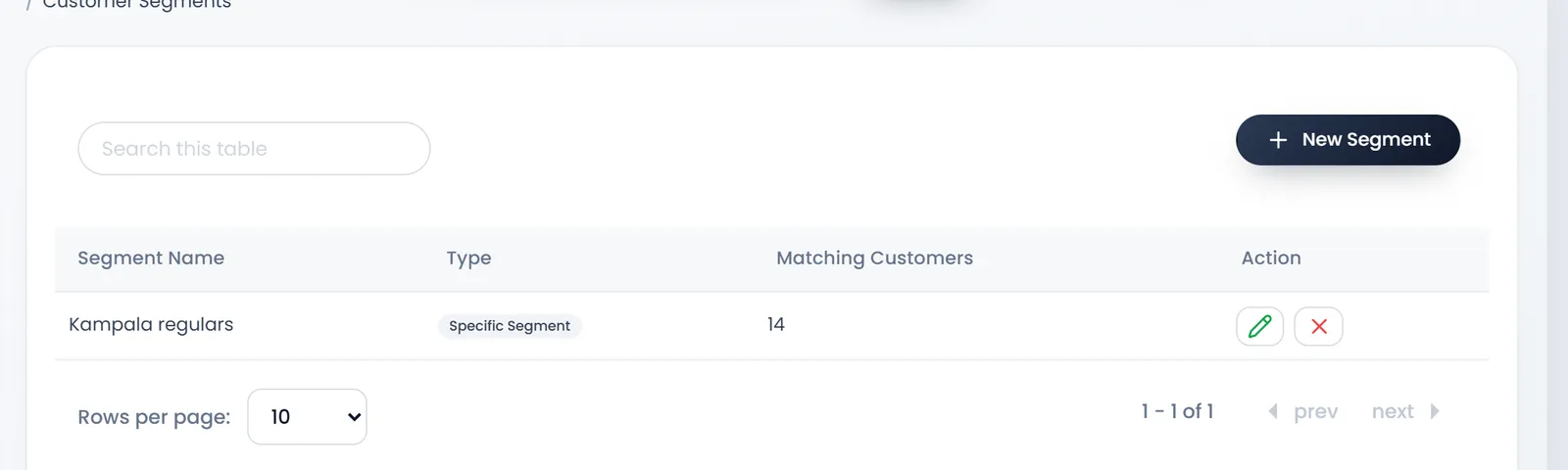
The city must be written as on the customers' records. Only completed sales count. The list shows the count from when you saved; a campaign uses whoever matches on the day it goes out.
Write the campaign
- Open Customers › Marketing › Campaigns and click New Campaign.
- Type the Campaign Title and pick the Campaign Type: SMS, Email or WhatsApp.
- Write the Message Content, or start from a saved template with Use Template. Click a variable such as {customer_name} to put each customer's own details in. An email also takes an Email Subject and an attachment.
- Choose the Recipients: All Customers, or Specific Segment and the segment.
- Choose when: Send Immediately, or Schedule Campaign with a Schedule Date & Time.
- Click Send Campaign (or Submit when scheduled).
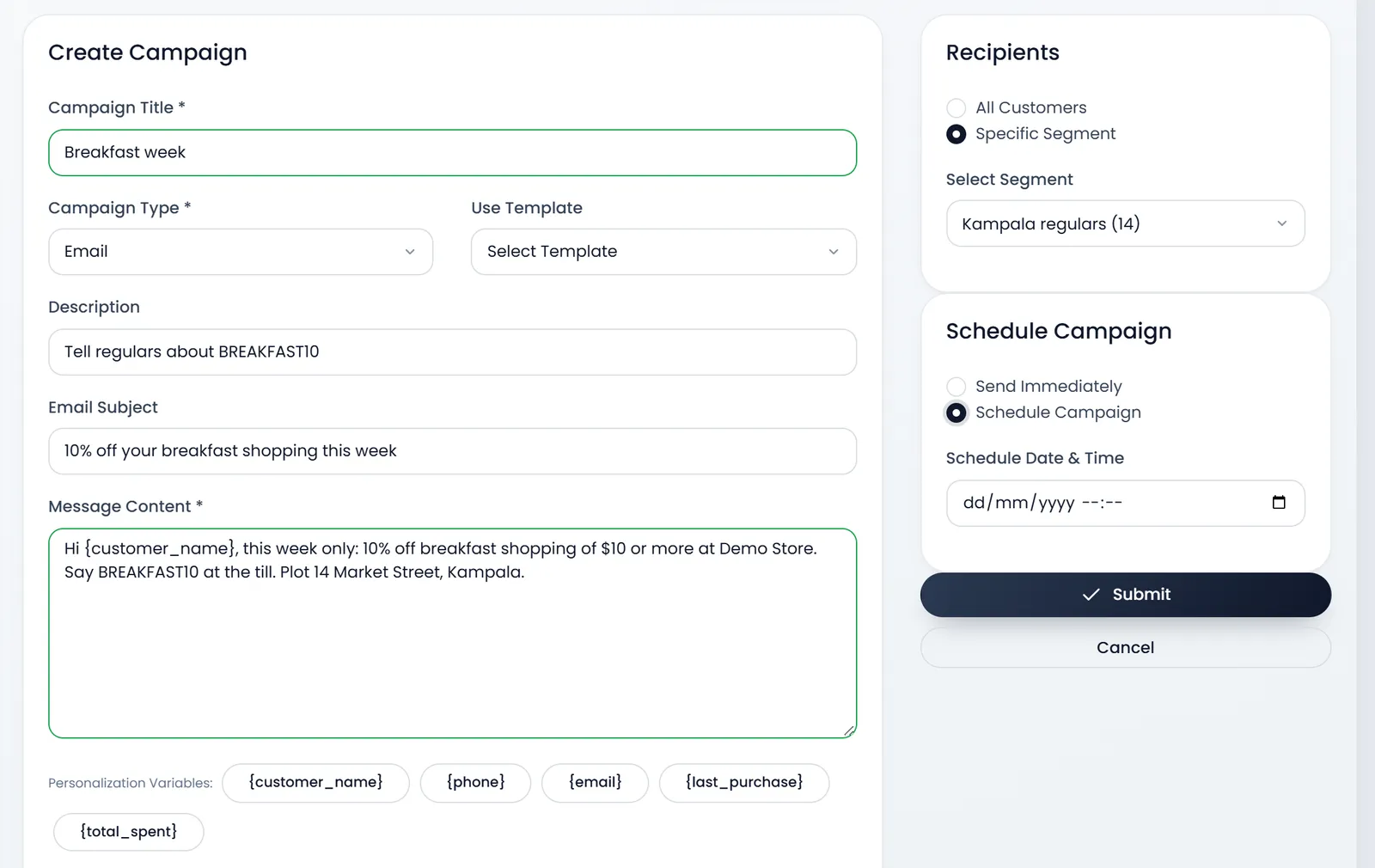
- Send Immediately sends as soon as you click: there is no confirmation.
- With Specific Segment, make sure a segment is picked: with none, the campaign goes to all your customers.
- Schedule Campaign without a date saves a draft that never goes out, and a scheduled campaign only goes out while Enable Scheduling is on.
Customers › Marketing › SMS Templates, WhatsApp Templates and Email Templates keep texts you use often, with a Template Name, a Category and the Message Content.
See how it went
- Campaigns lists each campaign with its Status (draft, scheduled, sending, sent, failed or cancelled) and how many went out.
- Marketing Reports totals the recipients, sent, delivered and failed messages for a period, by campaign and by type.
- Marketing Dashboard shows the same at a glance, with the latest campaigns.
This guide's campaign was prepared but not sent: Demo Store sends no real messages.
What's next
Give the campaign something to announce: Promotions and promo codes.
Still stuck?
Write to us and a person answers. If you already have a shop, Ask support inside it sends us the page you're on.
Contact usAsk your AI assistant
ChatGPT, Claude and Gemini can read every guide and walk you through it.
Set it up