




Names like these, in green, are pages inside your ArmPOS shop. Sign in to your shop to open them.
By the end you will know how your shop's emails and text messages go out, how to connect your own sender, and how to change the words customers receive.
How your emails go out
Out of the box, your shop's emails go out through ArmPOS. The customer sees them from "Your shop via ArmPOS", and a reply comes back to your shop's email from System Settings. This way has a daily limit, 100 emails a day unless ArmPOS has set another.
Nothing is emailed by itself. A customer gets an email when someone clicks Email on a sale, a quotation, a payment or a booking, or ticks Send Email Receipt in the POS payment window. A purchase can be emailed to its supplier the same way.
Use your own mail server
To send from your own address, or more than 100 emails a day, connect your email provider's server.
- Open Settings › Mail Settings.
- Fill the eight fields from your email provider. MAIL_MAILER is smtp for almost every provider. MAIL_HOST, MAIL_PORT, MAIL_USERNAME, MAIL_PASSWORD and MAIL_ENCRYPTION (tls or ssl) come from your provider. Sender Name and Sender Email are what customers see.
- Click Save & Test Mail. It saves, then sends a test email to you. "Test email sent successfully" means it works. Submit saves without a test.
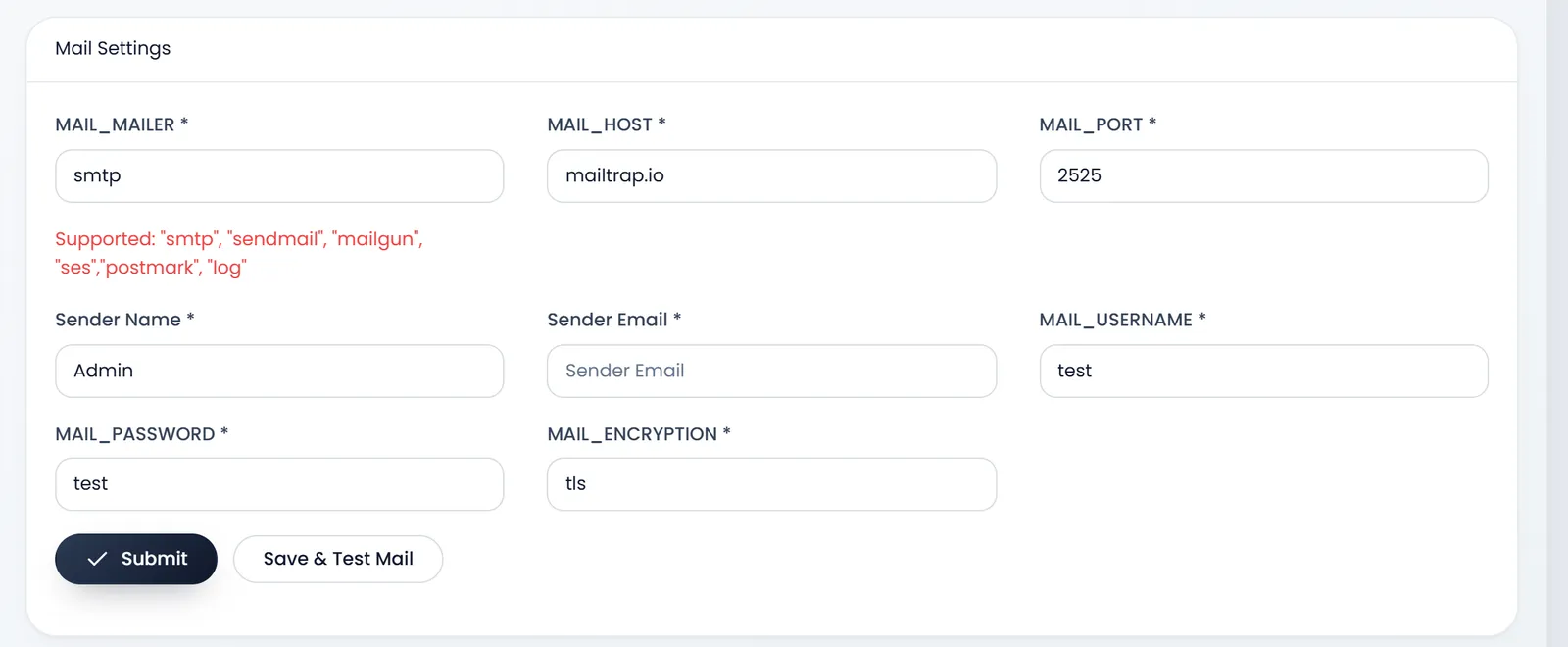
Once you save your own server, every email uses it, and the page has no way back to sending through ArmPOS. Test before you rely on it.
Your email texts
Settings › Email Templates holds the words of each email.
- Pick the Template language. Each language keeps its own texts.
- Pick the email. Under Notification Client: Sale, Quote, Custom Template for Booking and Payments Received. Under Notification Supplier: Purchase and Payments Sent. Asset validation due goes to your own team.
- Edit the Email Subject and the Email body. Bold, italic, underline and lists are kept. Links and pictures are taken out.
- Use the tags. Each email lists its Available Tags, such as {contact_name} and {invoice_url}. They are replaced with the customer's details when the email goes out.
- Click Submit under that email.
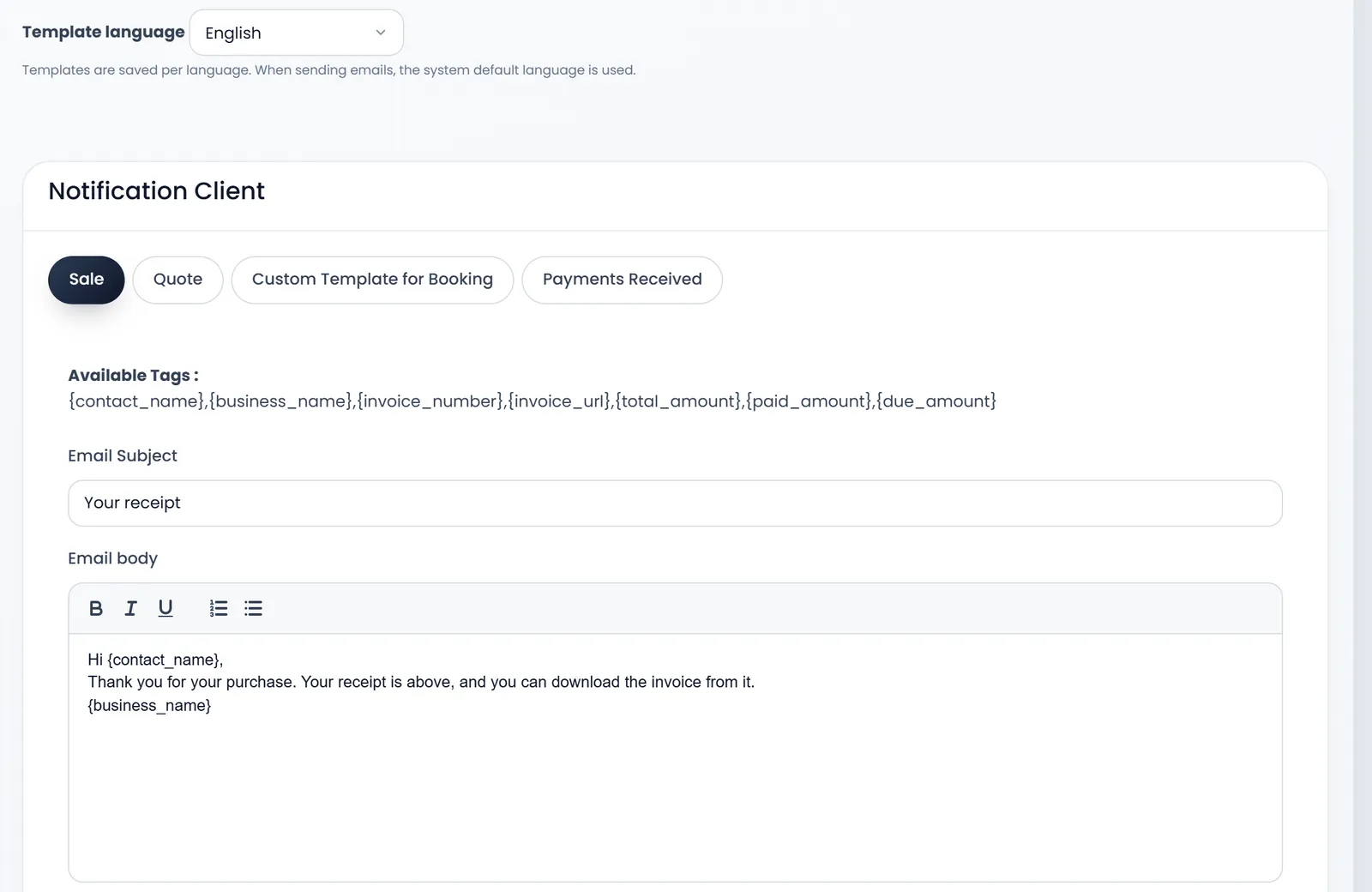
- Emails go out in the shop's default language. A language without its own texts uses the English ones.
- Tags work in the body. In the subject only the booking email replaces them, so keep tags out of the other subjects.
- In Payments Received and Payments Sent, use {total_amount} for the payment's amount: {paid_amount} reaches the customer as typed.
Text messages (SMS)
ArmPOS doesn't send text messages for you: you connect your own SMS provider. Then a customer gets a text when someone clicks SMS on a sale, a quotation or a payment, or ticks Send SMS Receipt in the POS.
- Open Settings › Sms Settings.
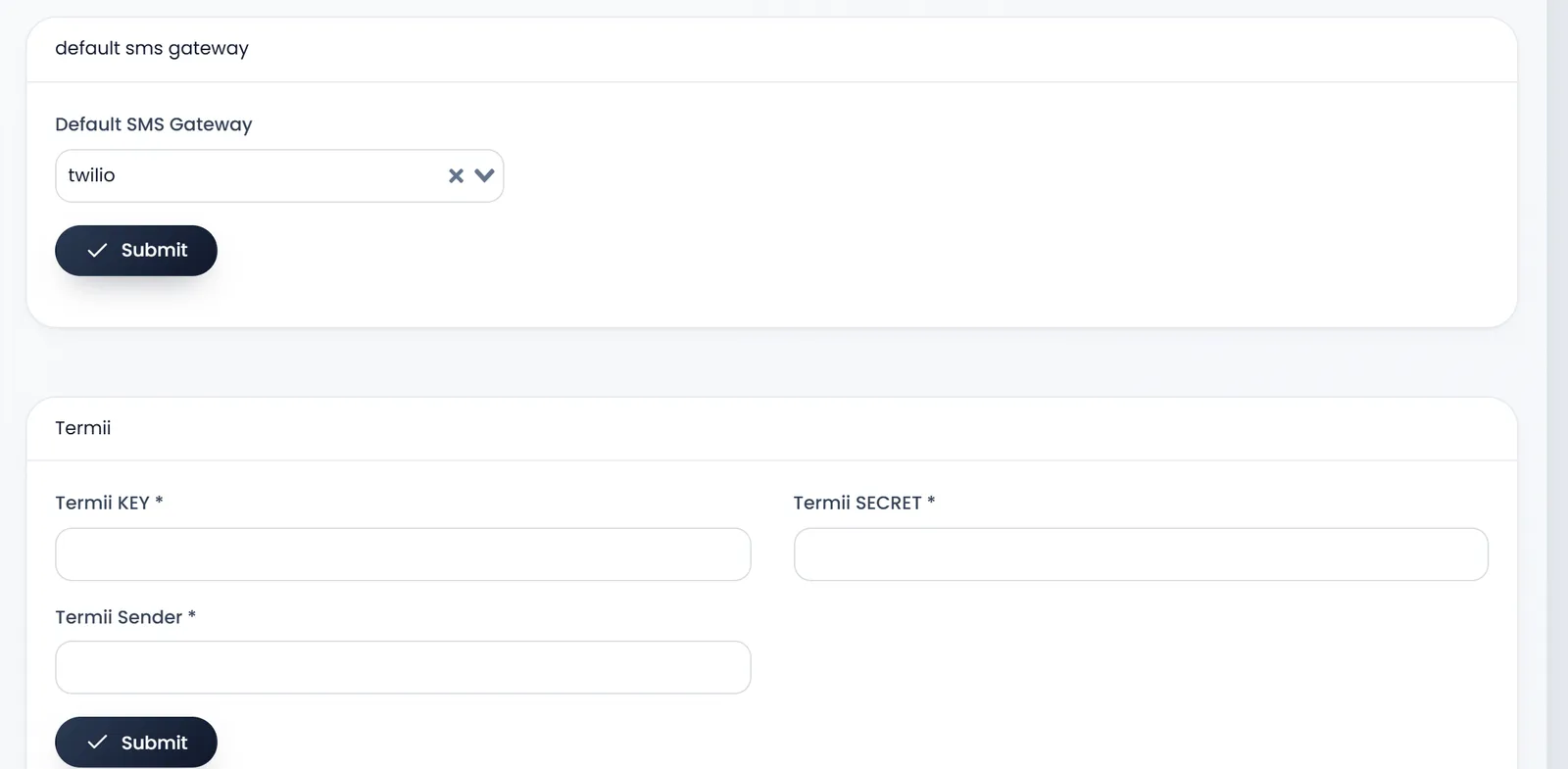
- Fill your provider's card. Twilio needs TWILIO SID, TWILIO TOKEN and TWILIO FROM. Termii needs its key, secret and sender. InfoBip needs its base URL, API key and sender. Any other provider with a web API goes in Custom SMS Gateway.
- Click Submit on that card.
- Choose it in Default SMS Gateway at the top, and click Submit there.
Custom SMS Gateway needs the API Endpoint URL from your provider, the HTTP Method and Content Type, and the fields your provider expects in Request Headers and Request Payload. Write {phone}, {message} and {sender} where the number, the text and your sender name go. If your provider's answer contains a word that means success, put it in Success Keyword (optional).
There is no test button for SMS: send one from a sale to your own number to check.
Settings › SMS Templates holds the texts, by language, like the email templates: Sale, Quote, Payments Received, Subscription Reminder, Purchase and Payments Sent.
What's next
Send a receipt by email from the POS in Take payments and print receipts.
Still stuck?
Write to us and a person answers. If you already have a shop, Ask support inside it sends us the page you're on.
Contact usAsk your AI assistant
ChatGPT, Claude and Gemini can read every guide and walk you through it.
Set it up