




Names like these, in green, are pages inside your ArmPOS shop. Sign in to your shop to open them.
By the end you will have set your app's name, logos and sign-in page texts, and you will know how languages work: the shop's default, each person's own, and how to change a word.
Appearance
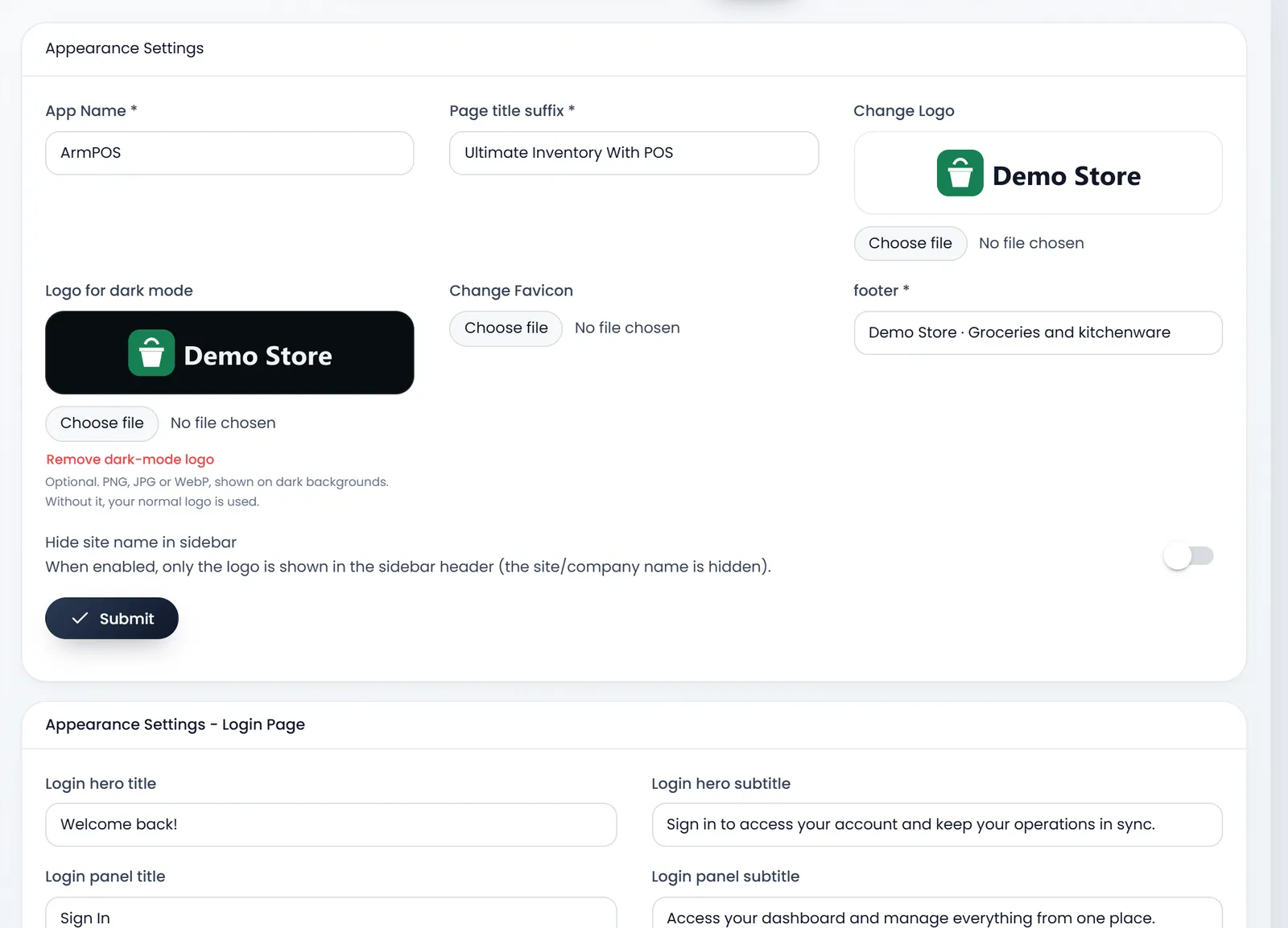
Open Settings › Dynamic Appearance. The page is called Appearance Settings.
- App Name is required. It names the browser tab while the app loads and your sign-in page. The sidebar shows your Company Name from System Settings instead.
- Page title suffix is required. It follows the page's name in the browser tab.
- Change Logo takes an image up to 200 KB. Logo for dark mode takes a PNG, JPG or WebP for dark backgrounds; without it, your normal logo is used.
- Change Favicon is the small icon in the browser tab. Use a PNG or ICO file up to 100 KB.
- footer is required: the line next to your logo at the bottom of every page.
- Hide site name in sidebar shows only the logo at the top of the sidebar.
Click Submit. The page reloads with your changes.
Your sign-in page
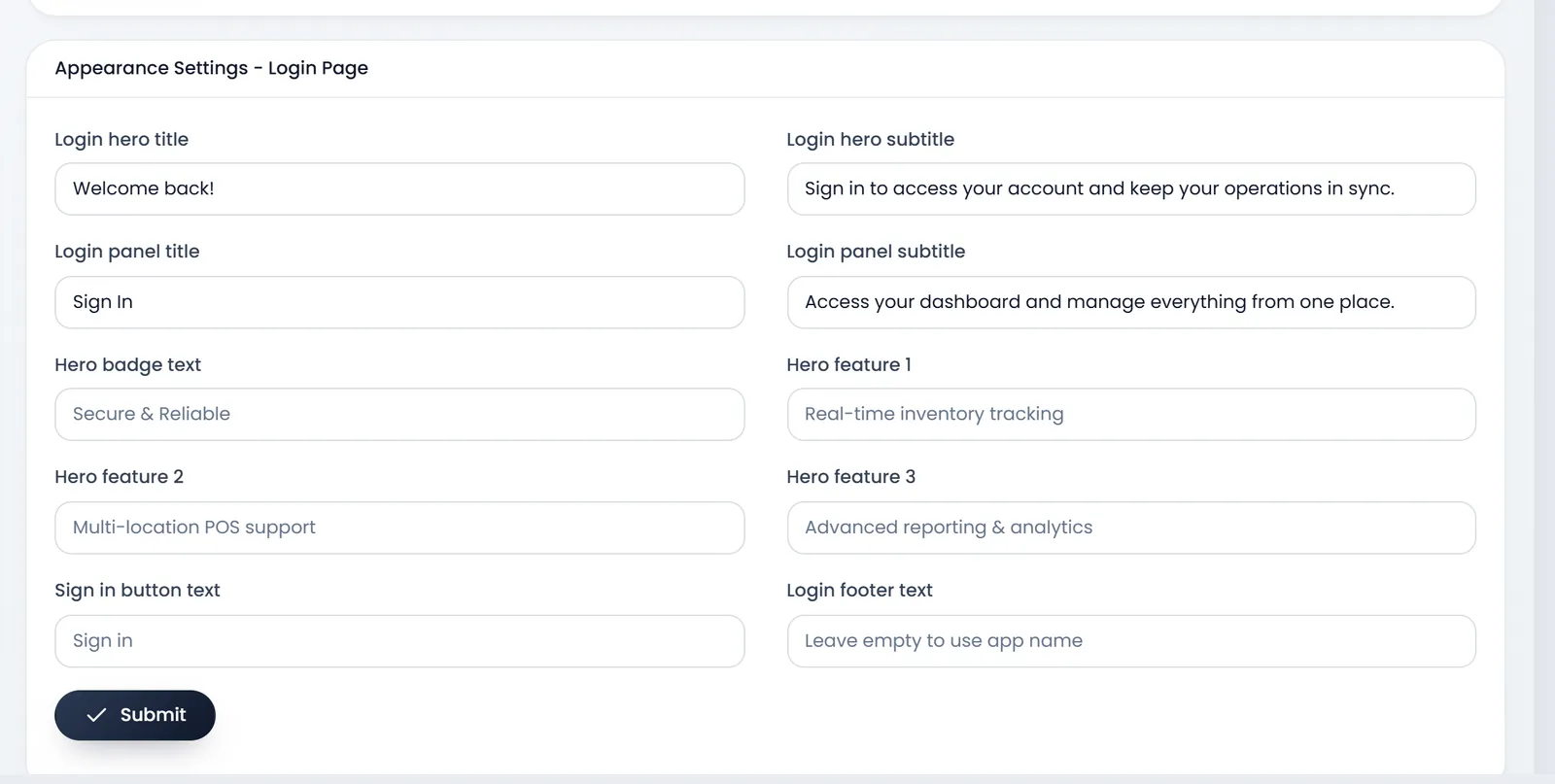
The Appearance Settings - Login Page card changes your shop's own sign-in page, the one your team opens at your shop's address. Today four of its texts appear there: Login hero title and Login hero subtitle on the picture side, Login panel title and Login panel subtitle above the form. The others are kept for later. Click Submit under the card.
Languages
Each person picks their own language: the gear icon at the top, Appearance, then the language under Language. The choice is kept on that device. The list appears when Show Languages is on in System Settings › Localization.
The shop's default language is what a new device starts in, and the language of the emails and text messages customers receive.
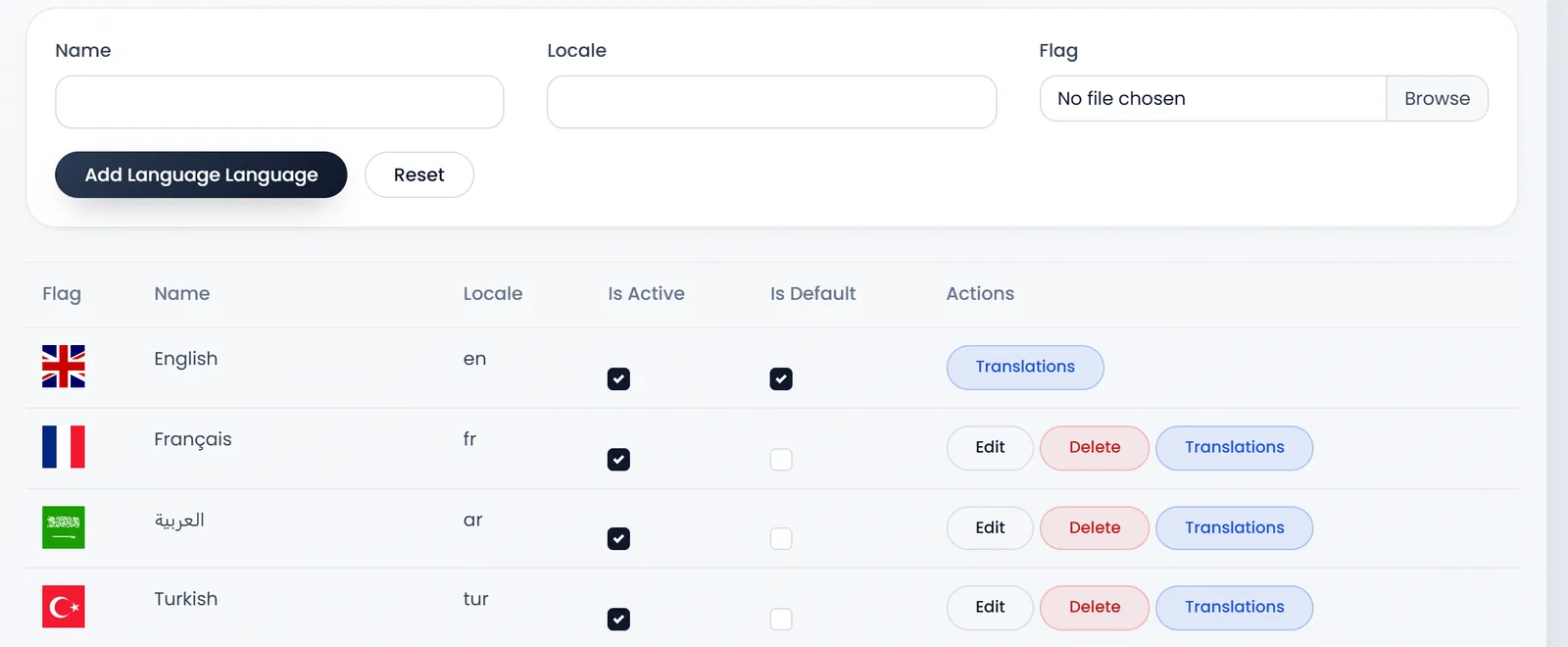
Open Settings › Languages to manage them:
- Is Default makes a language the shop's default. The page reloads.
- Is Active hides or shows a language in everyone's list. The default language stays active.
- Translations opens the words of that language.
- Edit and Delete are there for every language but English. Deleting a language deletes its words too.
Add a language
- Type the Name and the Locale. The name as people will see it, such as Luganda, and a short code, such as lg. Both are required, and each code can be used once.
- Leave Flag empty. Adding a language with a flag fails today: add the flag afterwards with Edit.
- Click Add Language Language. The new language is active straight away.
- Open its Translations and fill the words. A language starts without its own words, so the app shows their keys until you do.
Change a word
- Click Translations on the language's row.
- Search for the word. Search by key or value... finds it by its key, such as Add_Sale.
- Type the new text in Value and click Save on that row. Save All Changes saves every row you changed on the page.
- Reload the page to see the new word.
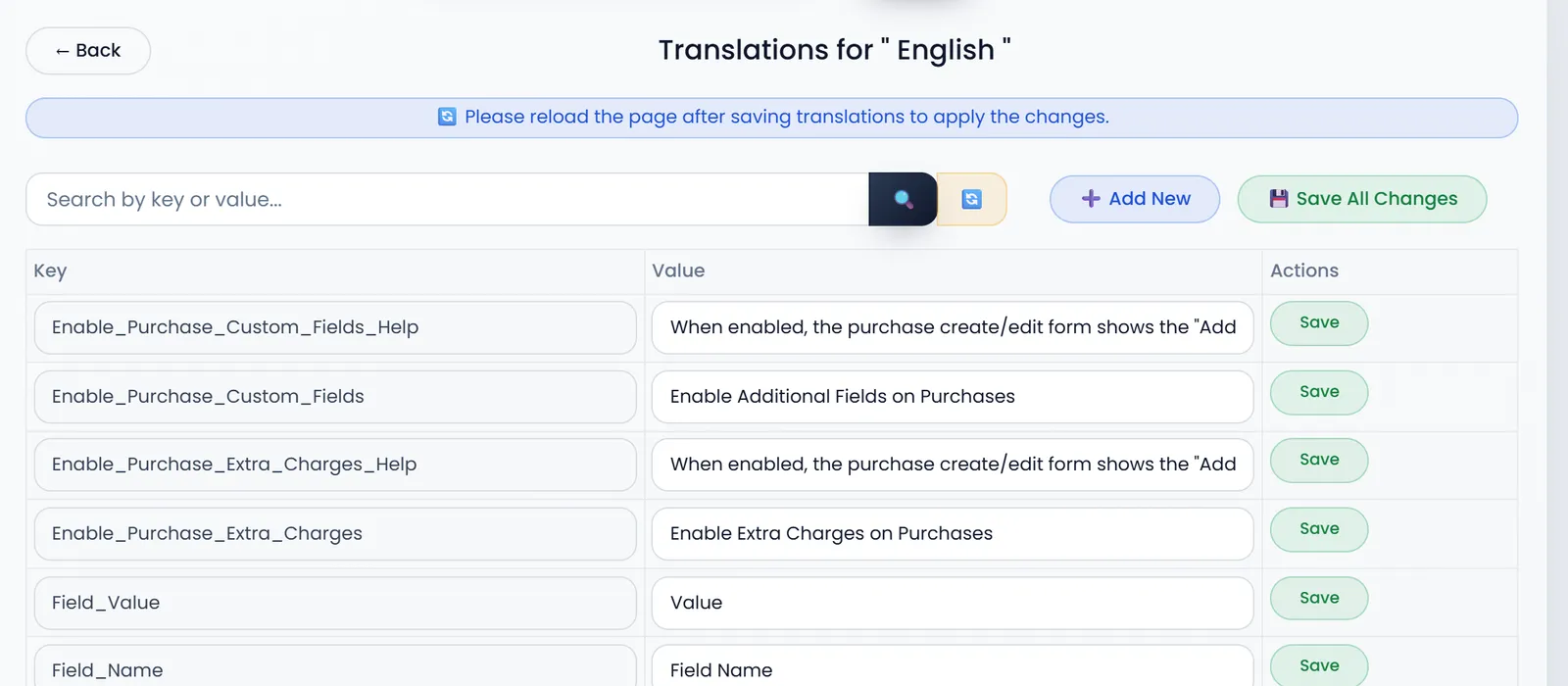
Add New adds a word that isn't in the list yet, with its Key and Value.
What's next
Your logo, company name and contact details also print on receipts: see Add your logo and business details.
Still stuck?
Write to us and a person answers. If you already have a shop, Ask support inside it sends us the page you're on.
Contact usAsk your AI assistant
ChatGPT, Claude and Gemini can read every guide and walk you through it.
Set it up