




Names like these, in green, are pages inside your ArmPOS shop. Sign in to your shop to open them.
Your receipts and the app carry your shop's name, contact details and logo. By the end of this guide they are yours, and the first Getting started step shows Done.
Your name, contact details and logo
- Open Settings › System Settings. Settings is at the bottom of the menu. The page opens on the General tab.
- Fill in your business details. Company Name, Company Phone, Default Email and Address are required.
- Write the footer. footer is required too. It is the short line at the bottom of every page in the app, next to your logo.
- Choose your logo. Under Change Logo, pick an image file of 200 KB or less. A bigger file is refused with a message, and nothing is uploaded.
- Click Submit. You see Successfully Updated, and the page reloads on the same tab.
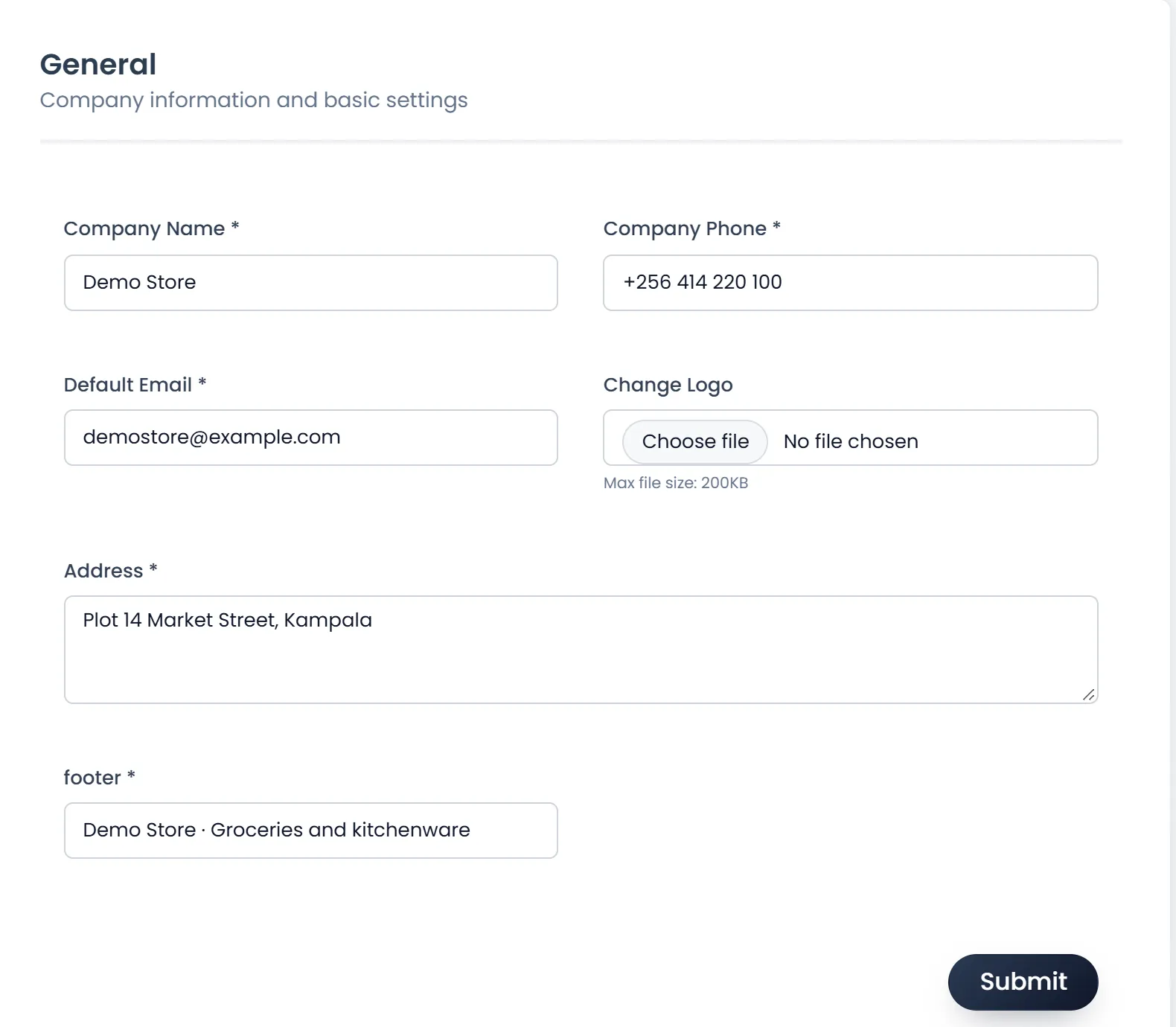
Your Company Name shows at the top of the menu and on every receipt and invoice. The step counts as done once you upload a logo, or change the Company Name from the one you signed up with.
Currency, language and time zone
- Open the Localization tab. The tabs run down the left of the page. On a phone, pick it from the list at the top.
- Choose your Default Currency, Default Language and Time Zone. Type a city in Time Zone to find it, for example Kampala. Date Format and Price Format are on this tab too.
- Click Submit.
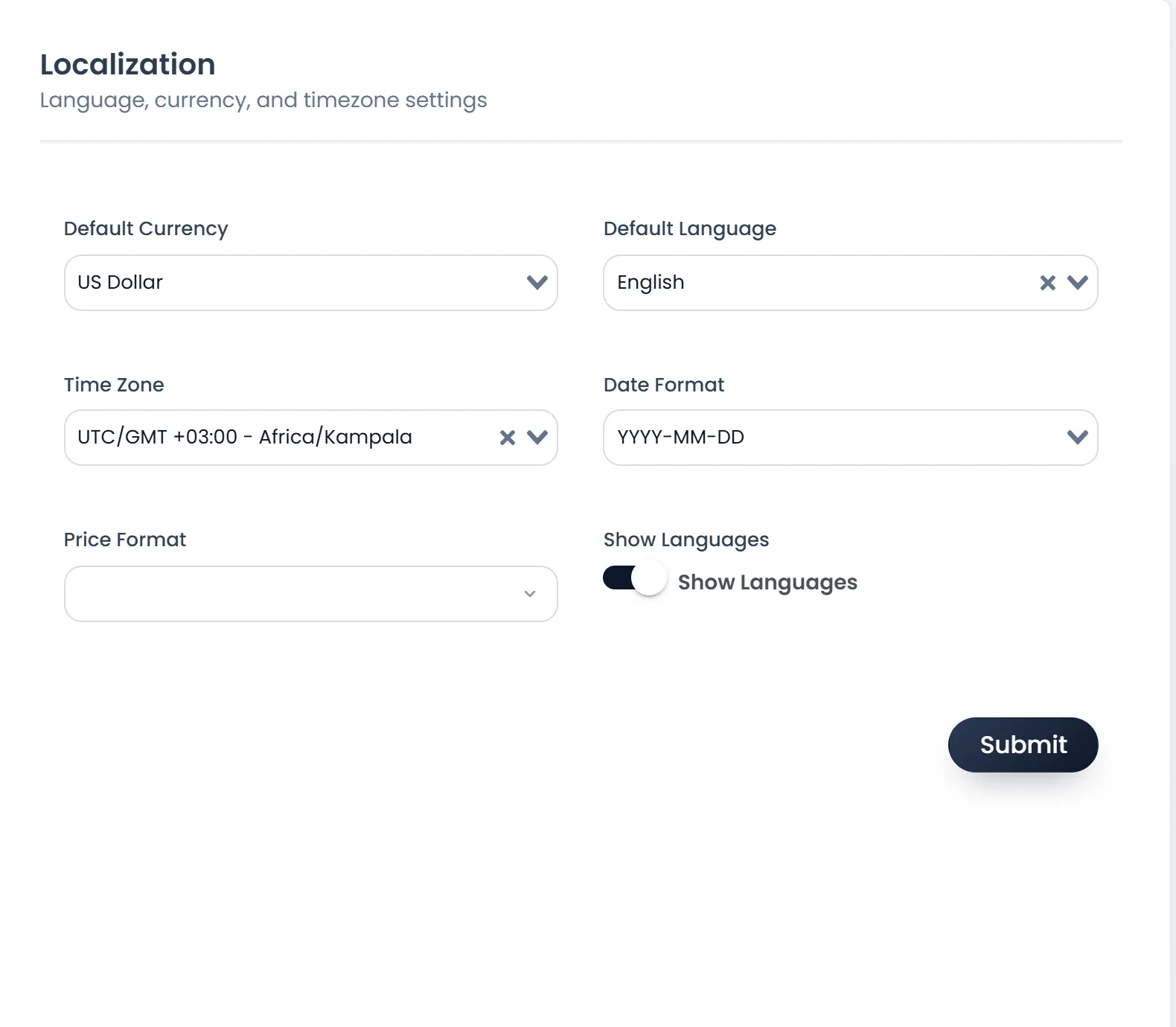
Price Format decides how amounts are written: 1,234.56, 1.234,56 or 1 234,56. If your currency isn't in the list, add it in Settings › Currency first.
Default Language is the language for the whole shop. A device where someone picked another language keeps that one.
Your logo in dark mode, and the browser tab
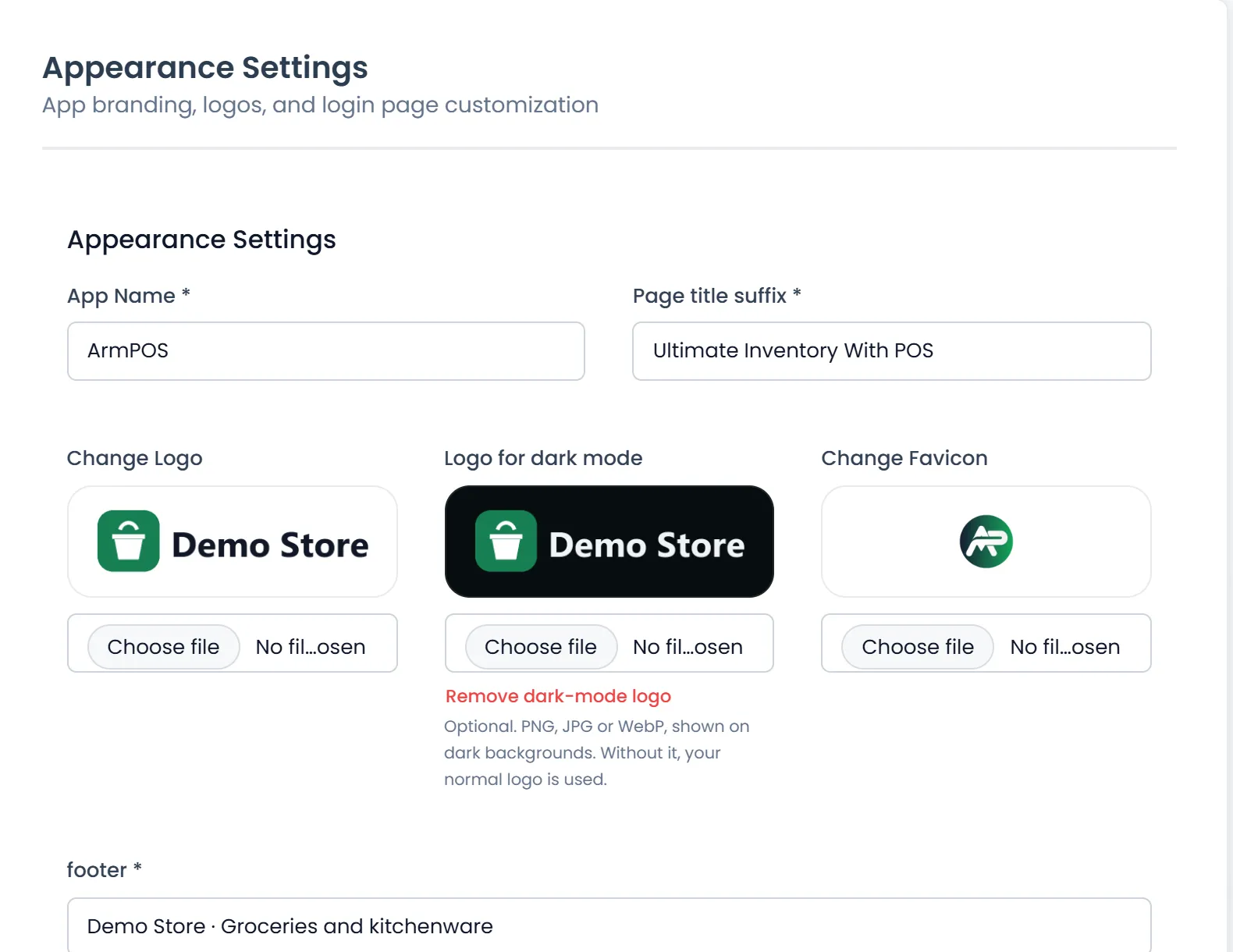
Open the Appearance Settings tab.
- Logo for dark mode takes a PNG, JPG or WebP file of up to 4 MB, shown when someone uses dark mode. Without one, your normal logo is used. Remove dark-mode logo takes it away again.
- App Name and Page title suffix are what the browser tab and a phone's home-screen icon say, such as "Dashboard | Ultimate Inventory With POS". Put your shop's name there if you like.
- Change Favicon is the small icon in the browser tab: a PNG or ICO file.
Click Submit on that tab to save it.
What your receipt shows
The POS receipt shows your logo and Company Name. To choose what else it prints, such as your address, phone and email, open Settings › POS Receipt and switch Show Address, Show Phone and Show Email on or off.
What's next
Next, add your first products.
Still stuck?
Write to us and a person answers. If you already have a shop, Ask support inside it sends us the page you're on.
Contact usAsk your AI assistant
ChatGPT, Claude and Gemini can read every guide and walk you through it.
Set it up