




Names like these, in green, are pages inside your ArmPOS shop. Sign in to your shop to open them.
By the end of this guide you will have a category, a unit and your first product, with its cost, price and stock, ready to sell in the POS.
First, a category and a unit
Every product needs a category and a unit, and a new shop has neither. Make one of each first.
- Open Products › Category and click Create. Enter a Category Code and a Category Name, then click Submit.
- Open Products › Unit and click Create. Enter a Name and a Short Name, for example Piece and pc. Leave Base Unit empty, then click Submit.
You can also make them without leaving the product form: the + button beside Categories, Brand and Product Unit opens a short form for each. See Categories, brands and units.
Create the product
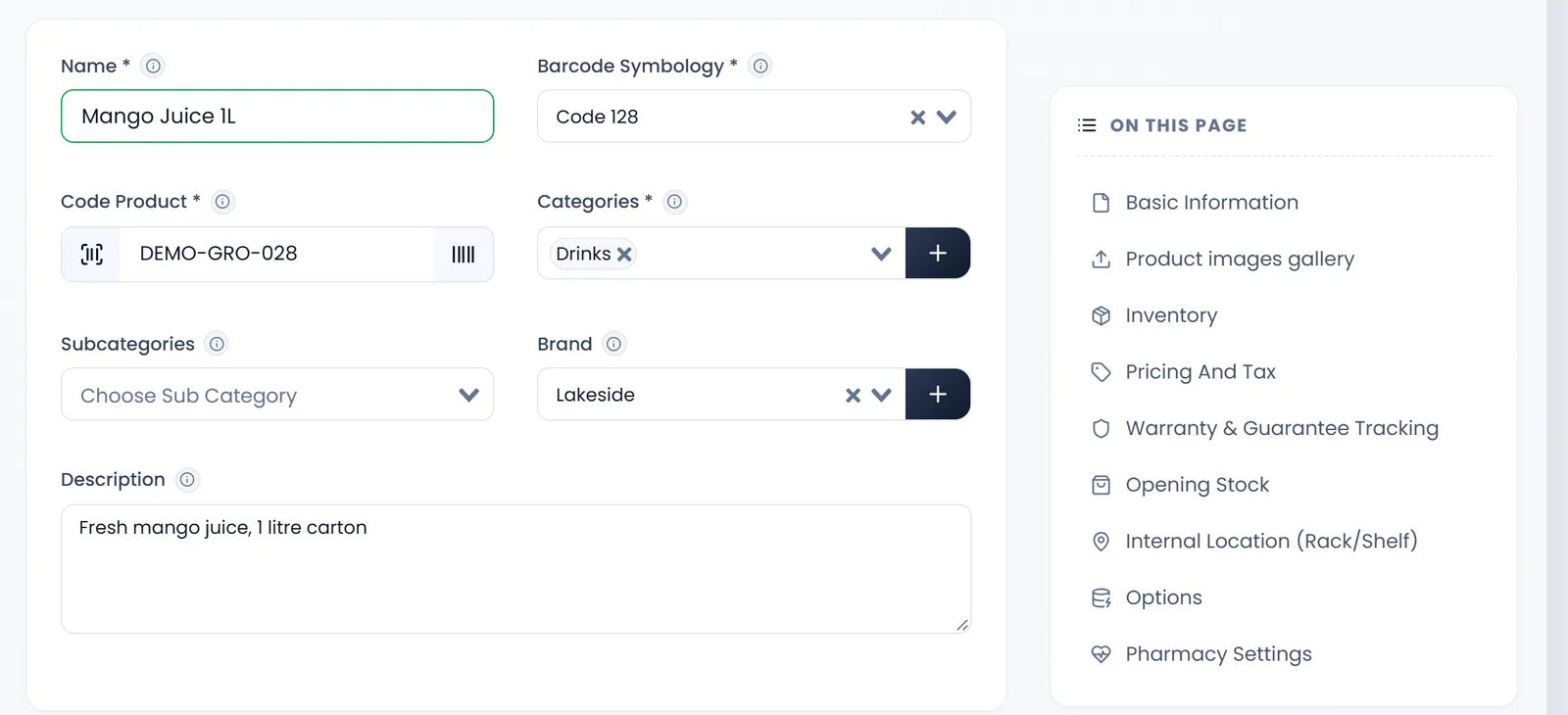
Open Products › Create product. The form is one long page in parts: ON THIS PAGE, on the right, jumps to each one, and LIVE SUMMARY shows what you have filled in. Fields marked * are required.
Basic Information
- Name it. Name takes 3 to 55 characters. It is what receipts, invoices and reports show.
- Give it a code. Code Product must be unique. Scan the barcode already on the item, or click the barcode button to make a number. Barcode Symbology starts on Code 128.
- Choose its category. Categories takes one or more; the first is the main one. Subcategories, Brand and Description are optional.
Inventory
- Leave Type on Standard Product. The other types are in Products with variants.
- Choose the Product Unit. Sale Unit and Purchase Unit offer that unit and any unit built on it, such as a box of 12.
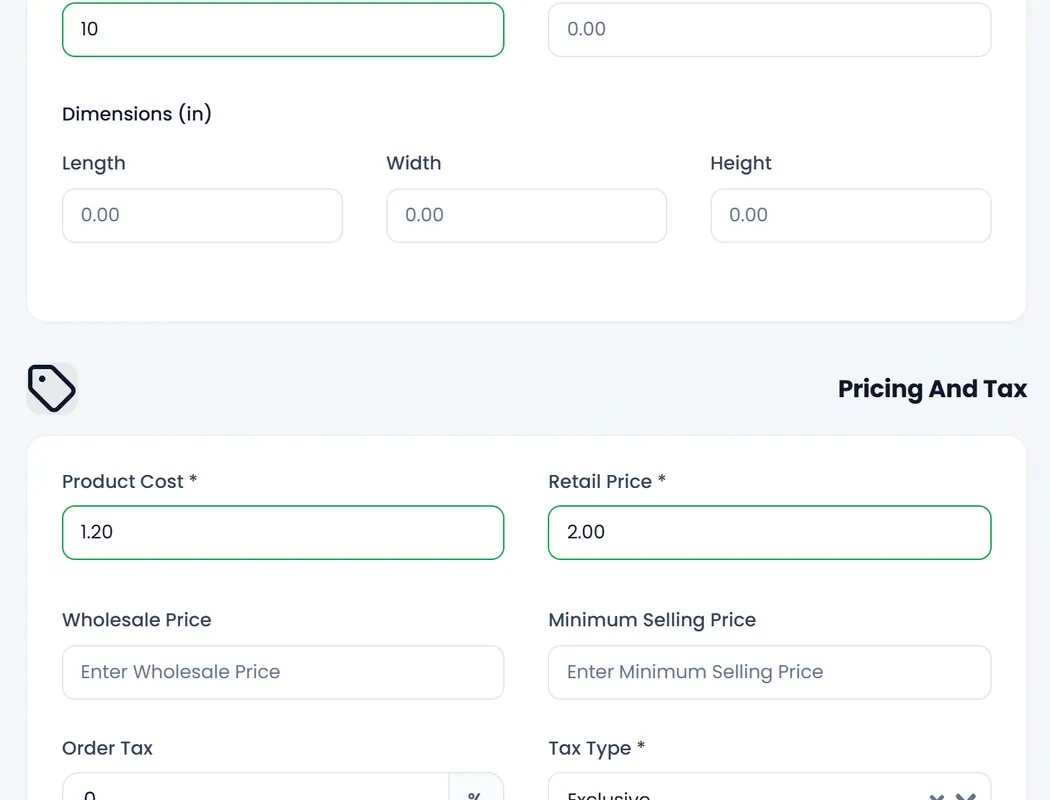
- Set a Stock Alert. When stock falls to this number, the product shows as low stock.
Pricing And Tax
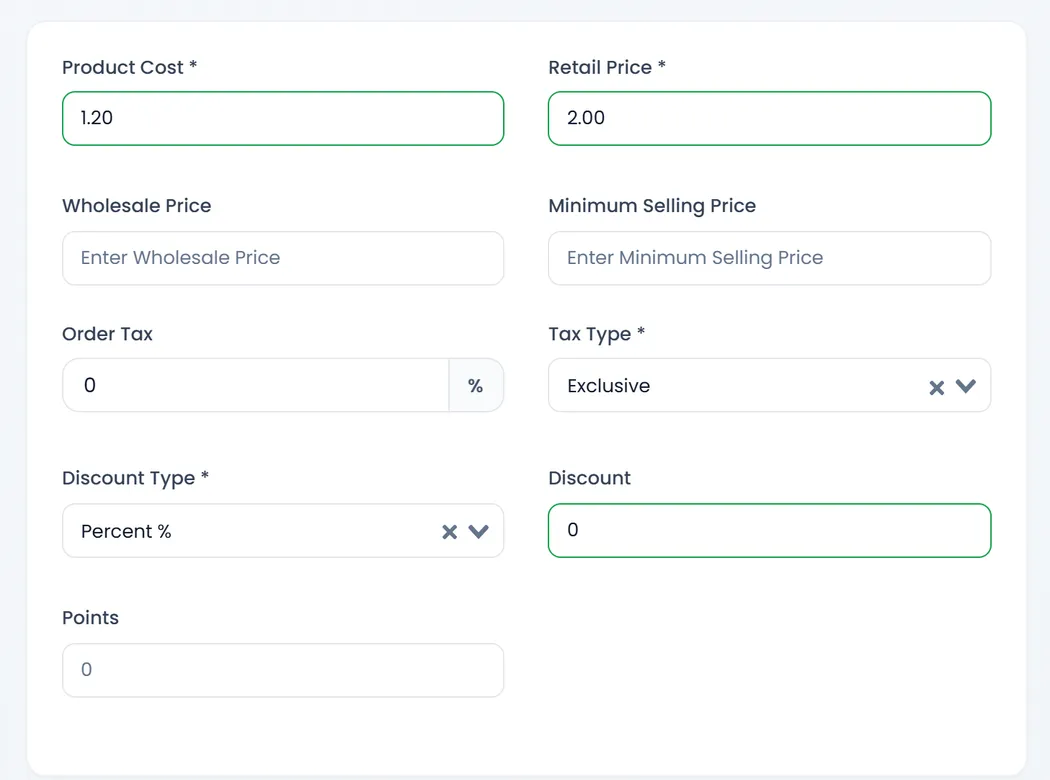
- Enter the Product Cost and the Retail Price. Product Cost is what you pay; Retail Price is what customers pay. Wholesale Price and Minimum Selling Price are optional.
- Set the tax if it applies: Order Tax as a percentage, and Tax Type: Exclusive adds it on top of the price, Inclusive counts it in.
- Fill the Discount, even with 0: the form won't save with it empty.
Opening Stock
Opening Stock has a box for each warehouse: enter what you have now.
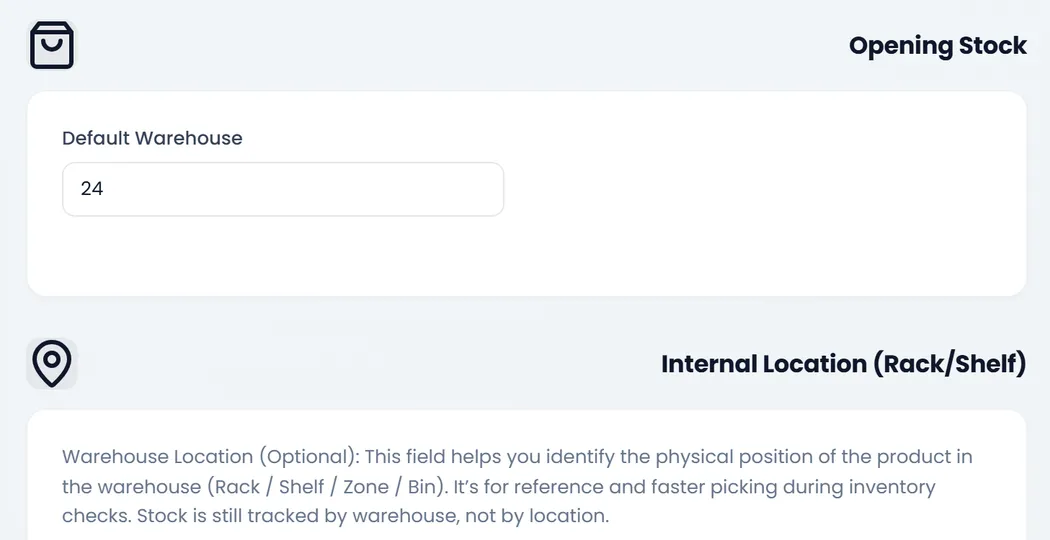
Warranty & Guarantee Tracking, Internal Location (Rack/Shelf) and Options (such as Hide From Online Store) are optional. Click Save Product: you land on All Products with "Created successfully."
The POS won't put a product in the cart if the chosen warehouse has none in stock. Enter its opening stock now, or add stock later with an adjustment or a purchase.
If your plan is full
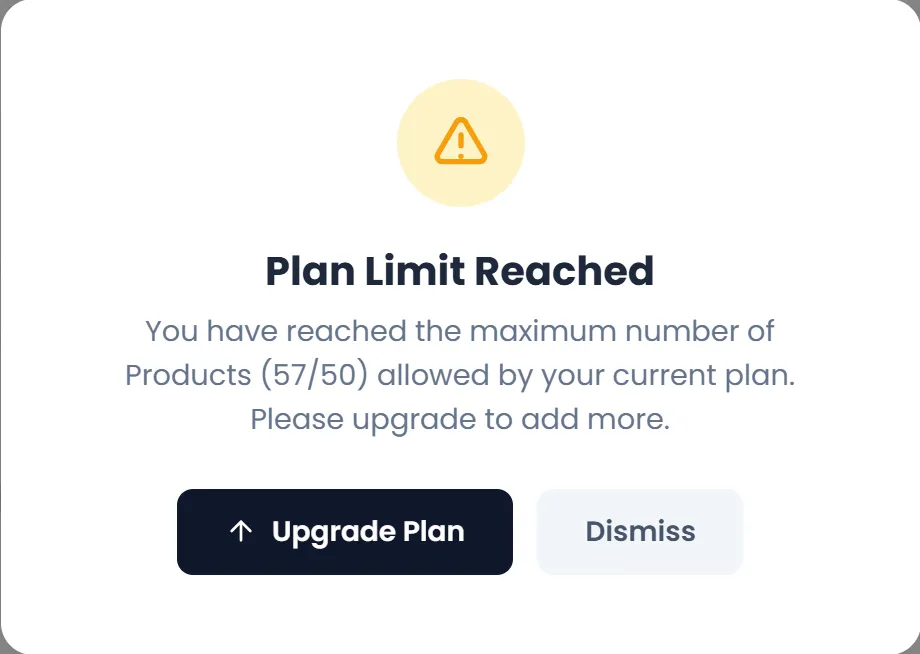
Your plan sets how many products the shop can have. At the limit, Save Product opens Plan Limit Reached, and nothing is added.
Where your product shows
- Products › All Products lists it, with its code, price and stock. Open All Products.
- In the POS, it is in the product grid. It sells from any warehouse that has it in stock.
- The search in the top bar (Ctrl K) finds it by name or code.
To add many products at once, use a spreadsheet instead.
What's next
Import products from a spreadsheet, or go on to add your team.
Still stuck?
Write to us and a person answers. If you already have a shop, Ask support inside it sends us the page you're on.
Contact usAsk your AI assistant
ChatGPT, Claude and Gemini can read every guide and walk you through it.
Set it up