




Names like these, in green, are pages inside your ArmPOS shop. Sign in to your shop to open them.
Have your products in a spreadsheet already? By the end of this guide they are in ArmPOS, from one Excel file.
Before you start
- Your units must already exist. The file names each product's unit by its short name or its name, for example pc. Make missing ones in Products › Unit.
- Categories, sub categories and brands are made for you when the file names one ArmPOS doesn't have.
- The file must be XLSX or XLS, up to 20 MB. A CSV file is refused.
Import the file
- Open Products › Import products. The page shows an example of the format.
- Choose what you are importing. Click Single Products, Variant Products or Service Products. Each has its own example and template.
- Click Download example. Fill in that template, one product per row, and keep its header row.
- Add your file. Drop it on the box, or click the box to choose it.
- Click Import now. When it works, you see "Imported successfully." and land on All Products.
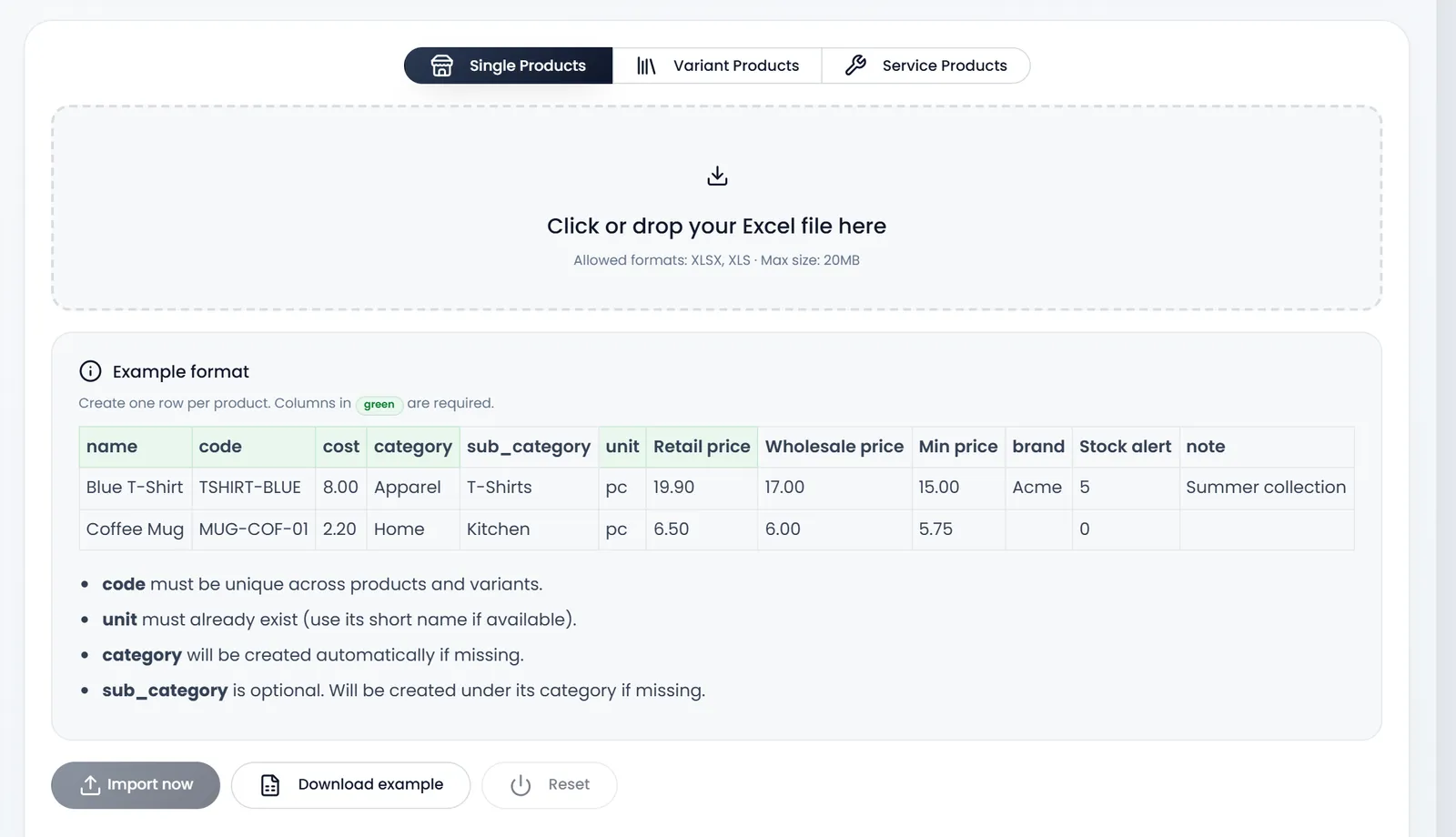
The template's columns for Single Products
| Column | Required | Notes |
|---|---|---|
| name | Yes | |
| code | Yes | Unique across all products and variants |
| cost | Yes | |
| retail_price | Yes | |
| category | Yes | Made if missing |
| unit | Yes | Must already exist |
| wholesale_price, min_price | No | |
| brand | No | Made if missing |
| stock_alert, note | No |
To use sub categories, add a sub_category column. A missing one is made under its category.
Variant Products take one row per variant. Repeat product_name, product_code, category and unit on each row, then fill variant_name, variant_code, variant_cost and variant_price. Service Products use the single columns, but a service's cost is always 0.
When the import fails
The page lists the problem under "Import failed. Fix the issues below:". It names the product, for example a unit that doesn't exist or a code that is already used.
Your plan sets how many products the shop can have. A file that would pass it is refused before anything is added, with how many more fit. The import stops at the first problem, and no products are added until the whole file passes. Categories and brands it met before the problem may already be made. Fix the file, choose it again, and click Import now.
Add their stock
Imported products start with no stock. Add the quantities you have from a second file:
- Open Products › Opening Stock. Choose Single Products or Variant Products.
- Pick the Warehouse the stock is in.
- Fill a file with two columns, product_code and qty, one row per product. Download example gives the template. Variant products also take variant_code.
- Add the file and click Import now. "Opening stock imported successfully." confirms it.
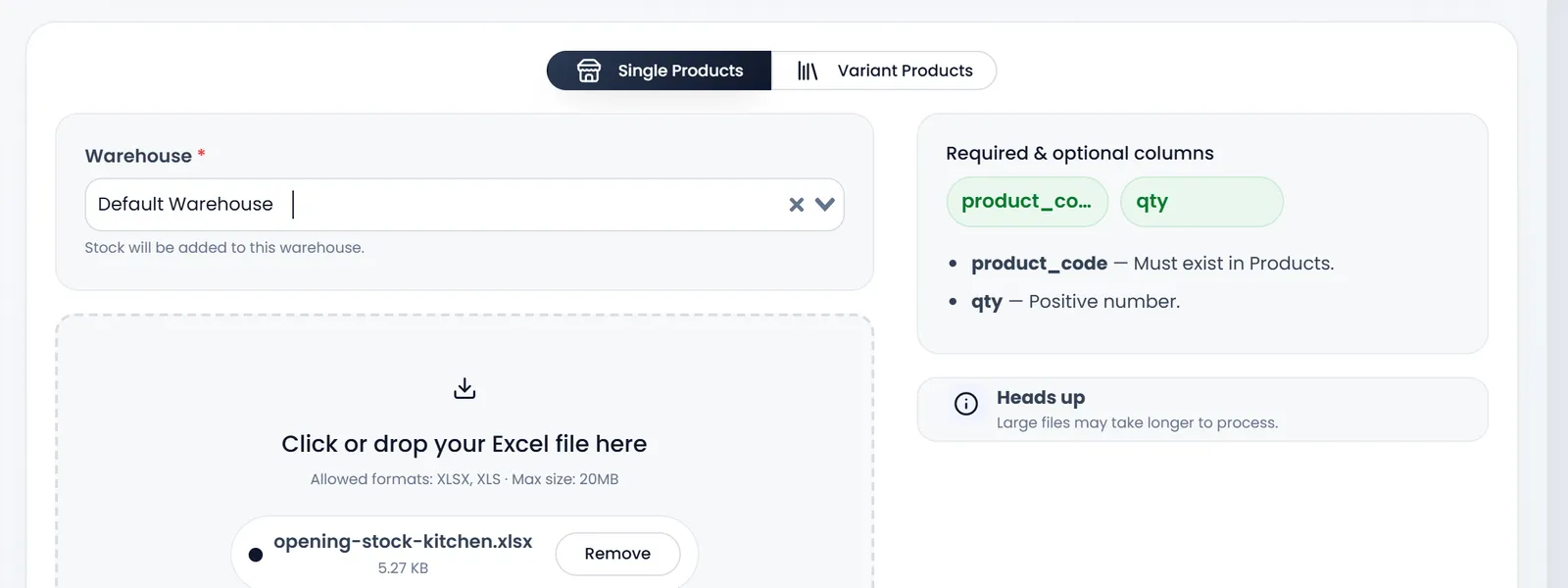
The quantities are added to what is already there, so you can use it again later to top up stock.
To change the cost and price of products you already have, use Products › Import (Update Only) instead.
What's next
Still stuck?
Write to us and a person answers. If you already have a shop, Ask support inside it sends us the page you're on.
Contact usAsk your AI assistant
ChatGPT, Claude and Gemini can read every guide and walk you through it.
Set it up