




Names like these, in green, are pages inside your ArmPOS shop. Sign in to your shop to open them.
Give each cashier and manager their own sign-in, so every sale carries the name of who made it. By the end of this guide you will have a role for your staff and a user for each person.
First, a role
A role decides what its people may see and do. A new shop has one role, Owner, which can do everything. Make a role with only what your staff need.
- Open User Management › Group Permissions and click Create. The Create Permission page opens.
- Name the role. Enter a Role, for example Cashier. Role Description is optional.
- Tick what the role may do. The boxes are grouped by area. For a cashier, open Sales and tick Point of Sales.
- Click Submit.
Roles and permissions explains the panels and what a cashier usually needs.
Leave Dashboard unticked to keep your figures private. People in that role see a short welcome instead of the dashboard.
Then, a user for each person
User Management › Users lists everyone who can sign in to your shop, with their Status.
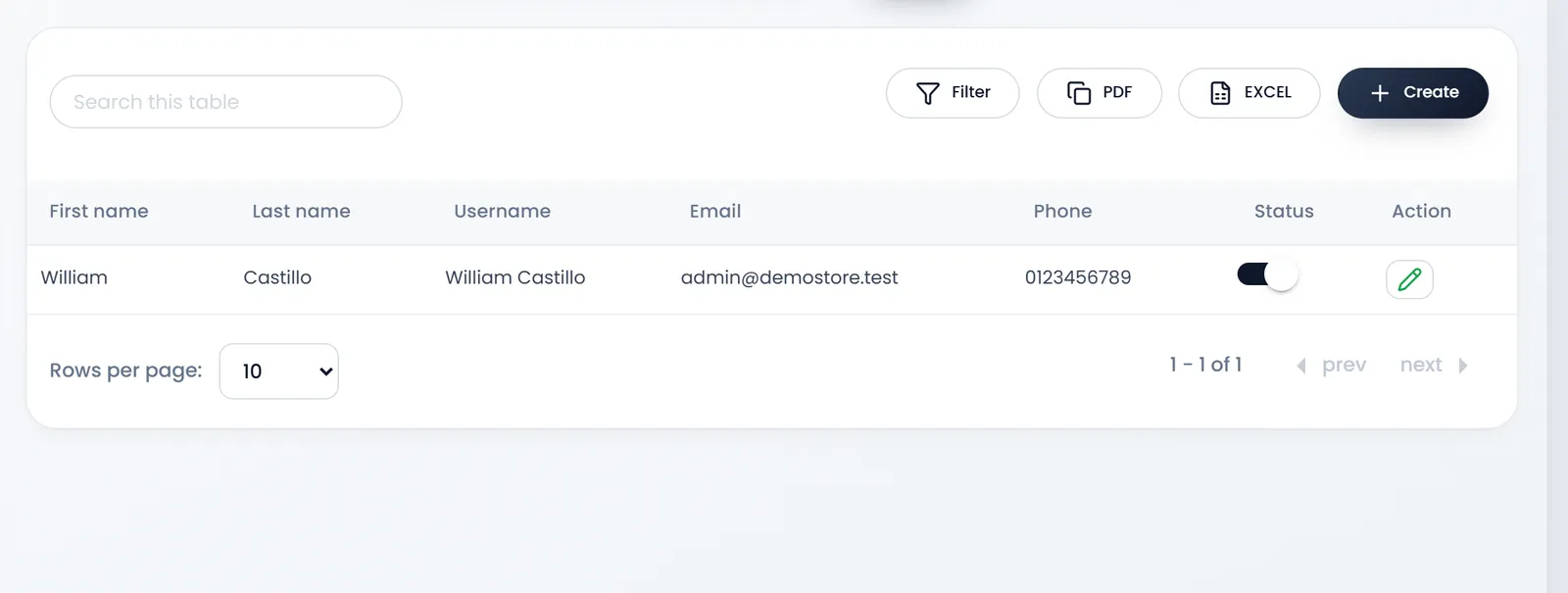
- Open User Management › Users and click Create.
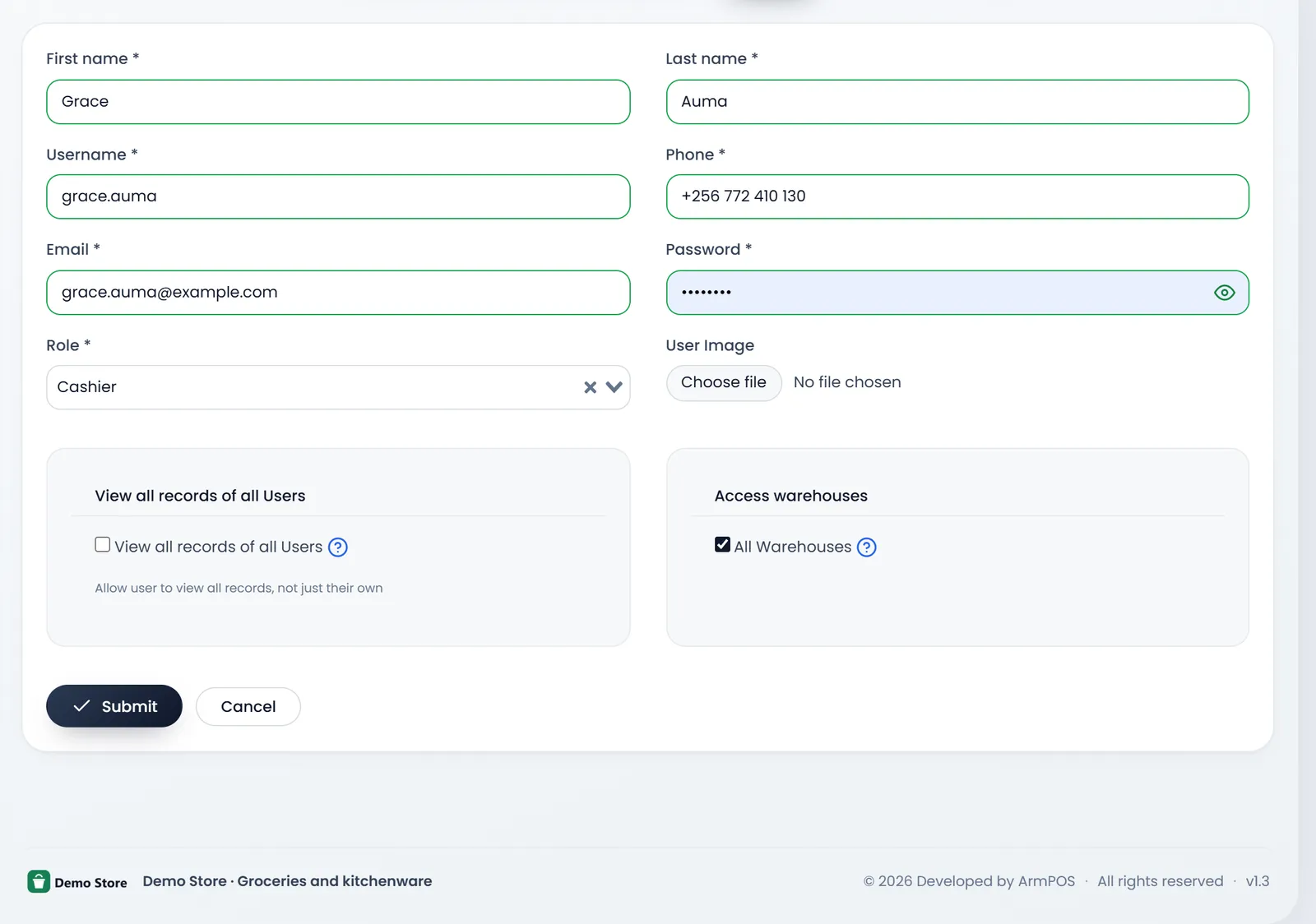
- Enter their details. First name, Last name and Username take 3 to 30 characters each. Phone and Email are required too.
- Set a password. Password needs at least 6 characters. Give it to the person yourself, and ask them to change it from their Profile.
- Choose their Role. User Image is optional (an image of 200 KB or less).
- Choose whose records they see. Tick View all records of all Users to let them see everyone's records. Leave it off and they see only their own.
- Choose their warehouses. All Warehouses is ticked. Untick it to pick Some Warehouses. The POS then offers them only those.
- Click Submit. You are back on the Users list.
They sign in with their email and the password you set. Each email can belong to one user only.
The step counts as done once your shop has more than one user.
If you can't add more users
Your plan sets how many users your shop can have. When you reach it, a message says so and offers an upgrade.
What's next
Still stuck?
Write to us and a person answers. If you already have a shop, Ask support inside it sends us the page you're on.
Contact usAsk your AI assistant
ChatGPT, Claude and Gemini can read every guide and walk you through it.
Set it up