




Names like these, in green, are pages inside your ArmPOS shop. Sign in to your shop to open them.
By the end you will have made a role that opens the right pages for a group of staff, and given it to a person.
How roles work
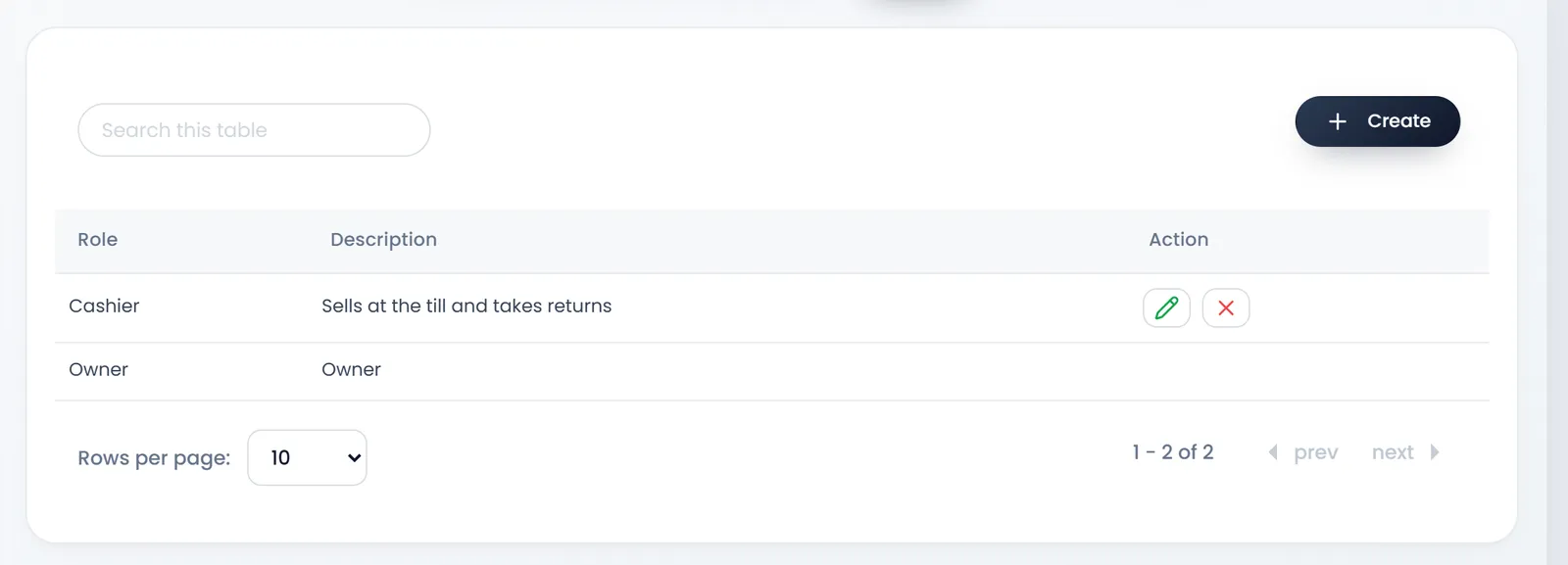
Each person in the shop has one role. A role is a list of things they may do, and the menu shows each person only what their role allows. A new shop starts with one role, Owner, which can do everything. The roles list shows no edit or delete buttons for it.
Create a role
- Open User Management › Group Permissions.
- Click Create. The Create Permission page opens.
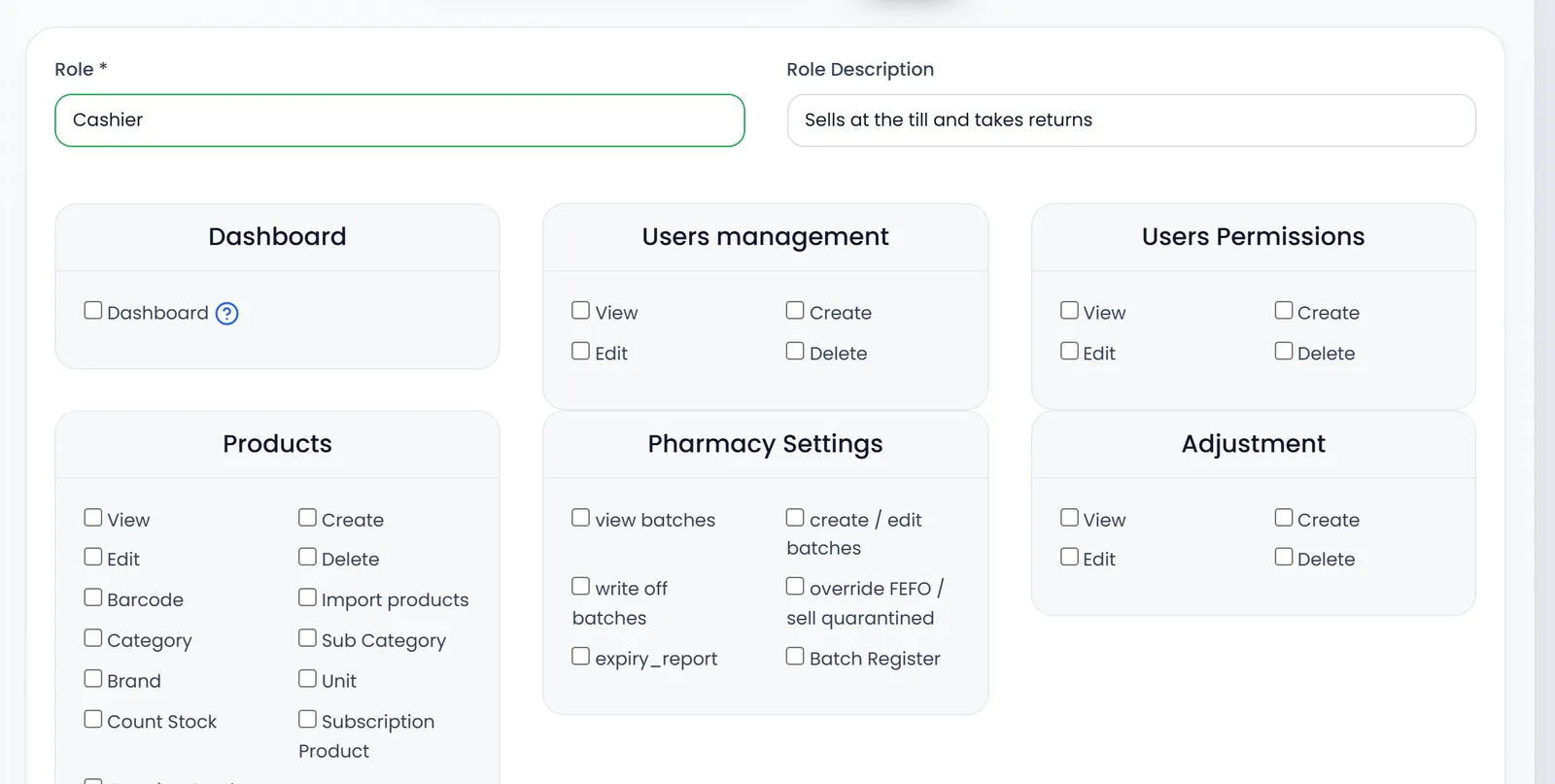
- Name the role. Role is required, for example Cashier. Role Description is optional.
- Tick what the role may do. Each area has its own panel: Dashboard, Products, Sales, Purchases, Customers, Reports, Settings and more. View, Create, Edit and Delete are separate ticks. Nothing is ticked at the start.
- Click Submit at the foot of the page. You land on the roles list.
A cashier, for example
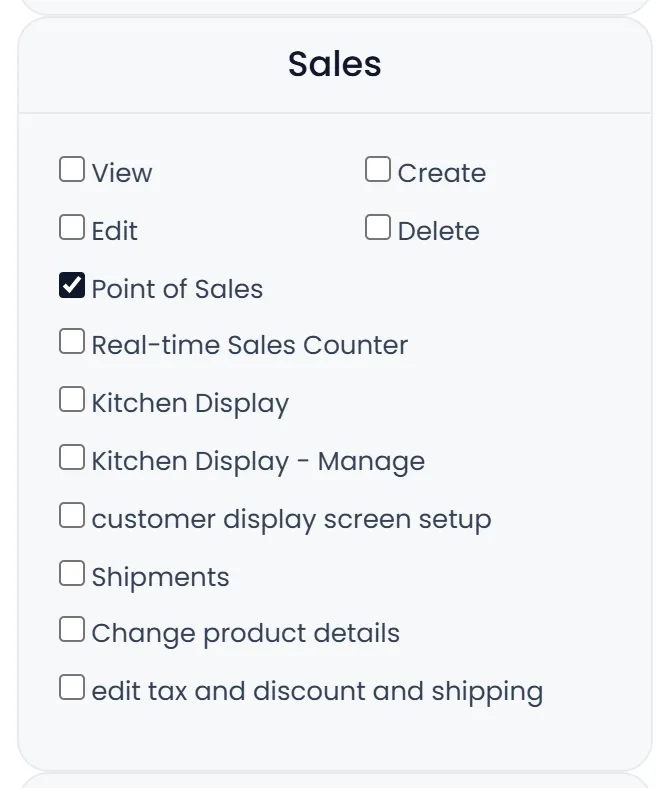
- Under Sales, tick Point of Sales. It opens the POS and lets them sell.
- Under Customers, tick View and Create so they can find and add customers.
- Under Sales Return, tick Create if they take returns at the POS.
- Change product details under Sales lets them change a price in the cart. Leave it off if prices are fixed.
- Leave Reports and Settings unticked, and Dashboard too if your figures are private.
Give the role to a person
- Open User Management › Users.
- Click the pencil beside the person.
- Pick the Role. It is required.
- Set what they see. View all records of all Users lets them see sales and other records that colleagues made. Without it, they see their own. Under Access warehouses, tick All Warehouses, or untick it and pick them in Some Warehouses.
- Click Submit.
A person who is already signed in sees the change after they reload the page.
Make the role before you add the person. Then you can pick it while you create their account: see Add your team.
What's next
To add a new person, see Add your team.
Still stuck?
Write to us and a person answers. If you already have a shop, Ask support inside it sends us the page you're on.
Contact usAsk your AI assistant
ChatGPT, Claude and Gemini can read every guide and walk you through it.
Set it up