




Names like these, in green, are pages inside your ArmPOS shop. Sign in to your shop to open them.
By the end you will have set how the POS behaves, what it starts with, and what its receipt shows.
POS Settings
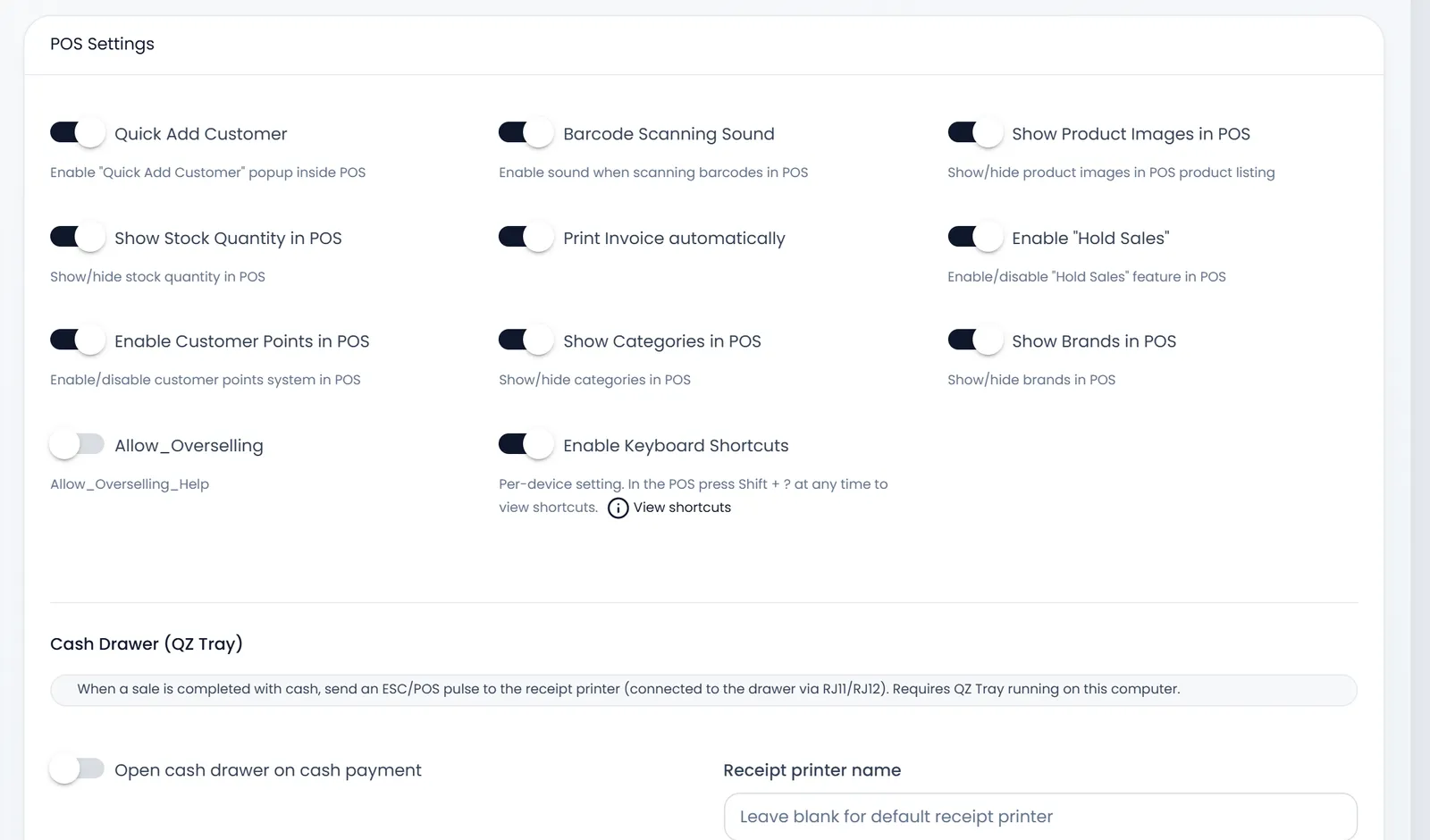
Open Settings › POS Settings. Each switch turns one thing on or off for every till in the shop:
- Quick Add Customer: the add-customer form inside the POS.
- Barcode Scanning Sound: a beep on each scan.
- Show Product Images in POS, Show Stock Quantity in POS, Show Categories in POS and Show Brands in POS: what the product grid shows.
- Print Invoice automatically: the print dialog opens after each sale.
- Enable "Hold Sales": the Hold button.
- Enable Customer Points in POS: points that eligible customers can turn into a discount.
- Allow_Overselling (its label shows like this): sell items with no stock left. Stock can go below zero.
- Enable Keyboard Shortcuts: this one is saved on the device you are using. In the POS, Shift + ? shows the shortcuts.
Below the switches:
- Open cash drawer on cash payment opens a drawer wired to the receipt printer after a cash sale. It needs QZ Tray running on that computer. Receipt printer name stays empty unless the computer has more than one printer: then type the name exactly as QZ Tray shows it.
- How many items do you want to display in POS sets the products per page. It is required.
- Invoice format is Thermal receipt (POS) or A4 Invoice (PDF).
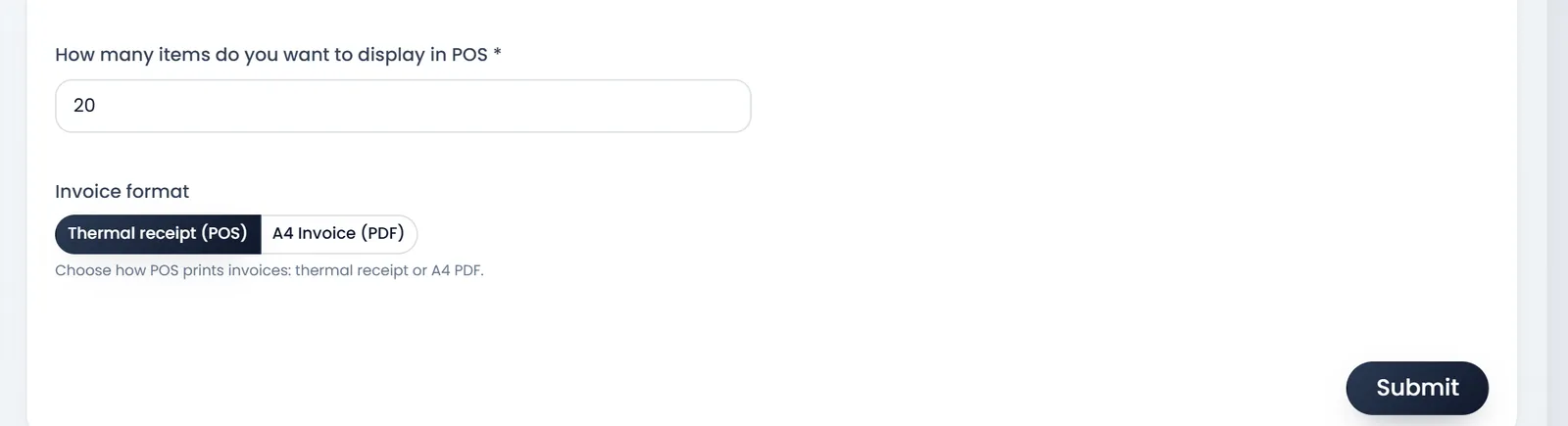
Click Submit. The gear icon in the POS top bar opens the same settings, for people whose role may change them.
The receipt
- Open Settings › POS Receipt.
- Pick a layout. Layout 1 - Standard to Layout 5 - Minimal. Receipt preview shows it with sample details, and Print demo receipt prints a test.
- Write the Note to customer. It is required, and it prints on the receipt while Show Note to customer is on.
- Choose the lines. Switch on what the receipt shows: Show Logo, Show Store Name, Show Customer, Show Tax, Show Discount, Show Due line, Show Payments table and the rest.
- Match your printer. Set Receipt paper size to 58mm (small), 80mm (standard) or 88mm (wide), and choose the Logo Size.
- Click Submit.
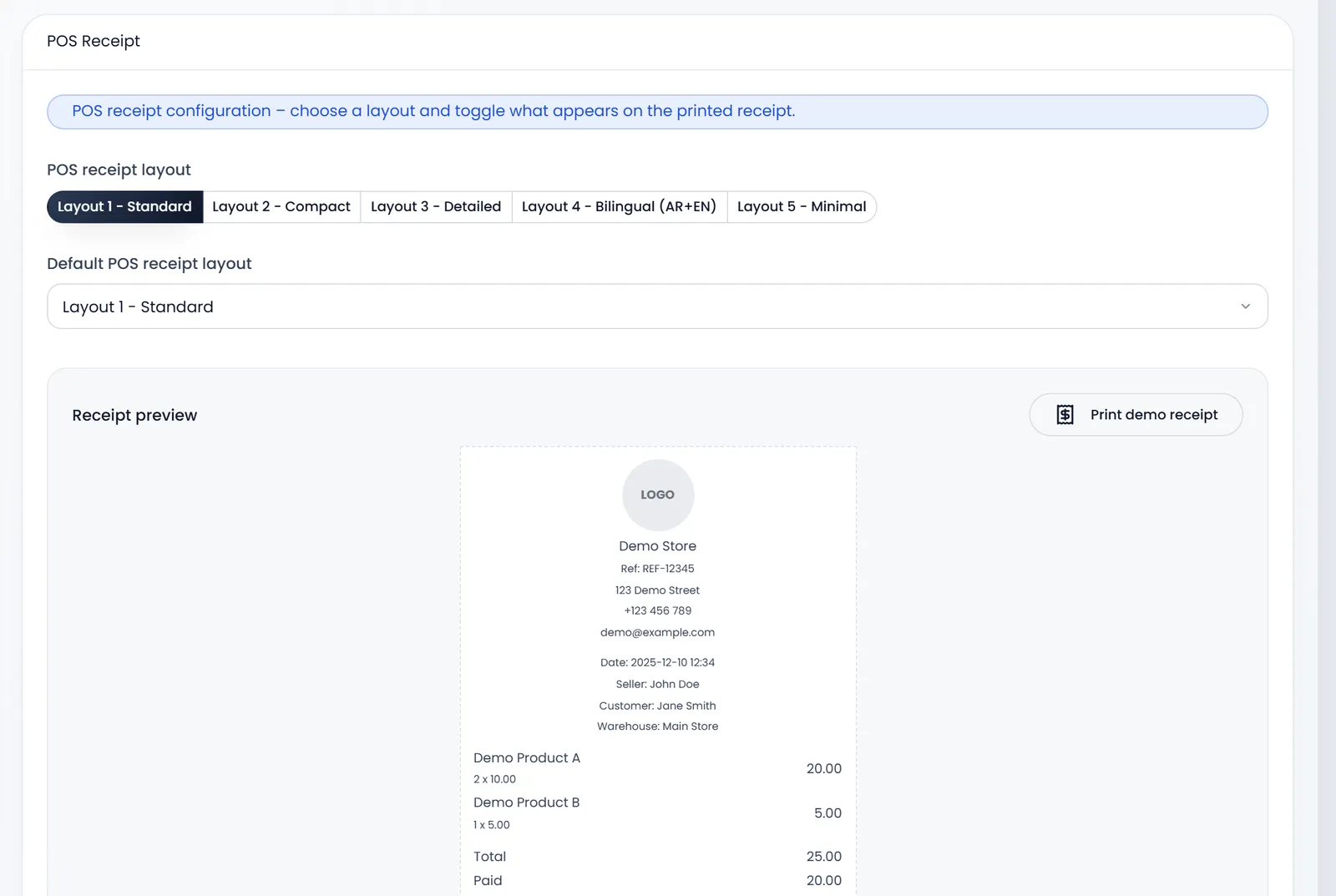
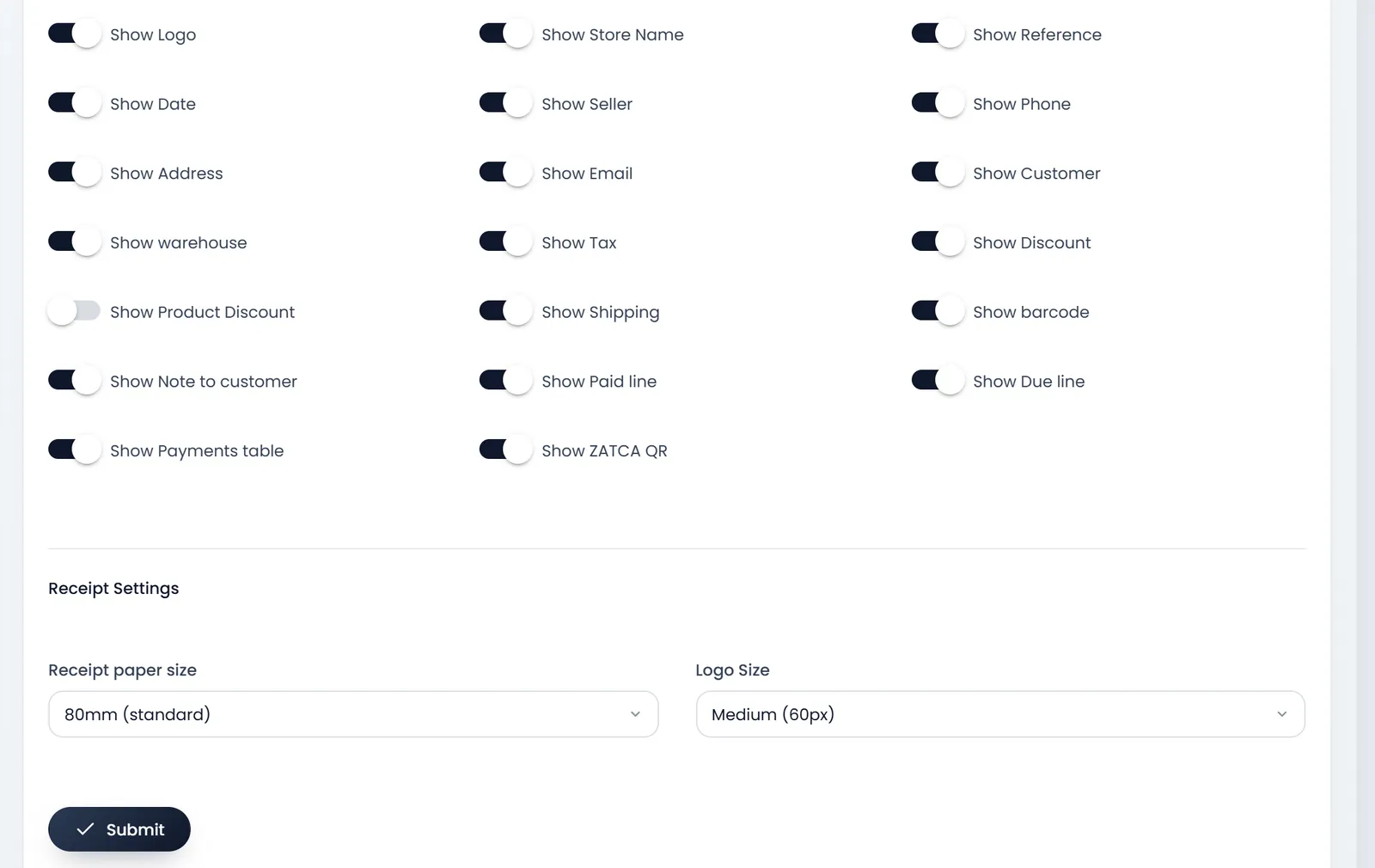
Show ZATCA QR only prints something when ZATCA e-invoicing is set up for the shop. Layout 4 - Bilingual (AR+EN) prints Arabic and English side by side.
What the POS starts with
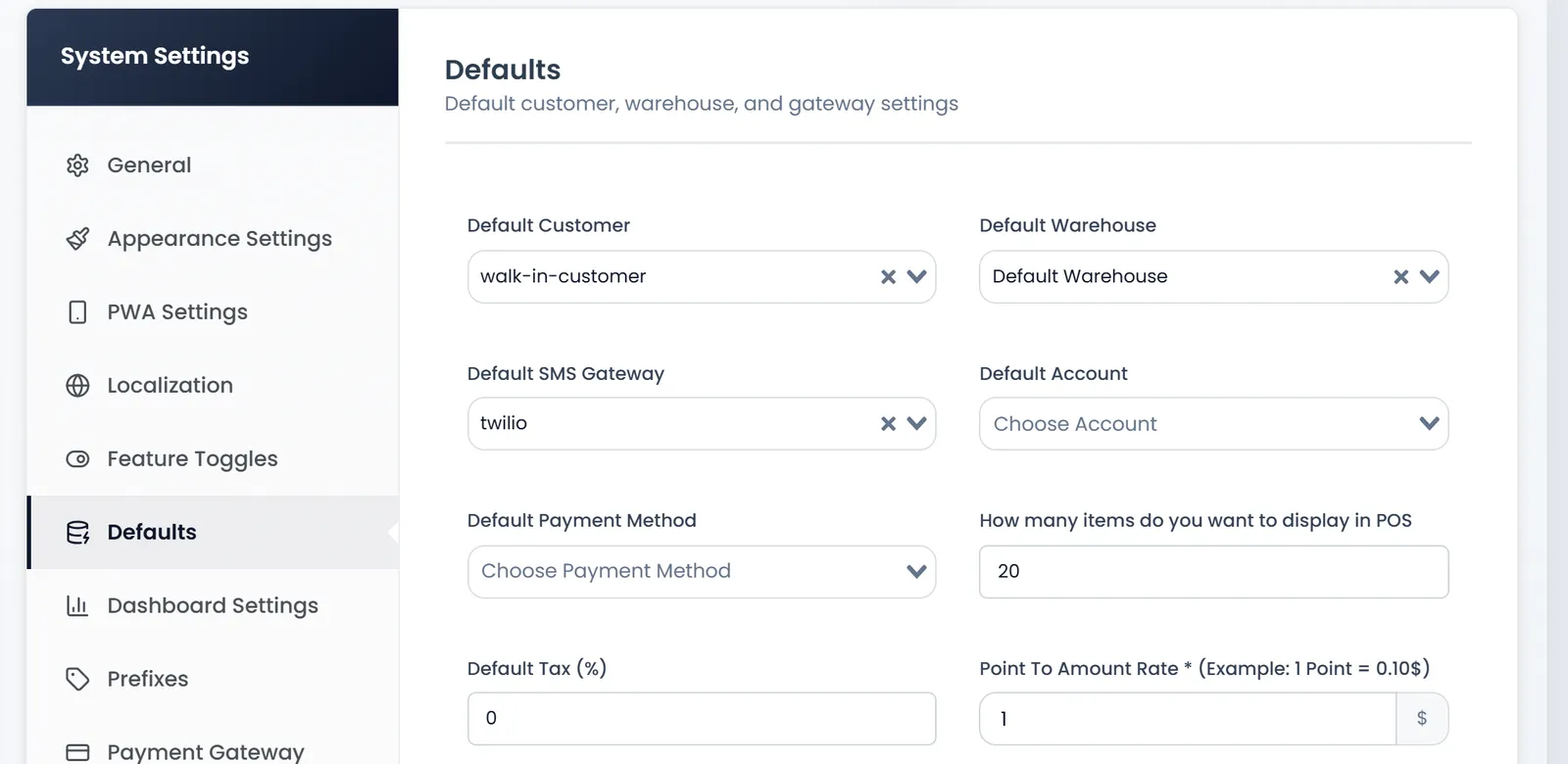
Open Settings › System Settings and the Defaults tab:
- Default Customer is the customer each sale starts with.
- Default Warehouse is the warehouse the POS opens on. A new shop starts on its first warehouse.
- Default Payment Method is selected when the payment window opens. Without one, it is Cash.
- Default Account is the account already selected on each POS payment.
- Default Tax (%) is the order tax each POS sale starts with.
Print the demo receipt on the real printer before your first sale. A wrong paper size shows up before a customer is waiting.
What's next
The logo and the shop details on the receipt come from Add your logo and business details.
Still stuck?
Write to us and a person answers. If you already have a shop, Ask support inside it sends us the page you're on.
Contact usAsk your AI assistant
ChatGPT, Claude and Gemini can read every guide and walk you through it.
Set it up