




Names like these, in green, are pages inside your ArmPOS shop. Sign in to your shop to open them.
By the end you will know four reports that tell you how the day went, and what to look for in each. They are all under Reports in the sidebar.
- Check the sales. Sales Report: what you sold and what is still due.
- Check the money. Payments › Sales: what came in, by method.
- Check the profit. Profit and Loss: the day's result after costs and expenses.
- Check the shelves. Product Quantity Alerts: what to reorder.
Sales Report
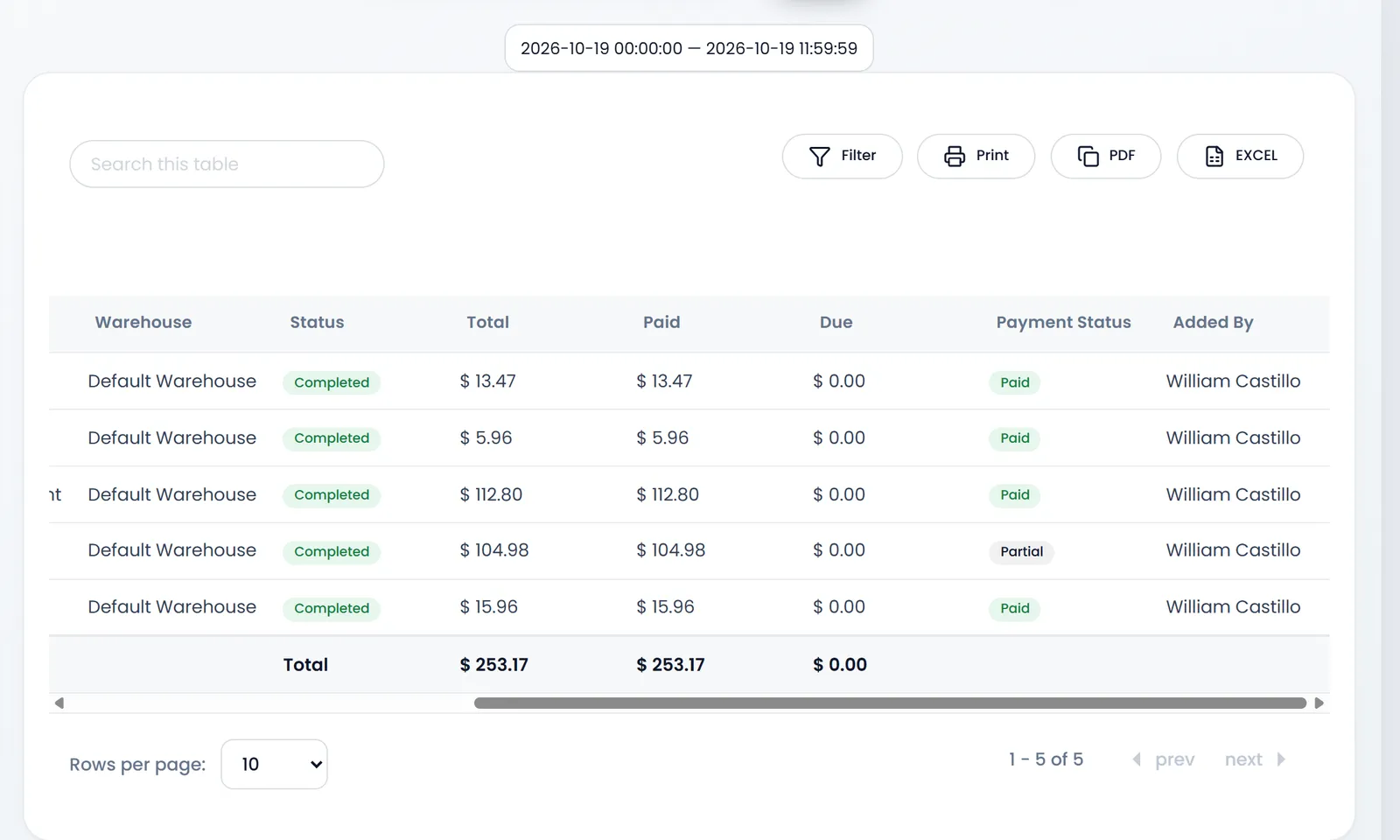
Open Reports › Sales Report. Each sale shows its Date, Reference, Customer, Warehouse, Status, Total, Paid, Due and Payment Status, and who added it in Added By. The table is wide: scroll it sideways for the last columns.
The report opens with every sale since the shop started. Click the date range at the top and choose Today. Filter narrows it by Customer, Warehouse, Status or Payment Status. Look at the Unpaid and Partial sales: that money is still to collect. Print, PDF and EXCEL export the list.
Today ends at 11:59:59, so sales made after that are left out. Open the date range again and set the time under the right-hand month to 23, 55, 59, the latest it offers, before you read the totals.
Payments › Sales
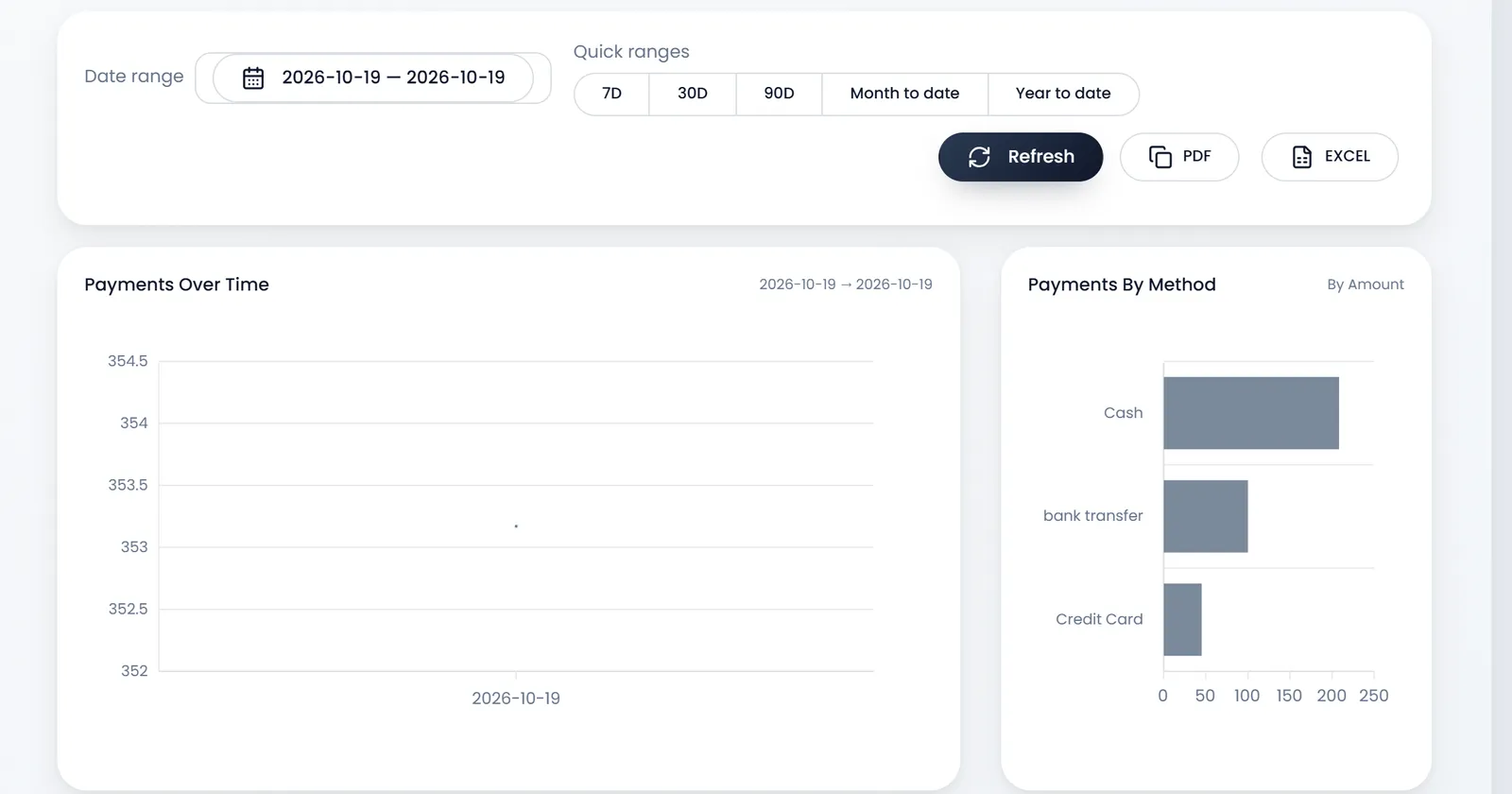
Open Reports › Payments › Sales. It lists every payment taken on a sale, with Paid by, Account and Amount. It opens on the last 30 days. Click the date range and choose Today.
Payments By Method splits the money by cash, card and the other methods. Compare the cash bar with what is in the drawer.
Profit and Loss
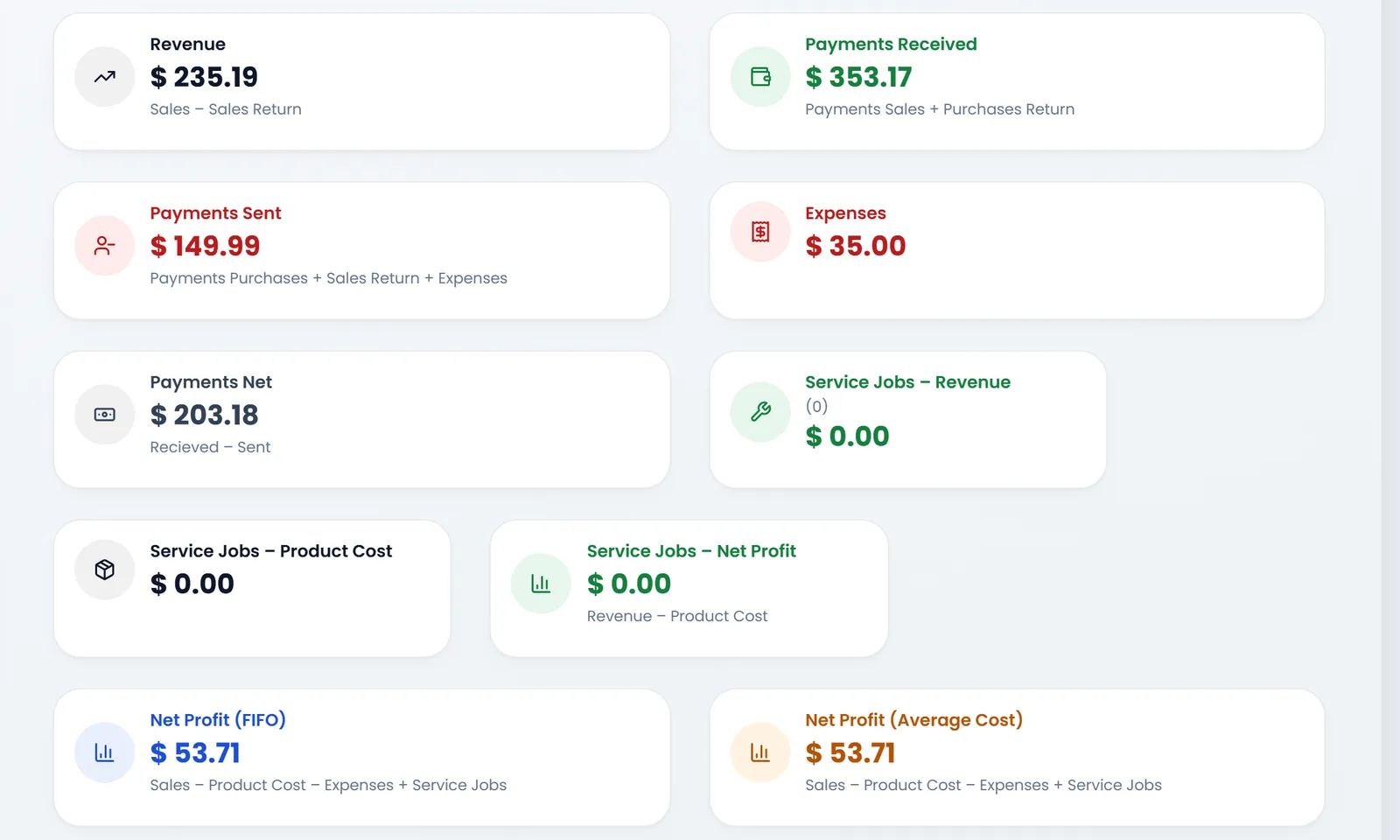
Open Reports › Profit and Loss. It opens on today. Quick ranges has Today, Yesterday, 7D, 30D, 90D, Month to date and Year to date, and Warehouse shows one branch.
- Revenue is sales minus sales returns.
- Payments Received is the money that came in. Payments Sent is what went out, expenses included. Payments Net is the difference.
- Expenses is what you recorded as spending.
- The Service Jobs tiles count repair and maintenance work, if you do any.
- The last two tiles are your net profit: sales minus the cost of the products sold, minus expenses. Net Profit (FIFO) costs the oldest stock first, Net Profit (Average Cost) uses the average cost.
Product Quantity Alerts
Open Reports › Product Quantity Alerts. It lists each product whose stock in a warehouse is at or below its Stock Alert, with the Quantity left and the Alert Quantity. Choose a warehouse to see one branch. A product without a Stock Alert appears once its stock reaches 0.
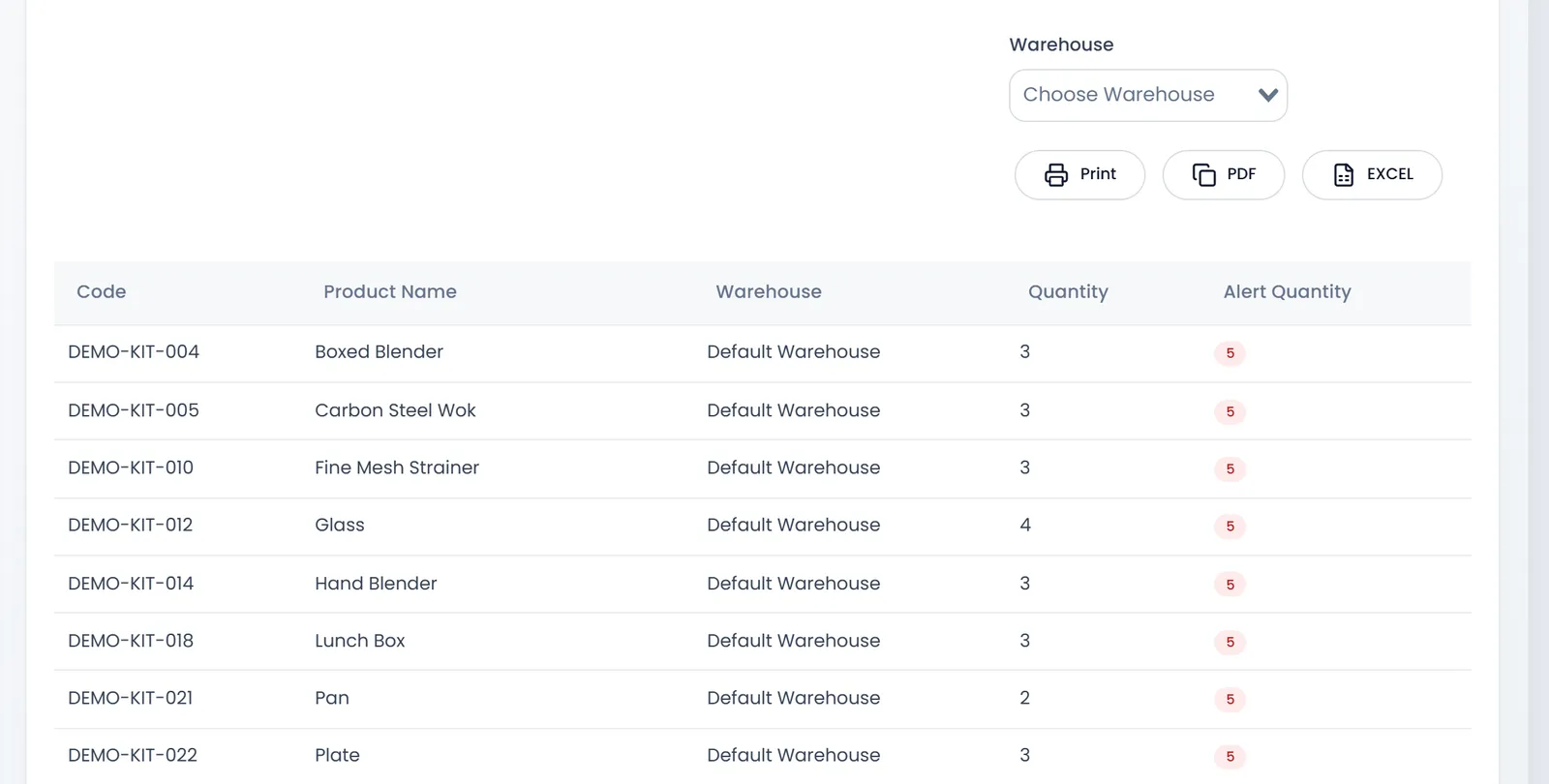
Set Stock Alert on each product you reorder, so this list warns you before the shelf is empty.
What's next
Reorder from the list with Record a purchase from a supplier.
Still stuck?
Write to us and a person answers. If you already have a shop, Ask support inside it sends us the page you're on.
Contact usAsk your AI assistant
ChatGPT, Claude and Gemini can read every guide and walk you through it.
Set it up