




Names like these, in green, are pages inside your ArmPOS shop. Sign in to your shop to open them.
By the end you will have added a supplier, recorded what you bought from them, and put the stock into a warehouse.
Add the supplier
Open People › Suppliers and click Create. Supplier Name is the only required field. Email, Phone, Country, City, Tax Number, Address and Credit Limit are optional. Opening Balance (Previous Dues) is what you owed this supplier before ArmPOS. Click Submit.
You can also add a supplier while you record a purchase: the + button beside Supplier opens Quick Add Supplier. To bring in a list of suppliers, see Import customers and suppliers.
Record the purchase
- Open Purchases › Create Purchase.
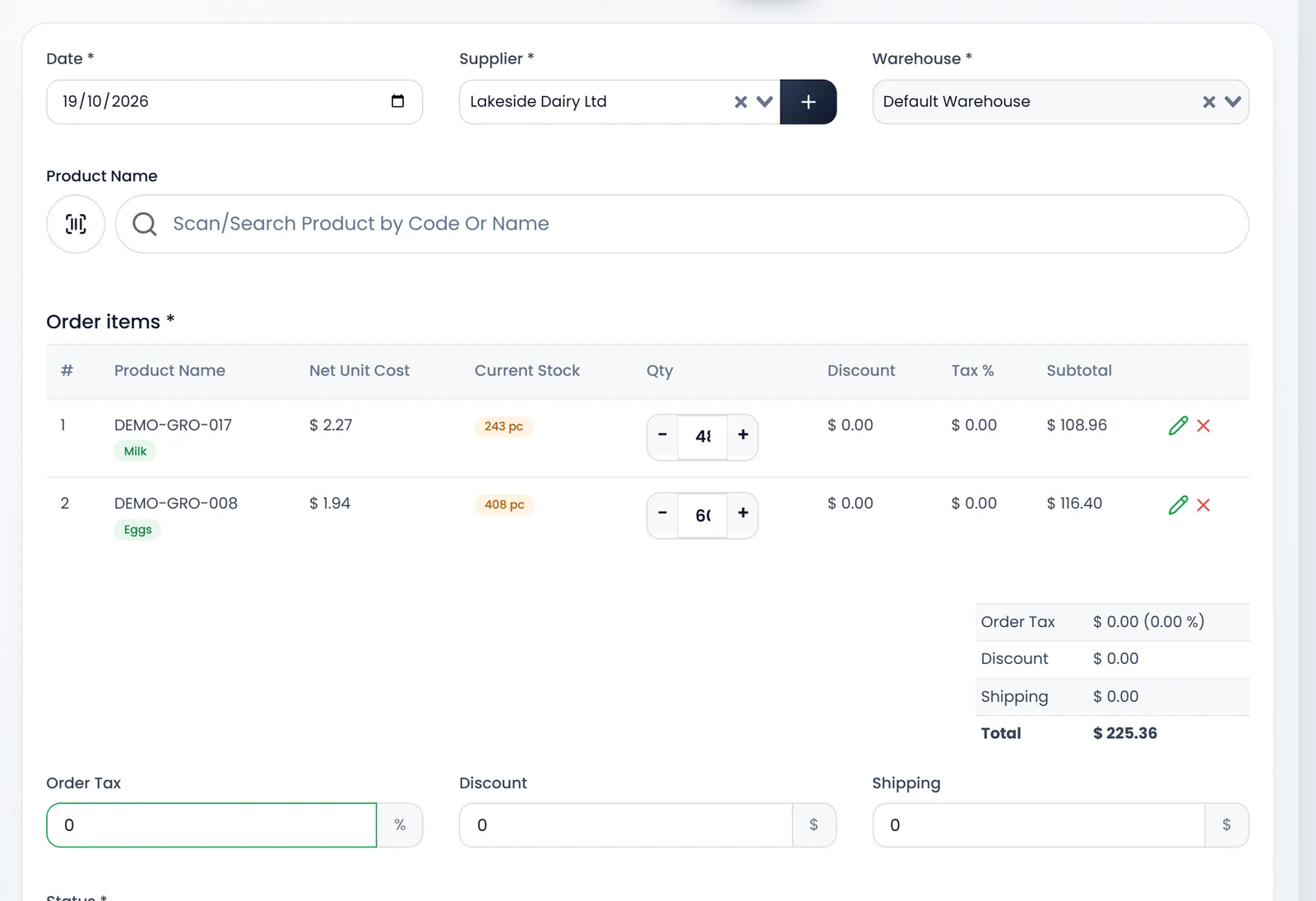
- Fill Date, Supplier and Warehouse. All three are required. The stock goes into this warehouse.
- Add the products. Type in Scan/Search Product by Code Or Name and click a result. Each product joins Order items with its Net Unit Cost and Current Stock.
- Set the quantities. Use − and +, or type the number. The pencil on a line changes its Product Cost, tax or discount for this purchase.
- Add Order Tax, Discount and Shipping if they apply.
- Set Status. It decides what happens to your stock. See below. It starts on received.
- Add a Note and click Submit. You land on All Purchases.
What the status does to stock
- received: the quantities are added to the warehouse when you submit.
- pending or ordered: stock doesn't change yet.
When goods you saved as pending or ordered arrive, open Purchases › All Purchases, open the row's menu and click Edit Purchase. Set Status to received and submit. The stock is added then.
Find it again
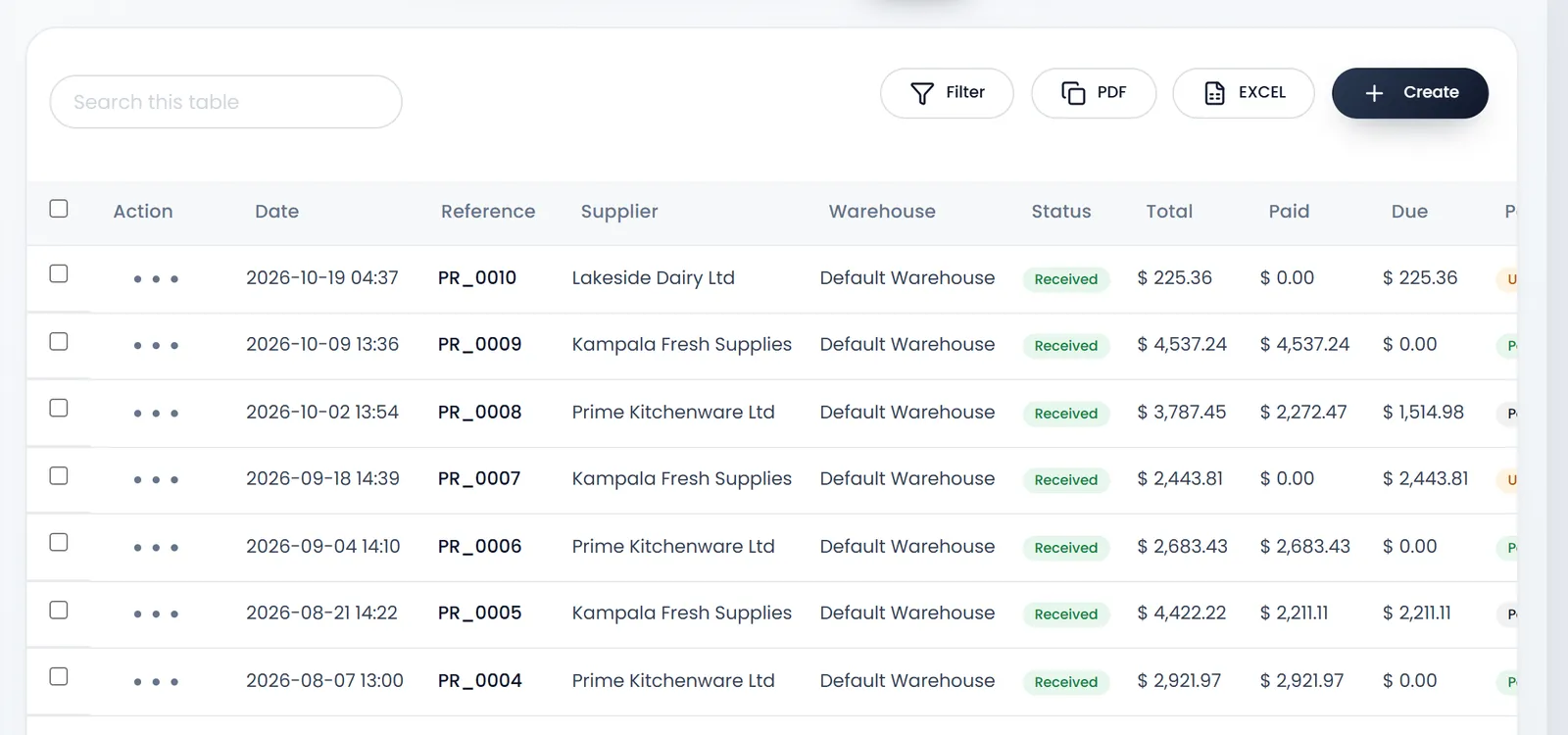
Purchases › All Purchases lists each purchase with its Date, Reference (PR_ and a number), Supplier, Warehouse, Status, Total, Paid, Due and Payment Status.
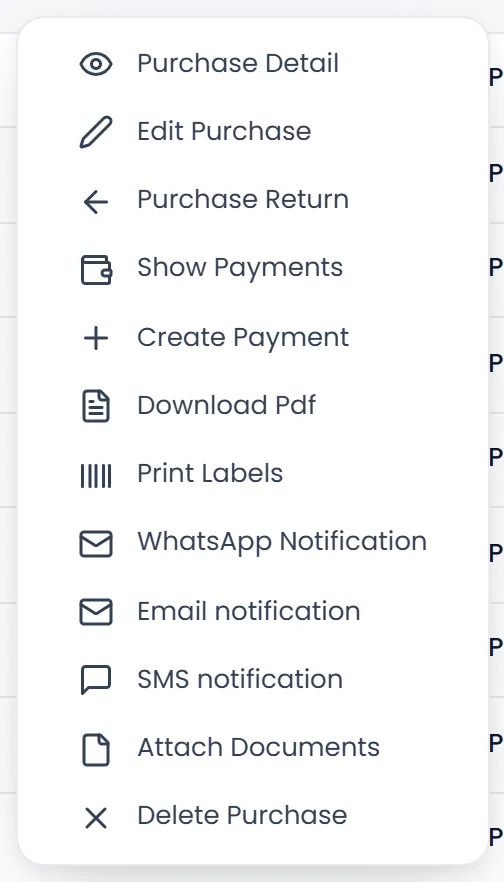
Each row's menu has Purchase Detail, Edit Purchase, Purchase Return, Show Payments, Create Payment, Download Pdf, Print Labels for the products on that purchase, the WhatsApp, Email and SMS notifications, Attach Documents (the supplier's invoice, for example) and Delete Purchase.
What's next
Pay the supplier: Pay your suppliers and see what you owe.
Still stuck?
Write to us and a person answers. If you already have a shop, Ask support inside it sends us the page you're on.
Contact usAsk your AI assistant
ChatGPT, Claude and Gemini can read every guide and walk you through it.
Set it up