




Names like these, in green, are pages inside your ArmPOS shop. Sign in to your shop to open them.
A purchase starts unpaid. By the end you will have recorded a payment to a supplier, in full or in part, and know where to see what you still owe.
Pay for a purchase
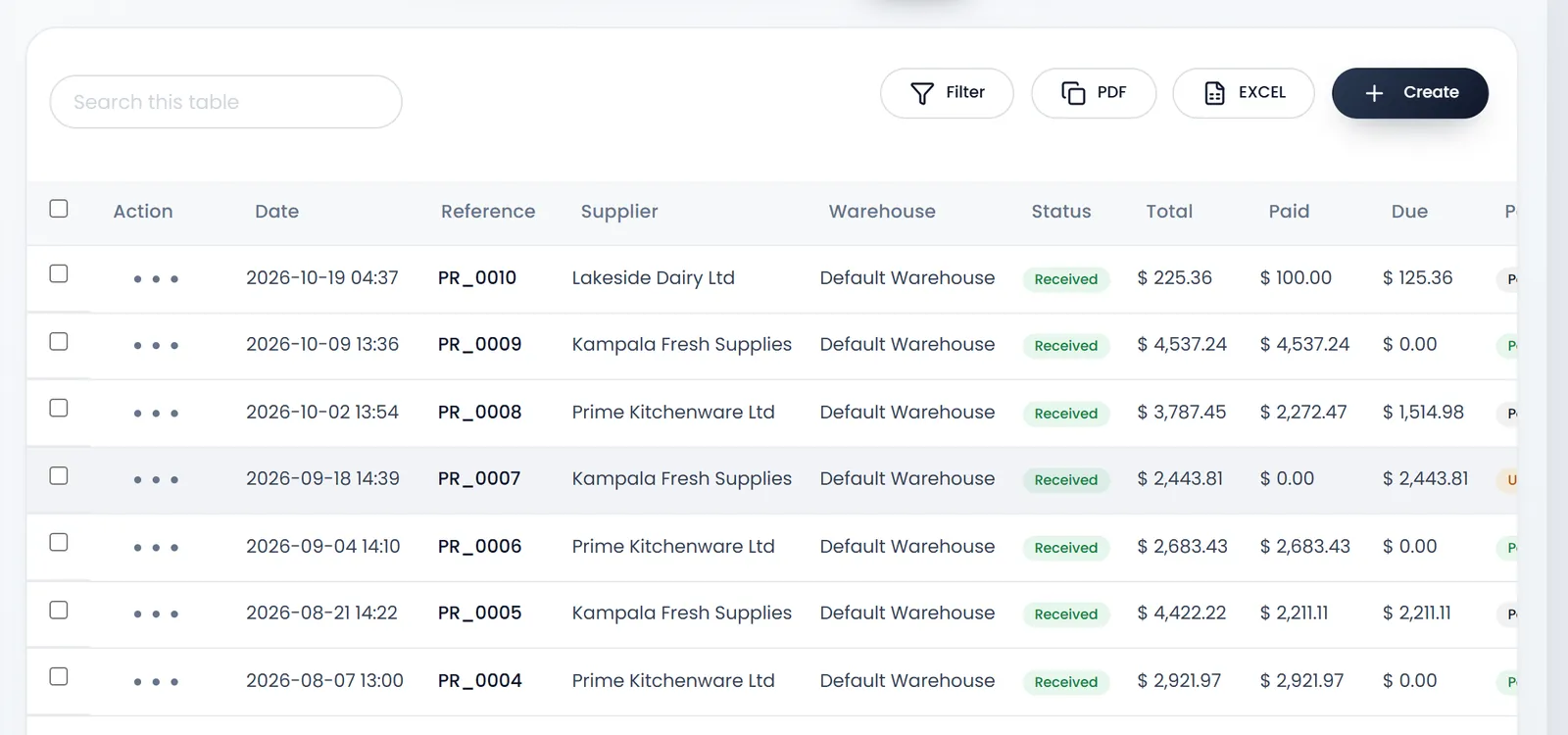
- Open Purchases › All Purchases and find the purchase.
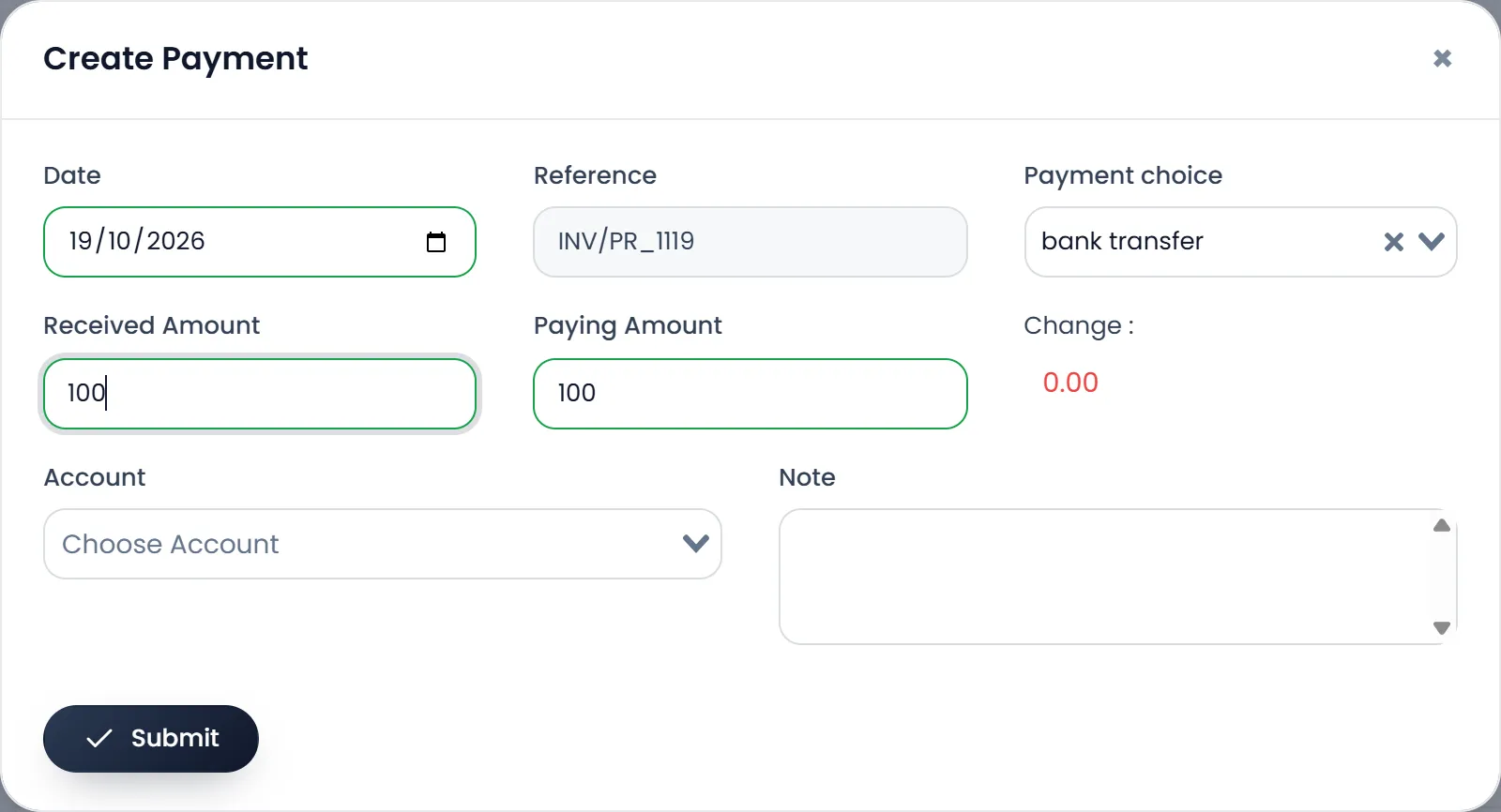
- Open the row's menu and click Create Payment. It appears on purchases marked received.
- Check the Date. It starts on today; around midnight it can show yesterday's, so correct it if it does.
- Pick the Payment choice, such as Cash or bank transfer.
- Enter the Paying Amount: what is due, or less to pay part now. Received Amount is what you handed over, and Change what came back.
- Choose an Account if you track accounts: the payment comes off its balance. Note is optional.
- Click Submit.
The purchase's Paid and Due change, and its Payment Status becomes Partial or Paid.
Show Payments in the same menu lists every payment on a purchase, with edit and delete.
What you owe each supplier
- People › Suppliers shows what you owe each one in Total Purchase Due, and what they owe you back in Total Purchase Return Due. A supplier's menu has pay all purchase due at a time, one payment for everything you owe them.
- Reports › Payments › Purchases lists every payment you made, by date, supplier and method.
- Reports › Suppliers Report totals what you bought from each supplier, what you paid and what is due.
What's next
Sent something back? Return goods to a supplier.
Still stuck?
Write to us and a person answers. If you already have a shop, Ask support inside it sends us the page you're on.
Contact usAsk your AI assistant
ChatGPT, Claude and Gemini can read every guide and walk you through it.
Set it up