




Names like these, in green, are pages inside your ArmPOS shop. Sign in to your shop to open them.
Goods that arrive broken, wrong or short go back to the supplier. A purchase return takes them out of your stock and records what the supplier owes you. By the end you will have returned part of a purchase.
Return goods
- Open Purchases › All Purchases and find the purchase.
- Open the row's menu and click Purchase Return. The Create Purchase Return page opens with the purchase's lines.
- Check the Date and the Status.
- Set Qty return on each line you send back, with − and + or by typing. Each line shows the Qty purchased and the Current Stock. Lines left at 0 are not returned.
- Add details under Please provide any details, such as "Cracked on arrival", and click Submit. The stock comes off at once, and you land on the purchase returns list.
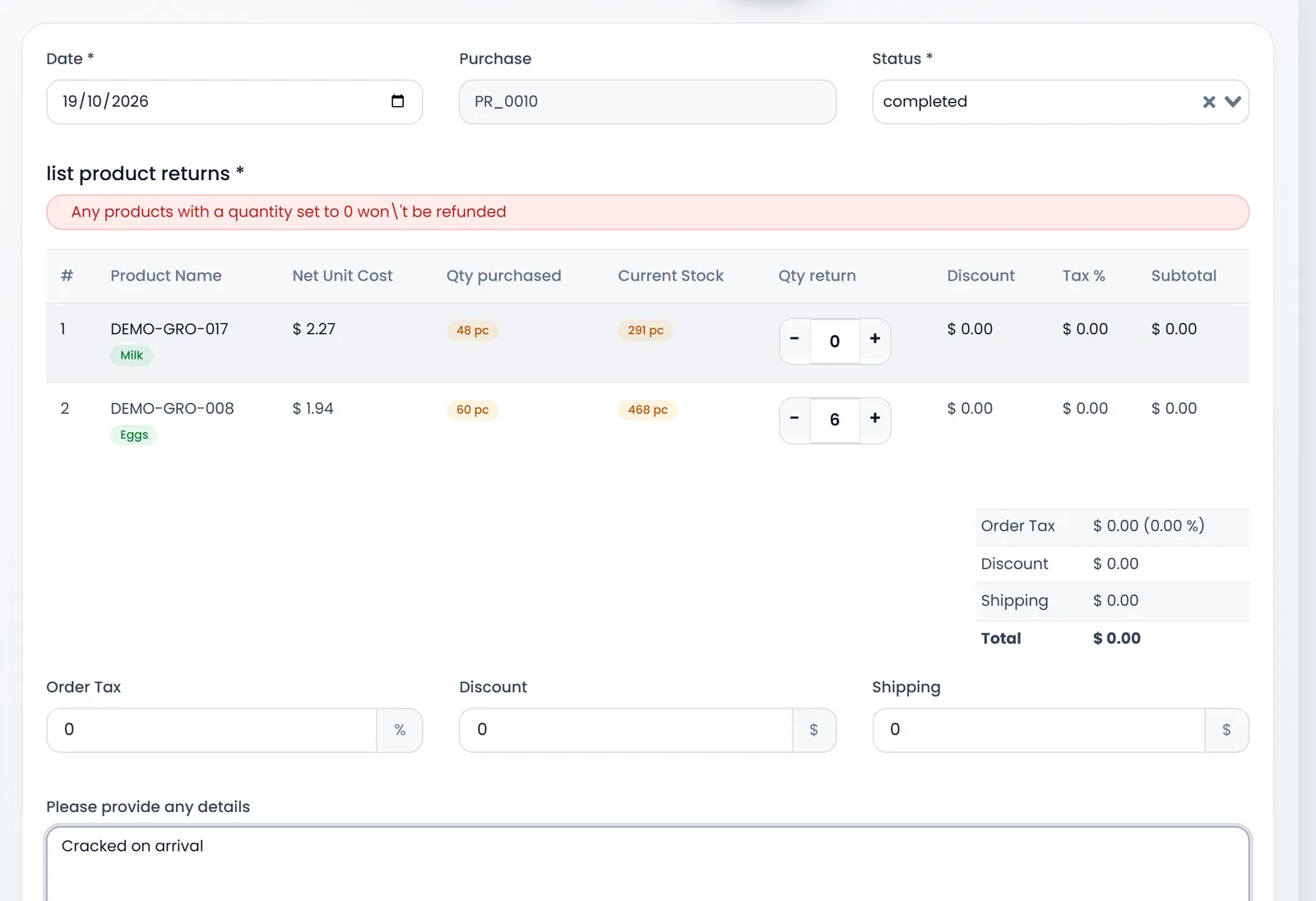
A purchase can't be returned twice: each line offers only what is left after earlier returns.
Get the money back
Purchases › Purchases Return lists every return with its Reference, Supplier, Purchase Ref, Status, Total, Paid, Due and Payment Status. A new return is Unpaid: the supplier owes you its total.
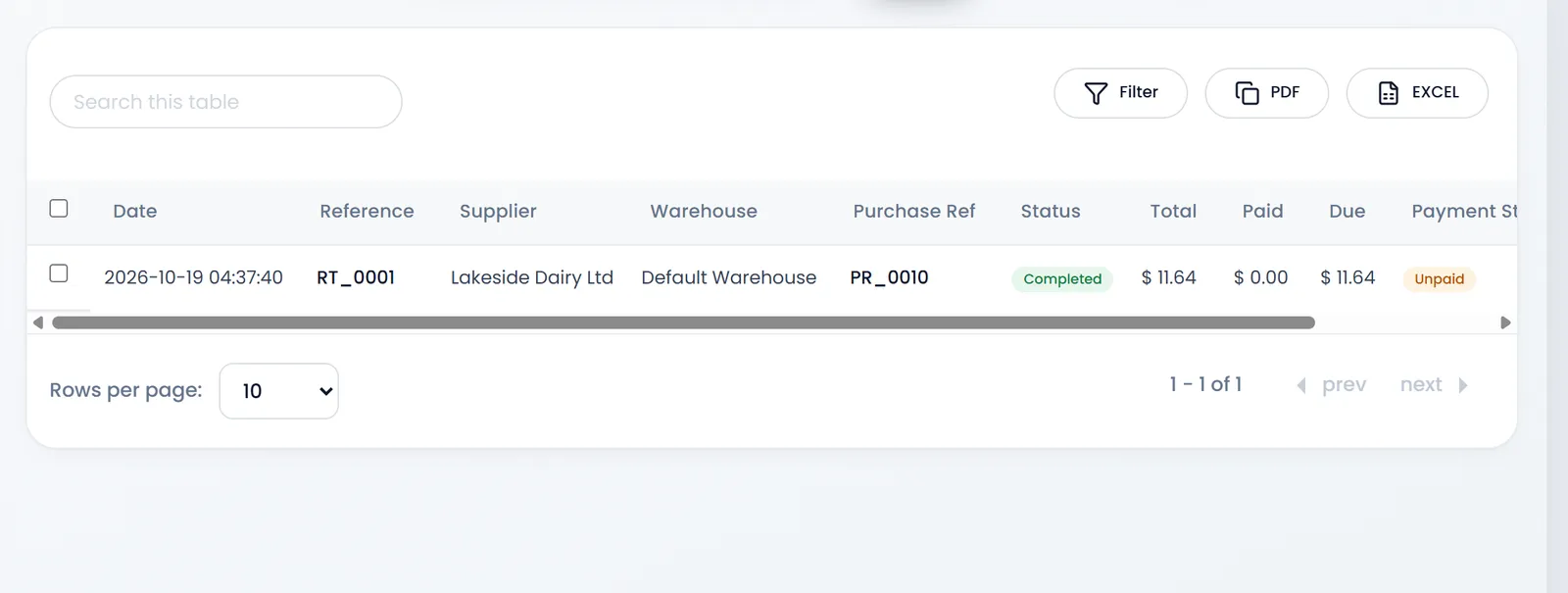
When the supplier refunds you, open the return's menu, click Create Payment, fill it as for a purchase (see Pay your suppliers) and click Submit.
Sale returns and purchase returns both start with RT_ in a new shop. To tell them apart, set a different prefix for one of them in Settings › System Settings, on the Prefixes tab.
What's next
Still stuck?
Write to us and a person answers. If you already have a shop, Ask support inside it sends us the page you're on.
Contact usAsk your AI assistant
ChatGPT, Claude and Gemini can read every guide and walk you through it.
Set it up