




Names like these, in green, are pages inside your ArmPOS shop. Sign in to your shop to open them.
By the end you will have added a way your customers pay, such as mobile money, and a currency, and you will know which currency your prices show in.
Payment methods
A payment method is a name you pick when you take a payment: at the POS, on a sale, a purchase or an expense. The reports then split the money by method.
- Open Settings › Payment Methods.
- Click Create.
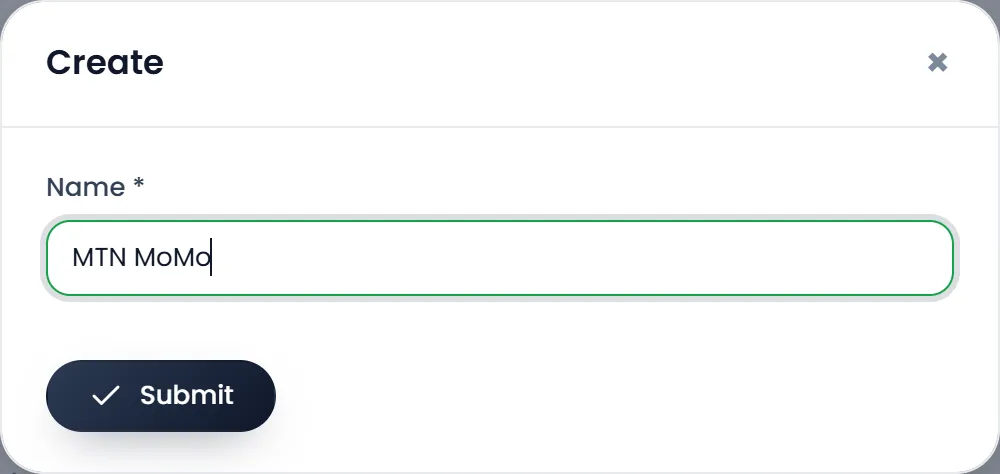
- Type the Name. It is the only field, and it is required. Use the name your team says at the till, for example MTN MoMo.
- Click Submit. The method is ready to pick in every payment window.
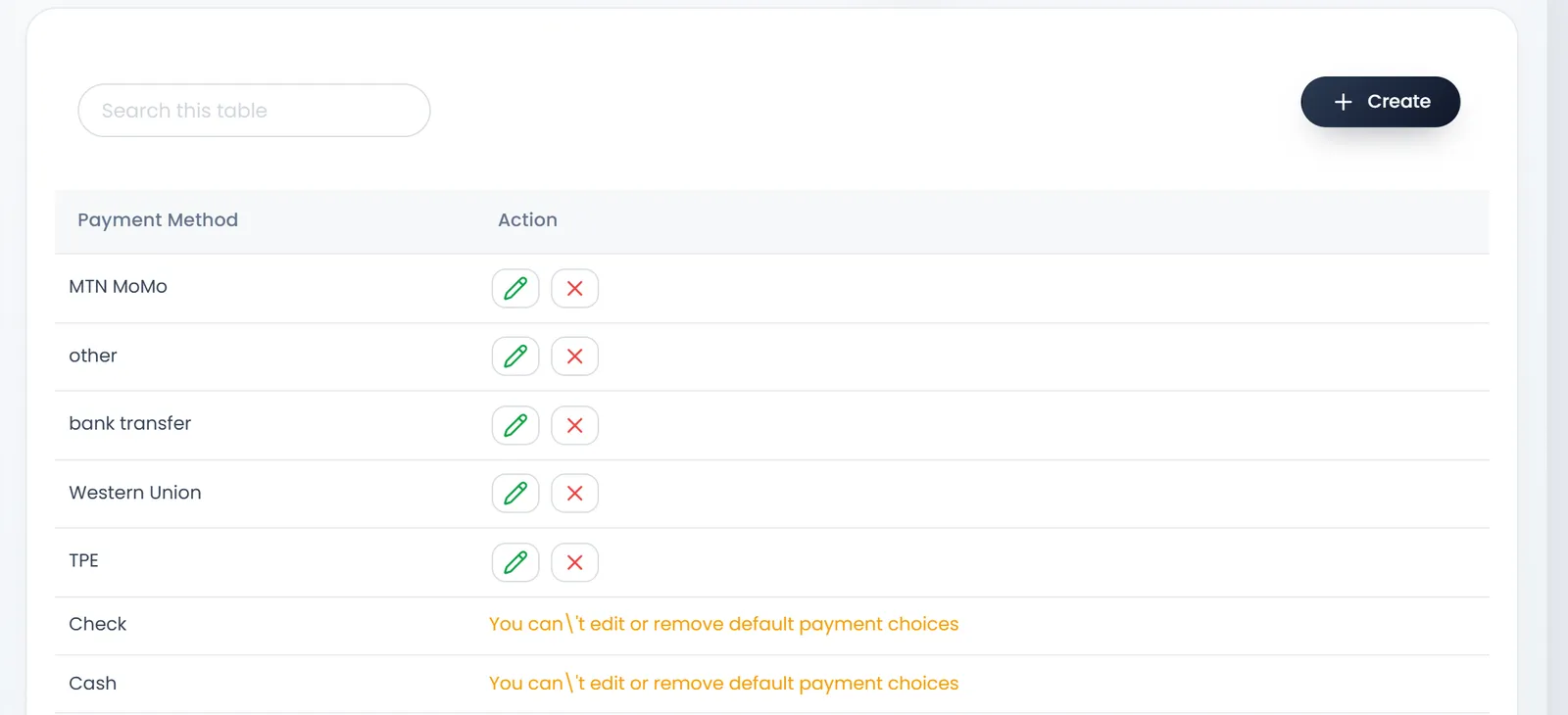
Cash, Credit Card and Check are built in. Their rows say you can't edit or remove them.
- Credit Card is the card method. If your shop has its own card payments set up, a Credit Card payment at the POS is charged to the customer's card. Without that, it is only recorded. A Credit Card payment's method and amount can't be changed afterwards.
- With ArmPOS's mobile money payments switched on, a method called Mobile Money is made for you, or your own method with that name is used. See Card and mobile money payments.
- Deleting a method asks you to confirm. Rename a method rather than delete one your team has already used.
Currencies
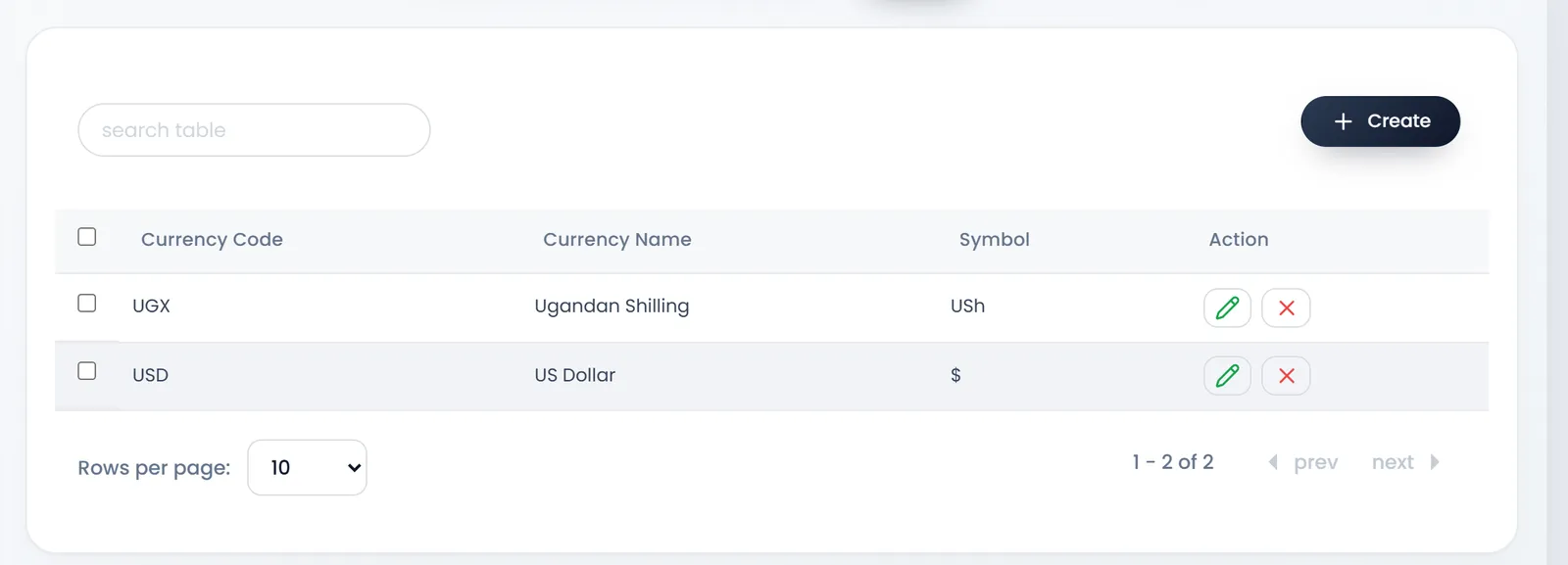
A currency here is a label: a code, a name and a symbol. It has no exchange rate, so adding one, or changing the default, never converts your prices.
- Open Settings › Currency.
- Click Create.
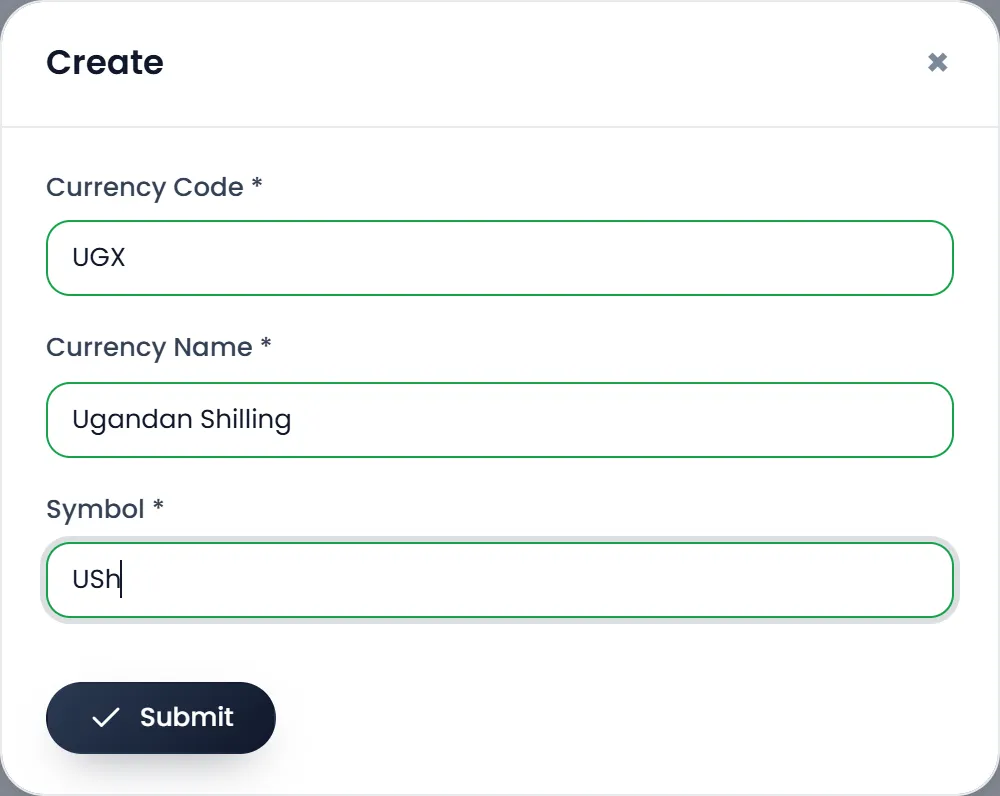
- Fill the three fields. Currency Code takes 2 to 5 characters, such as UGX. Currency Name takes at least 3, such as Ugandan Shilling. Symbol takes up to 5, such as USh.
- Click Submit.
Choose the currency your shop shows
The shop's prices, receipts and reports show the symbol of its default currency.
- Open Settings › System Settings and the Localization tab.
- Pick the Default Currency.
- Click Submit.
Your prices keep their numbers: a product at 5.00 stays at 5.00, now with the shilling's symbol. Set the currency before you enter prices, or change the prices yourself. Price Format on the same tab sets how amounts are written.
Don't delete the currency your shop uses. The page lets you, and every price then shows without a symbol.
What's next
Choose which method the POS's payment window starts on in Receipt and POS settings.
Still stuck?
Write to us and a person answers. If you already have a shop, Ask support inside it sends us the page you're on.
Contact usAsk your AI assistant
ChatGPT, Claude and Gemini can read every guide and walk you through it.
Set it up