




Names like these, in green, are pages inside your ArmPOS shop. Sign in to your shop to open them.
By the end you will have checked your own details, changed your password, and know where the shop lists the devices signed in to it.
Your profile
Click your name at the top right and choose Profile. Everyone has a profile: it is your own account, whatever your role.
- Check your details. First name, Last name, Username, Phone and Email are all required. The three names take 4 to 20 characters each.
- Add a photo if you like. User Image takes a picture of up to 200 KB.
- Click Submit.
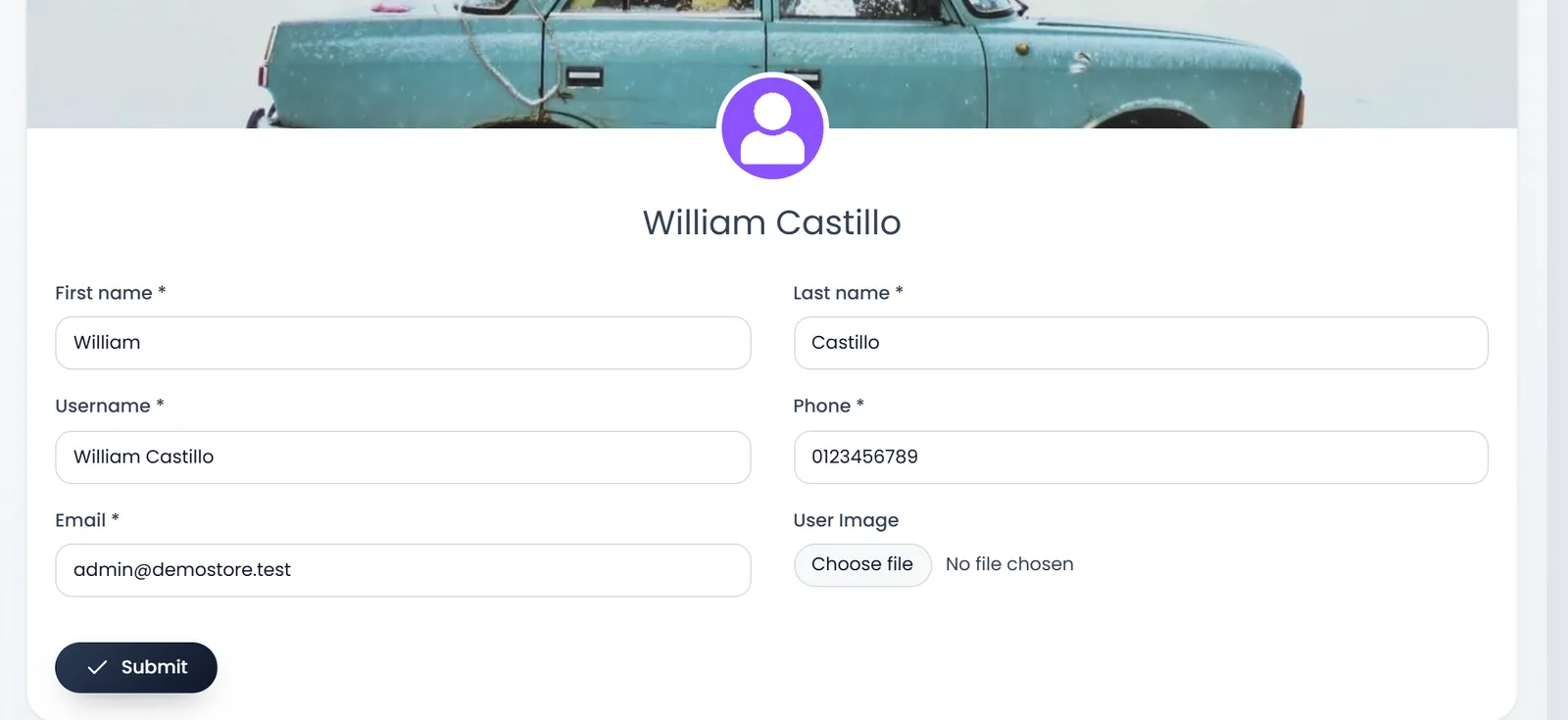
The email is the one you sign in with. Change it only to an address you can read, and check it saved: if the save fails, for example because another account already uses that email, the page says nothing.
Change your password
- Scroll to Change Password on the same page.
- Type your Current Password. It is required: nobody else can change your password from here.
- Type the New Password twice. In New Password and Confirm Password. Use 6 to 14 characters: a longer one is refused.
- Click Update Password. "Password updated successfully" confirms it.
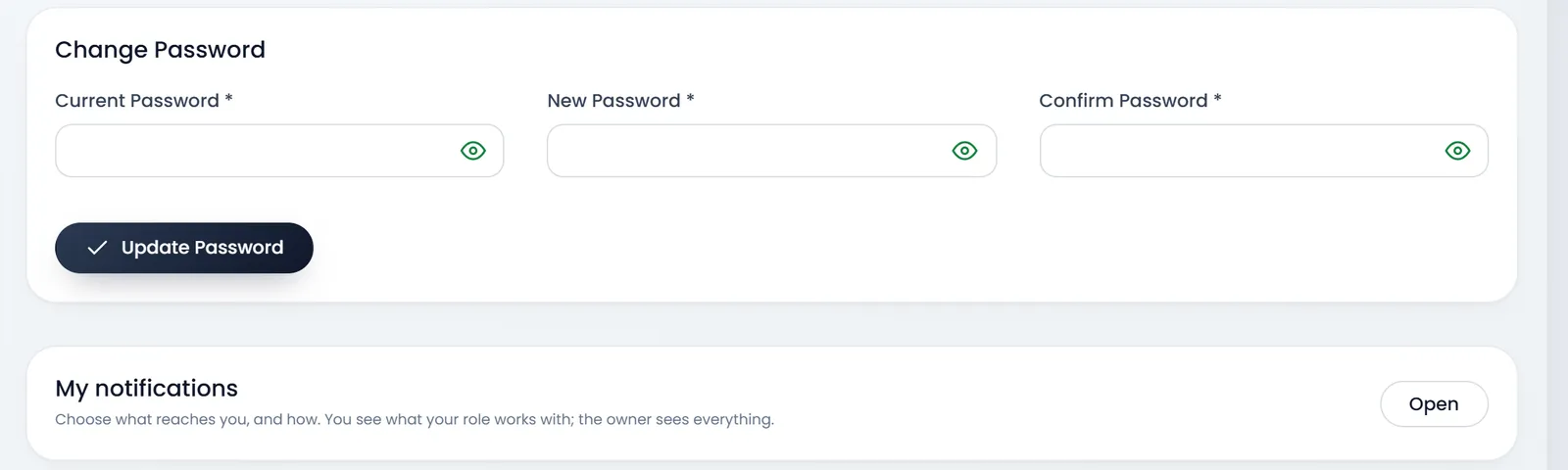
If the current password is wrong, the message reads translate.CurrentPasswordIncorrect. Type it again.
Changing your password doesn't sign you out on your other devices. Forgot it? Use the sign-in page's forgotten-password link: it emails you a reset link.
My notifications, below the password, opens the alerts you get. See Get alerts on your phone.
Devices signed in to the shop
Settings › Login Device Management is for owners and managers. It lists sign-ins with the User, Device / Browser, IP Address, Login date & time and Last activity, with a Logout button on each row and Logout All Other Devices for your own.

Sign-ins in a web browser don't appear in this list yet, so it often says No active sessions found. while people are working. To stop someone using the shop, switch off their Status in User Management › Users: an inactive user can't sign in, and is turned away on their next click.
What's next
Choose which alerts reach you, and on which device, in Get alerts on your phone.
Still stuck?
Write to us and a person answers. If you already have a shop, Ask support inside it sends us the page you're on.
Contact usAsk your AI assistant
ChatGPT, Claude and Gemini can read every guide and walk you through it.
Set it up