




Names like these, in green, are pages inside your ArmPOS shop. Sign in to your shop to open them.
ArmPOS can alert you when stock runs low, an online order arrives or a register closes short, on your phone or computer, even when ArmPOS is closed. By the end you will have alerts on and chosen which ones reach you.
Turn on alerts on this device
Do this on each phone and browser where you want alerts.
- Click the bell in the top bar. When this device can take alerts, the list opens with Get alerts on this device.
- Click Turn on. Your browser asks to allow notifications: allow it. Not now hides the offer for a while.
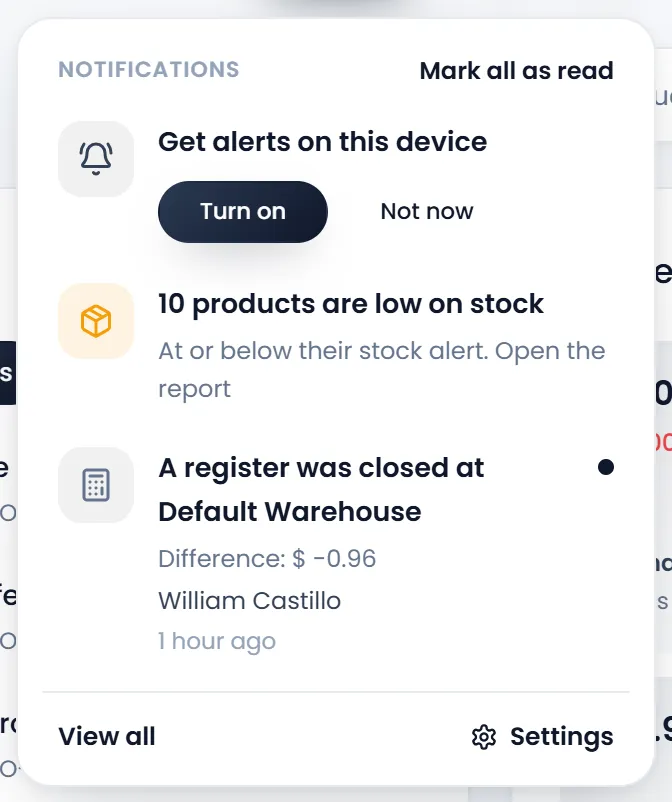
You can also turn them on from Notifications › My notifications: Push on this phone has Turn on, and once on, Send a test and Turn off.
On an iPhone, add ArmPOS to your Home Screen first (Share, then Add to Home Screen), open it from there, and turn alerts on. If the browser says alerts are blocked, allow them for this site in the browser's settings, then turn them on again.
Choose what reaches you
My notifications lists every kind of alert, grouped: Online orders, Stock, Team, Your plan, Integrations and Me. Each has a switch for System (the bell), Email and Push (this device and your others). Each switch saves as you change it. You see the alerts your role works with; the owner sees them all.
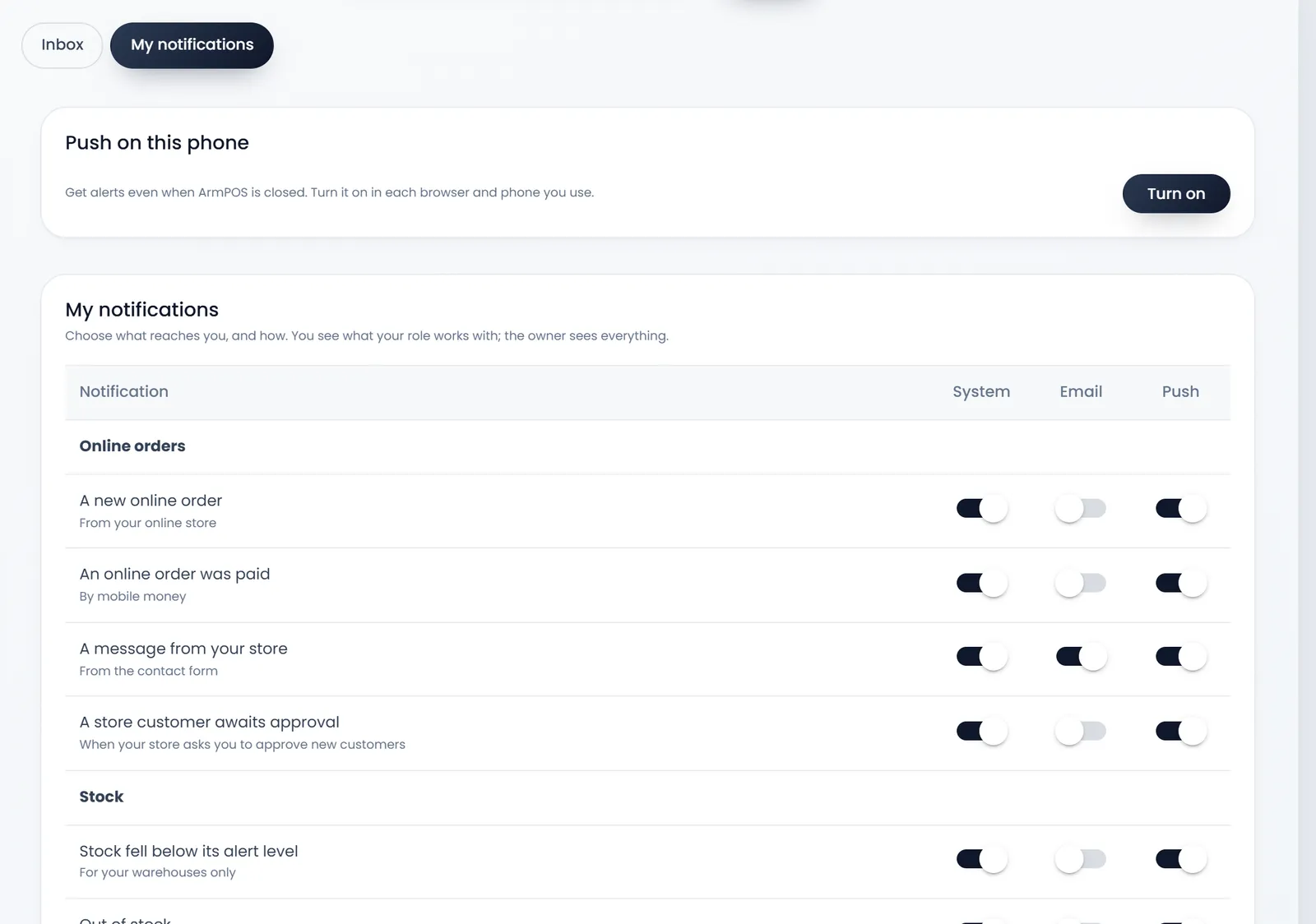
Some can't be turned off: a sign-in from a new device is always emailed, for your security.
Read them later
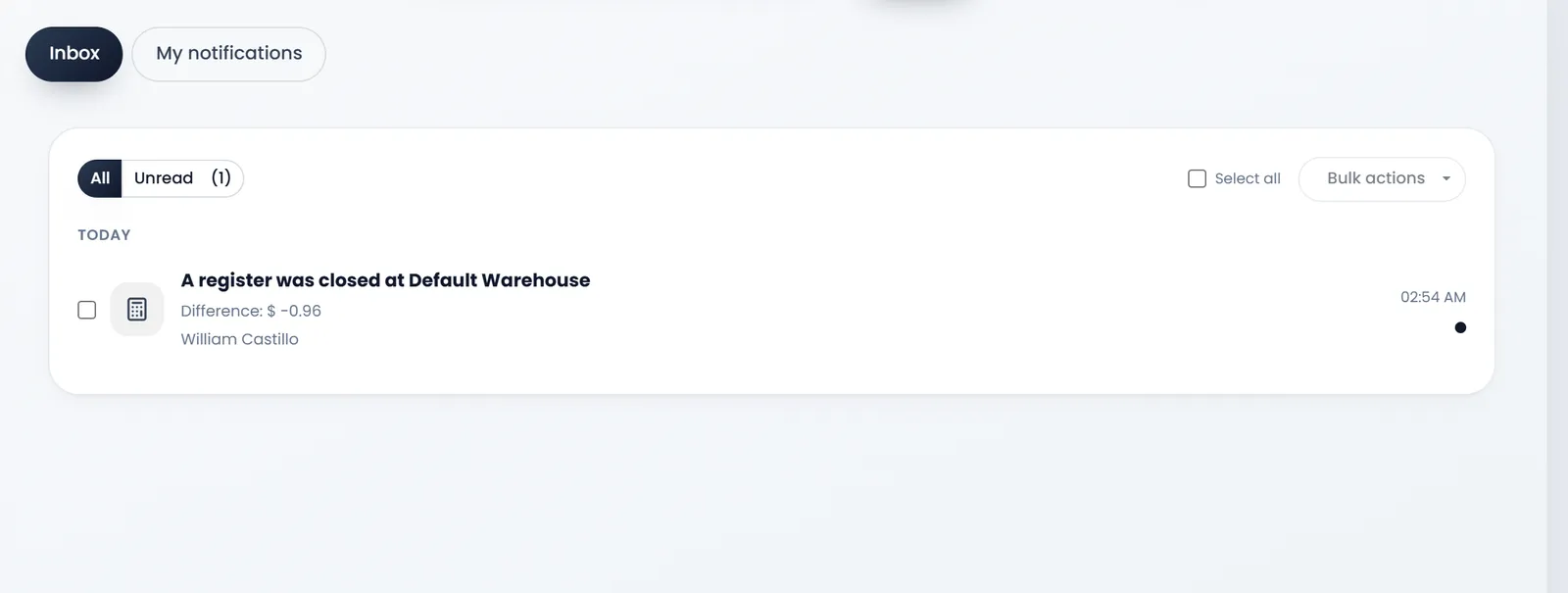
Everything that reached the bell is kept in Notifications › Inbox: All or Unread, grouped by day. Tick some and use Bulk actions to mark them read or unread, or delete them.
What's next
Back to the start: Welcome to ArmPOS.
Still stuck?
Write to us and a person answers. If you already have a shop, Ask support inside it sends us the page you're on.
Contact usAsk your AI assistant
ChatGPT, Claude and Gemini can read every guide and walk you through it.
Set it up