




Names like these, in green, are pages inside your ArmPOS shop. Sign in to your shop to open them.
By the end of this guide you will have rung up a sale in the POS, taken the payment and printed the receipt.
Before you start
You need a product with stock in the warehouse you sell from. If you have none yet, add your first products.
A product with no stock in the chosen warehouse doesn't go into the cart. To sell it anyway, turn on Allow overselling in POS Settings, the gear at the top of the POS. Only roles allowed to change POS settings see the gear.
Open the POS
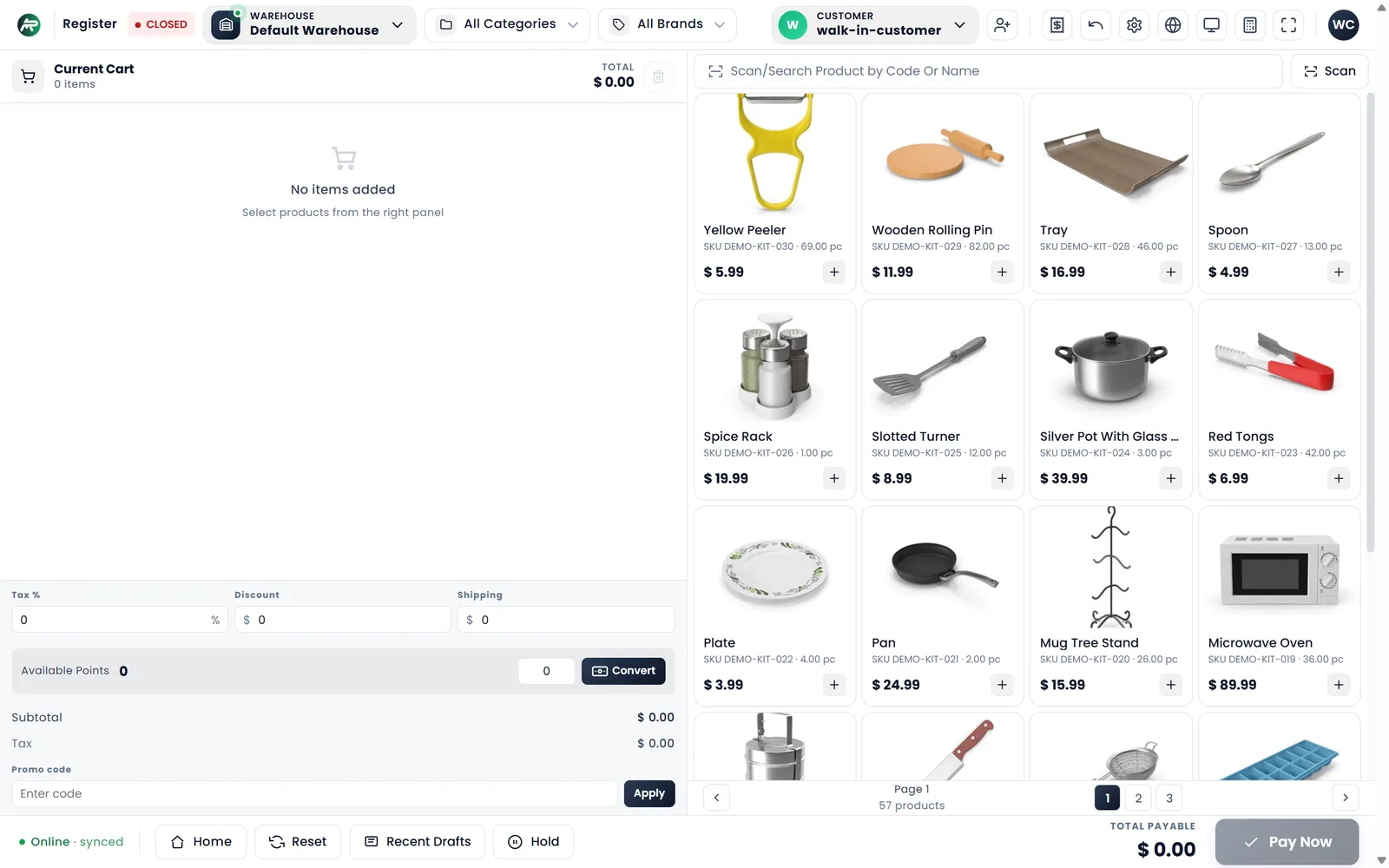
Click POS in the top bar, or open Sales › POS. The till fills the screen: the cart on the left, your products on the right, and along the top the register, the warehouse, the product filters and the customer.
Ring up the sale
- Check the warehouse. The POS opens on your shop's warehouse. With more than one, click Warehouse at the top and pick the one you sell from.
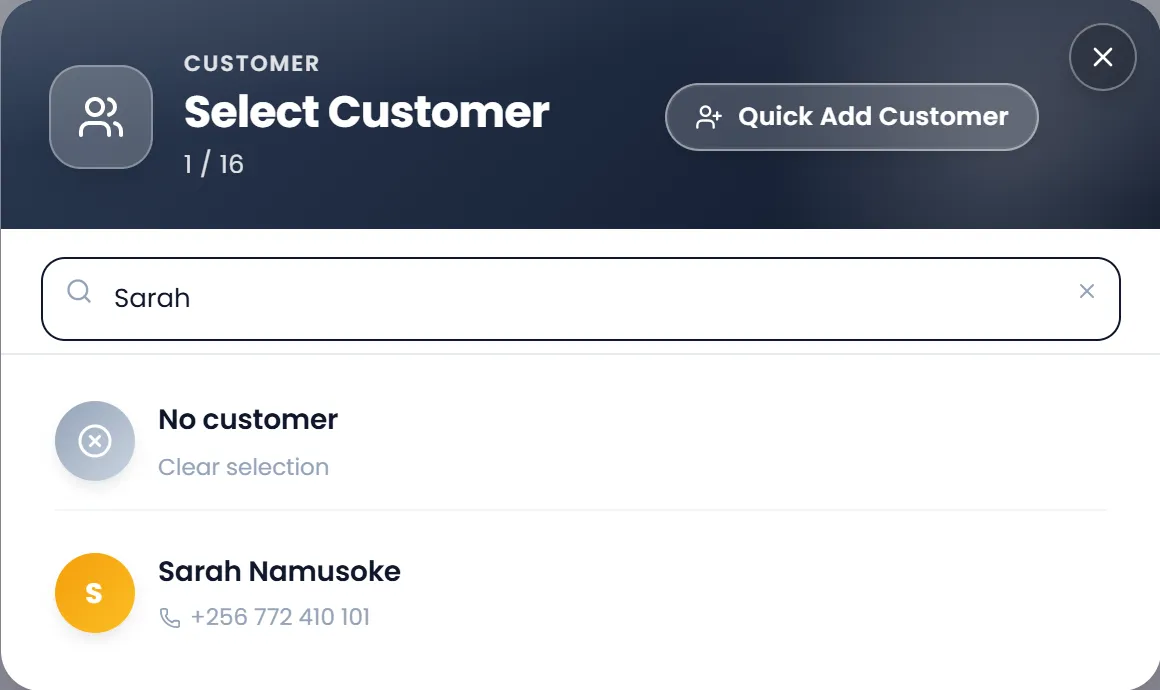
- Choose the customer. Customer starts on walk-in-customer, for a sale to someone you don't keep a record of. Click it to open Select Customer, type a name or phone number, and pick them. Quick Add Customer adds a new one without leaving the till.
- Add the products. Click a product in the grid, or type its name or code in Scan/Search Product by Code Or Name and pick it. Scan reads a barcode with your camera.
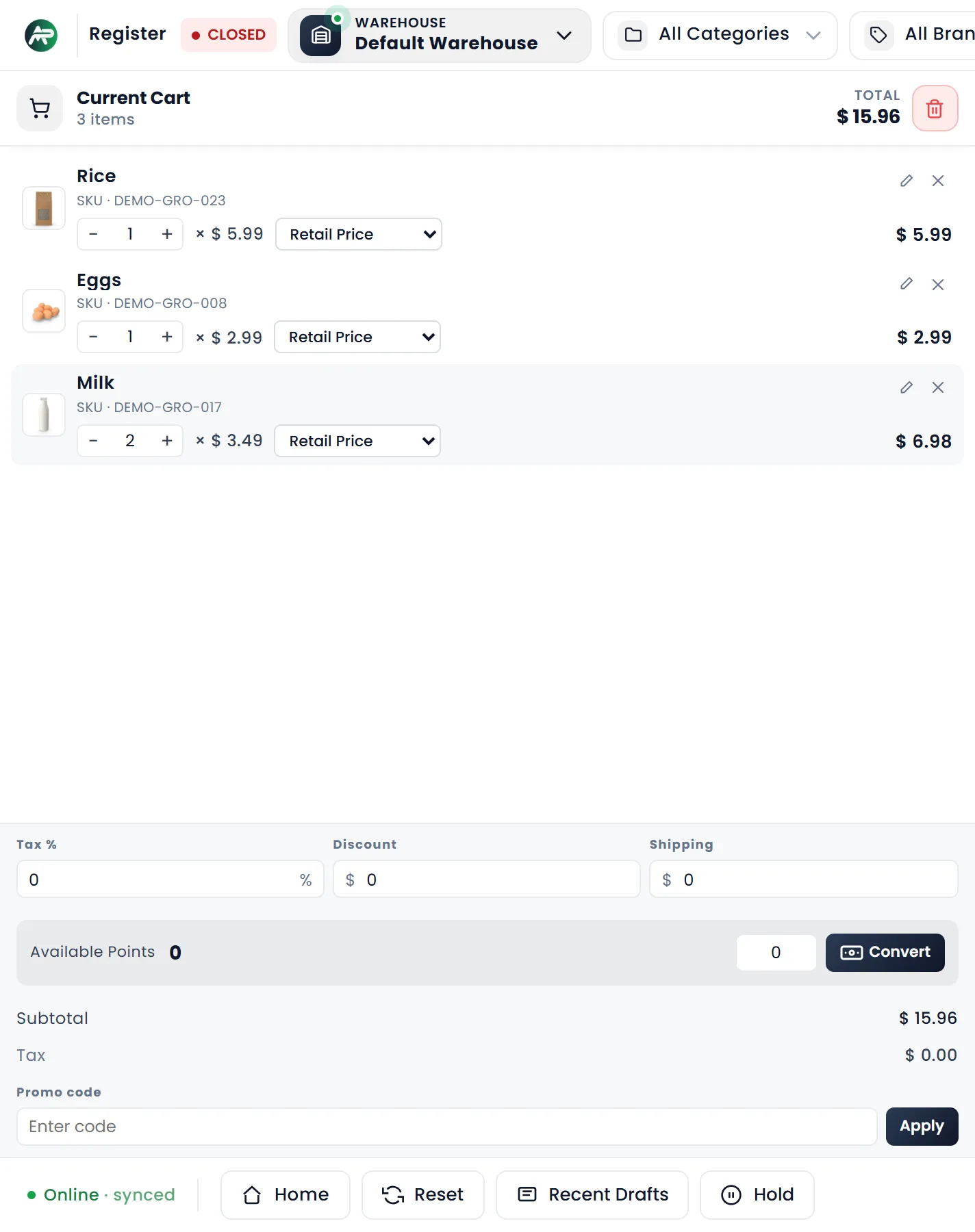
- Check the cart. Current Cart lists what you added. Use − and + to change a quantity, the pencil to change a line, and the x to take it out. Tax %, Discount and Shipping sit below the items.
- Click Pay Now. It is at the bottom, beside Total Payable.
Take the payment
- Check the amount. In Payment Checkout, Amount already holds the total.
- Pick how the customer pays, for example Cash.
- Enter what they gave you. Type it in Amount, or click one of the amounts on the right, such as $ 20.00. Change shows what to give back.
- Click Pay.
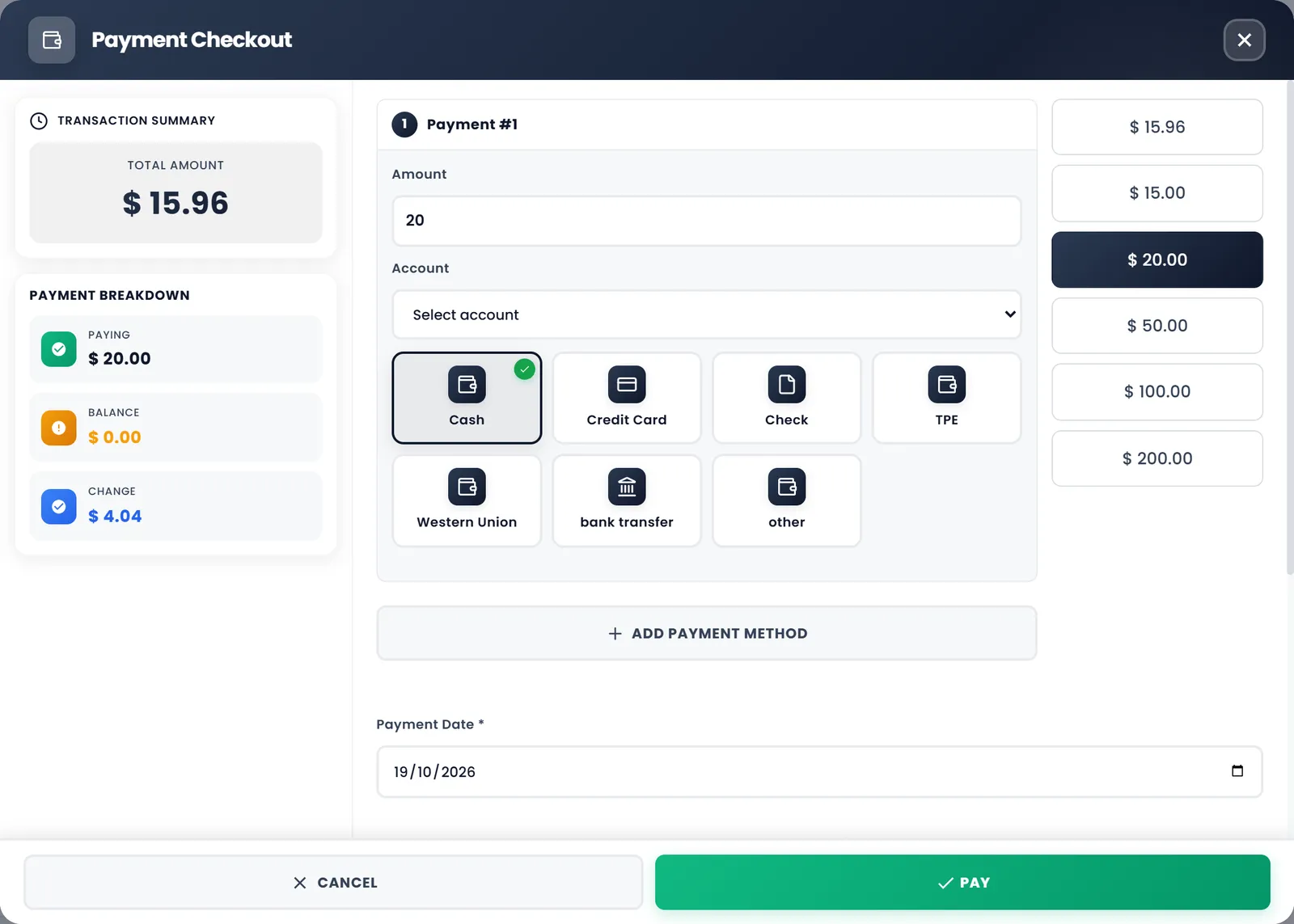
To split one sale across two payment methods, click Add Payment Method. A part you don't take stays as Balance, owed by the customer.
The receipt
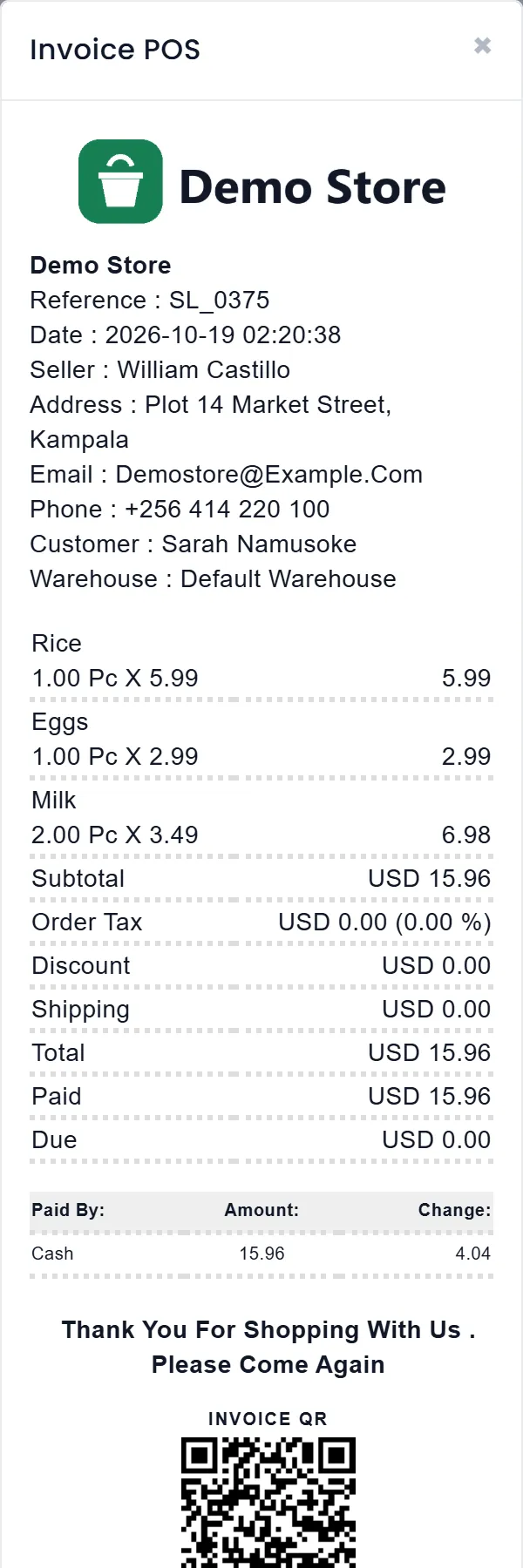
The receipt opens as soon as the sale is saved, with its reference (such as SL_0375), your logo and details, the items, what was paid and the change. Print on the receipt prints it. Settings › POS Receipt decides what the receipt shows, and Print Invoice automatically in POS Settings sends it to the printer every time.
Where your sale shows
- Sales › All Sales lists it. Open All Sales.
- The dashboard counts it in Total sales.
- Today Sales, at the top of the POS, shows the day's sales and payments.
With more than one warehouse, set Default Warehouse in Settings › System Settings, on the Defaults tab, so the POS opens on that one every time.
Hold keeps the cart for later, and Recent Drafts brings it back. The Register button at the top opens a cash register with your opening cash: see Open and close the register.
What's next
To keep your stock right, read Count and adjust stock.
Still stuck?
Write to us and a person answers. If you already have a shop, Ask support inside it sends us the page you're on.
Contact usAsk your AI assistant
ChatGPT, Claude and Gemini can read every guide and walk you through it.
Set it up