




This guide shows you around ArmPOS. By the end you will know what the dashboard tells you, how to reach any page, and where to find help.
The dashboard
ArmPOS opens on the dashboard. It has three tabs: Overview, Sales and Inventory.
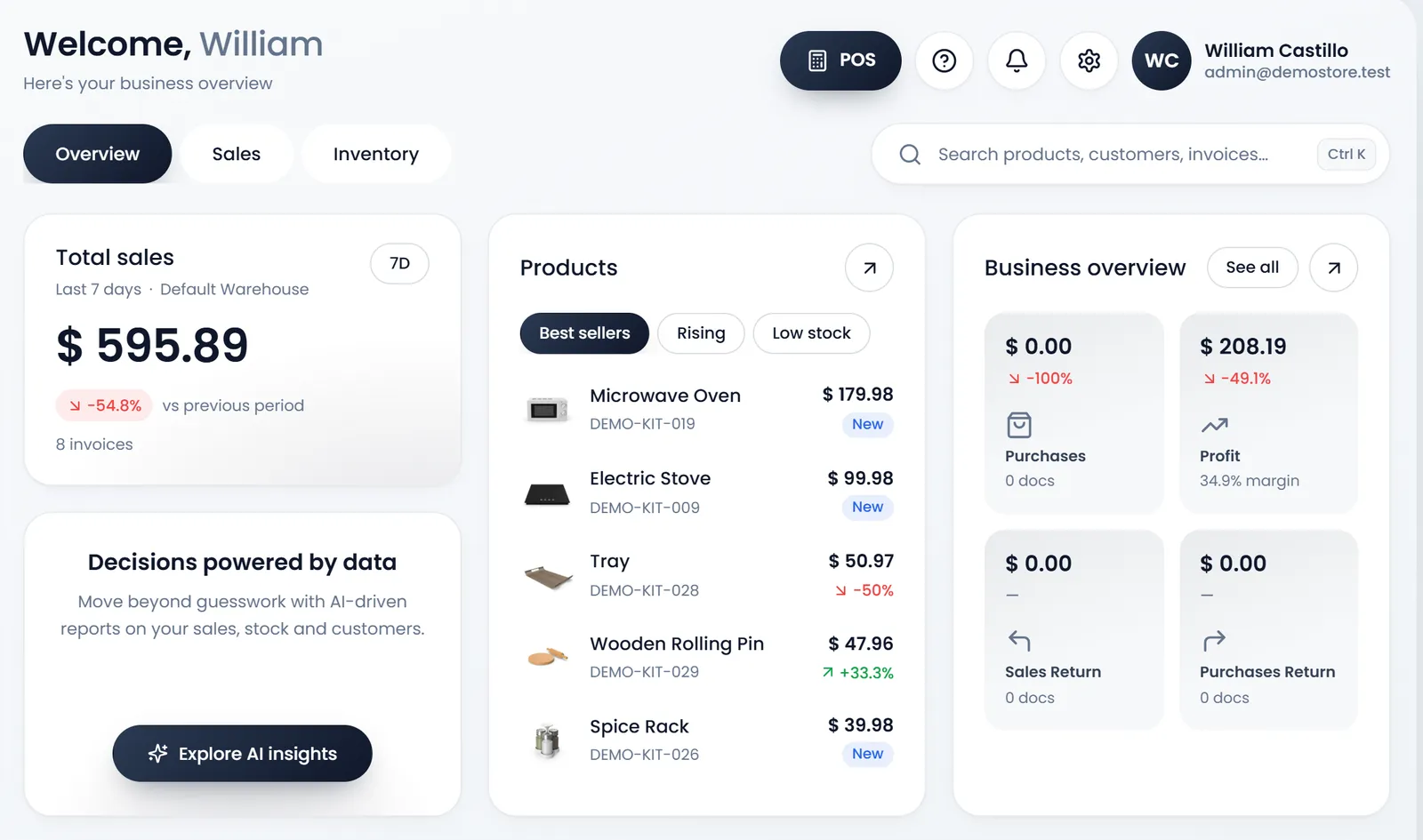
On Overview you see:
- Total sales in your default warehouse, with the change against the period before and the number of invoices. Its button (7D to start) picks the period: Today, Last 7 days, This month, Last 30 days, Last 6 months, Last 12 months or Custom range….
- Products: your Best sellers, the products Rising, and those running Low stock.
- Business overview: purchases, profit and its margin, sales returns and purchase returns. See all opens the Profit and Loss report.
- Decisions powered by data: a shortcut to AI reports when your plan has them, otherwise to your reports.
- Sales performance: a chart of your sales over 1 day, 1 week, 1 month, 6 months or 1 year.
In a new shop, Overview starts with the Getting started card. It lists four steps to your first sale:
- Add your logo and business details
- Add your products
- Add your team
- Make your first sale
Each row opens the page for that step. A step shows Done once your shop's own data shows it, and the badge counts them, such as "1 of 4 done". The card goes once every step is done, or when someone clickes its Hide button, the x, which hides it for the whole shop. Only people who can open Settings see it. When phone alerts are available, a fifth step appears: Get alerts on your phone.
The menu
The menu on the left groups pages by job: Sell, Inventory, Customers, Reports & finance, Team & projects and Setup. You only see the pages your role and your plan include.
- Type in Search menu. It is at the top of the menu. The list narrows to the pages that match, each with the group it sits in.
- Press Enter to open the first match. Or click any page in the list.
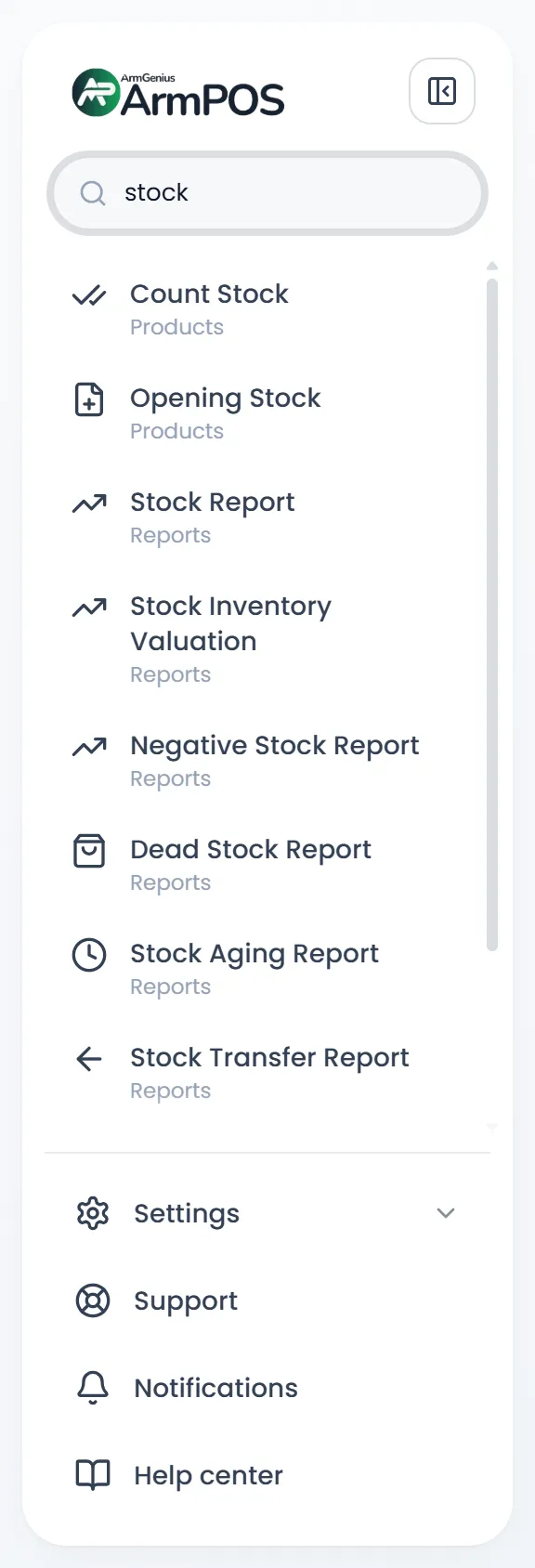
Settings, Support, Notifications and Help center sit at the bottom of the menu. Press Ctrl B to fold the menu down to icons, and again to open it.
The top bar
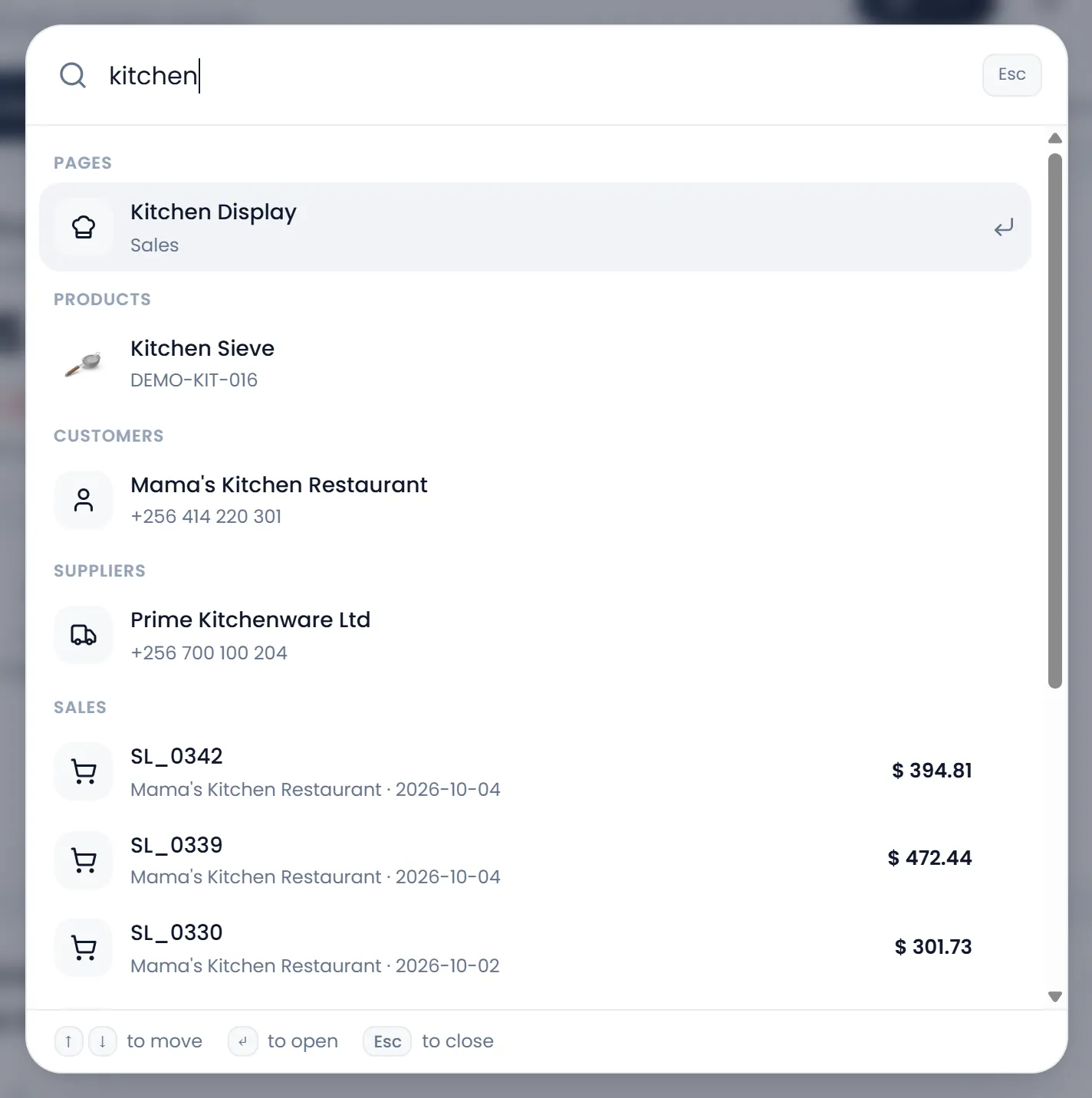
- Search products, customers, invoices… searches pages, products, customers, suppliers, sales and purchases. Press Ctrl K (⌘K on a Mac) to open it from anywhere. Type at least 2 characters. On the dashboard this box sits in the page itself.
- POS opens the till.
- The ? button opens help for the page you are on (see below).
- The bell shows your notifications, with the number of low-stock products at the top. View all opens every notification, and Mark all as read appears when some are unread.
- The gear opens Appearance: Dark mode, Full screen and Language.
- Your name opens Profile, Settings and Logout.
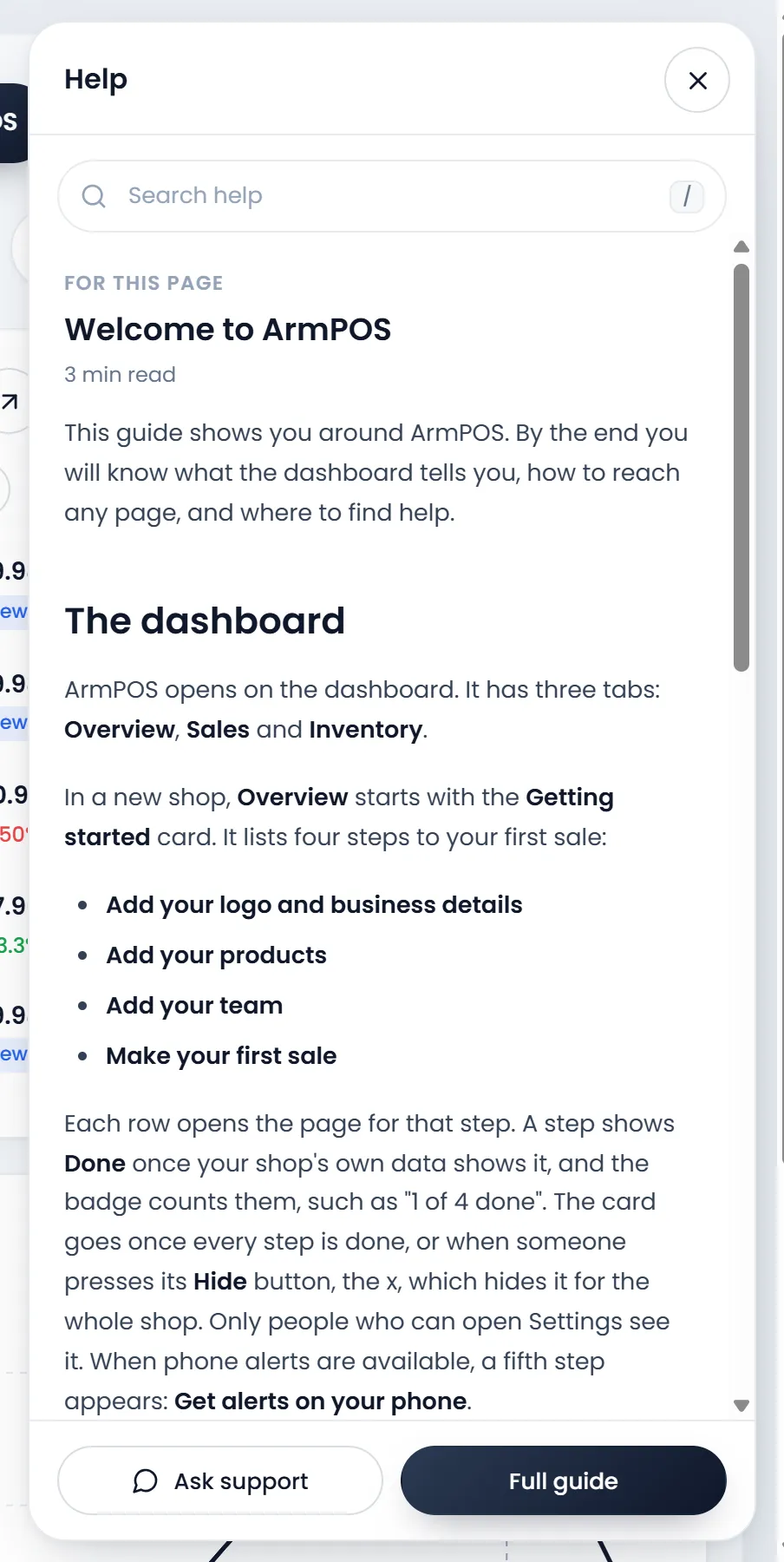
Help for the page you are on
Press ? in the top bar. A panel opens beside the page with the guide for that page, a Search help box, Ask support and Full guide. The page stays usable beside it, and the panel follows you as you move between pages.
Help center is at the bottom of the menu. Search any word, or open a guide from its section. The menu search also finds it by "docs", "guide" or "how to". If a guide doesn't answer your question, Ask support in the panel, or Support at the bottom of the menu, opens a ticket with our team.
What's next
Start with the first step: Add your logo and business details.
Still stuck?
Write to us and a person answers. If you already have a shop, Ask support inside it sends us the page you're on.
Contact usAsk your AI assistant
ChatGPT, Claude and Gemini can read every guide and walk you through it.
Set it up