




Names like these, in green, are pages inside your ArmPOS shop. Sign in to your shop to open them.
By the end you will know what your plan includes, how much of it you use, and how to change it, pay for it and find your invoices.
Billing is in the menu for the shop's owner and for roles allowed to see it.
Your plan
Open Billing › Current Plan.
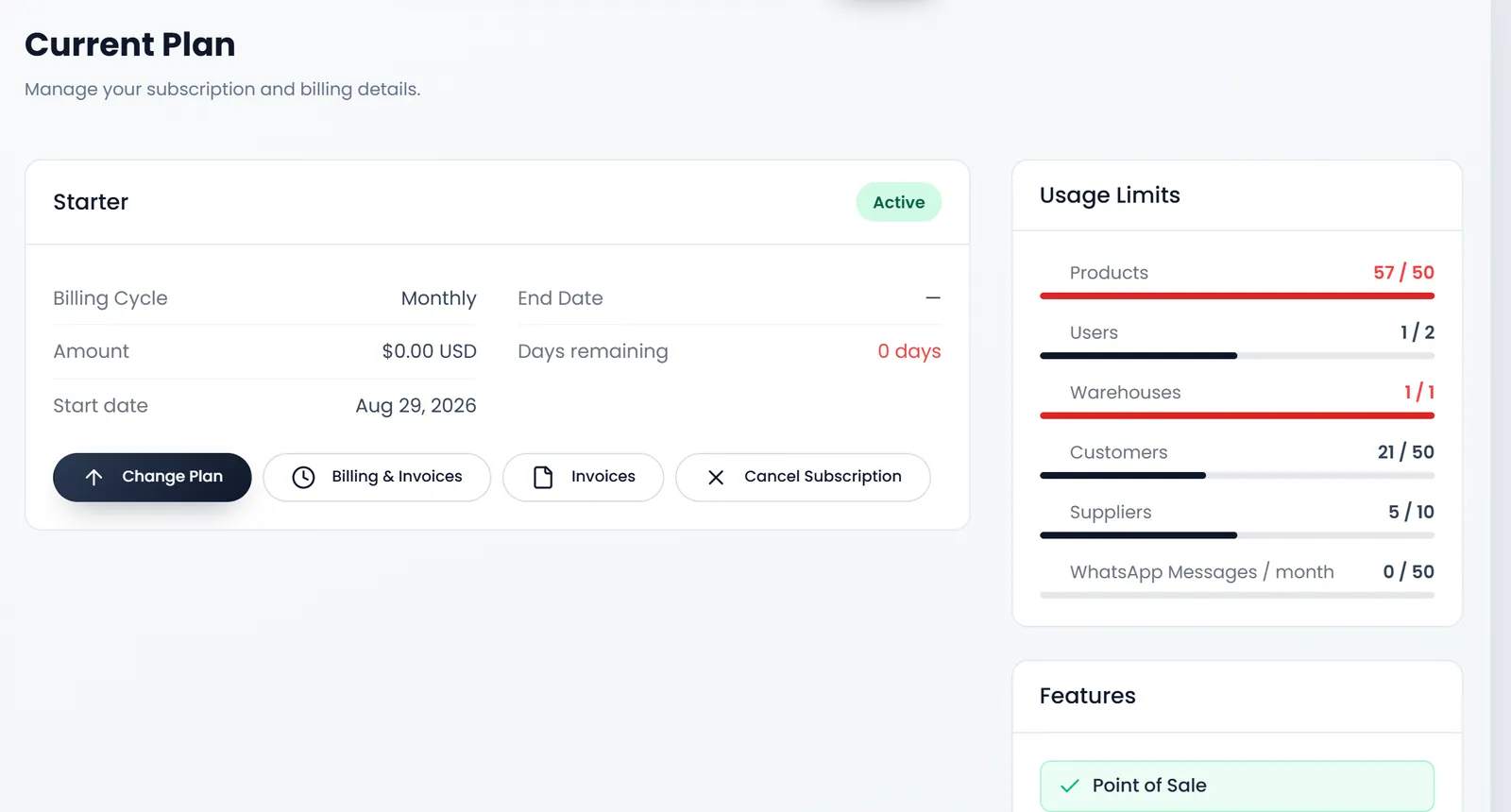
- The plan card shows the plan's name and status, the Billing Cycle, the Amount, the Start date, the End Date and the Days remaining.
- Usage Limits shows how much of each limit you use: Products, Users, Warehouses, Customers, Suppliers and WhatsApp Messages / month. A bar turns amber at 80% and red when it is full.
- Features lists the parts of ArmPOS your plan includes. A part that isn't listed isn't in your menu.
When a limit is full
Limits only stop you adding. Everything you have keeps working: you can still sell, edit and delete. When you try to add one more product, user, warehouse, customer or supplier, a Plan Limit Reached window offers Upgrade Plan.
Change your plan
- Click Change Plan.
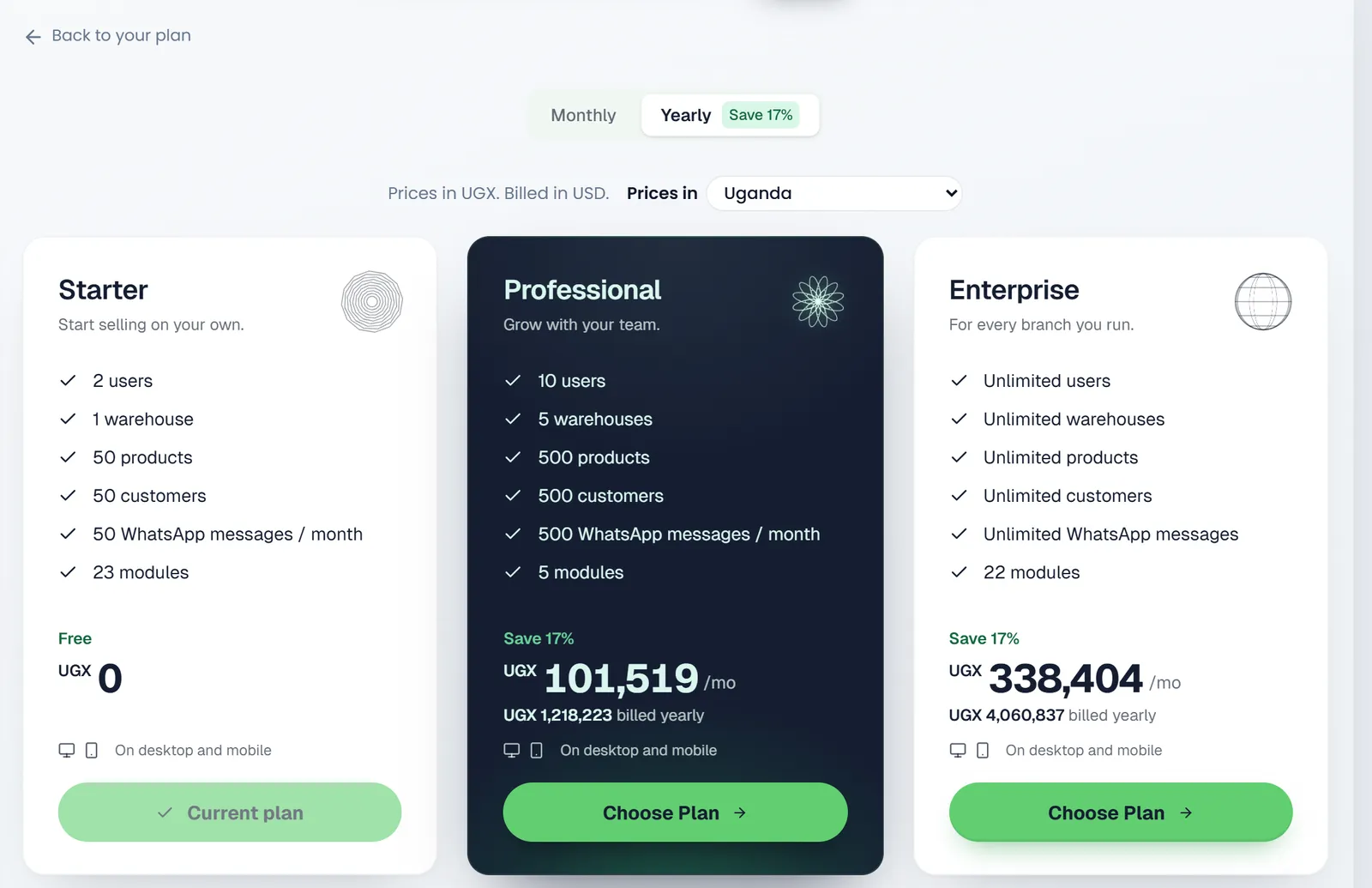
- Choose Monthly or Yearly. Yearly shows what you save.
- Check the prices. They show in your country's currency. Pick another country in Prices in if it is wrong. The note says which currency you are billed in.
- Click Choose Plan on the plan you want.
- Pay. The checkout offers the ways to pay that work in your country: mobile money (a prompt on your phone), a card, or a bank transfer with a picture or PDF of the receipt (up to 5 MB). Leave Renew automatically on to renew the same way.
The new plan starts when it is paid, for one full month or year. A bank transfer starts once ArmPOS has checked your receipt. While one change waits for payment, you can't start another.
Choosing a smaller plan doesn't check your usage. Before you move down, make sure you are within the smaller plan's limits, or you won't be able to add anything until you are.
Payments and invoices
- Billing & Invoices lists your payments, with Retry for one that failed and PDF for one that was paid.
- Invoices lists the paid ones with their PDF.
When your plan ends
Once you have paid by card or mobile money, Current Plan shows a Renewal card: the Renewal card (with Remove) or the Renewal number (with Change), and the Renew automatically switch. Renewals use them on the renewal date.
A paid plan that isn't renewed keeps working for a few days after its End Date: the page says Renewal due and until when you can renew. After that the shop stops until you choose a plan.
Cancel
Cancel Subscription asks you to confirm, and says your plan stays active until the end of the period. The shop keeps working until that date, and the page says when it ends. Changed your mind? Resume Subscription brings the plan back, as long as the date hasn't passed.
What's next
Ask about a payment or an invoice in Ask our support team.
Still stuck?
Write to us and a person answers. If you already have a shop, Ask support inside it sends us the page you're on.
Contact usAsk your AI assistant
ChatGPT, Claude and Gemini can read every guide and walk you through it.
Set it up