




Names like these, in green, are pages inside your ArmPOS shop. Sign in to your shop to open them.
A product with variants is one product sold in versions, such as sizes or colors. By the end of this guide you will have made one, and you will know the other product types.
When to use variants
Use a variable product when the versions share a name, category and unit, but each needs its own code and price. A T-shirt in Small, Medium and Large is one product with three variants. Each variant keeps its own stock.
Create a product with variants
- Open Products › Create product. Fill in the name, code and category as for any product.
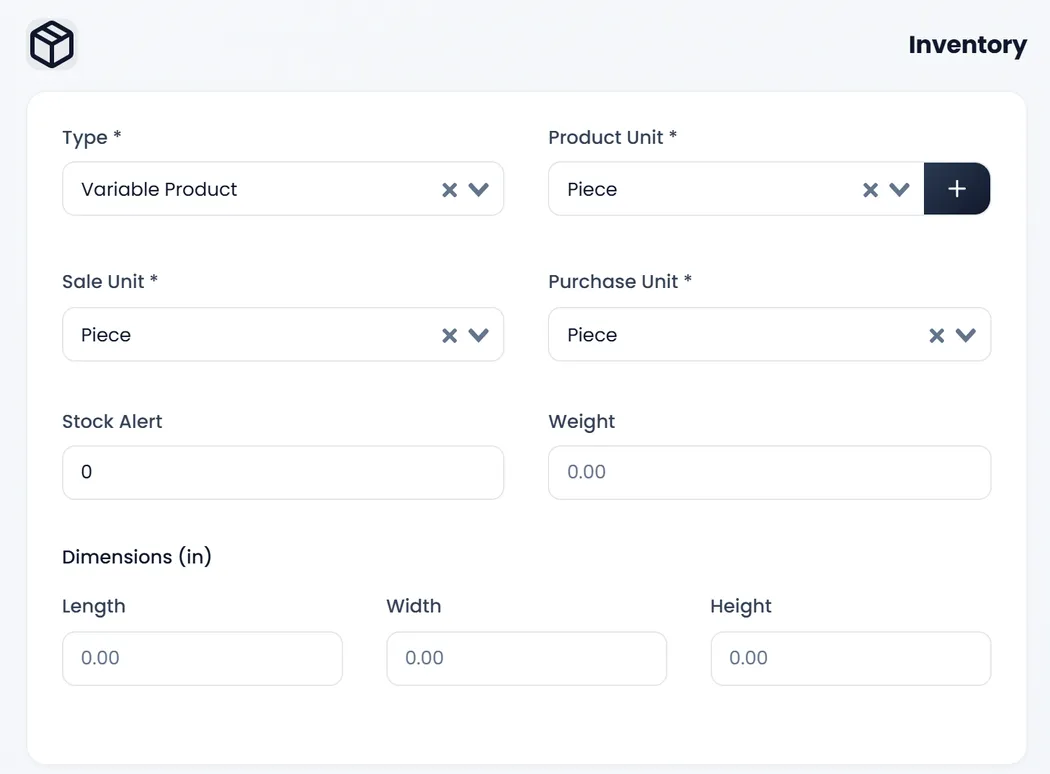
- Set Type to Variable Product. It is under Inventory. Choose the Product Unit too. Product Cost and Retail Price leave Pricing And Tax, because each variant gets its own.
- Add the variants. In Variants, at the bottom of the page, type a name in Enter the Variant, such as 500 ml, and click Create. Repeat for each one.
- Fill in each variant. Every variant needs a Code, a Cost and a Retail Price. Wholesale Price, Min Selling Price and an image are optional.
- Click Save Product.
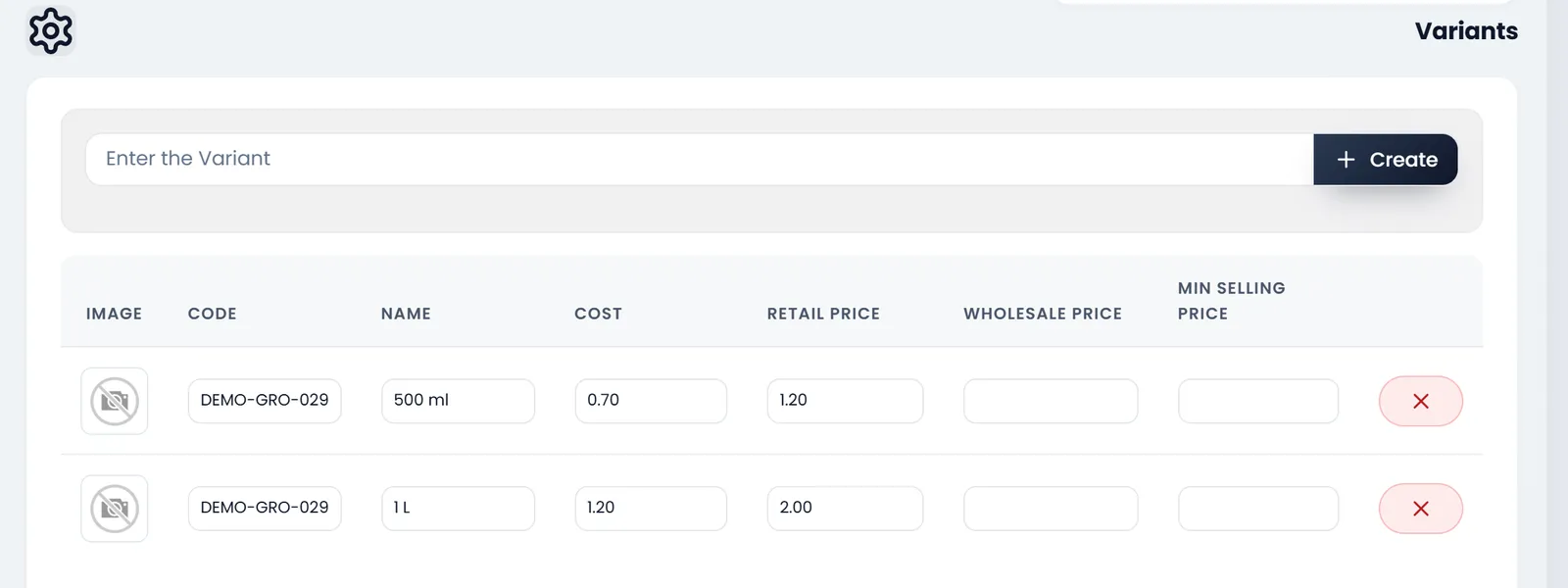
Variant codes must be unique across all your products and variants. A missing code, cost or price stops the save, and the message names it. A cost or price of 0 counts as missing.
Stock for variants
The form has no Opening Stock for a variable product, so its variants start with none. To add stock, use Products › Opening Stock and choose Variant Products. Its file takes product_code, variant_code and qty. A purchase or an adjustment adds stock too.
Many variants at once? Products › Import products has a Variant Products template, one row per variant.
The other product types
- Standard Product: one item with one price. Most products are this.
- Service Product: work you sell, such as a repair or a delivery fee. It has a price but no unit and no stock.
- Combo Product: a bundle of products you already have. In Combo Products, search for each one and set its quantity.
Choose the type when you create the product, under Inventory.
What's next
Print barcode labels for your products.
Still stuck?
Write to us and a person answers. If you already have a shop, Ask support inside it sends us the page you're on.
Contact usAsk your AI assistant
ChatGPT, Claude and Gemini can read every guide and walk you through it.
Set it up