




Names like these, in green, are pages inside your ArmPOS shop. Sign in to your shop to open them.
Barcode labels let the POS scan a product instead of searching for it. By the end of this guide you will have printed a sheet or a roll of labels for your products.
Print labels
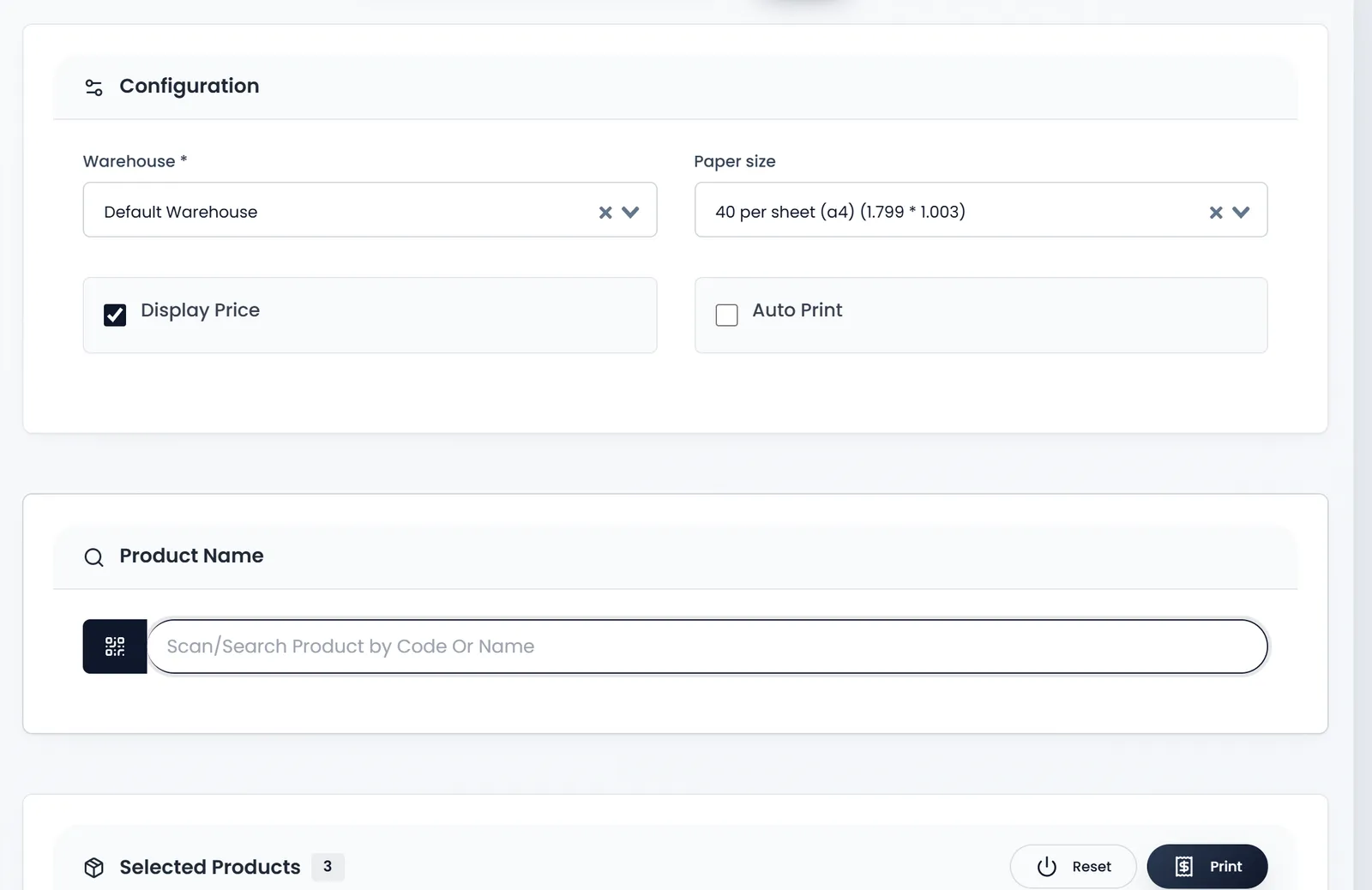
- Open Products › Print Labels. Configuration is at the top of the page.
- Choose the Warehouse. It is required. The product search looks in that warehouse.
- Choose the Paper size. Sheets hold from 40 down to 10 labels each, such as 40 per sheet (a4). Stickers run from Stickers - 50mm x 25mm to Stickers - 148mm x 105mm (A5). Stickers - Custom Value takes your own width and height.
- Untick Auto Print if you are printing for several products (see the tip below).
- Add the products. Type a name or code in Scan/Search Product by Code Or Name, or click the scan button beside it, then pick the product from the list. Each product goes in once, under Selected Products.
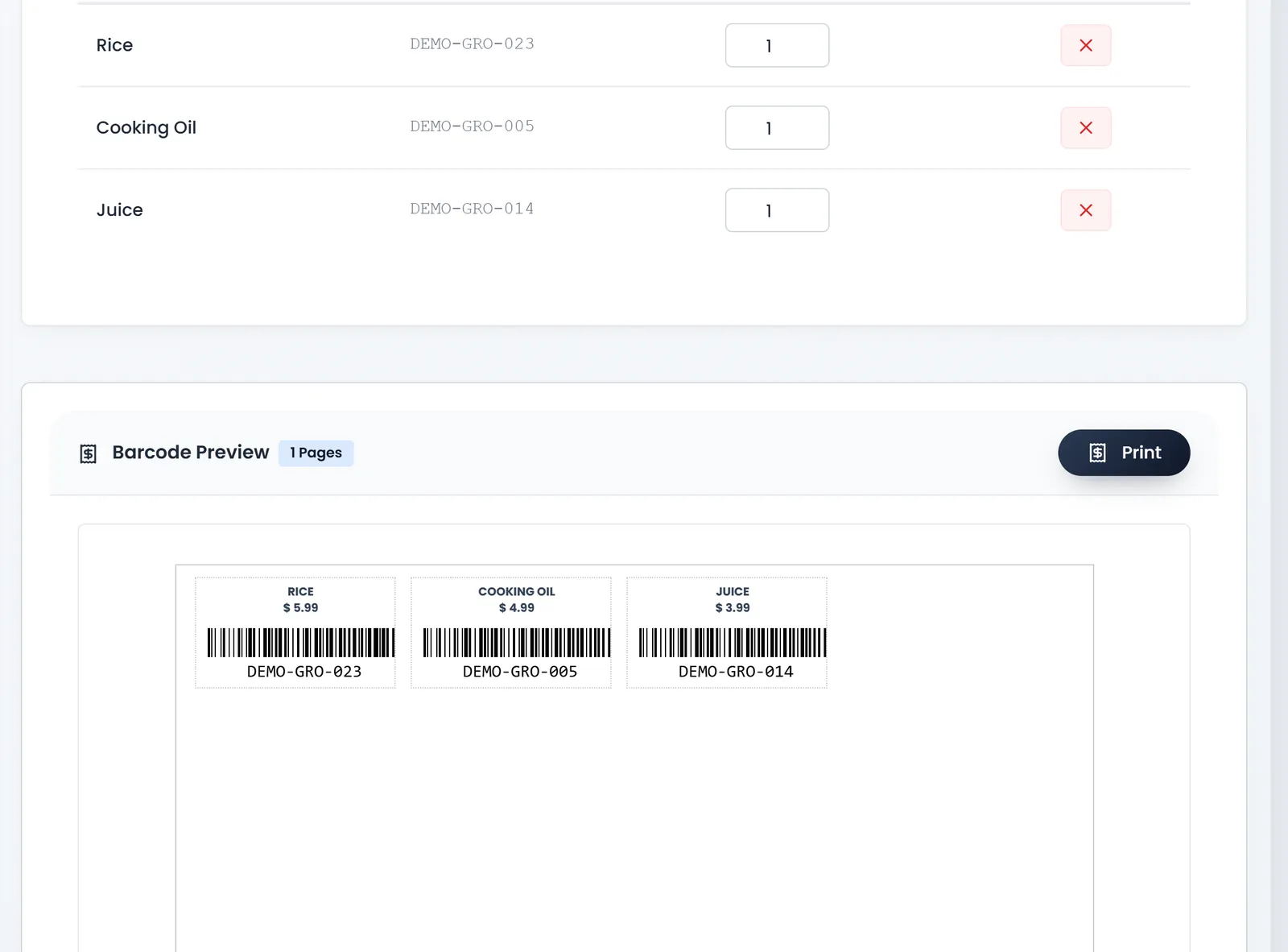
- Set how many labels. Each product's Quantity starts at 1. The x takes a product off.
- Check the preview. Barcode Preview shows every page as it will print, with the number of pages.
- Click Print. A print window opens. Choose your printer there.
Auto Print is on when the page opens. It opens the print window each time you add a product or change a quantity. Untick it first if you are printing for several products.
What a label shows
Each label carries the product's name and a barcode of its code. A variant's label uses the variant's code. Display Price adds the price, and it is on when the page opens.
The barcode is drawn in the product's Barcode Symbology, so the code must suit it. You set both on the product form.
Before you print
- A product that already carries its maker's barcode may not need a label. Scan that barcode into Code Product when you create the product, and the POS can scan the item as it is.
- Reset clears the products, the warehouse and the paper size, so you can start again.
What's next
Still stuck?
Write to us and a person answers. If you already have a shop, Ask support inside it sends us the page you're on.
Contact usAsk your AI assistant
ChatGPT, Claude and Gemini can read every guide and walk you through it.
Set it up