




Names like these, in green, are pages inside your ArmPOS shop. Sign in to your shop to open them.
Prices change, products move between categories, and a new supplier means new costs. By the end you will know how to find a product, read its page, change it, and update many prices at once.
Find a product
Products › All Products lists them all, newest first. Each row shows the Type (Single, Variant, Service or Combo), Name, Code, Brand, Category, Cost, Price, Unit and the Quantity in stock.
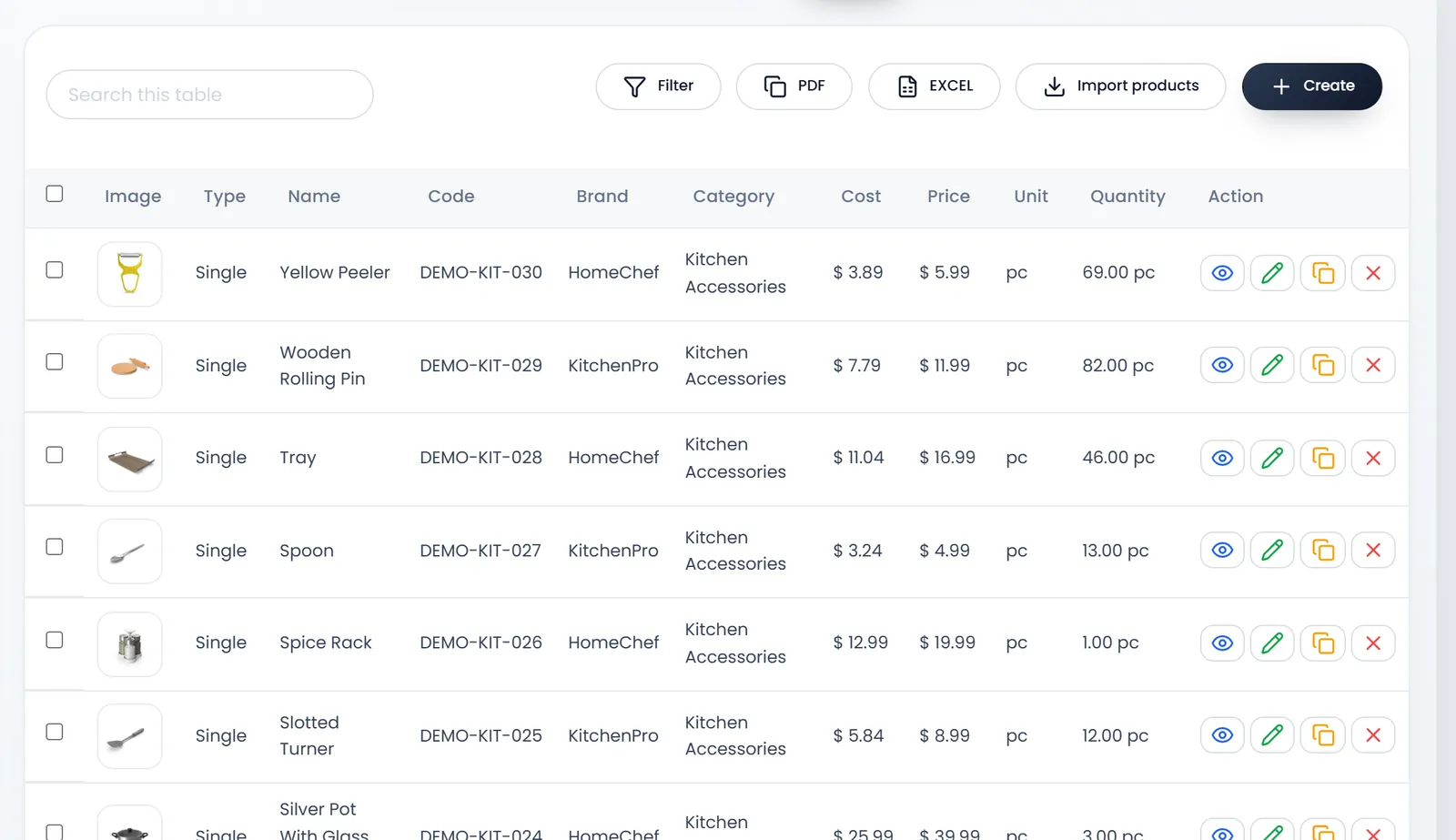
Search this table finds a product by name or code; Filter narrows by code, name, category, brand or warehouse. The search in the top bar (Ctrl K) finds products from any page. Each row's buttons are View, Edit, Duplicate (a copy to start a similar product from) and Delete.
Read a product's page
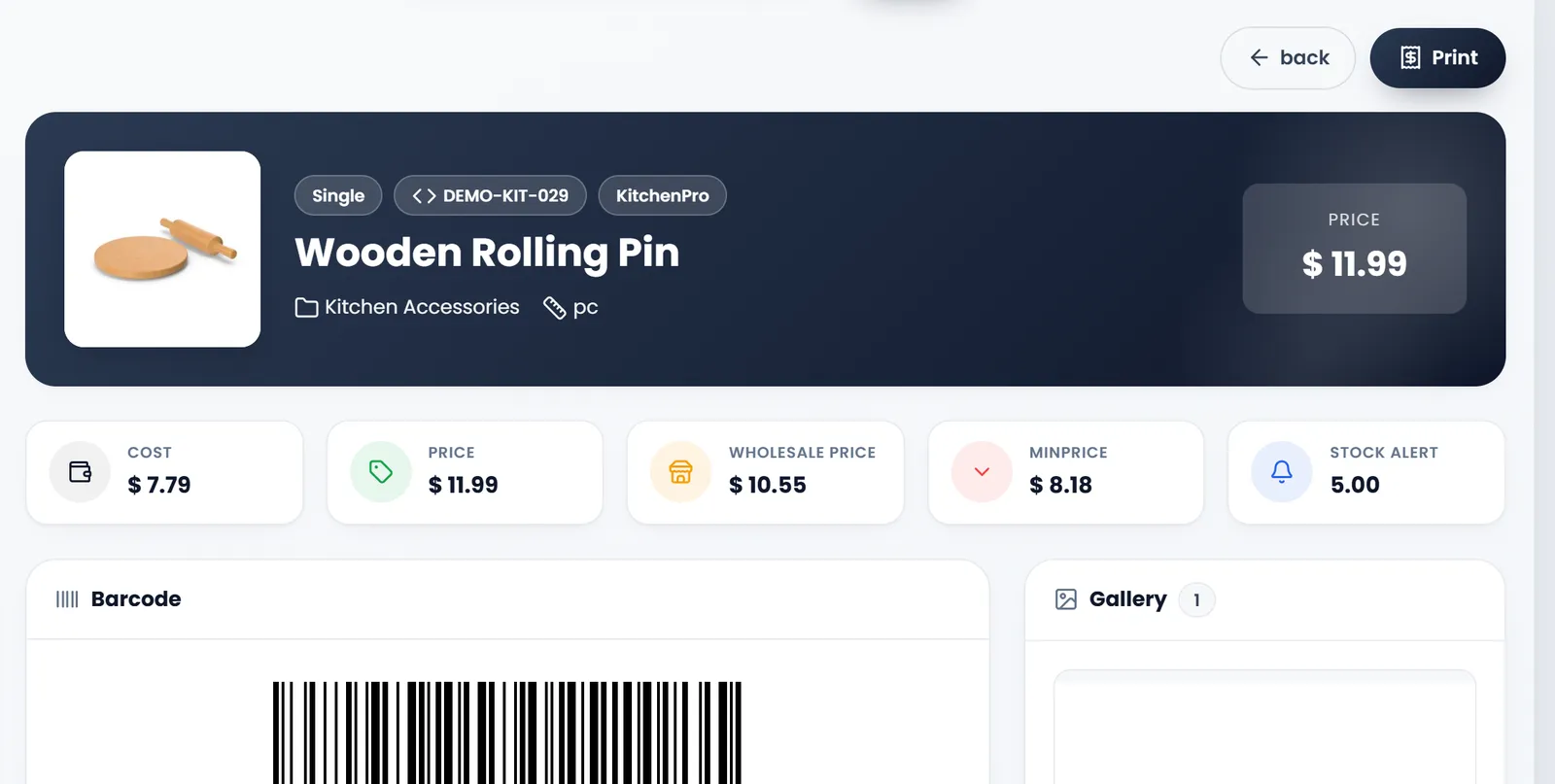
Click View in its row. Its page shows its photo, type, code, brand, categories and unit; its Cost, Price, Wholesale Price, minimum price and Stock Alert; its barcode, ready to Print; and its stock in each warehouse.
Change a product
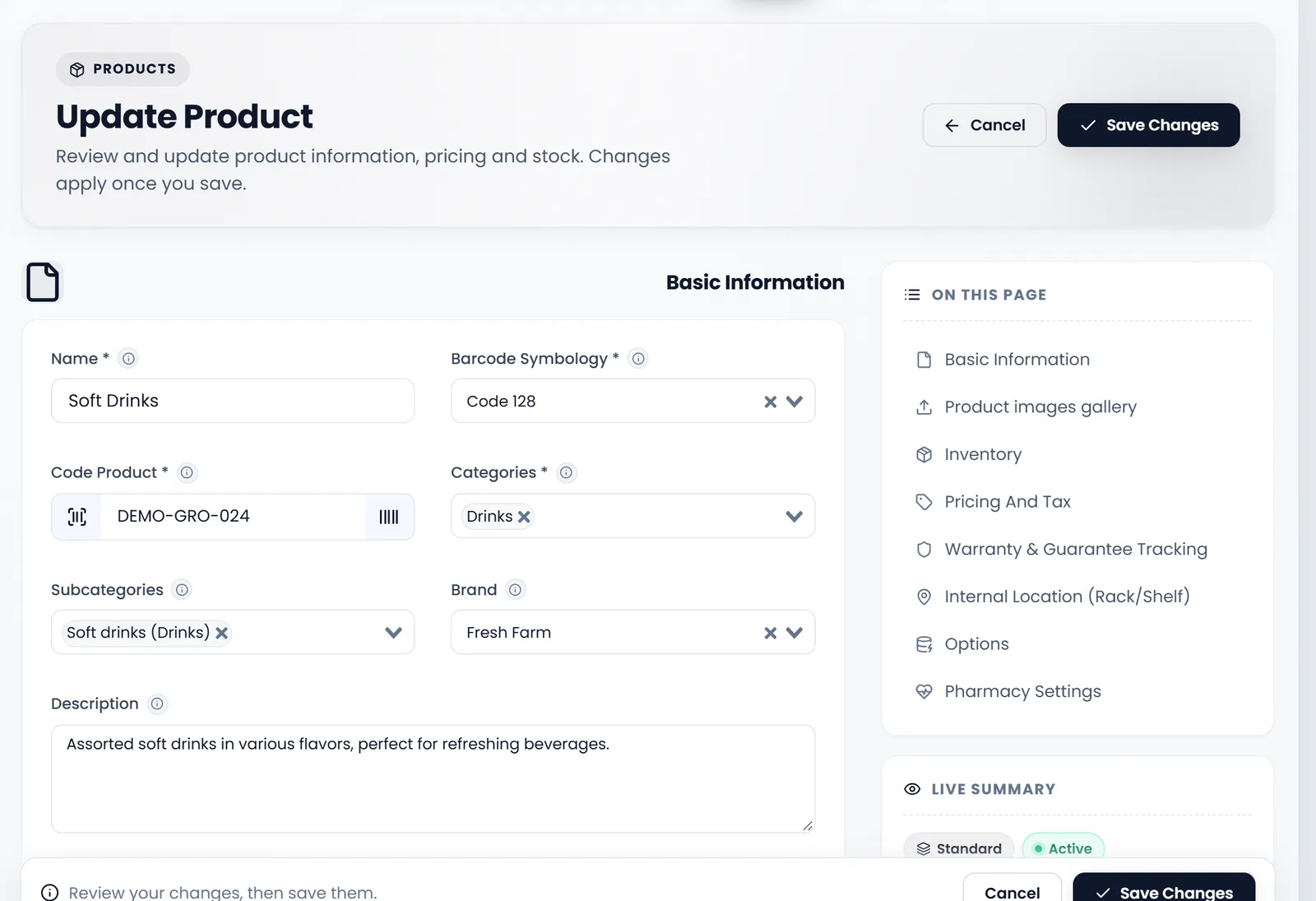
- Click Edit in the product's row. Update Product opens.
- Change what you need. The page is in parts, listed under On this page on the right: Basic Information, Product images gallery, Inventory, Pricing And Tax, Warranty & Guarantee Tracking, Internal Location (Rack/Shelf), Options and Pharmacy Settings. Live Summary shows the result as you go.
- Click Save Changes, at the top or the foot of the page. You land on All Products.
If saving says Please fill the form correctly, a required field is empty somewhere further down: look for the box outlined in red. On some products it is Discount, under Pricing And Tax: type 0 there and save again.
Stock isn't changed here once a product exists: count it and correct it with an adjustment (see Count and adjust stock).
Update many prices at once
Products › Import (Update Only) changes the cost and the selling price of products you already have, from a file.
- Click Download example. The file has exactly three columns: code, cost and retail_price.
- Fill one row per product you want to change. Products are matched by code, which must match exactly.
- Drop the file on the box (CSV, XLSX or XLS, up to 20 MB) and click Update Products.
Only cost and price change; everything else about the products stays as it is. A row whose code doesn't exist is skipped.
What's next
Still stuck?
Write to us and a person answers. If you already have a shop, Ask support inside it sends us the page you're on.
Contact usAsk your AI assistant
ChatGPT, Claude and Gemini can read every guide and walk you through it.
Set it up