




Names like these, in green, are pages inside your ArmPOS shop. Sign in to your shop to open them.
Categories and brands group your products. Units say how you count them. By the end of this guide you will know what each is for and how to set them up.
Categories and sub categories
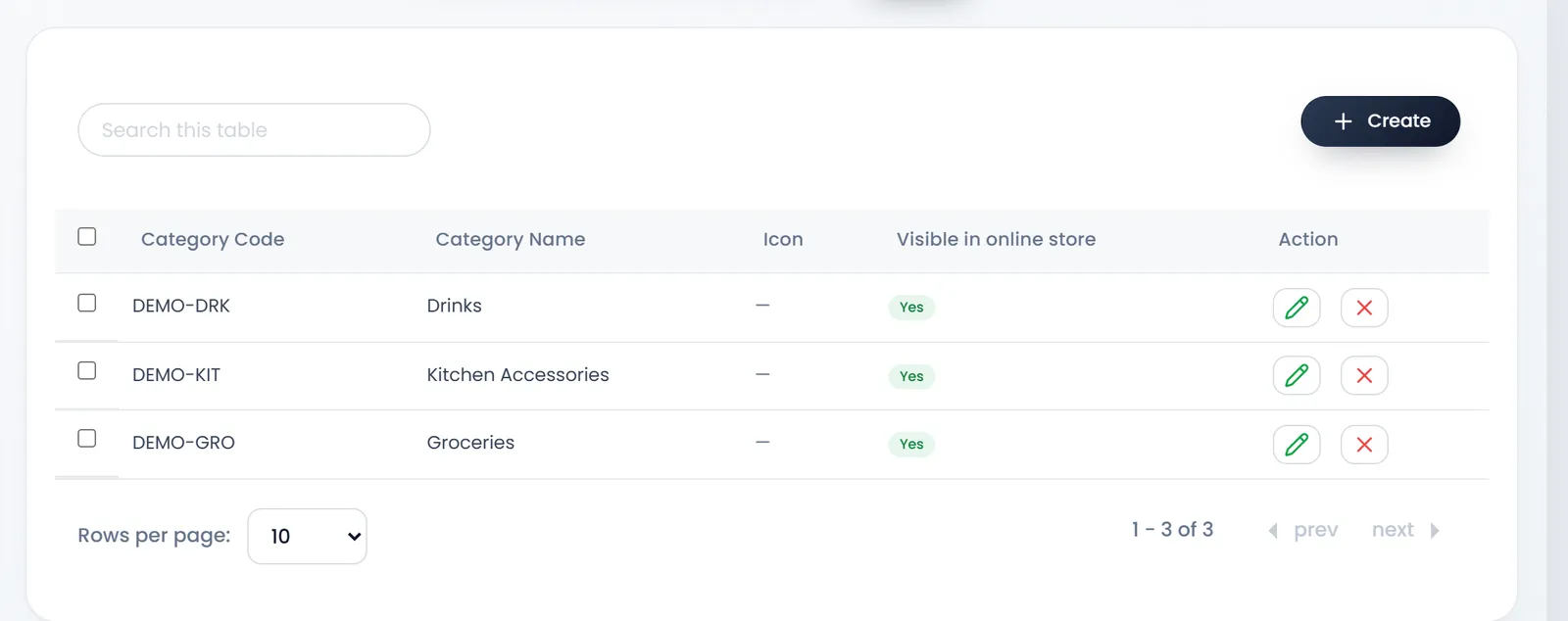
A category is a group of products, such as Drinks. Every product needs at least one.
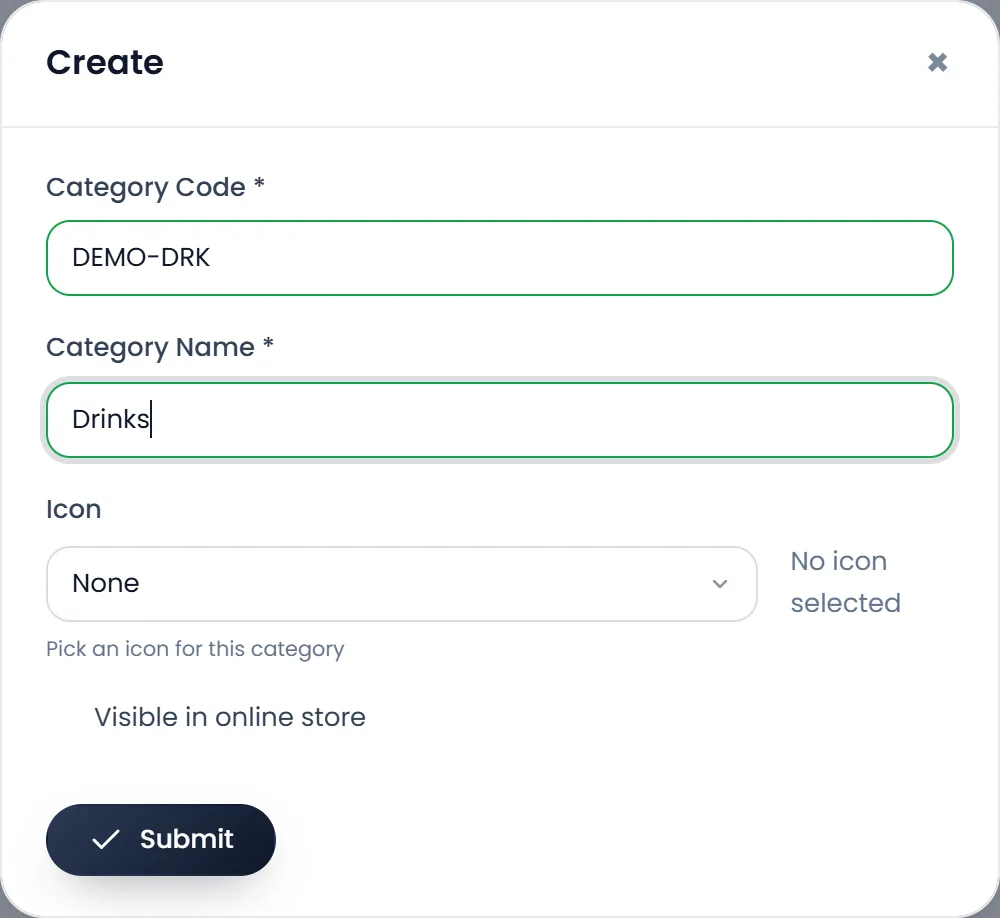
- Open Products › Category and click Create.
- Enter a Category Code and a Category Name. Both are required. The code is any short label of your own, such as DRK.
- Pick an Icon if you like. It is optional.
- Leave Visible in online store on to show the category in your online store, or turn it off. It is on unless you change it.
- Click Submit.
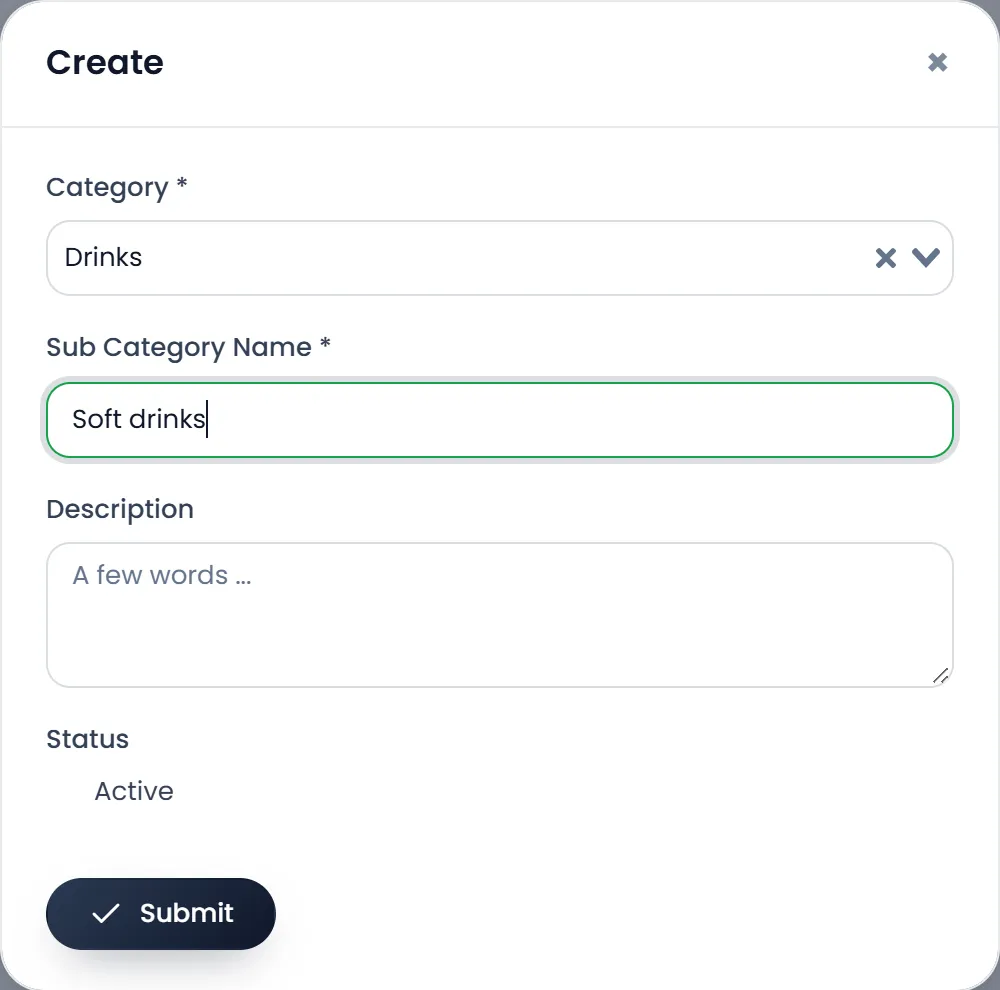
Products › Sub Category splits a category further, such as Soft drinks under Drinks. Click Create, choose its Category, enter a Sub Category Name (both required), add a Description if you like, and set its Status.
A product can sit in several categories. The first one you pick is its main one, which older reports use.
Brands
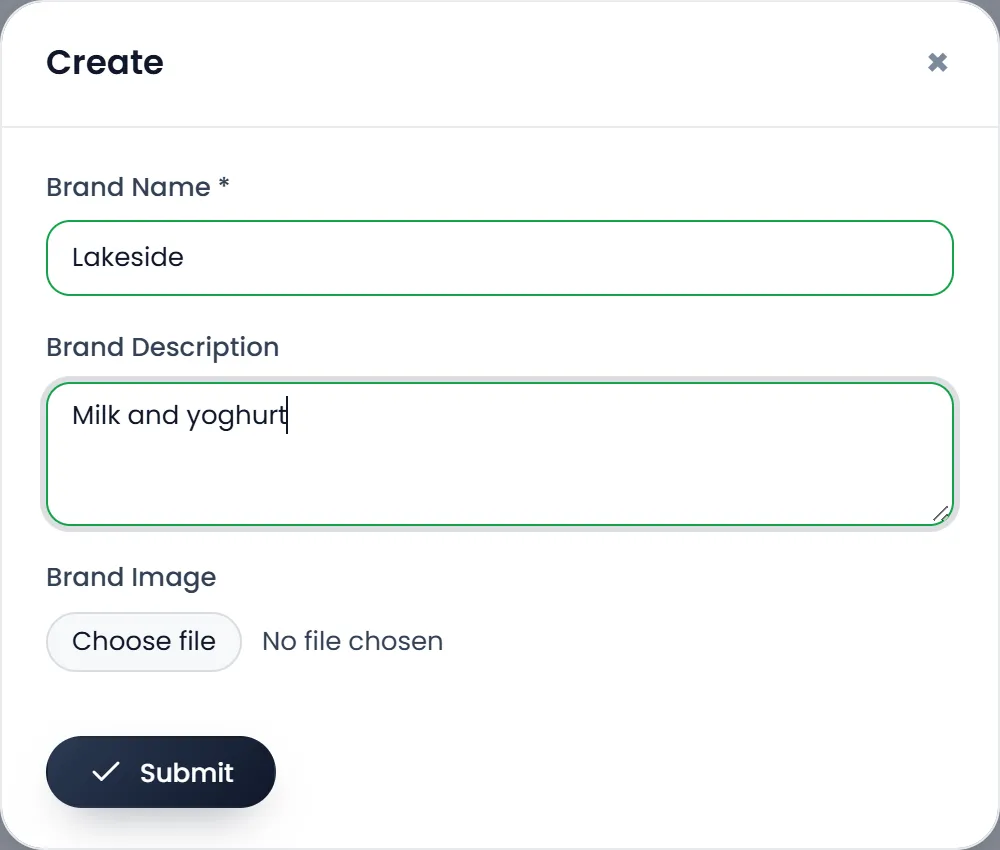
A brand is optional. Use it if you sell several makers' goods and want to sort or report by maker. In Products › Brand, click Create and enter a Brand Name of 3 to 20 characters. Brand Description (up to 30 characters) and a Brand Image of up to 200 KB are optional.
Units
A unit is how you count a product: by the piece, the kilo or the box. In Products › Unit, each unit has a Name and a Short Name, up to 15 characters each.
A unit with no Base Unit is one you count in, such as Piece. A product's Product Unit must be one of these. A unit built on another is a pack or a part of it, such as a box of 12 pieces.
- Open Products › Unit and click Create. The form opens.
- Name it. For example, Box as the Name and box as the Short Name.
- Choose its Base Unit. Pick Piece. Operator and Operation Value appear.
- Set the conversion. Choose Multiply (*) and enter 12. One box is now 12 pieces.
- Click Submit.
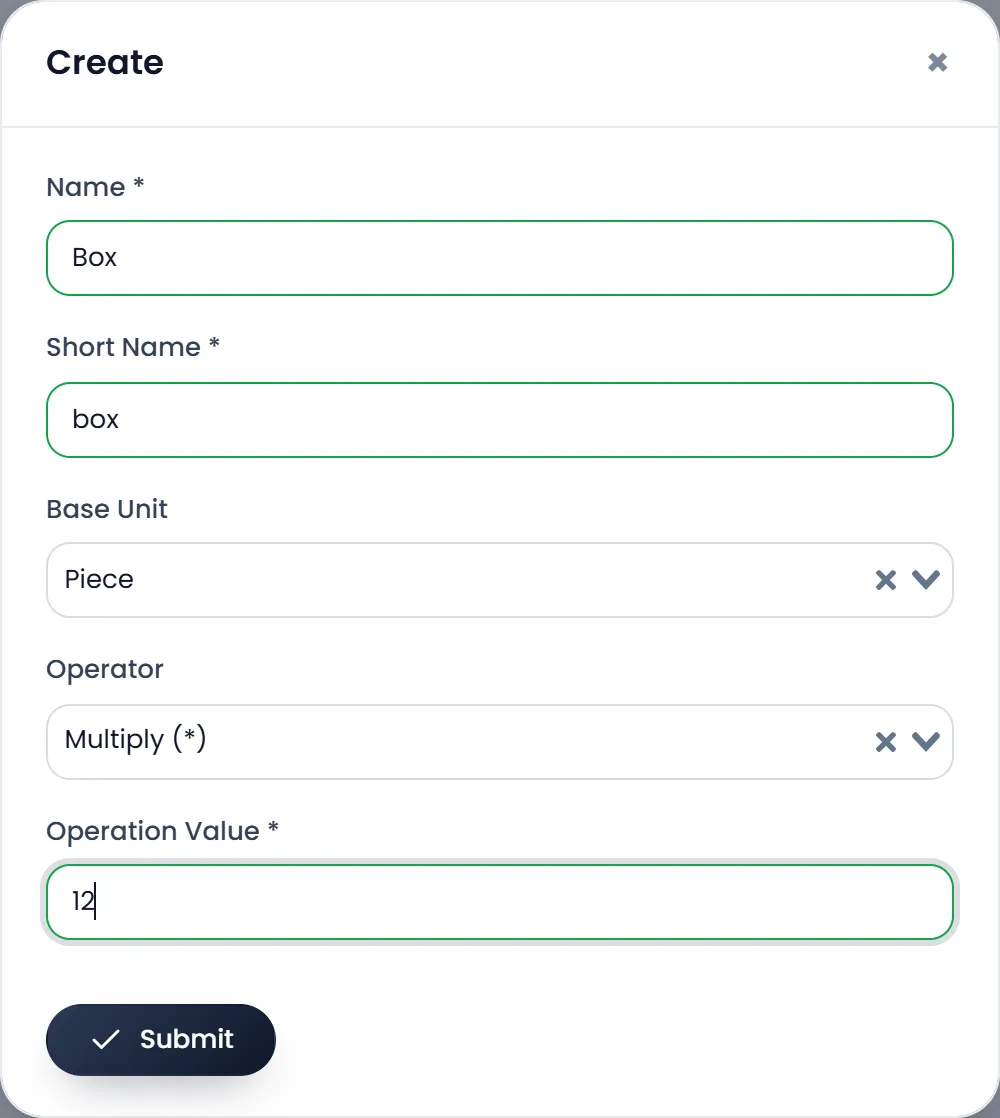
Use Divide (/) for a unit smaller than its base, such as Gram under Kilogram with 1000.
On a product, Sale Unit and Purchase Unit can be the base unit or one built on it. You can buy by the box and sell by the piece. Stock is kept in the product's own unit, so selling one box of 12 takes 12 pieces off.
Spreadsheet imports find a product's unit by its Short Name or Name. Make your units before you import.
Every list has Search this table, and each row has Edit and Delete.
What's next
Still stuck?
Write to us and a person answers. If you already have a shop, Ask support inside it sends us the page you're on.
Contact usAsk your AI assistant
ChatGPT, Claude and Gemini can read every guide and walk you through it.
Set it up