




Names like these, in green, are pages inside your ArmPOS shop. Sign in to your shop to open them.
By the end you will have added a field of your own to your customers, such as the area you deliver to, and filled it in on a customer.
Custom fields add your own questions to the customer and supplier forms. They show on the customer's and the supplier's details, and in the POS's quick-add form. They don't print on receipts or invoices.
Add a field
- Open Settings › System Settings and the Custom Fields tab, or go straight to Custom Fields.
- Choose Customers or Suppliers.
- Click Create.
- Type the Field Name. It is required, and it is the label people will see, such as Delivery area.
- Pick the Field Type. Text, Number, Textarea (several lines), Date, Select (a list to choose from) or Checkbox.
- For a Select, write the Select Options, one per line. For the other types, Default Value fills the field in advance.
- Switch on Required if every customer must have it. Leave it on Optional otherwise.
- Click Submit.
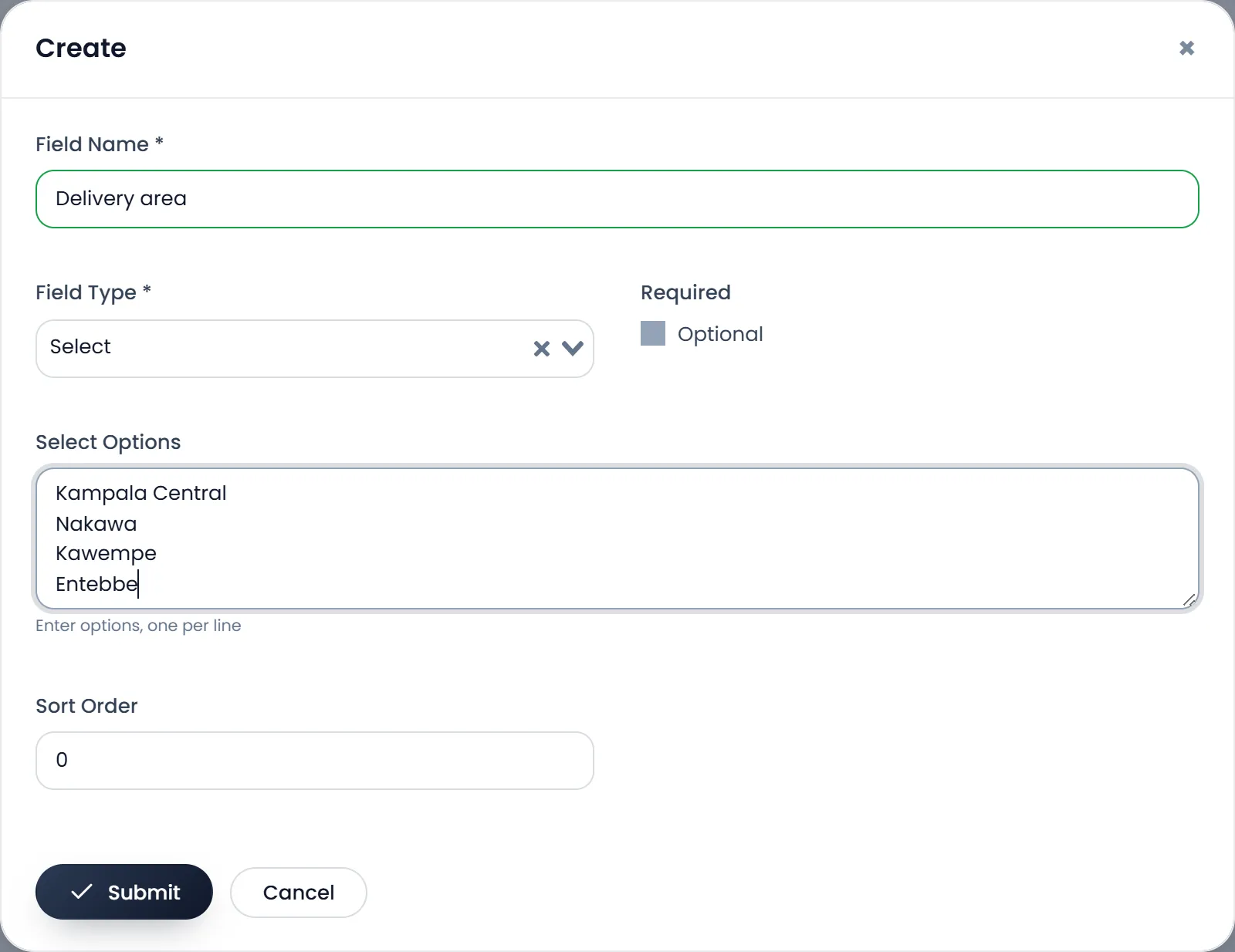
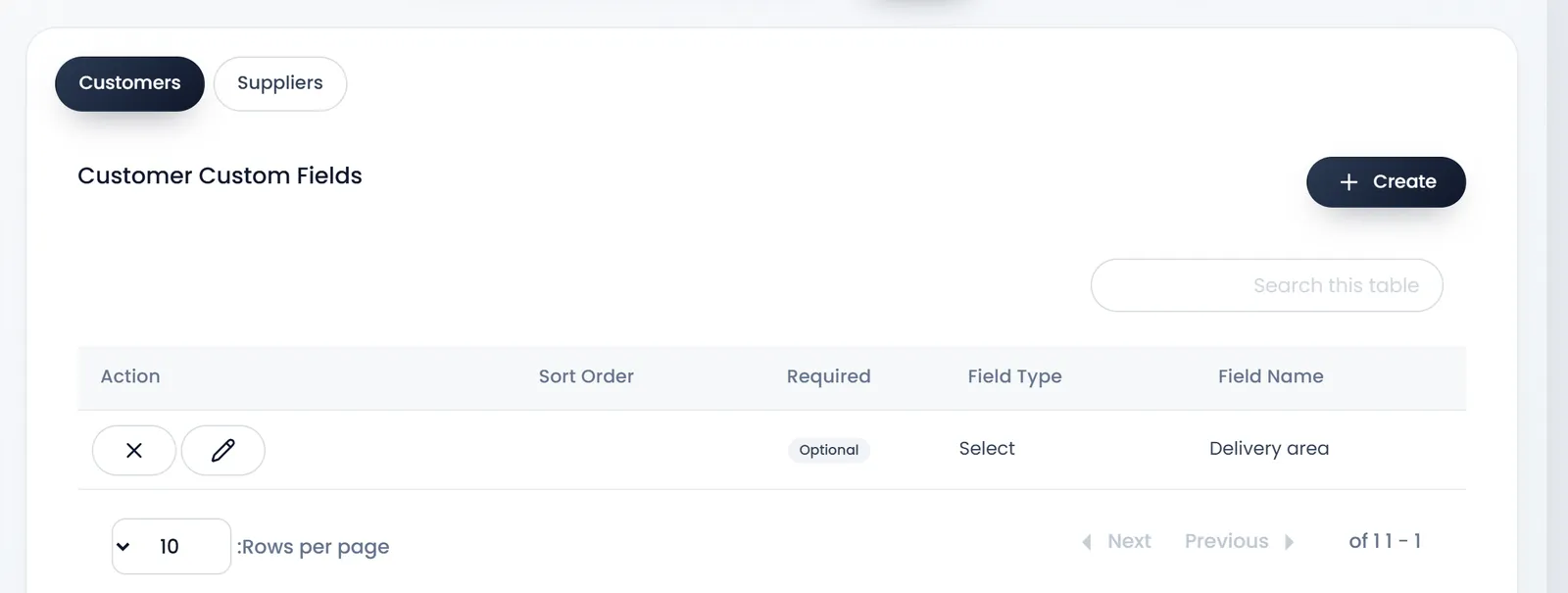
Sort Order is saved but doesn't change the order yet: fields show in the order you made them.
Fill it in on a customer
The new field appears under Custom Fields at the bottom of the customer form, when you create or edit a customer, and in the POS's Quick Add Customer.
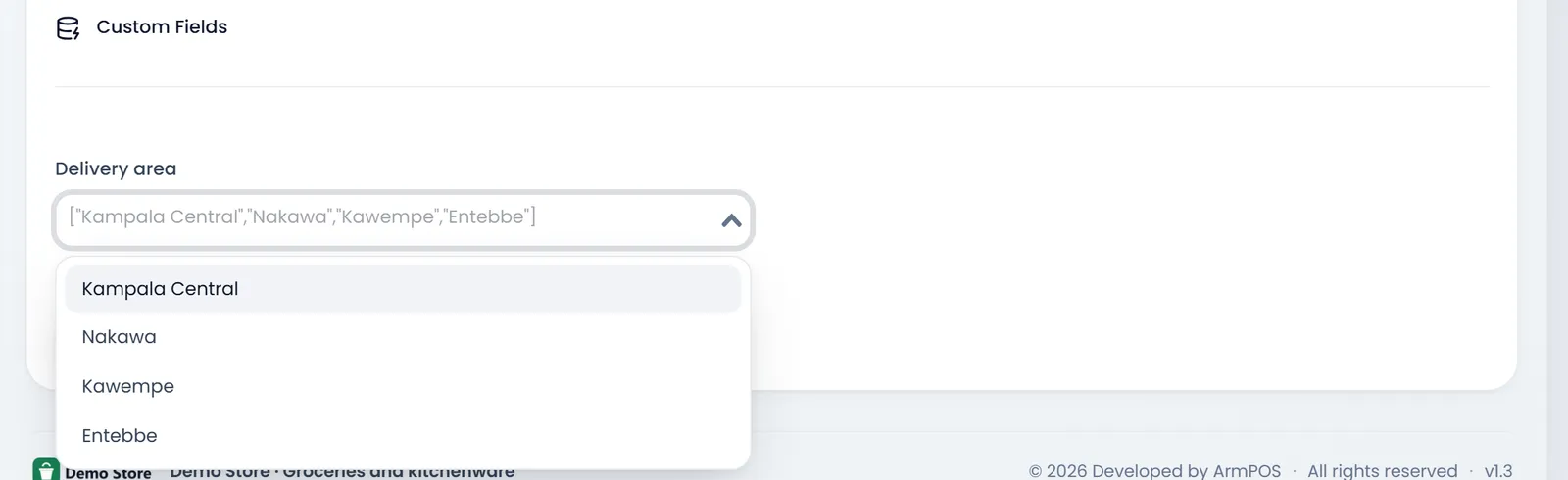
A Select field starts filled with its whole list, written as one line in brackets. Pick the right choice for each customer, or clear it with the cross: saved as it is, that line becomes the customer's answer.
The answers show on the customer's details, under Custom Fields.
Change or delete a field
- The pencil changes a field's name, type, options or Required.
- Deleting a field hides it and its answers from every form and details page. Make sure you no longer need them.
What's next
Add the customers who will carry the new field: Customers.
Still stuck?
Write to us and a person answers. If you already have a shop, Ask support inside it sends us the page you're on.
Contact usAsk your AI assistant
ChatGPT, Claude and Gemini can read every guide and walk you through it.
Set it up