




Names like these, in green, are pages inside your ArmPOS shop. Sign in to your shop to open them.
By the end you will have added a customer, from the POS or with the full form, and know how to follow what they owe.
The walk-in customer
A new shop has one customer, walk-in-customer. It is the Default Customer in Settings › System Settings › Defaults, so every POS sale starts with it. Keep it for sales where you don't need to know who is buying.
Your customers
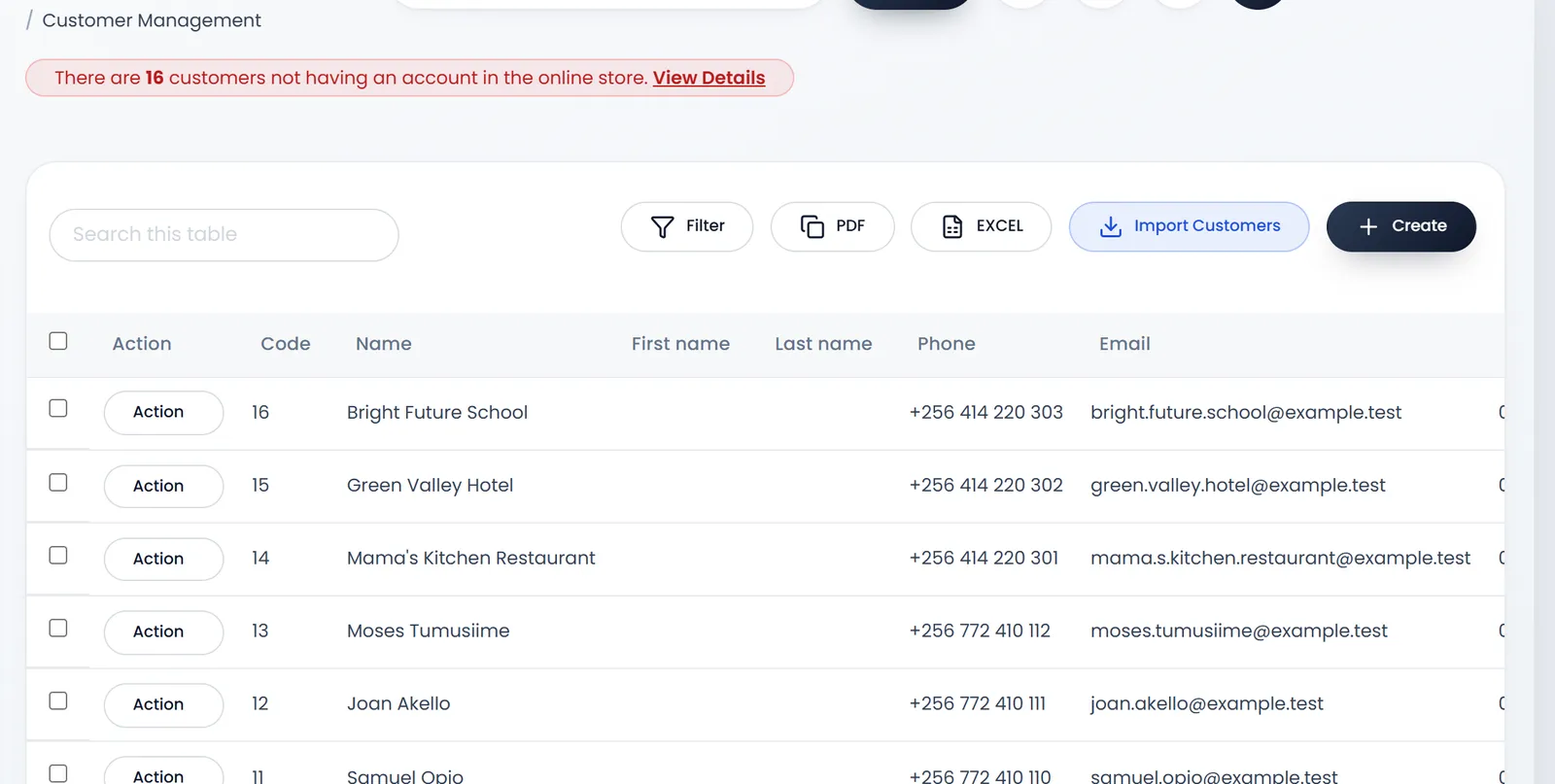
People › Customers lists them all, newest first, with their Phone, Email, loyalty Points, Credit Limit, Opening Balance, Total Sale Due (what they owe you) and Total Sell Return Due (what you owe them). Search, Filter, PDF and EXCEL are above the list.
Add a customer at the POS
- Click the Quick Add Customer icon in the POS top bar, or click Customer and then Quick Add Customer at the top of the list. F8 opens the same form.
- Enter the Customer Name. It is the only required field. Email, Phone, Country, City, Tax Number and Address are optional, and Is royalty eligible lets them collect loyalty points.
- Click Submit. The new customer is selected for the sale in progress.
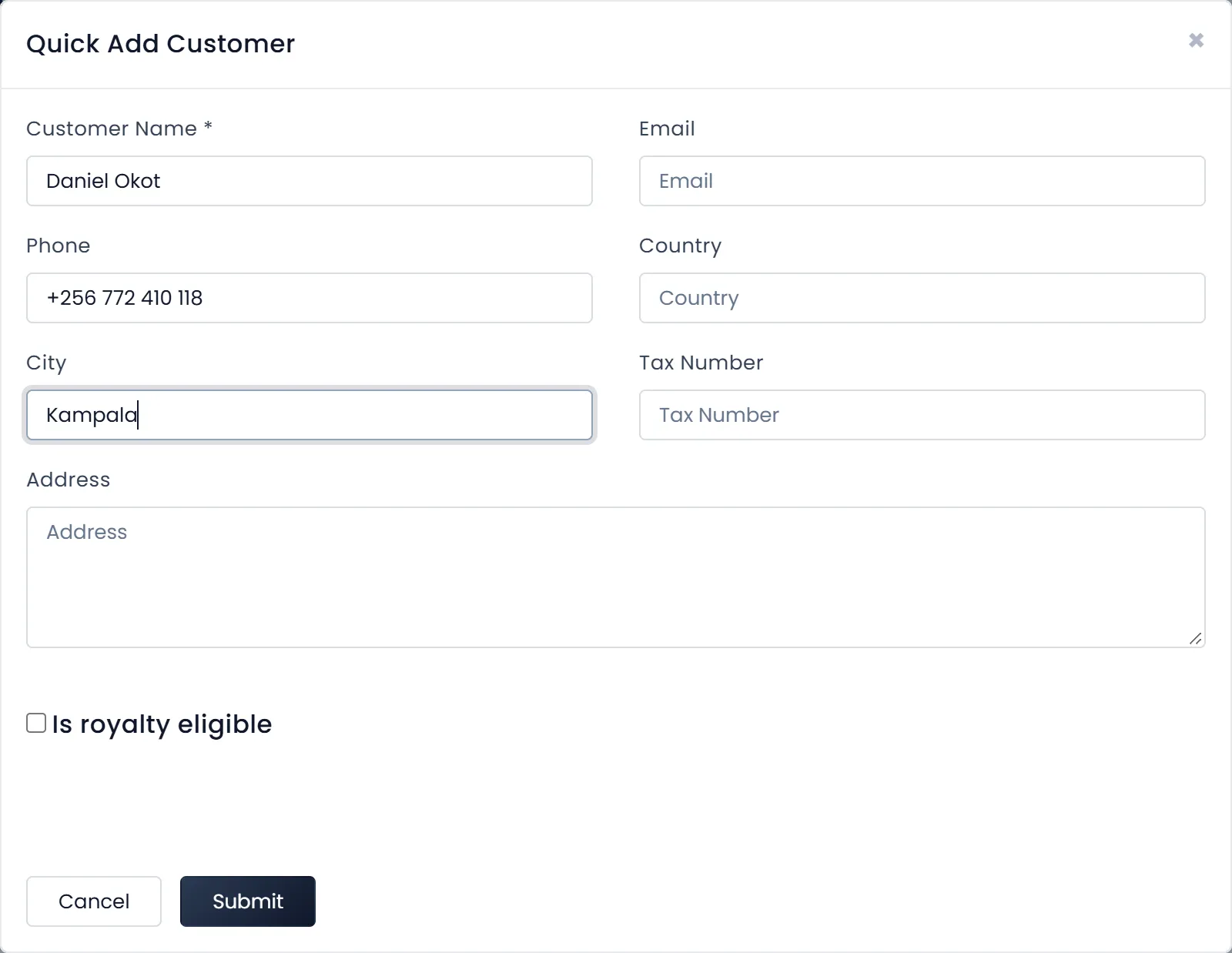
Quick Add Customer shows while it is switched on in POS Settings. It is on in a new shop.
Add a customer with every detail
- Open People › Customers and click Create.
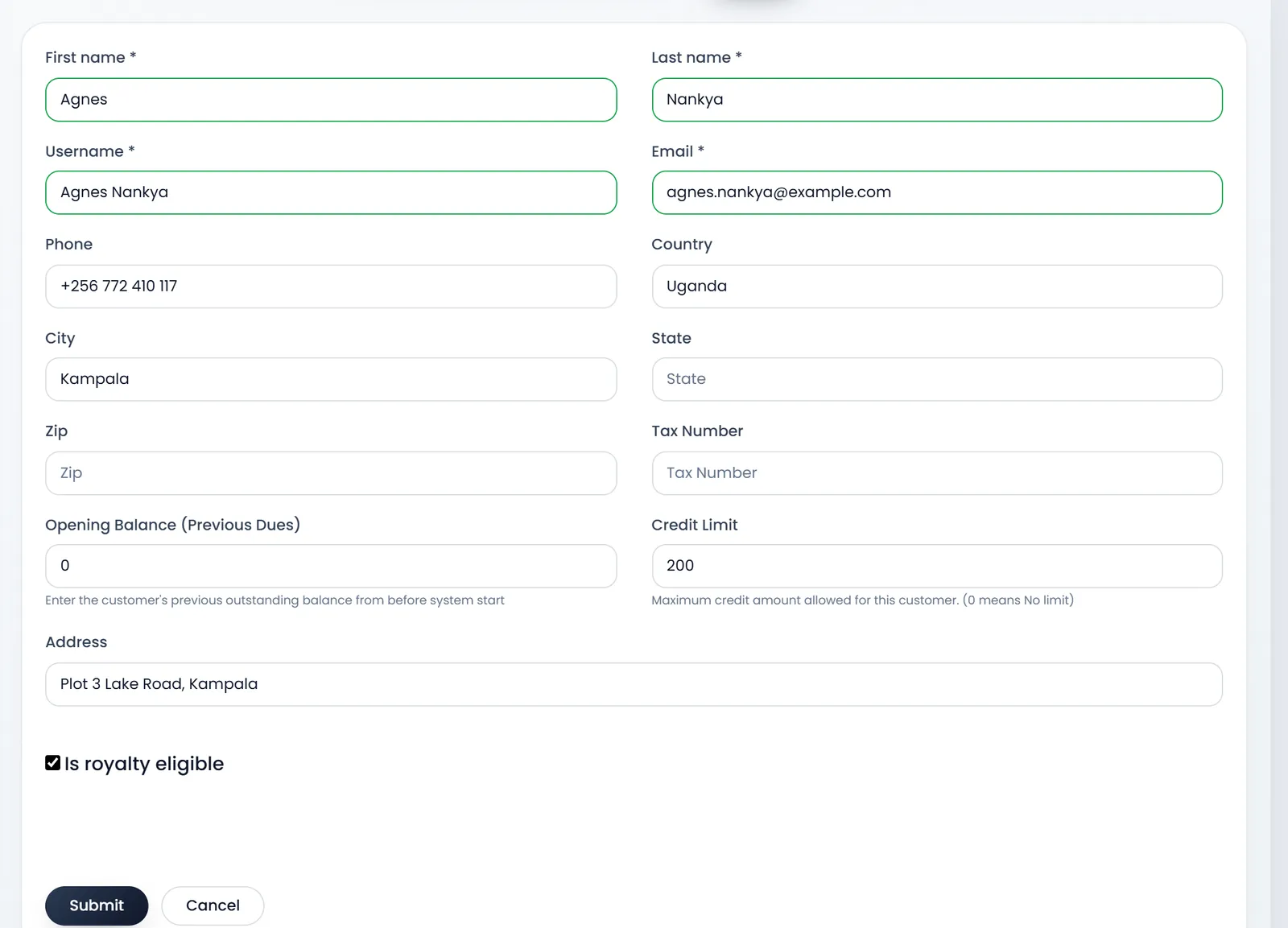
- Fill the required fields: First name, Last name, Username and Email. Username is the name the POS and the receipts show. Two customers can't share an email, and neither can a customer and an online store account.
- Add what else you know. Phone, Country, City, State, Zip, Tax Number and Address.
- Set the money fields if they apply. Opening Balance (Previous Dues) is what the customer owed you before ArmPOS. Credit Limit is the most they may owe, and 0 means no limit.
- Tick Is royalty eligible if they should earn loyalty points on their purchases.
- Click Submit. You land back on the list.
What a customer owes
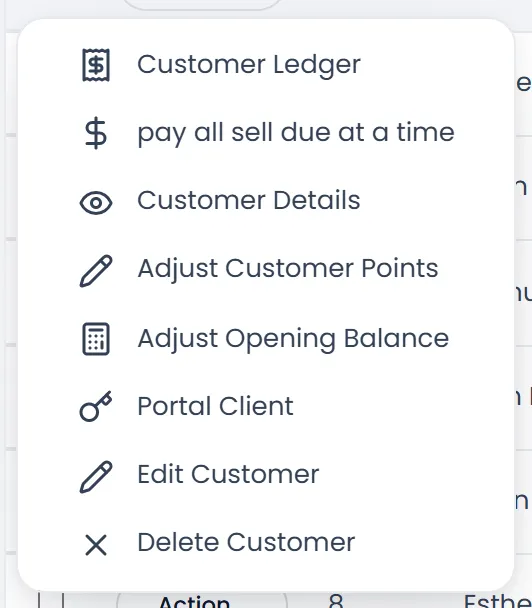
When a customer pays less than the total, the rest stays on the sale as due, and Total Sale Due shows it. Each customer's menu, the button at the start of their row, has:
- Customer Ledger: their sales, payments, returns and quotations, with what is due.
- pay all sell due at a time: one payment for everything they owe. It pays the opening balance first, then the sales.
- pay all sell return due at a time: one payment for every return you still owe them. It shows only when you owe them something.
- Customer Details, Edit Customer and Delete Customer.
- Adjust Customer Points and Adjust Opening Balance.
- Portal Client: their access to the customer portal.
A Credit Limit above 0 is checked at the POS. A sale that would take what the customer owes above it is refused.
What's next
Taking part of a payment now is in Take payments and print receipts.
Still stuck?
Write to us and a person answers. If you already have a shop, Ask support inside it sends us the page you're on.
Contact usAsk your AI assistant
ChatGPT, Claude and Gemini can read every guide and walk you through it.
Set it up