




Names like these, in green, are pages inside your ArmPOS shop. Sign in to your shop to open them.
By the end you will have taken items back from a sale, put them back in stock, and recorded the money you gave back.
Return at the POS
- Click Product Return in the POS top bar. It is the curved-arrow icon, and shows only if your role can create sales returns.
- Find the sale. Type its reference, its exact total or the customer's name, then click Search. The latest matching sales appear.
- Click Select on the sale. Its lines appear with the Qty sold of each.
- Set Qty return for each line with − and +. A line left at 0 is not returned. Each line offers only what is left to return: the sale's earlier returns count.
- Add a note if you need one. Order Tax %, Discount and Shipping are there too, for the returned amount.
- Click Confirm Return. The items go back into stock in the sale's warehouse.
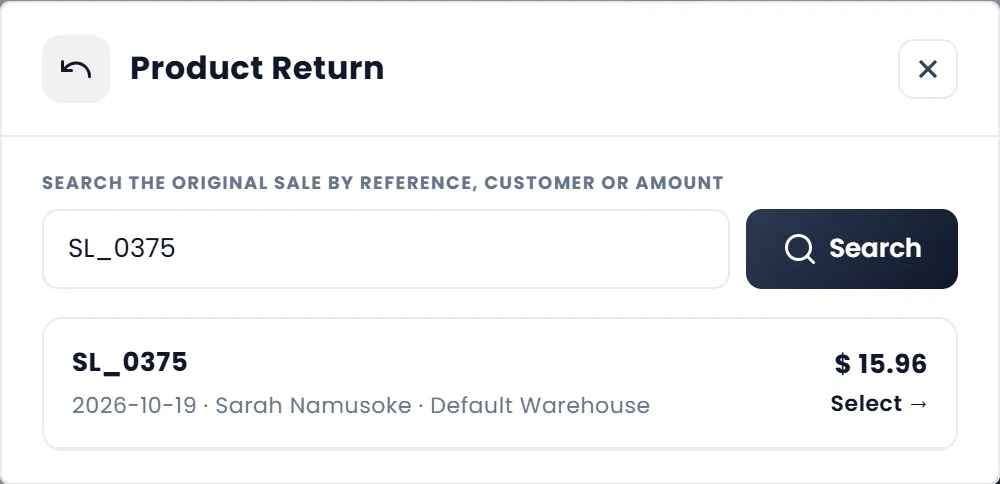
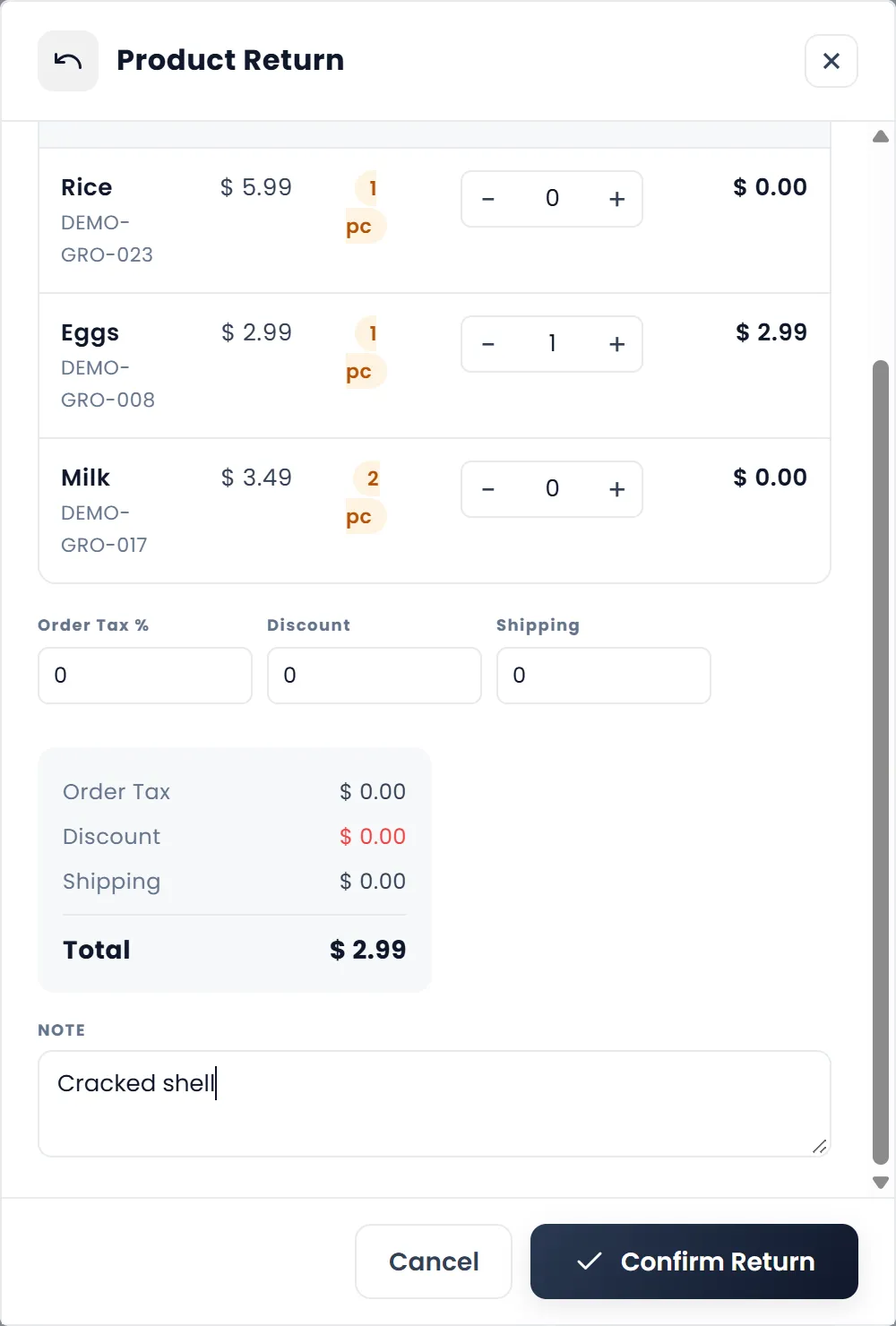
A sale with a return is marked Has return in the search. You can return the rest of it, never the same items twice: a line already returned offers 0.
Return from the sales list
- Open Sales › All Sales. Find the sale.
- Open the row's menu and click Sell Return. It appears on Completed sales. If the sale already has a return, the same item opens that return to edit.
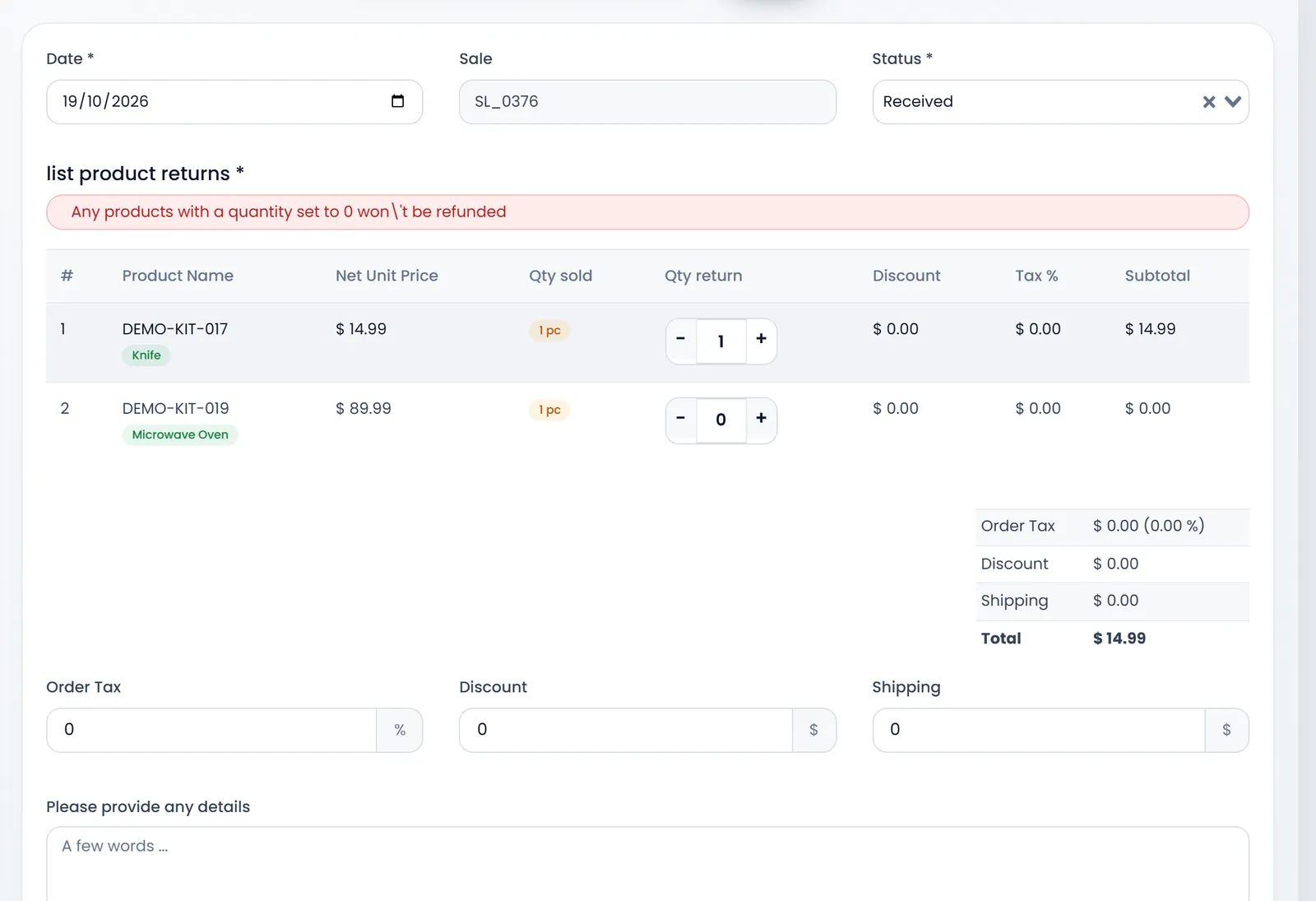
- Check the Date and set Status. Received puts the items back in stock when you submit. Pending keeps them out until you edit the return to Received.
- Set Qty return for each line. Lines left at 0 are not refunded.
- Add details if you need them, under Please provide any details, then click Submit. You land on Sales Return.
Give the money back
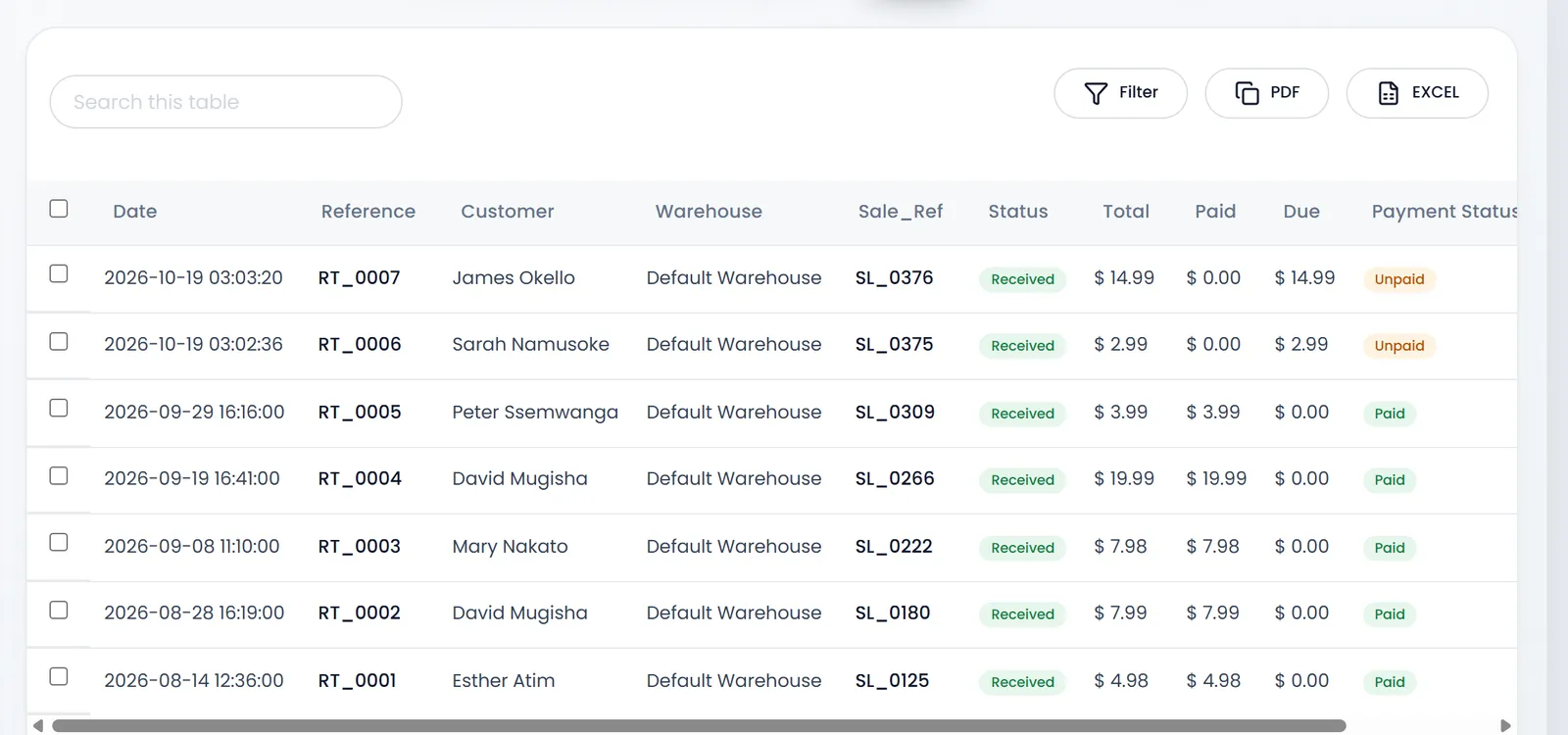
A new return is Unpaid: no money has been recorded for it yet, even when you handed cash back at the till.
- Open Sales › Sales Return. Every return is listed with its Status, Total, Paid, Due and Payment Status.
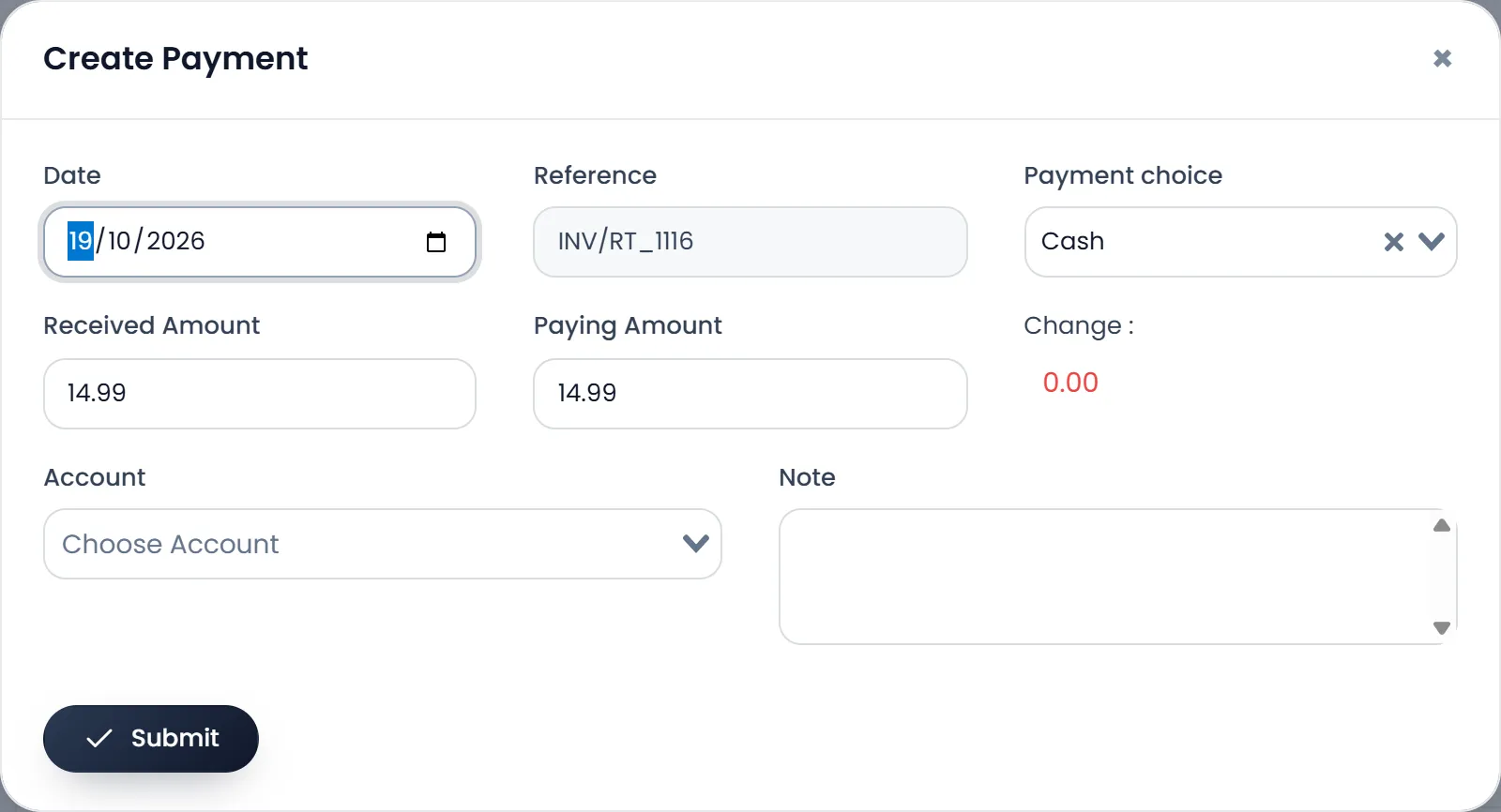
- Open the row's menu and click Create Payment.
- Fill the payment. Check the Date, pick the Payment choice, enter the Paying Amount, and choose an Account if you track accounts.
- Click Submit. The return becomes Partial or Paid.
To pay back several returns for one customer at once, open People › Customers, open the customer's menu and click pay all sell return due at a time. The Total Sell Return Due column shows what you still owe each customer.
What's next
See how payments work at the till in Take payments and print receipts.
Still stuck?
Write to us and a person answers. If you already have a shop, Ask support inside it sends us the page you're on.
Contact usAsk your AI assistant
ChatGPT, Claude and Gemini can read every guide and walk you through it.
Set it up