




Names like these, in green, are pages inside your ArmPOS shop. Sign in to your shop to open them.
By the end you will have taken a payment at the POS, split it across methods when needed, taken part now and the rest later, and printed or sent the receipt.
Take the payment
- Click Pay Now. The Payment Checkout window opens with one payment line, Payment #1, for the full Total Amount.
- Check the method. The shop's default method is selected, or Cash when there is none. Click another card to change it: Cash, Credit Card, Check, bank transfer and the others your shop has.
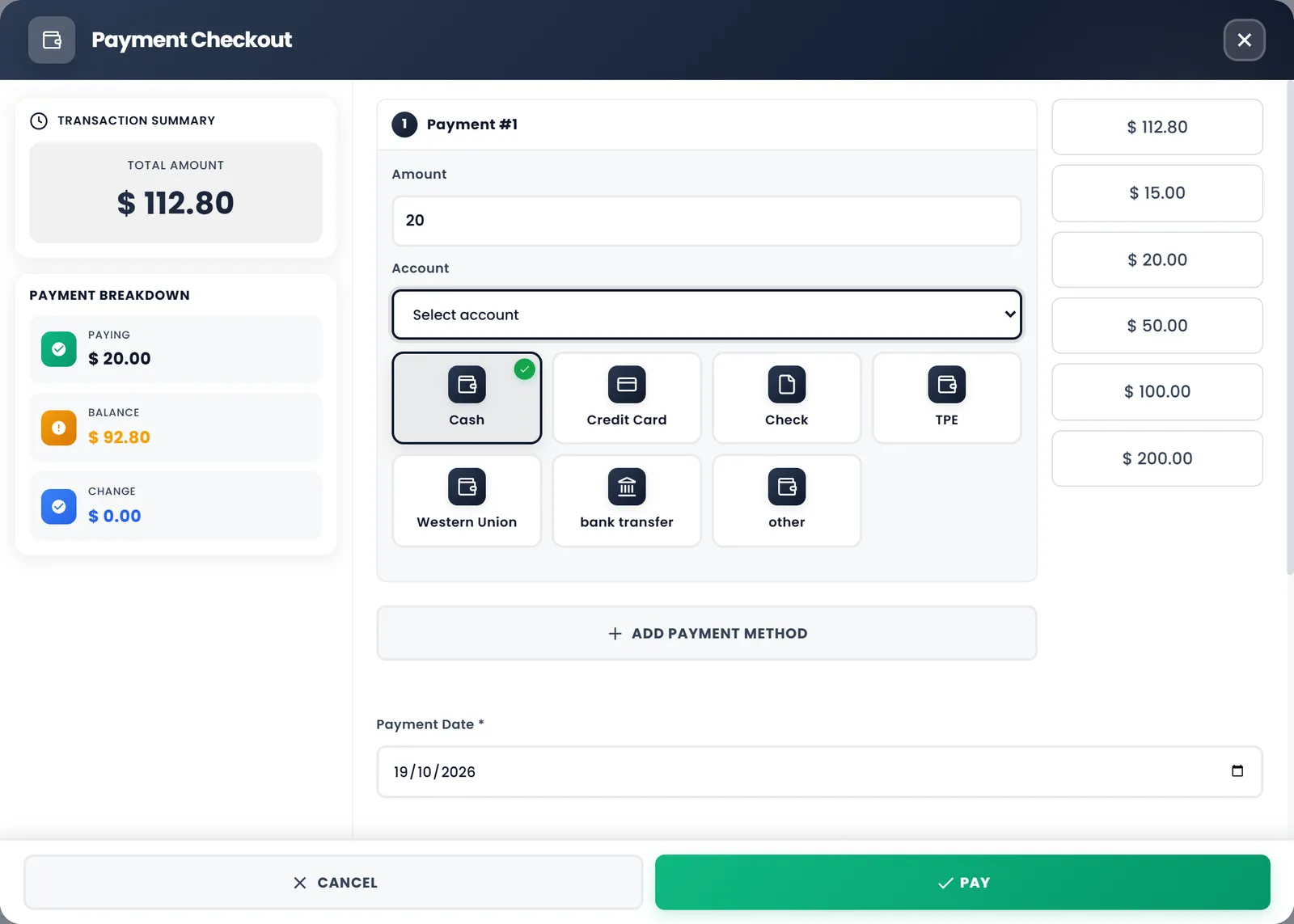
- Enter what the customer gave you. Type it in Amount, or click one of the quick amounts on the right. Change shows what to hand back.
- Pick an Account if you track accounts. The payment is added to that account's balance. It is optional.
- Add notes if you need them. Payment notes stays with the payment. Sale notes stays with the sale.
- Send the receipt if the customer wants it. Tick Send Email Receipt or Send SMS Receipt. It goes to the email or phone saved on the customer.
- Click Pay. The sale is saved and the receipt opens.
Split a payment
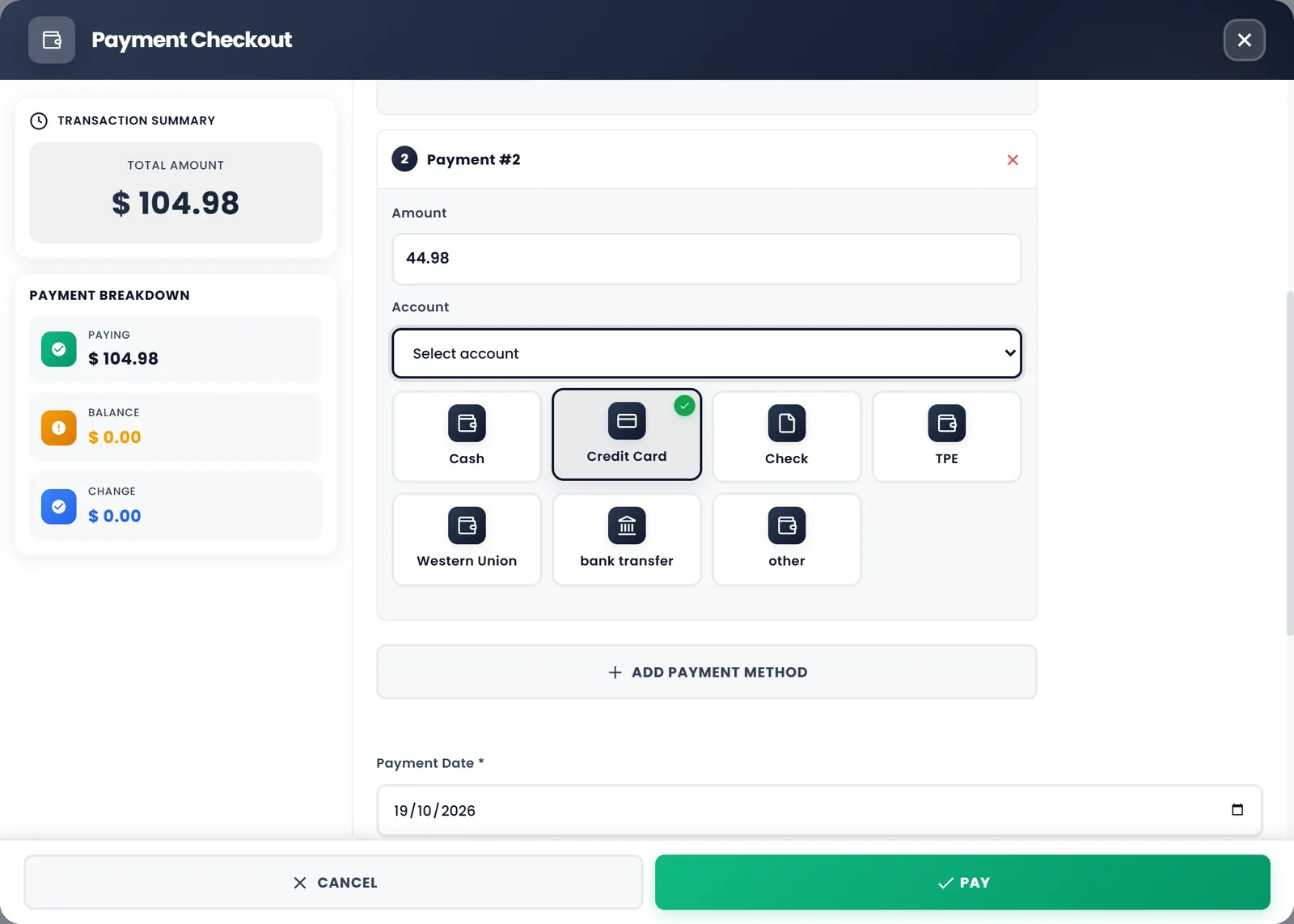
Click Add Payment Method to add Payment #2. Each line has its own Amount, Account and method; the x on a line removes it. Payment Breakdown shows what is Paying, the Balance left and the Change. With more than one line, the total can't be more than the sale, so give change on a single line.
Take part now, the rest later
If the amount is less than the total, Balance shows what stays unpaid, and the sale is saved as Partial with that much due.
To take the rest later:
- Open Sales › All Sales. The sale shows its Paid and Due amounts, with Partial in its payment column.
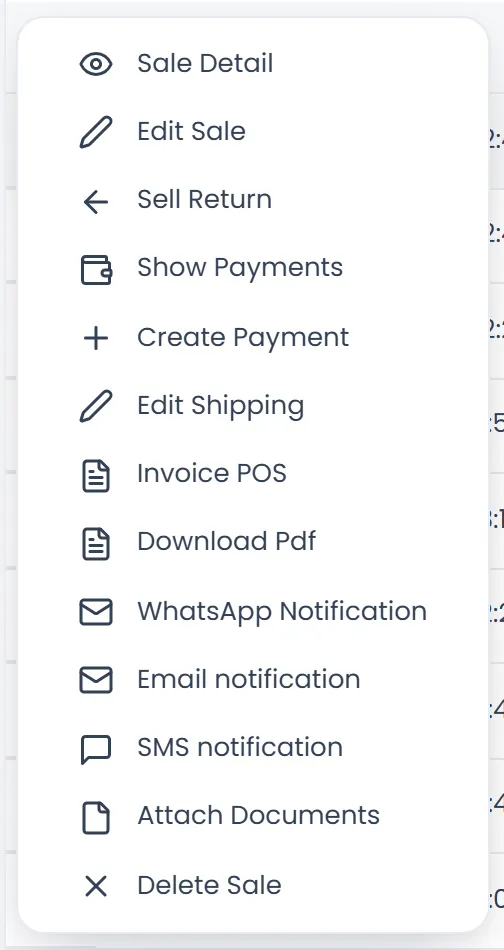
- Open the row's menu (the button at the end of the row) and click Create Payment.
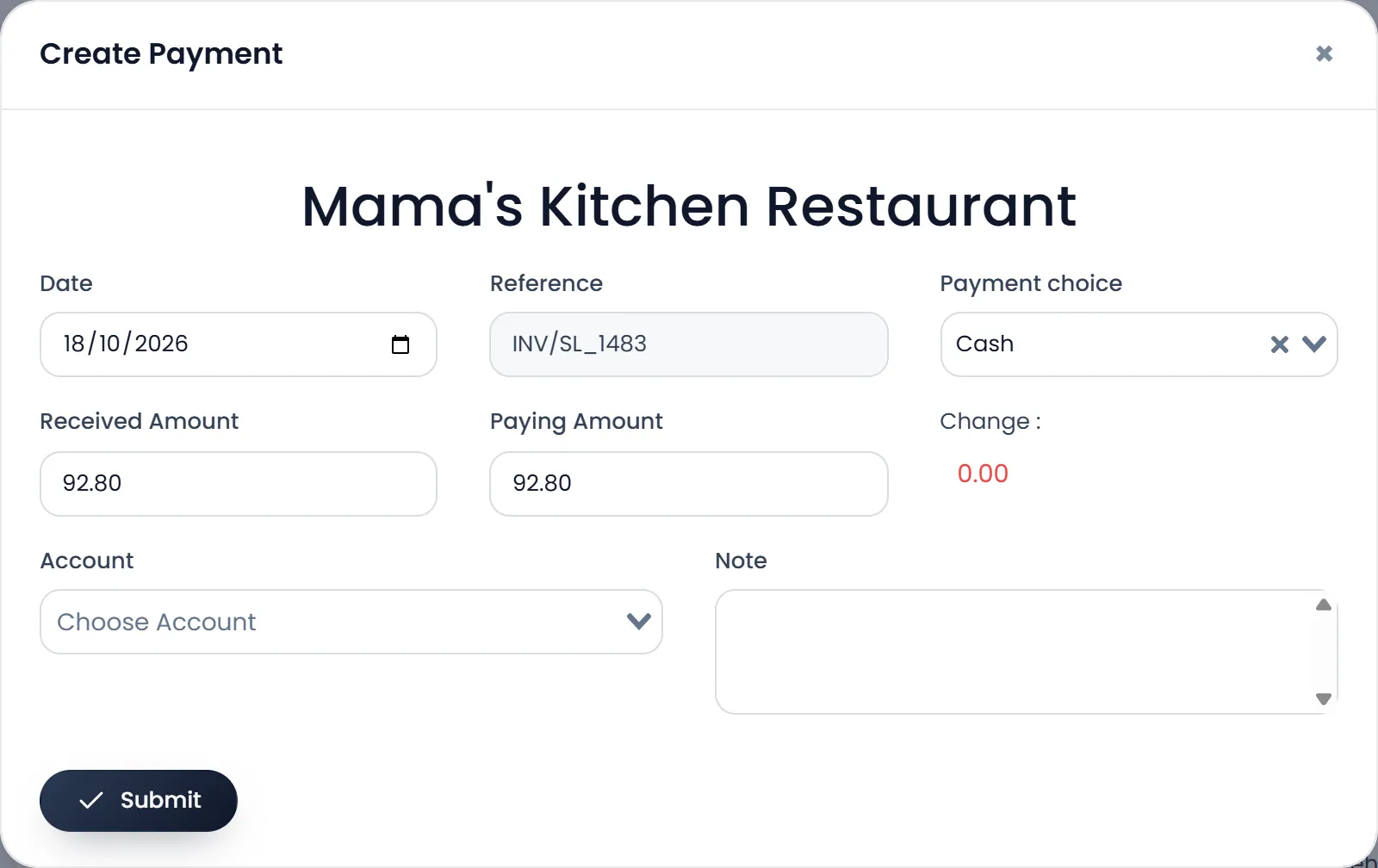
- Check the Date. It starts on today's date, but around midnight it can show yesterday's: correct it if it does.
- Enter the Paying Amount and pick the Payment choice. Received Amount is what the customer handed over, and Change shows what to give back. Account and Note are optional.
- Click Submit. Once nothing is due, the sale shows Paid.
A customer's Credit Limit can stop a sale that would leave them owing more than it allows.
Cards and mobile money
- Credit Card records a card payment. With Stripe set up in Settings › Payment Gateway, a card field appears and Stripe charges the card. Without Stripe, it records a card your own card machine took.
- Mobile money is set up on the same page, in plans that include it. On a mobile money line, enter the Customer phone and click Send. Click Pay once the line shows it paid.
The receipt
- After Pay, the Invoice POS receipt opens. With Print Invoice automatically on, the print window opens by itself. Otherwise click Print.
- If Invoice format is set to A4 Invoice (PDF) (Settings › System Settings, on the Invoice or POS Settings tab), an A4 invoice opens for printing instead.
- F9 on the POS prints the last receipt again.
- For an older sale, open Sales › All Sales and use the row's menu: Invoice POS opens the receipt to print, Download Pdf saves the invoice, and Email notification, SMS notification or WhatsApp Notification sends it to the customer.
What's next
Set what the receipt shows in Receipt and POS settings.
Still stuck?
Write to us and a person answers. If you already have a shop, Ask support inside it sends us the page you're on.
Contact usAsk your AI assistant
ChatGPT, Claude and Gemini can read every guide and walk you through it.
Set it up