




Names like these, in green, are pages inside your ArmPOS shop. Sign in to your shop to open them.
By the end you will know each part of the POS screen and what it does.
- Open Sales › POS. The POS fills the whole window, without the sidebar. The cart is on the left and the products are on the right.
- Check the warehouse. Warehouse in the top bar shows where you are selling from. The grid shows that warehouse's products and stock. With one warehouse it is already picked; with more, click it and choose one.
- Check the customer. Customer shows who you are selling to. Click it to search by name or phone, or to add someone with Quick Add Customer.
With more than one warehouse, set Default Warehouse in Settings › System Settings › Defaults and the POS opens with it already picked.
The top bar

- Register shows OPEN or CLOSED. Click it to open the register with an opening balance, or to close it with the cash you counted. See Open and close the register.
- Cash in / out, beside an open register, records cash put into the drawer or taken out, with what it was for.
- All Categories and All Brands narrow the grid to one category or brand.

The icons on the right, in order:
| Icon | What it does |
|---|---|
| Quick Add Customer | adds a customer without leaving the till |
| Today Sales | the day's total and how it was paid |
| Product Return | takes back items from an earlier sale |
| POS Settings | how the till behaves (only roles allowed to change POS settings see it) |
| Languages | the language on this device |
| Display | which customer display (Screen 1 to Screen 5) shows this till's cart; see A customer display beside the till |
| Calculator | a calculator |
| Fullscreen | hides the browser's own bars |
Finding products
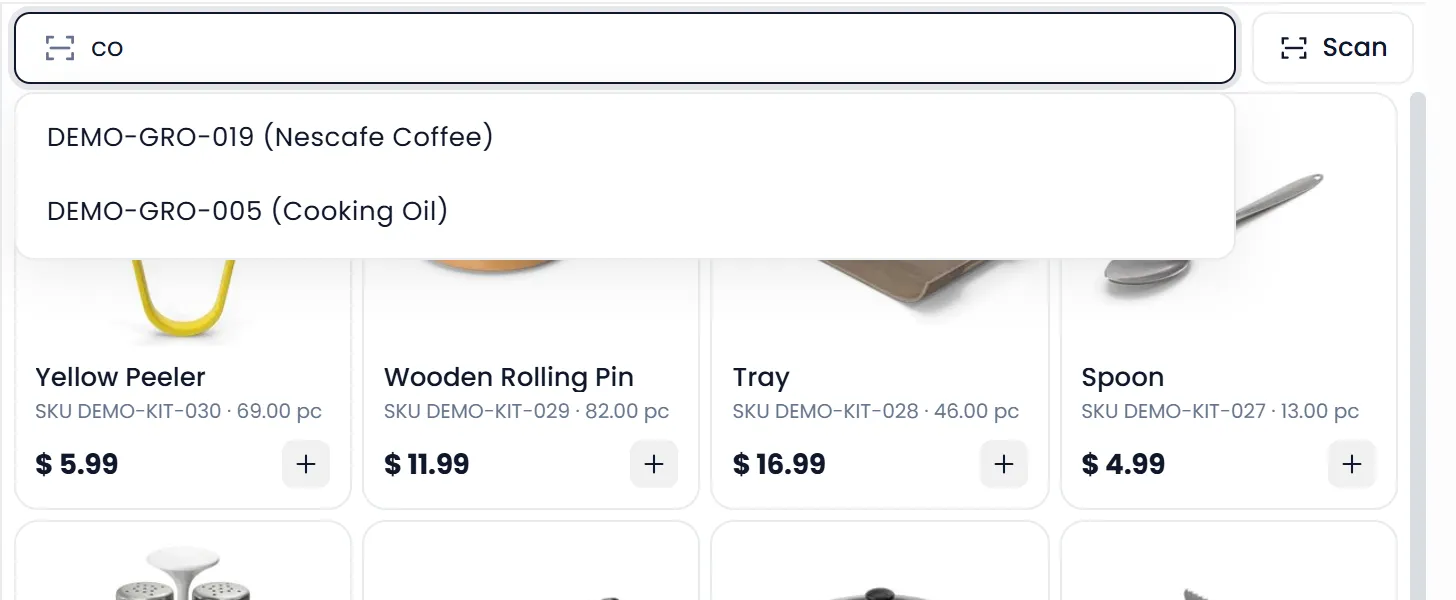
- Type at least two letters in Scan/Search Product by Code Or Name, then click a result. Each result shows the product's code and name.
- Type or scan an exact code and press Enter: the product goes straight into the cart. A barcode scanner types into the same box.
- Scan reads a barcode with the device's camera.
- Each card in the grid shows the price, the code and the stock left. Click a card, or its +, to add it.
- A product with no stock can't be added unless Allow Overselling is on in POS Settings.
The cart
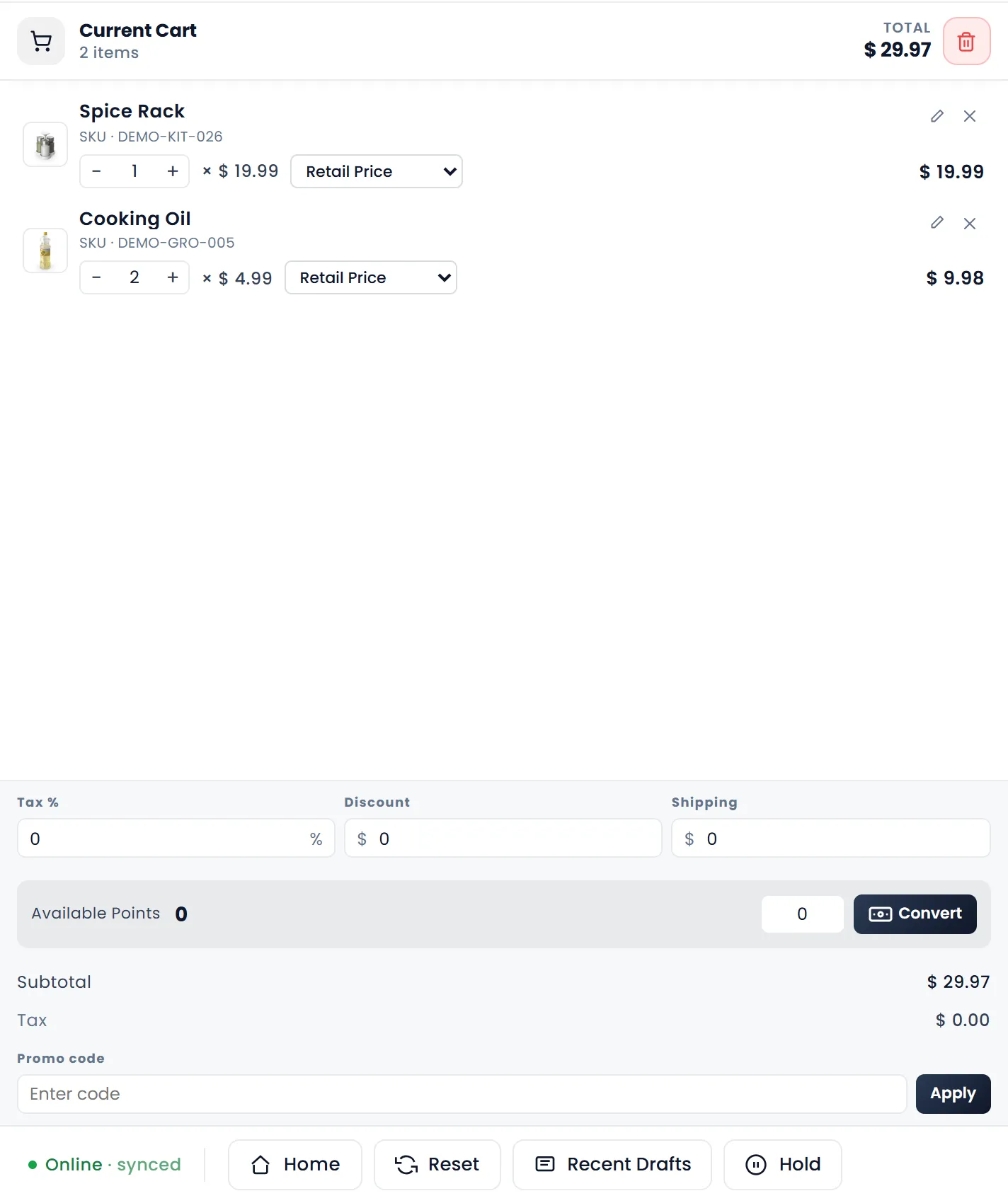
- Adding a product that is already in the cart raises its quantity by one.
- On each line you can change the quantity with − and +, switch between Retail Price and Wholesale Price, edit the line with the pencil (if your role may), or remove it with the x. A product sold in packs also gets a pack picker.
- Under the lines, Tax %, Discount and Shipping apply to the whole sale. Click the $ in Discount to switch it to a percentage (%), and click again to switch back.
- Available Points shows the customer's loyalty points. Enter some and click Convert to take them off as a discount.
- Promo code takes a promotion code. Click Apply.
The bottom bar
- Online · synced says the till is connected and up to date.
- Home leaves the POS for the dashboard. It shows only while the till is online.
- Reset empties the cart.
- Hold saves the cart as a draft so you can serve the next customer. Recent Drafts lists held sales. Open one to finish it.
- Total Payable is what the customer pays. Pay Now opens the payment window.
Keyboard shortcuts
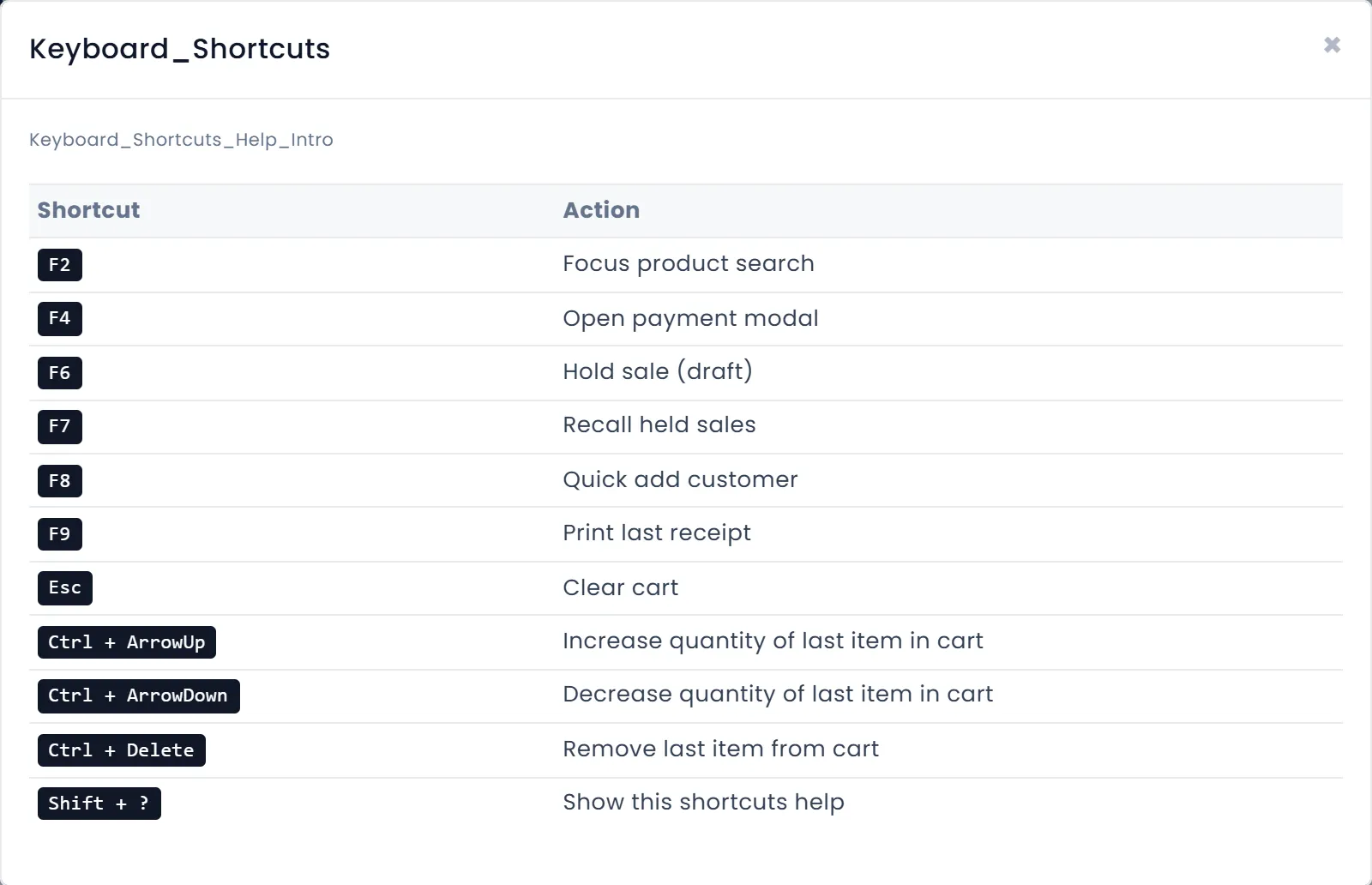
Shortcuts are on unless someone turned them off in POS Settings on this device. Press Shift + ? to see them all:
| Key | What it does |
|---|---|
| F2 | goes to the product search |
| F4 | opens the payment window |
| F6 | holds the sale |
| F7 | brings back held sales |
| F8 | adds a customer |
| F9 | prints the last receipt |
| Esc | empties the cart |
| Ctrl + ↑ / Ctrl + ↓ | raises or lowers the quantity of the last item |
| Ctrl + Delete | removes the last item |
If the internet drops
The bottom bar changes from Online · synced to Offline mode. Sales you complete are kept on this device and sent when the connection returns. Card and mobile money payments need the internet.
What's next
Still stuck?
Write to us and a person answers. If you already have a shop, Ask support inside it sends us the page you're on.
Contact usAsk your AI assistant
ChatGPT, Claude and Gemini can read every guide and walk you through it.
Set it up