




Names like these, in green, are pages inside your ArmPOS shop. Sign in to your shop to open them.
A customer display is a second screen facing the customer: a tablet, a monitor or an old phone that shows the items as you ring them up, with the total. By the end you will have it open on the screen and linked to your till.
Get the display's address
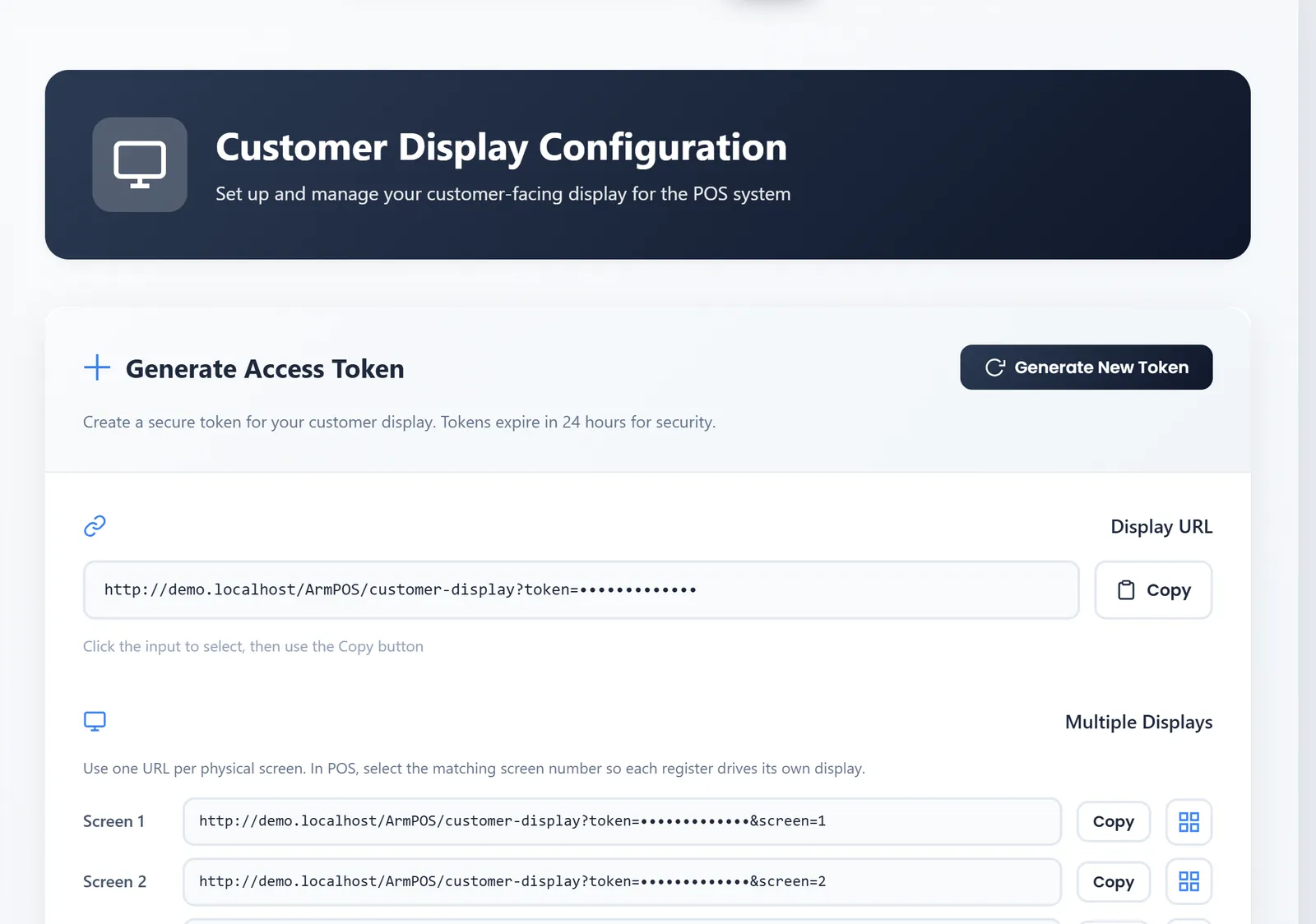
- Open Sales › Customer Screen. The Customer Display Configuration page opens.
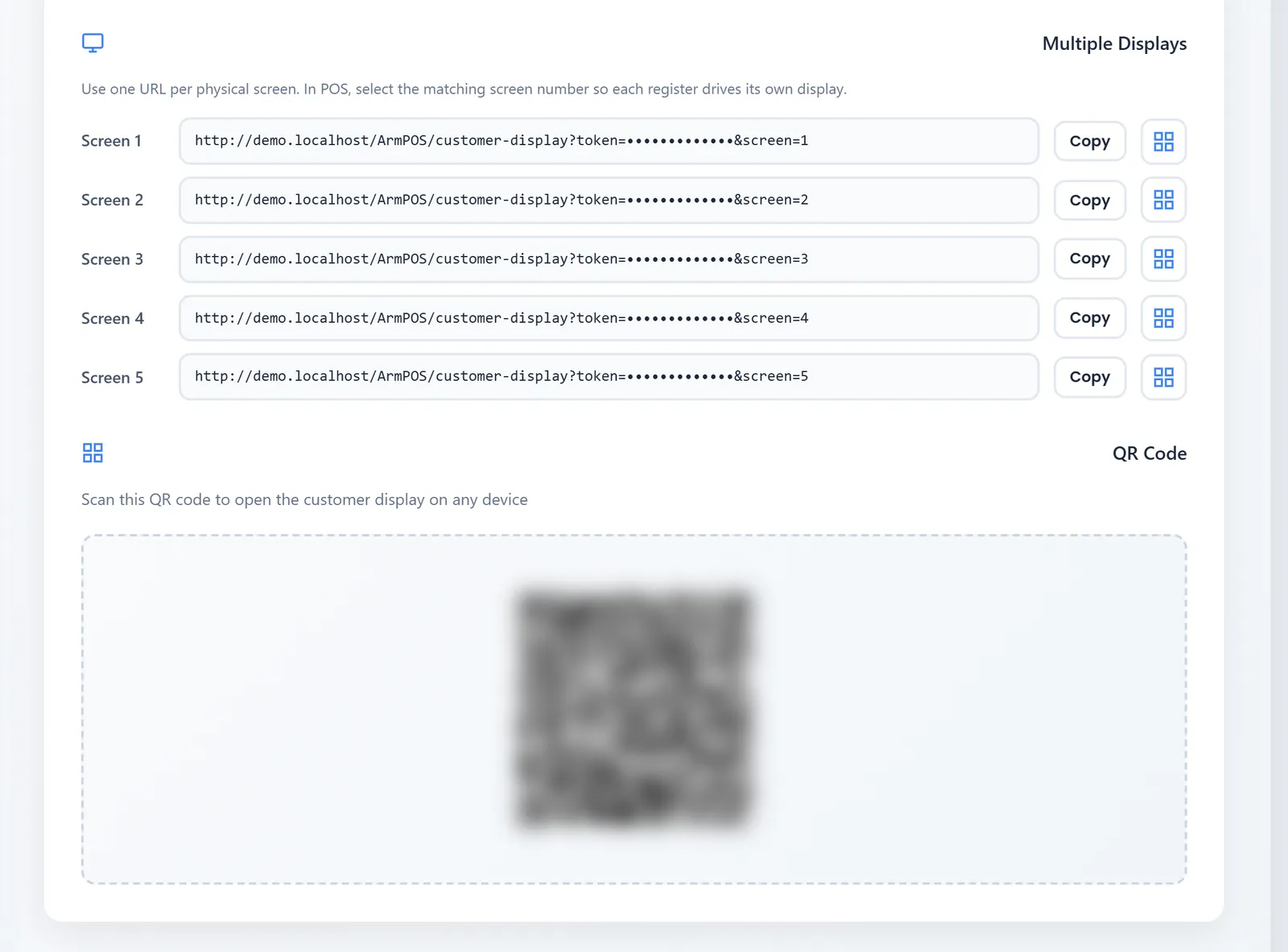
- Click Generate New Token. A Display URL appears, with one address per screen under Multiple Displays (Screen 1 to Screen 5) and a QR Code.
- Open the address on the display. Type it, click Copy and send it to the device, or scan the QR Code with the device's camera.
Link it to the till
On the POS, click Display in the top bar and pick the same screen number, for example Screen 1. From then on, what you add to that till's cart appears on that display, with the total, and it updates as you go.
With two tills and two displays, give each till its own screen number.
Keep it safe
- A token lasts 24 hours. When it runs out, the display stops: generate a new one and open the new address on the display.
- Generate New Token at any time replaces the old one, which stops working at once. Do it if an address was shared with the wrong person.
If the display doesn't connect, check it is on the internet and that you used the whole address, token included.
What's next
Still stuck?
Write to us and a person answers. If you already have a shop, Ask support inside it sends us the page you're on.
Contact usAsk your AI assistant
ChatGPT, Claude and Gemini can read every guide and walk you through it.
Set it up