




Names like these, in green, are pages inside your ArmPOS shop. Sign in to your shop to open them.
For a shop that prepares food or drinks to order, the kitchen display shows each order sent from the till, so the kitchen knows what to make and the counter knows what is ready. By the end you will have sent an order to the kitchen and moved it to done.
Switch it on
Open Settings › System Settings, the Feature Toggles tab, and turn on Enable Kitchen Display. The POS then offers a Kitchen choice at payment, and Sales › Kitchen Display opens for staff whose role allows it.
Send an order from the till
- Ring up the sale in the POS as usual and click Pay Now.
- Under Kitchen, choose Send to Kitchen. Save Without Sending saves the sale without a kitchen ticket.
- Take the payment and click Pay. The order appears on the Kitchen Display straight away.
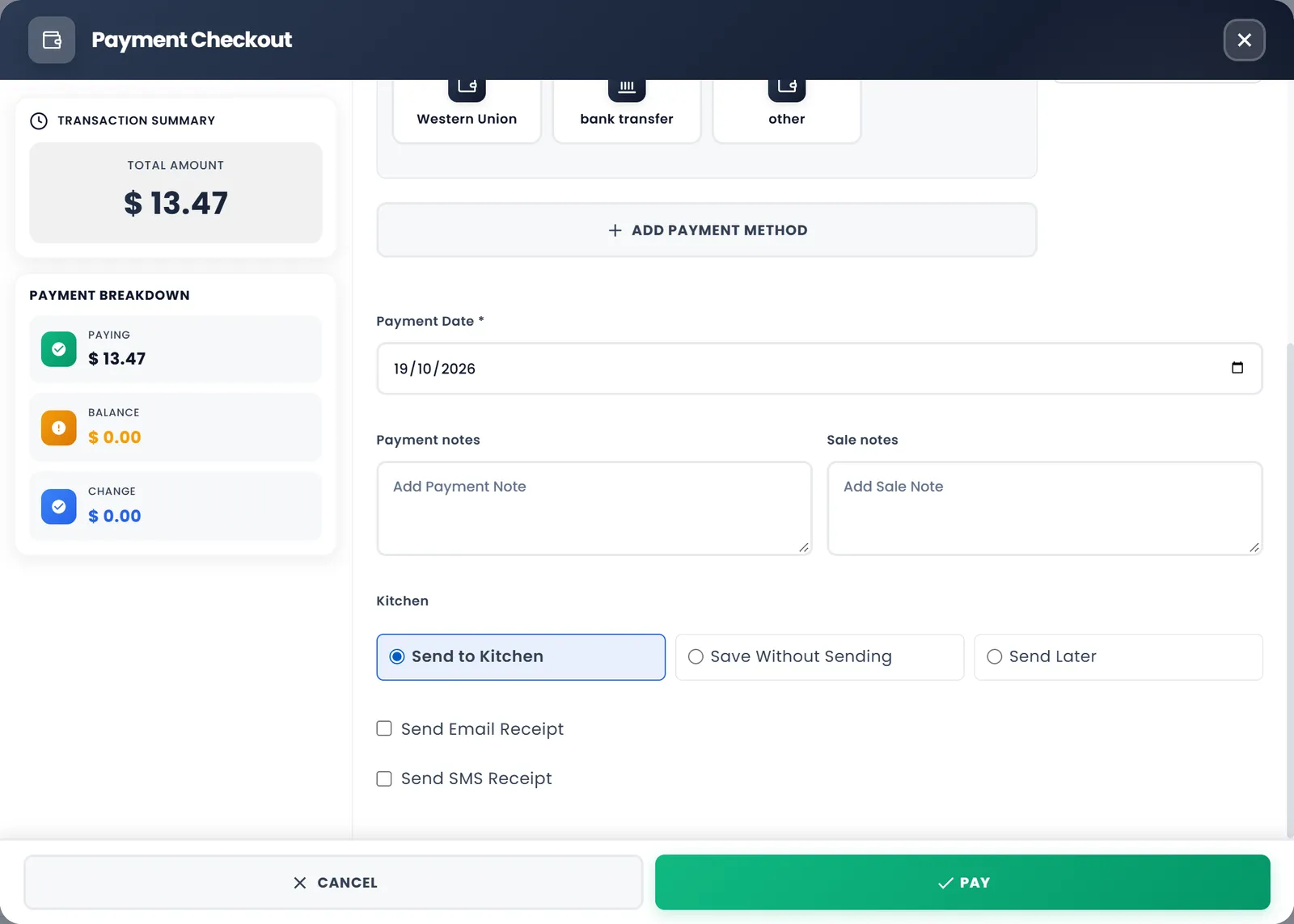
Send Later saves the sale without a ticket too, and today nothing can send it afterwards. Use Send to Kitchen for anything the kitchen must make.
Work the board
Open Sales › Kitchen Display. Orders sit in four columns, with their count at the top: Pending, Preparing, Completed and On Hold. Each order card shows the sale's reference, how long ago it came in, the customer and each item with its quantity.
- Click Start Preparation when the kitchen starts on an order. It moves to Preparing.
- Click Mark Completed when it's ready. It moves to Completed, where Reopen brings it back if something was missed.
- Put On Hold parks an order, for example while you wait for an ingredient.
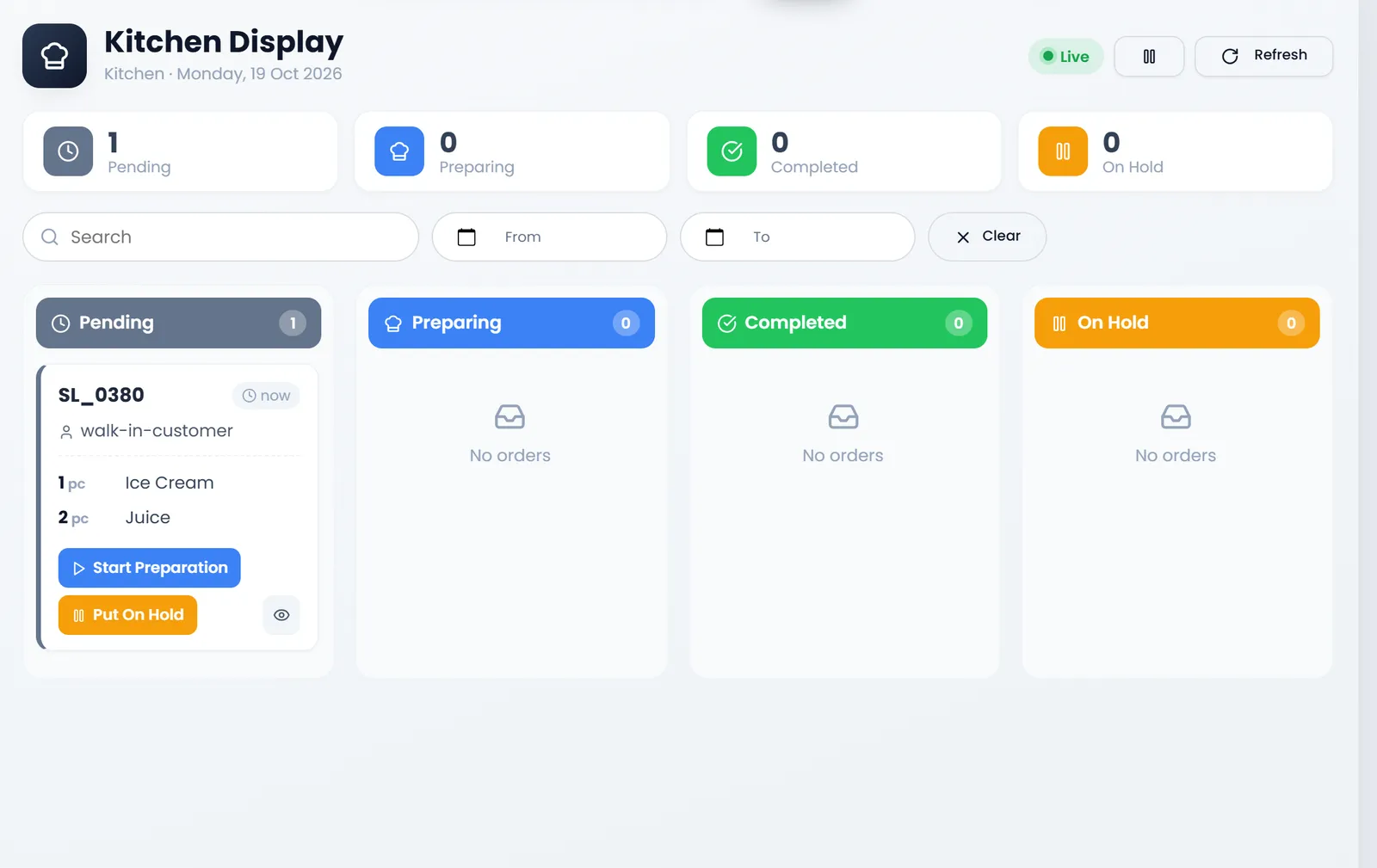
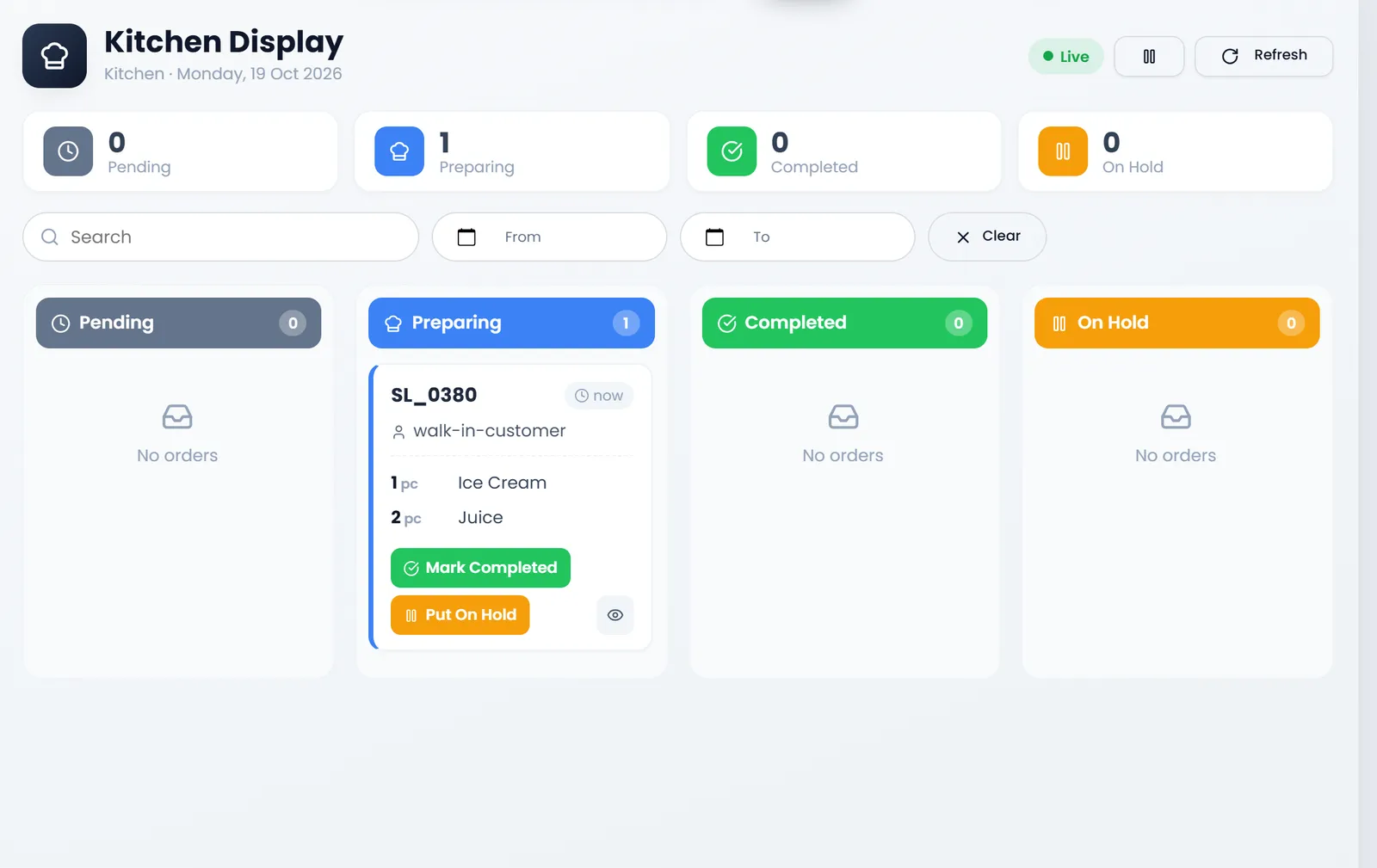
The board updates by itself (Live); Refresh reloads it now. From and To show the orders of other days, and Clear goes back to today.
What's next
Still stuck?
Write to us and a person answers. If you already have a shop, Ask support inside it sends us the page you're on.
Contact usAsk your AI assistant
ChatGPT, Claude and Gemini can read every guide and walk you through it.
Set it up