




Names like these, in green, are pages inside your ArmPOS shop. Sign in to your shop to open them.
By the end you will have written a quotation for a customer, sent it to them, and turned it into a sale when they agree.
Quotations come with some plans only. If Quotations isn't in your menu, your plan or your role doesn't include it.
Create a quotation
- Open Quotations › Create Quotation.
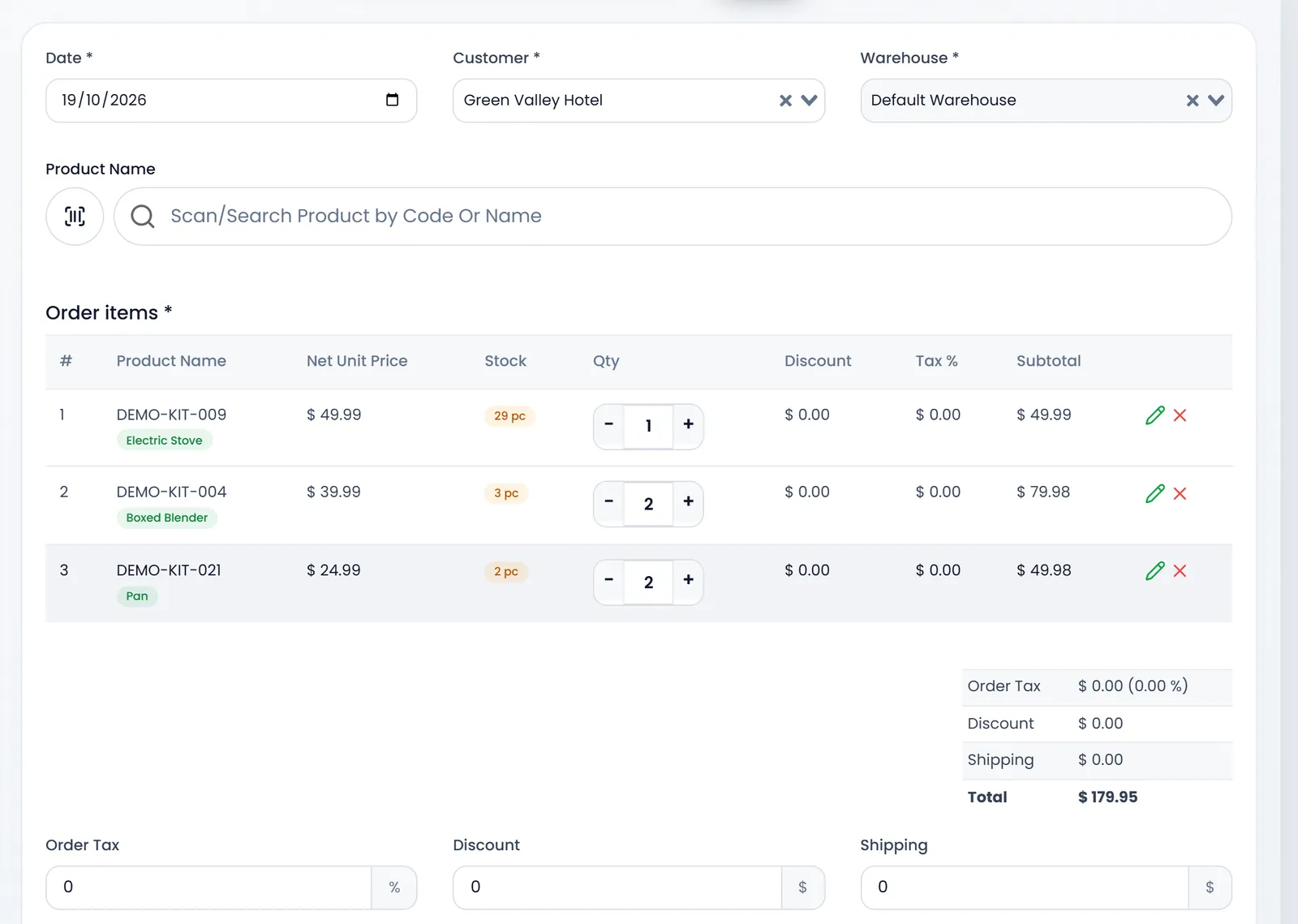
- Fill Date, Customer and Warehouse. All three are required. Date starts on today.
- Add the products. Type in Scan/Search Product by Code Or Name and pick a result. Each product joins Order items with its Net Unit Price and Stock.
- Set the quantities. Use − and + on each line. The pencil changes the line's price, tax or discount, and the x removes it.
- Add Order Tax, Discount and Shipping if they apply. Order Tax is a percentage; Discount and Shipping are amounts.
- Set Status. Sent once the customer has it, Pending while you are still working on it.
- Add a Note and click Submit.
A quotation doesn't change your stock.
When Create Quotation with Stock is on (Settings › System Settings, Defaults tab), a line can't ask for more than the warehouse holds, and + stops at the stock. Turn it off to quote for goods you will order in.
Send it to the customer
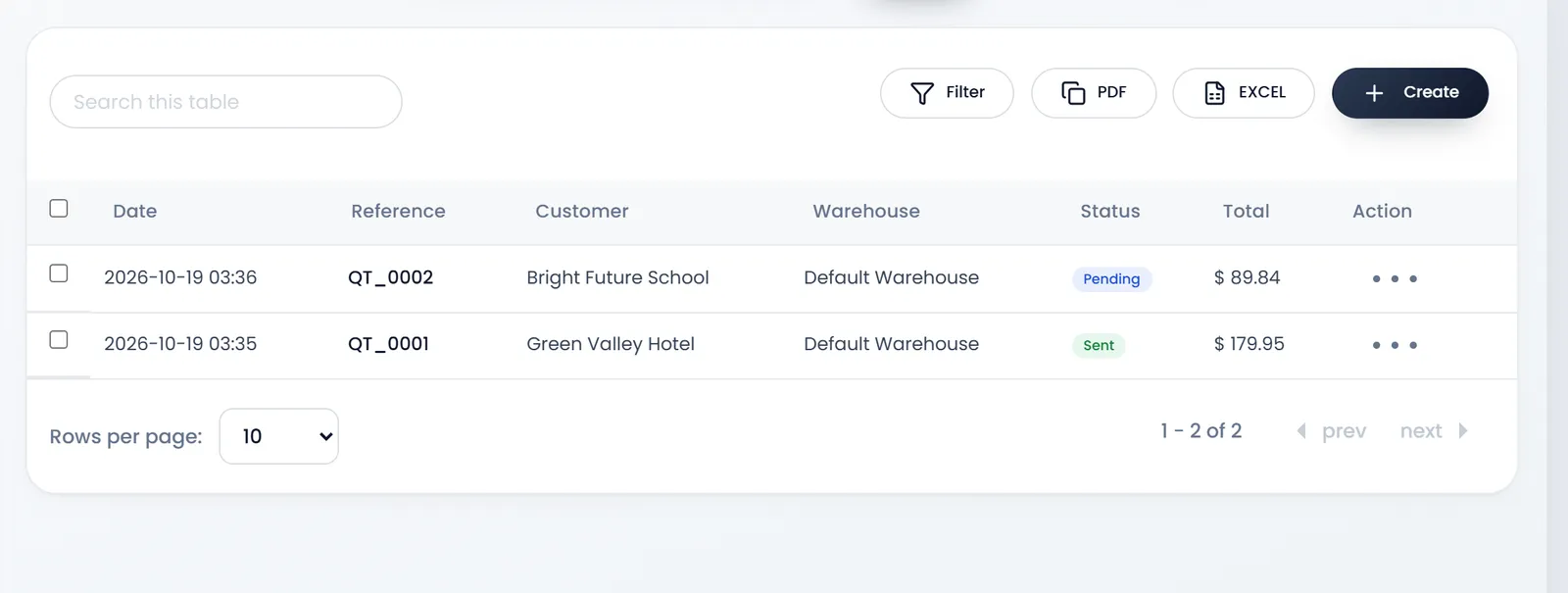
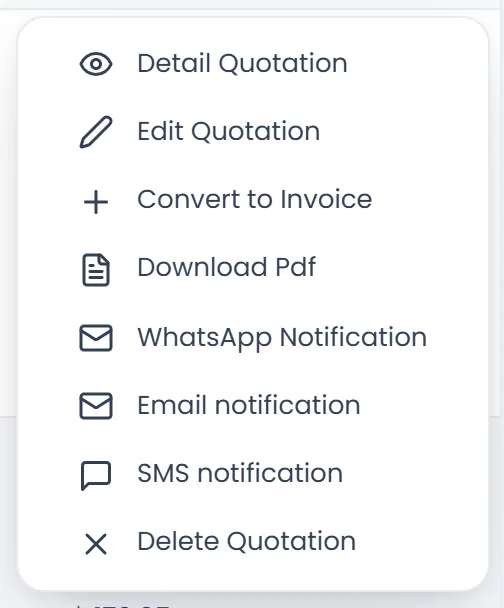
Open Quotations › All Quotations. Each quotation shows its Date, Reference (QT_0001 and on), Customer, Warehouse, Status and Total. Its menu, the button under Action, has Download Pdf, WhatsApp Notification, Email notification and SMS notification to send it, and Detail Quotation to open it on screen, with a Print button.
Turn it into a sale
- Open the quotation's menu in All Quotations and click Convert to Invoice. On the quotation's own page, the button is Create Sale.
- Check the sale. The Create Sale form opens with the quotation's customer, warehouse and products, and an optional Sales Agent. Change anything that has moved since.
- Set Status. completed takes the items out of stock. Pending and ordered leave stock as it is.
- Record the payment if there is one. For a completed sale, set Payment Status: Paid, partial or Pending. Unless it is Pending, pick the Payment choice and enter the Received Amount and the Paying Amount.
- Click Submit. You land on Sales › All Sales, with the new sale in the list.
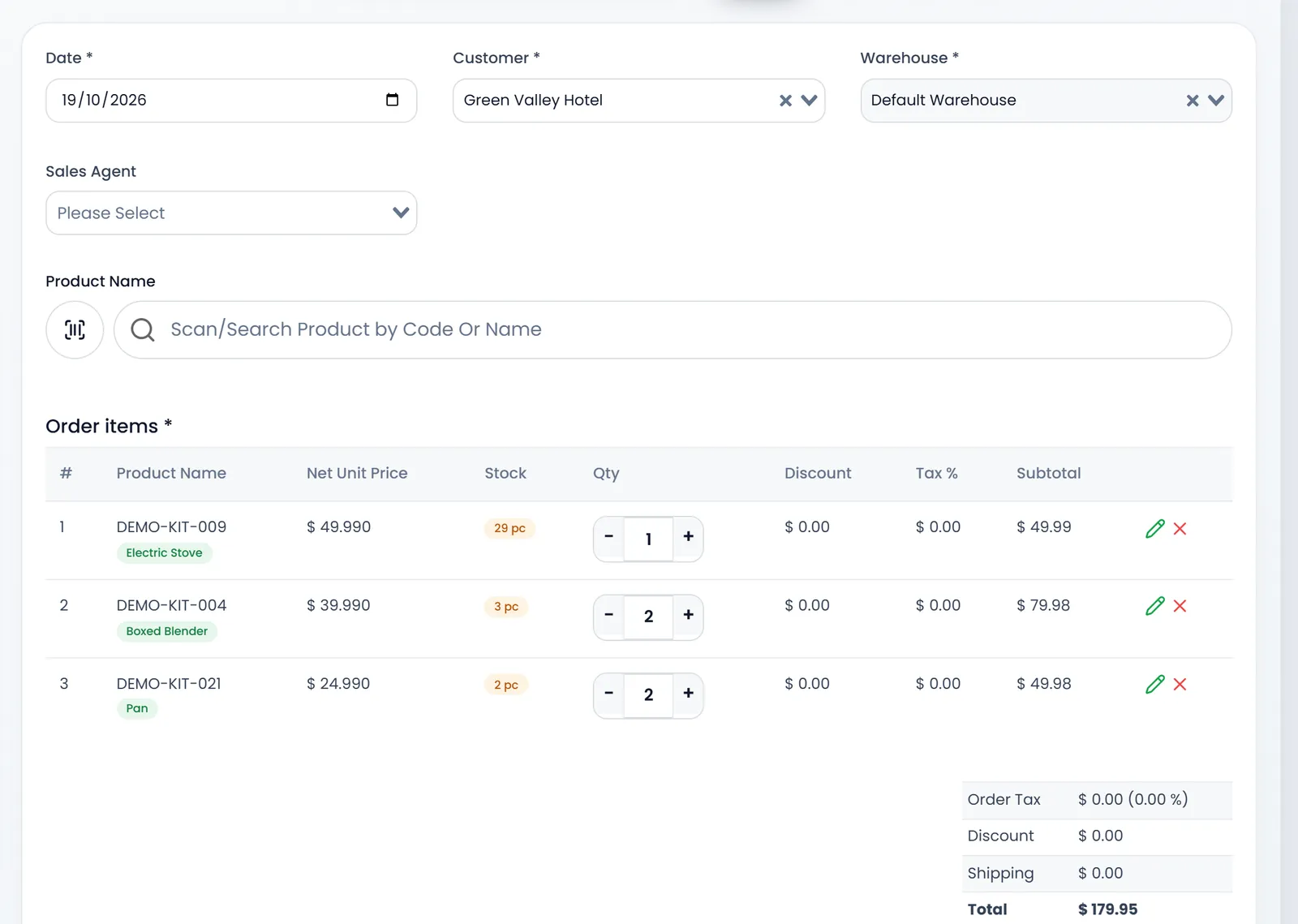
The quotation stays in All Quotations after you convert it, so you can see what you offered.
What's next
Taking payments for the rest later is in Take payments and print receipts.
Still stuck?
Write to us and a person answers. If you already have a shop, Ask support inside it sends us the page you're on.
Contact usAsk your AI assistant
ChatGPT, Claude and Gemini can read every guide and walk you through it.
Set it up