




Names like these, in green, are pages inside your ArmPOS shop. Sign in to your shop to open them.
Not every sale happens at the till. An order taken on the phone, a delivery to a business customer, or yesterday's sale written up today all go in through Add sale. By the end you will have recorded one, with its date, its products and whatever was paid.
Fill in the sale
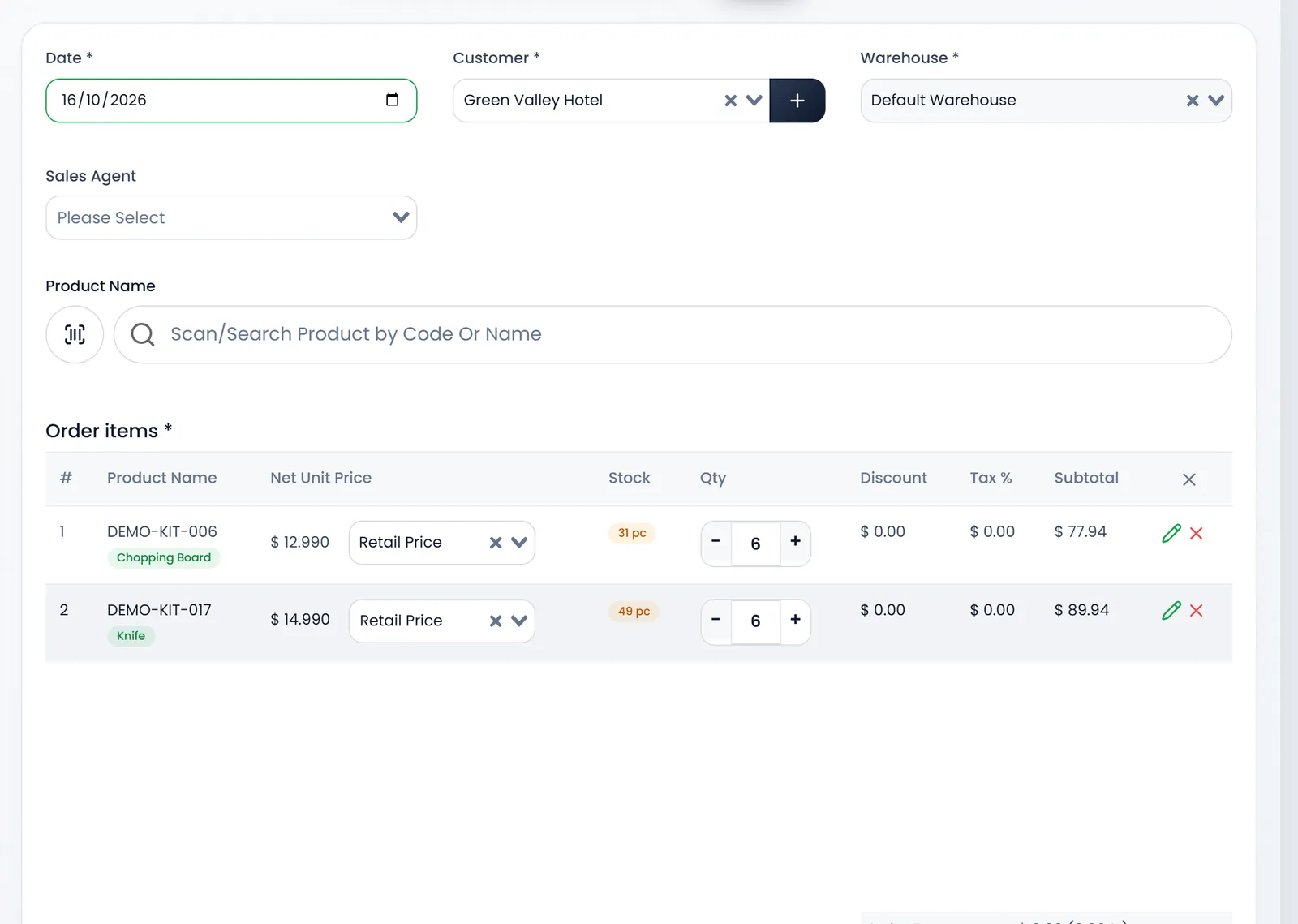
- Open Sales › Add sale. The Create Sale form opens.
- Set the Date. It starts on today. Change it for a sale made on another day: reports count the sale on this date.
- Choose the Customer and the Warehouse. Both are required. The warehouse is where the stock comes from. Sales Agent is optional, for shops that pay commission.
- Add the products. Type in Scan/Search Product by Code Or Name and pick a result, or click the barcode button to scan. Each product joins Order items with its price and Stock.
- Set each line. − and + change the quantity; the price list beside the price switches between Retail Price and Wholesale Price; the pencil changes the line's price, tax or discount; the x removes it.
Status, payment and submit
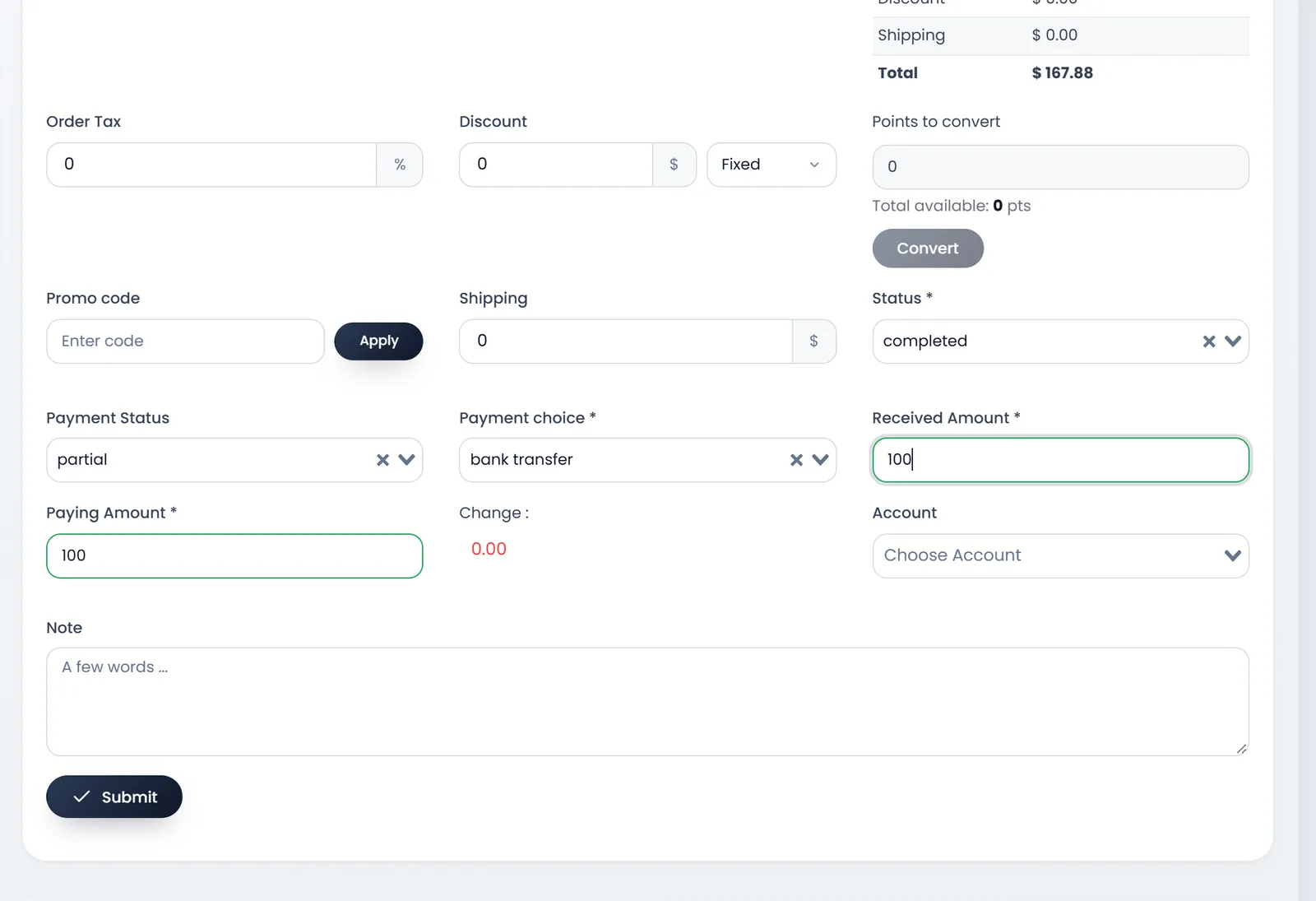
- Add Order Tax, Discount and Shipping if they apply. Discount is Fixed or Percent %. A customer with loyalty points can turn them into a discount under Points to convert; a Promo code goes in with Apply.
- Set Status. completed takes the stock out now. Pending and ordered record the sale without moving stock.
- Set Payment Status. Paid for everything now, partial for part of it, Pending for nothing yet.
- For Paid or partial, record the payment. Pick the Payment choice, enter the Received Amount (what you were given) and the Paying Amount (what goes on the sale); Change shows the difference. Account is optional.
- Add a Note if you need one, and click Submit. You land on All Sales, with the new sale in the list.
What is not paid stays Due on the sale. Take it later with Create Payment in the sale's menu: see Take payments and print receipts.
A sale made here is not a POS sale: it doesn't open the till's receipt or count in a register's cash. Its invoice is in Sale Detail, ready to email, print or download (see The sales list).
What's next
To bring in many past sales at once, see Import past sales.
Still stuck?
Write to us and a person answers. If you already have a shop, Ask support inside it sends us the page you're on.
Contact usAsk your AI assistant
ChatGPT, Claude and Gemini can read every guide and walk you through it.
Set it up