




Names like these, in green, are pages inside your ArmPOS shop. Sign in to your shop to open them.
When an order arrives as a list, from a customer's email or another system, you can turn the list into a sale without typing each line. By the end you will have imported one sale from a CSV file of product codes and quantities.
Prepare the file
The file is a CSV with two columns, separated by semicolons (;), and a header line:
productcode;qty
DEMO-GRO-023;10
DEMO-GRO-005;6
- productcode is each product's code, as in Products › All Products.
- qty is how many.
- Download example on the page gives you a file in this shape.
One file makes one sale.
Import it
- Open Sales › Import Sales.
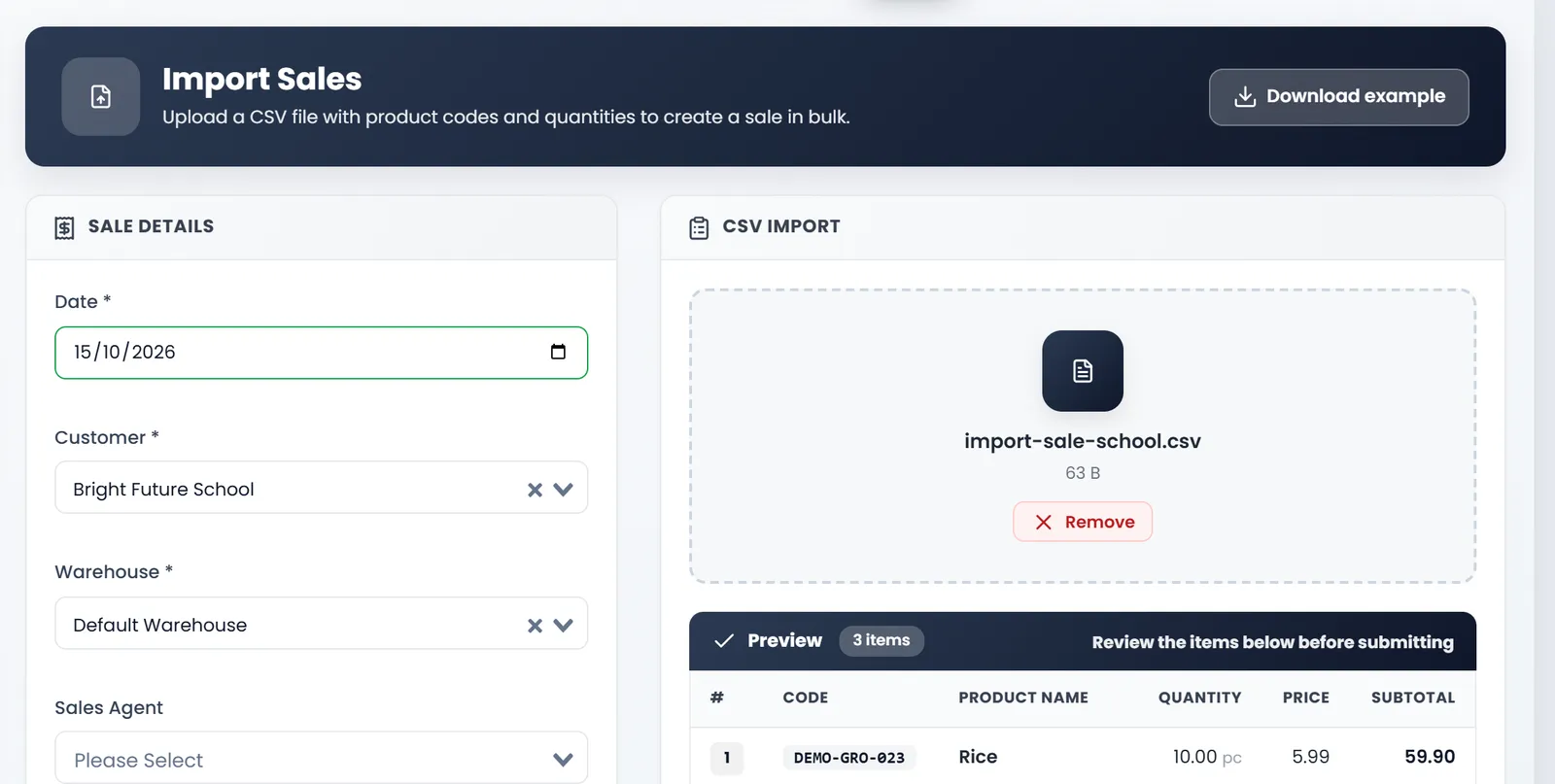
- Fill the sale's details. Date, Customer and Warehouse are required, and Status starts on completed. Sales Agent, Order Tax, Discount, Shipping and Note are optional.
- Add the file. Click the CSV IMPORT box or drop the file on it. Only .csv files are taken.
- Check the preview. Each line shows the code, the product's name, the quantity, its price and subtotal, with the total below. Remove takes the file away to choose another.
- Click Submit. You land on All Sales, with the new sale at the top.
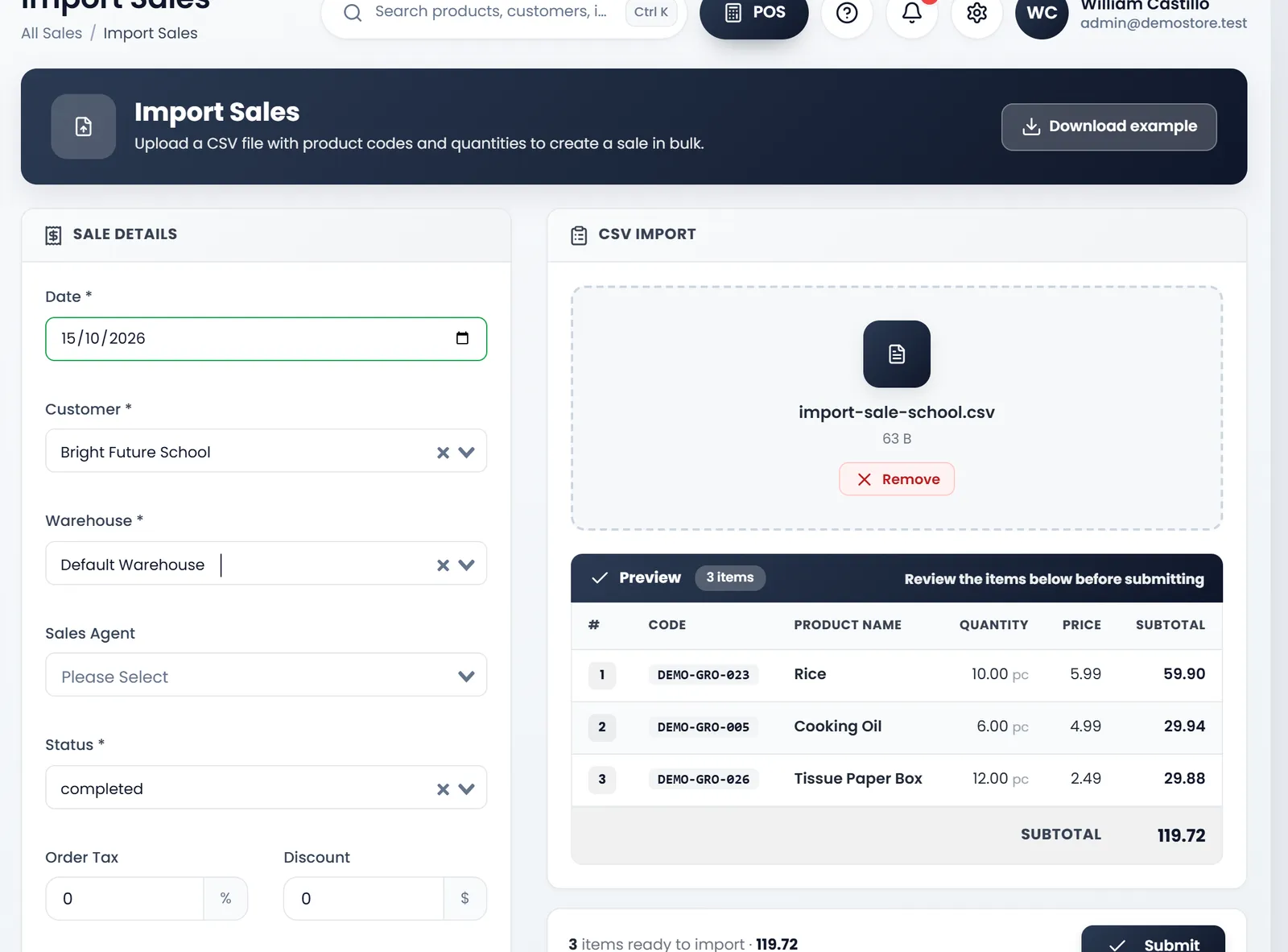
The prices are each product's own selling price. The sale is saved unpaid: take the money with Create Payment in its menu (see Take payments and print receipts).
A completed sale takes its stock out. If the warehouse doesn't hold enough of a product, the import is refused with "Insufficient stock for one or more products", naming them, and nothing is saved.
What's next
Still stuck?
Write to us and a person answers. If you already have a shop, Ask support inside it sends us the page you're on.
Contact usAsk your AI assistant
ChatGPT, Claude and Gemini can read every guide and walk you through it.
Set it up