




Names like these, in green, are pages inside your ArmPOS shop. Sign in to your shop to open them.
Every sale, from the POS or from Add sale, is in one list. By the end you will know how to find a sale, read what it shows, open its invoice and see how it was paid.
The list
Open Sales › All Sales. The newest sale is at the top. Each row shows:
| Column | What it tells you |
|---|---|
| Date and Reference | when the sale was made, and its number (SL_0001 and on) |
| Added by | who made it |
| Customer and Warehouse | who bought and where from |
| Status | Completed, Pending or Ordered: only a completed sale has taken the stock |
| Total, Paid, Due | what the sale is worth, what was paid and what is still owed |
| Payment Status | Paid, Partial or Unpaid |
| Shipping Status | the delivery's state, once a shipment is set (see Shipments and deliveries) |
| Documents | files attached to the sale |
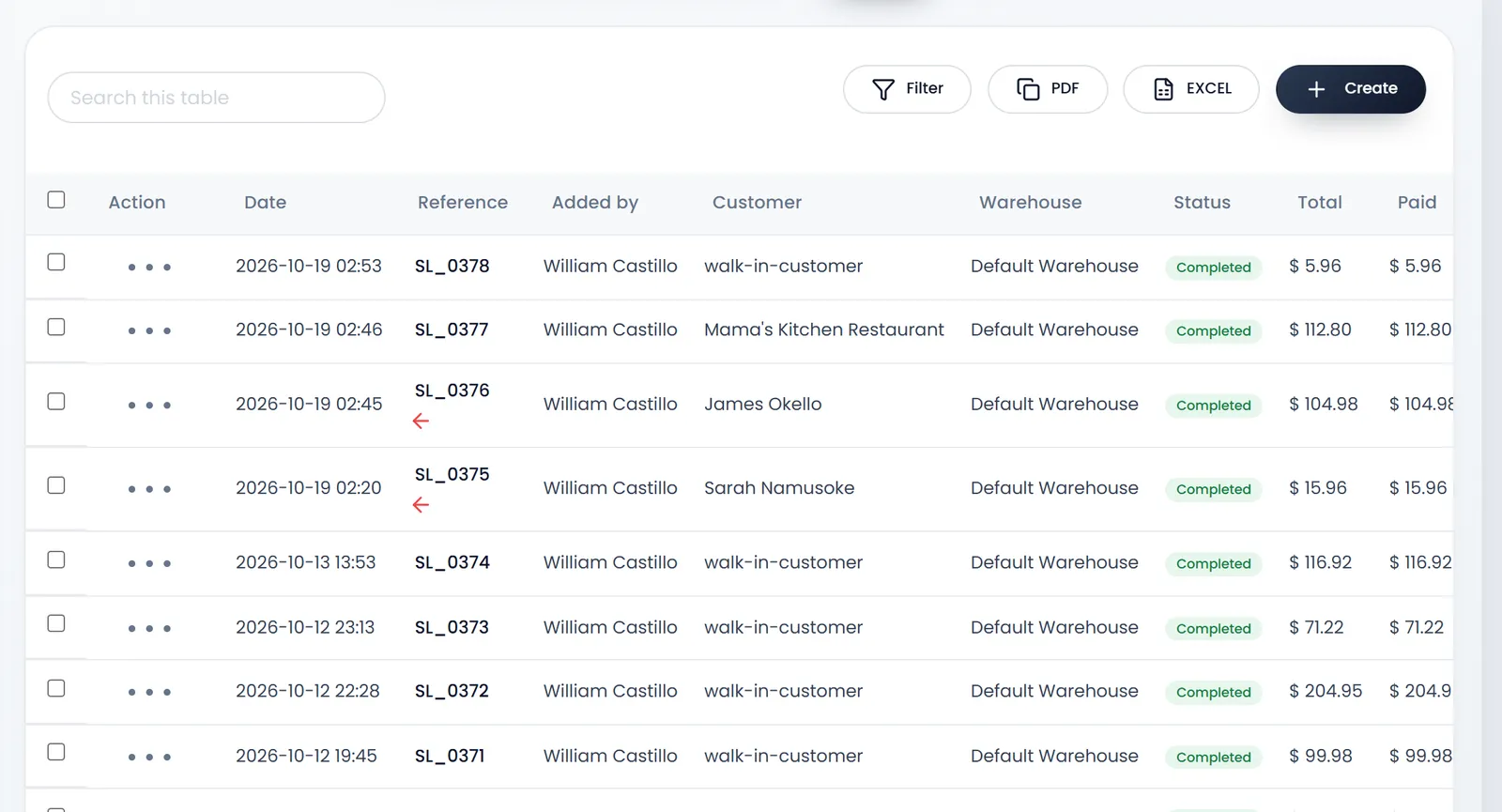
Search this table finds a sale by its reference or customer. PDF and EXCEL download the list. Create opens Add sale.
Narrow the list
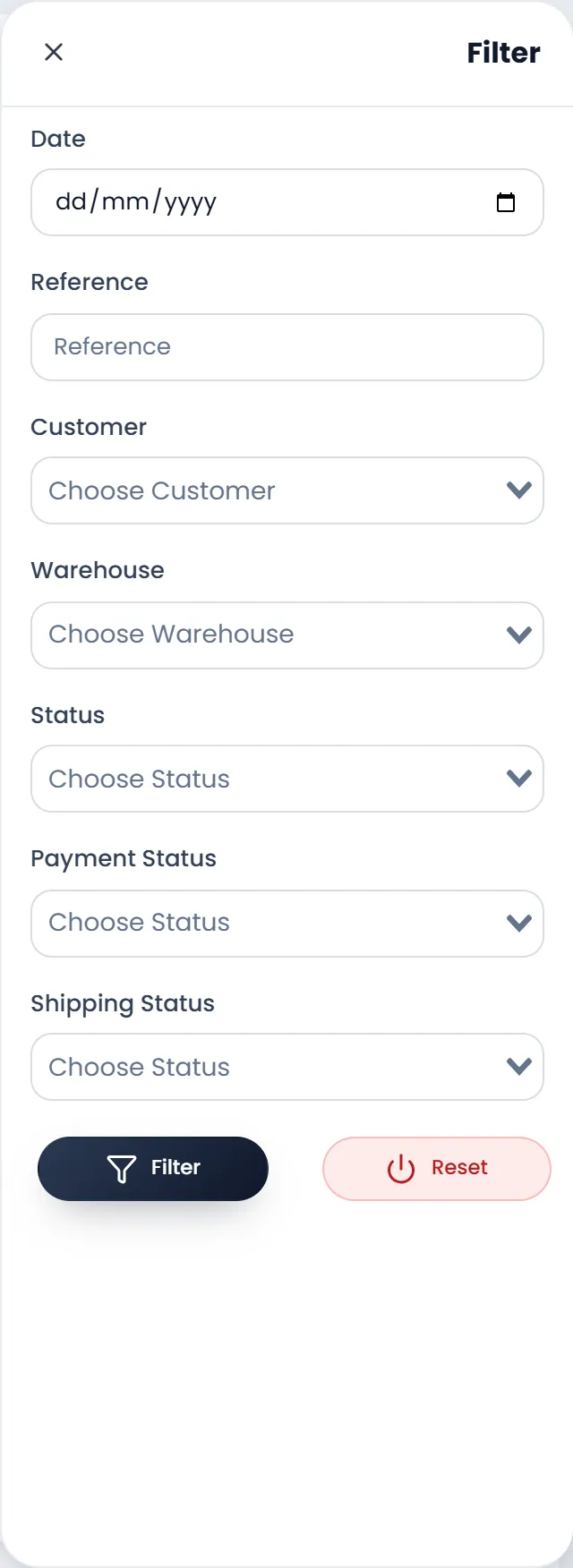
- Click Filter. A panel opens on the right.
- Fill what you know. Date, Reference, Customer, Warehouse, Status, Payment Status and Shipping Status. Leave the rest empty.
- Click Filter at the foot of the panel. Reset clears it.
Open a sale
Each row's menu, the button under Action, lists everything you can do with the sale: Sale Detail, Edit Sale, Sell Return, Show Payments, Create Payment, Edit Shipping, Invoice POS, Download Pdf, the WhatsApp, Email and SMS notifications, Attach Documents and Delete Sale.
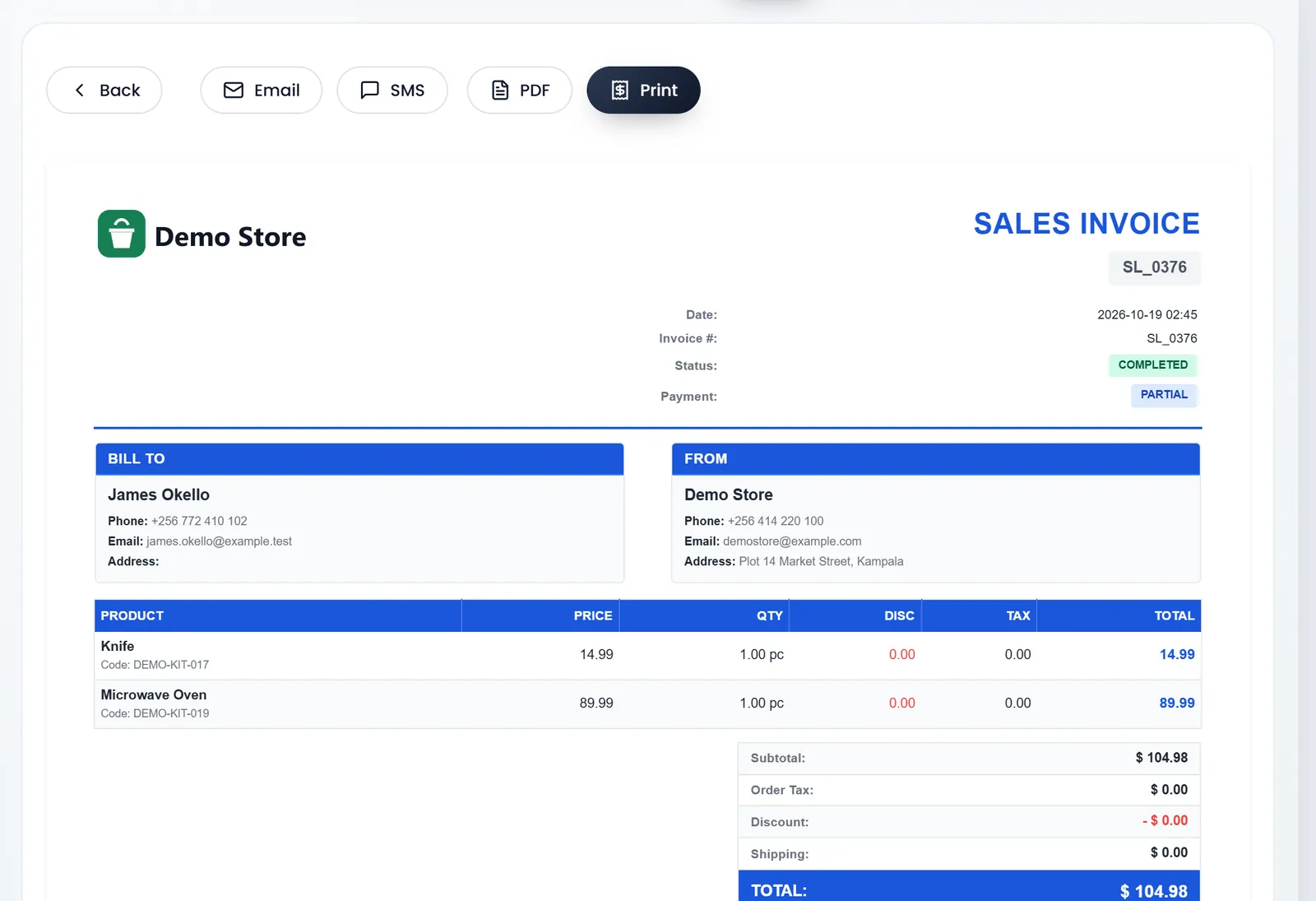
Sale Detail opens the invoice: who bought, your shop's details, each product with its price, quantity, discount and tax, the totals, and what was paid and is due. Along the top, Email, SMS, PDF and Print send or print it, and Back returns to the list.
See how it was paid
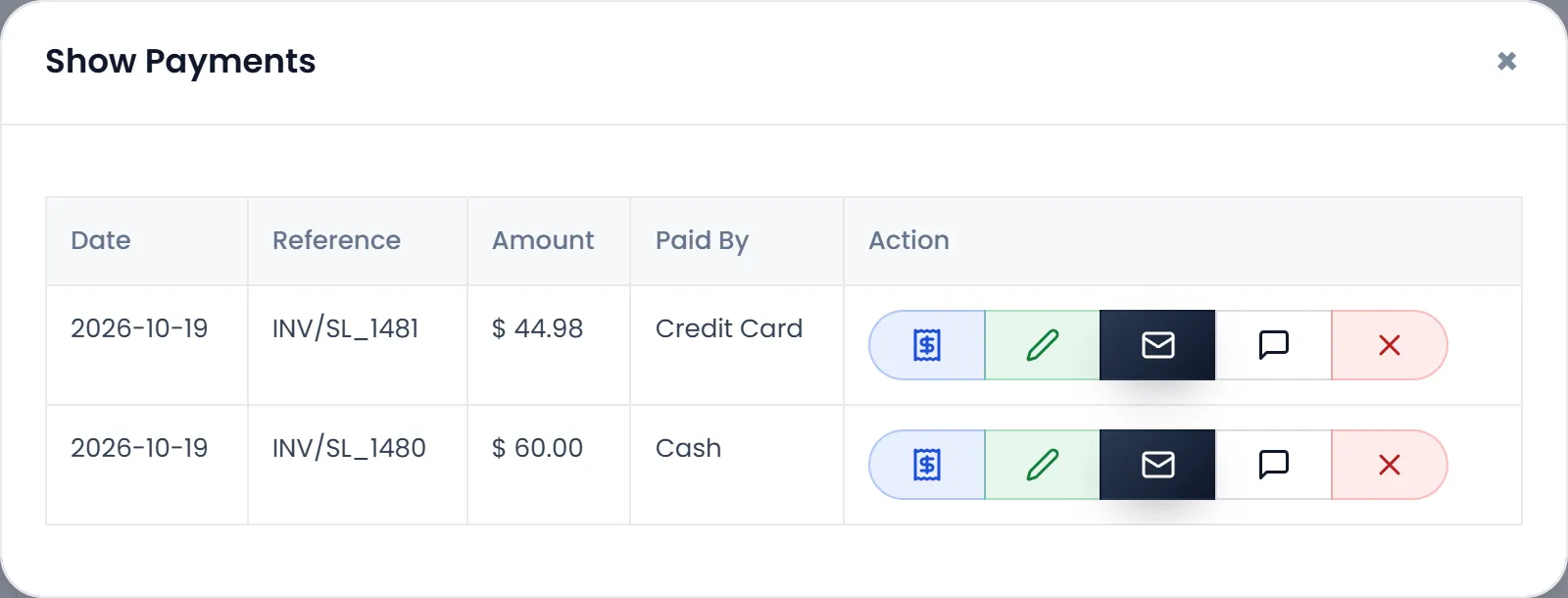
Click Show Payments in the row's menu. Each payment shows its Date, its own Reference, the Amount and Paid By, with edit and delete under Action. To take more money on a sale that still has some Due, use Create Payment: see Take payments and print receipts.
To take items back, use Sell Return rather than editing the sale, so the return is on record and the money back can be tracked. See Returns and refunds.
What's next
Still stuck?
Write to us and a person answers. If you already have a shop, Ask support inside it sends us the page you're on.
Contact usAsk your AI assistant
ChatGPT, Claude and Gemini can read every guide and walk you through it.
Set it up