




Names like these, in green, are pages inside your ArmPOS shop. Sign in to your shop to open them.
By the end you will have a checklist your technicians tick on every job, such as the checks before a blender goes back, and a report of what was done.
Checklists come with service jobs, which some plans include. See Service and repair jobs.
Make the checklist
Checklists have categories, and each category has its items.
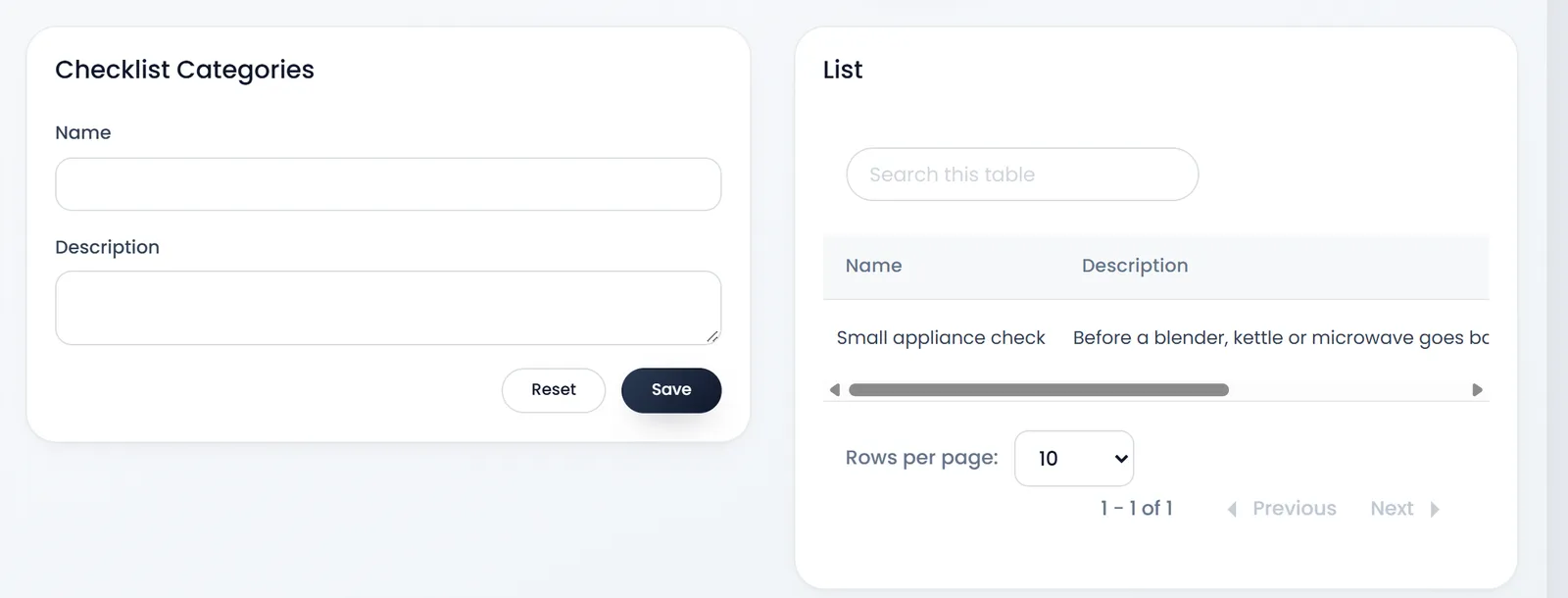
- Open Sell › Service & Maintenance › Checklist Categories.
- Type the Name and the Description, such as Small appliance check, and click Save.
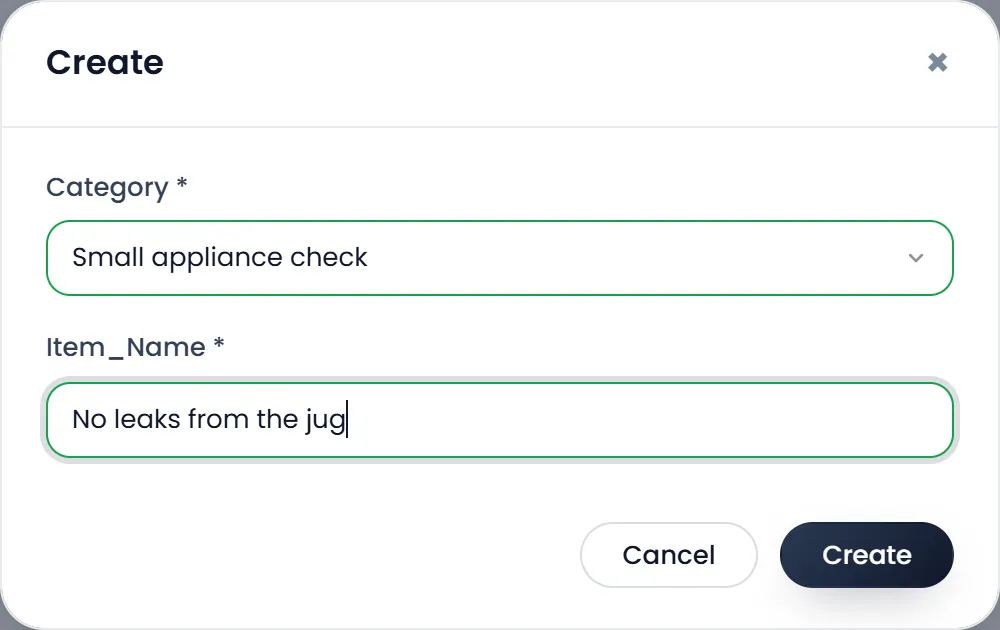
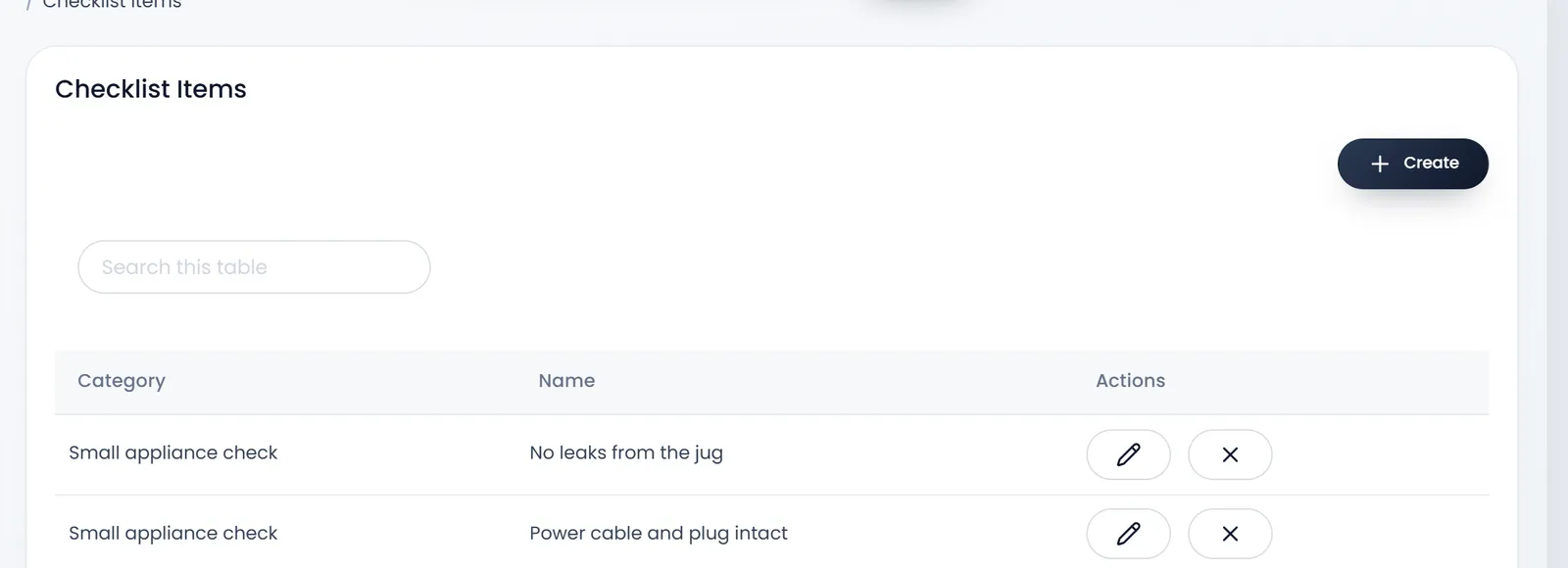
- Open Checklist Items and click Create.
- Pick the Category and type the item, such as No leaks from the jug, then click Create. The item's field shows its label as Item_Name.
- Repeat for each check.
Tick it on a job
Open the job and its Diagnostic tab: every item shows under Checklist as a switch. Switch on each check done, and click Save.
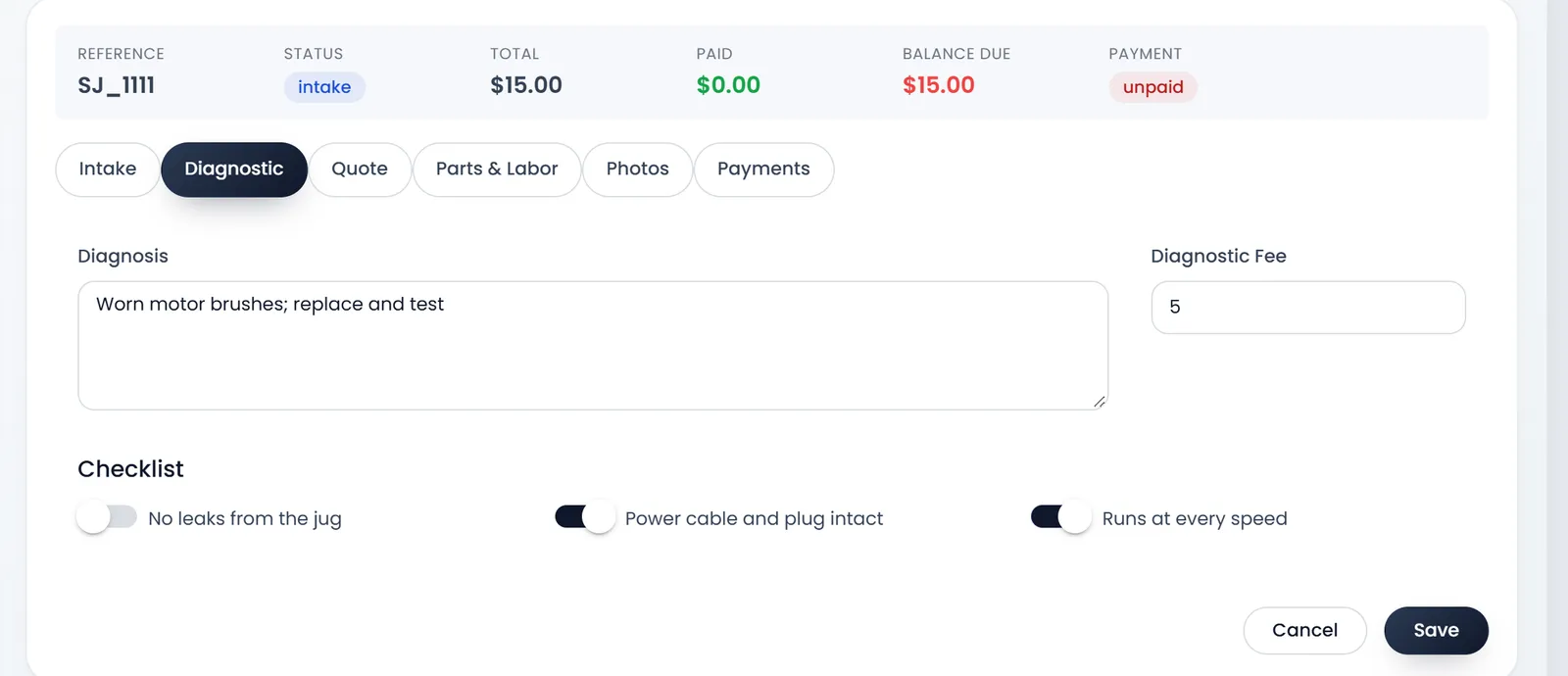
Every job shows every item, whatever the item is: keep the list to the checks you do on most jobs.
Reports
Under Reports:
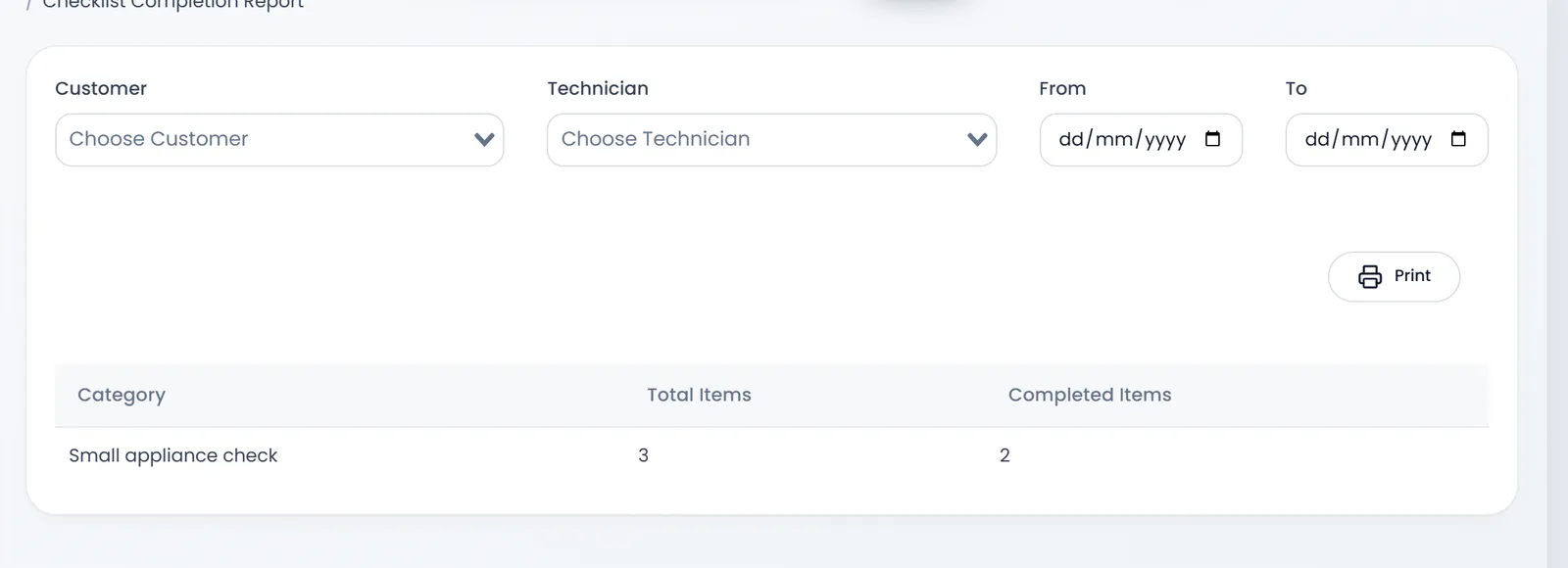
- Checklist Completion Report counts, per category, the Total Items and the Completed Items. Narrow it by Customer, Technician and dates.
- Service Jobs Report lists the jobs with their customer, technician, item, type and status.
- Customer Maintenance History Report lists one customer's jobs over time.
What's next
Still stuck?
Write to us and a person answers. If you already have a shop, Ask support inside it sends us the page you're on.
Contact usAsk your AI assistant
ChatGPT, Claude and Gemini can read every guide and walk you through it.
Set it up