




Names like these, in green, are pages inside your ArmPOS shop. Sign in to your shop to open them.
By the end you will have taken in an item for repair, recorded what is wrong, priced the work, and know how payment and handing it back work.
Service jobs come with some plans only. If Service & Maintenance isn't under Sell in your menu, your plan or your role doesn't include it.
Add your technicians
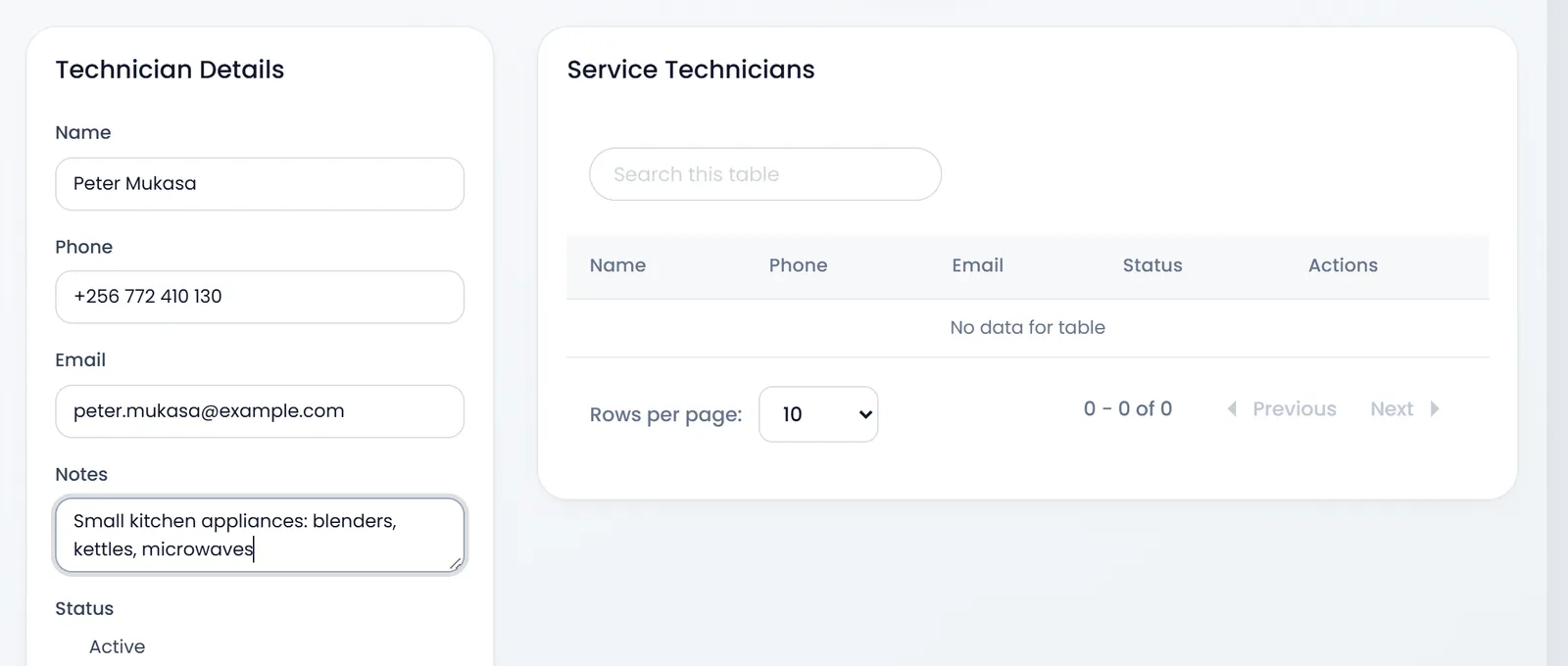
Open Sell › Service & Maintenance › Service Technicians. Fill the Name, Phone, Email and Notes, and click Save. A technician is a name to give jobs to, not a sign-in.
Take in a job
- Open Service Jobs and click Create.
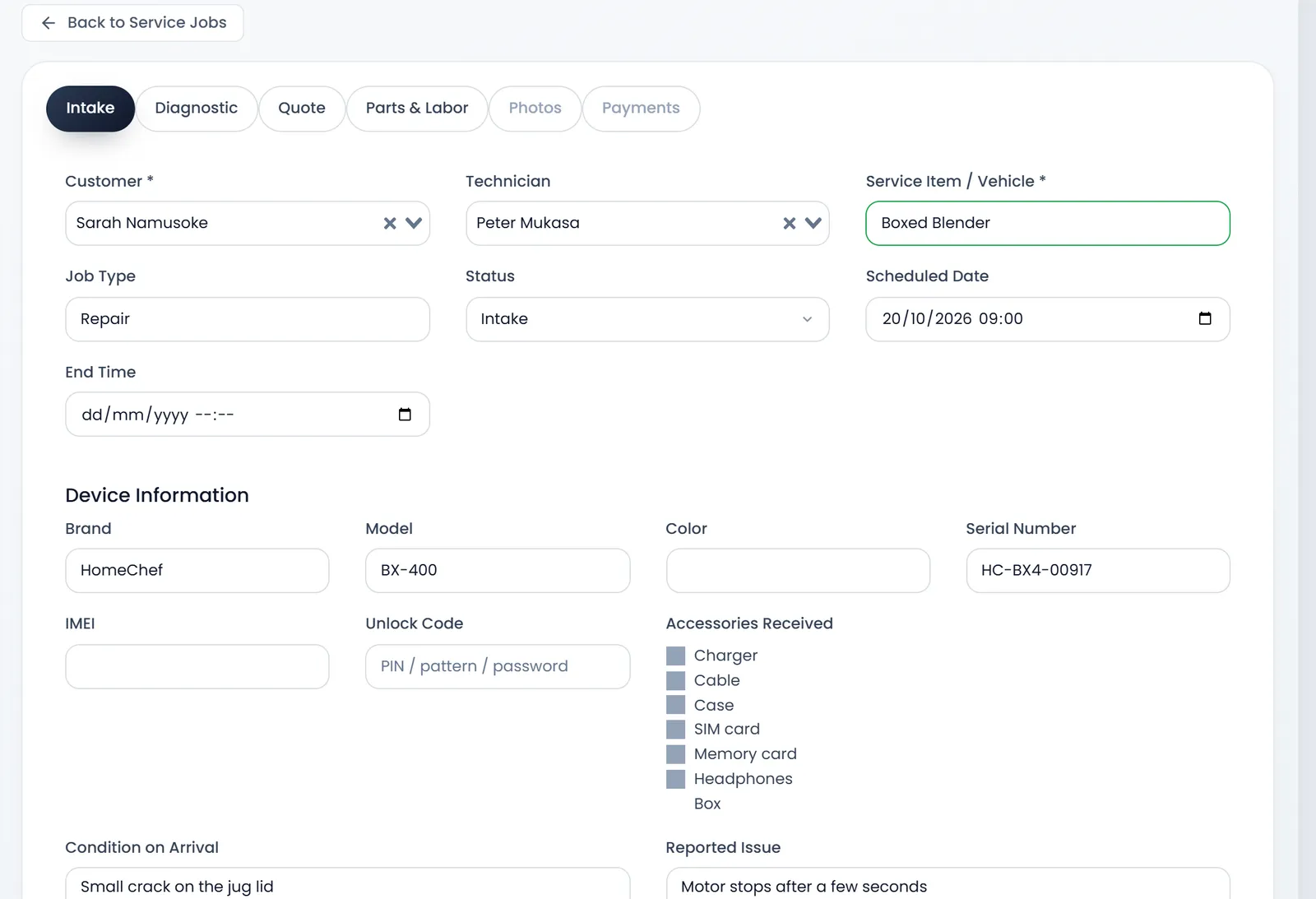
- Intake. Pick the Customer and type the Service Item / Vehicle, both required. Pick the Technician, write the Job Type (such as Repair), set the Status and the Scheduled Date.
- Device Information. Write the Brand, Model and Serial Number (and IMEI or Unlock Code for a phone), tick the Accessories Received, and write the Condition on Arrival and the Reported Issue in the customer's words.
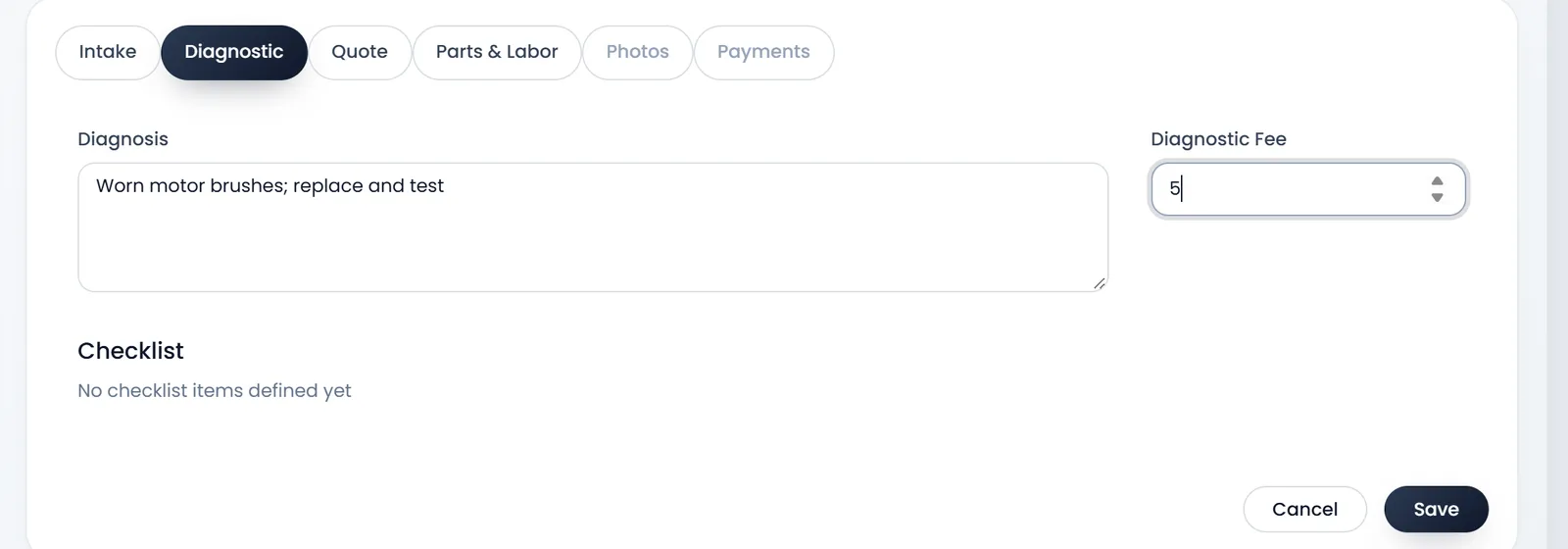
- Diagnostic. Once you know what is wrong, write the Diagnosis and the Diagnostic Fee, and tick the checks you did.
- Click Save. The job gets its reference (SJ_ and a number), and the Photos and Payments tabs open up.
Price the work
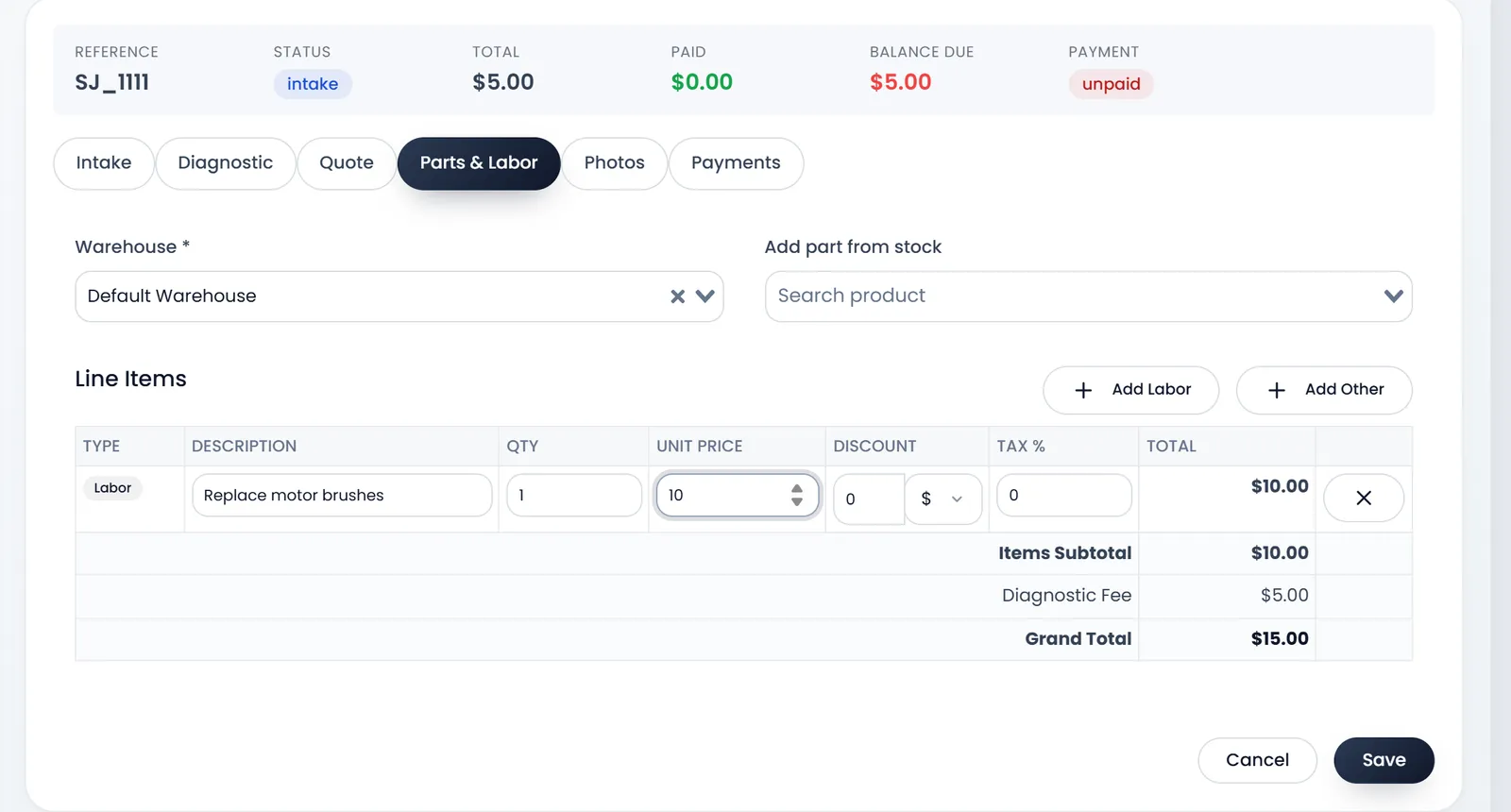
On Parts & Labor, pick the Warehouse the parts come from, then:
- Add part from stock: search a product; it becomes a Part line at its price.
- Add Labor and Add Other: type the Description, Qty and Unit Price yourself.
Each line can take a Discount and Tax %. Grand Total adds the lines and the diagnostic fee. Click Save.
Parts leave stock only when the job is delivered, not when you add them.
Quote first
For a bigger repair, the Quote tab takes a Quote Amount, how long it is Valid Until, and the Warranty (days). Download Quote PDF gives the customer a copy, and Send to Quotations makes it a quotation in Sales › Quotations. When the customer answers, click Approve or Decline. Jobs waiting for an answer are under Awaiting Approval in the menu.
Payment and handing back
On the Payments tab, Add Payment records a payment: the Date, Amount, its Kind (Deposit, Payment or Refund), the Method and Notes. The figures at the top show what is Paid and the Balance Due. Jobs with money owed are under Awaiting Payment.
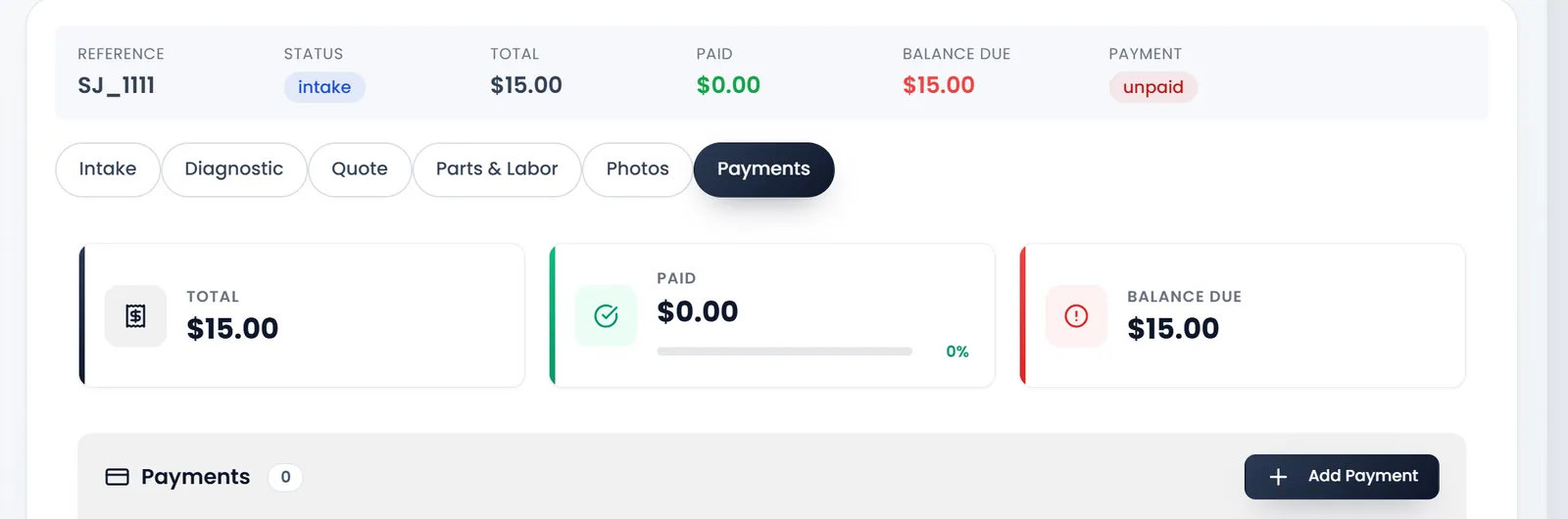
When the work is done, set the Status to Ready for Pickup: the job appears under Ready for Pickup. Once the balance is paid, Mark Delivered (decrements stock + starts warranty) appears: click it when the customer collects. It takes the parts out of stock and starts the warranty.
Hand the item back with Mark Delivered, not by choosing Delivered in the Status list: that skips the payment check and the warranty. Don't change a delivered job's status afterwards either: its revenue then drops out of Reports › Profit and Loss while the parts stay out of stock.
Delivered jobs count in Reports › Profit and Loss under Service Jobs – Revenue, less the parts' cost.
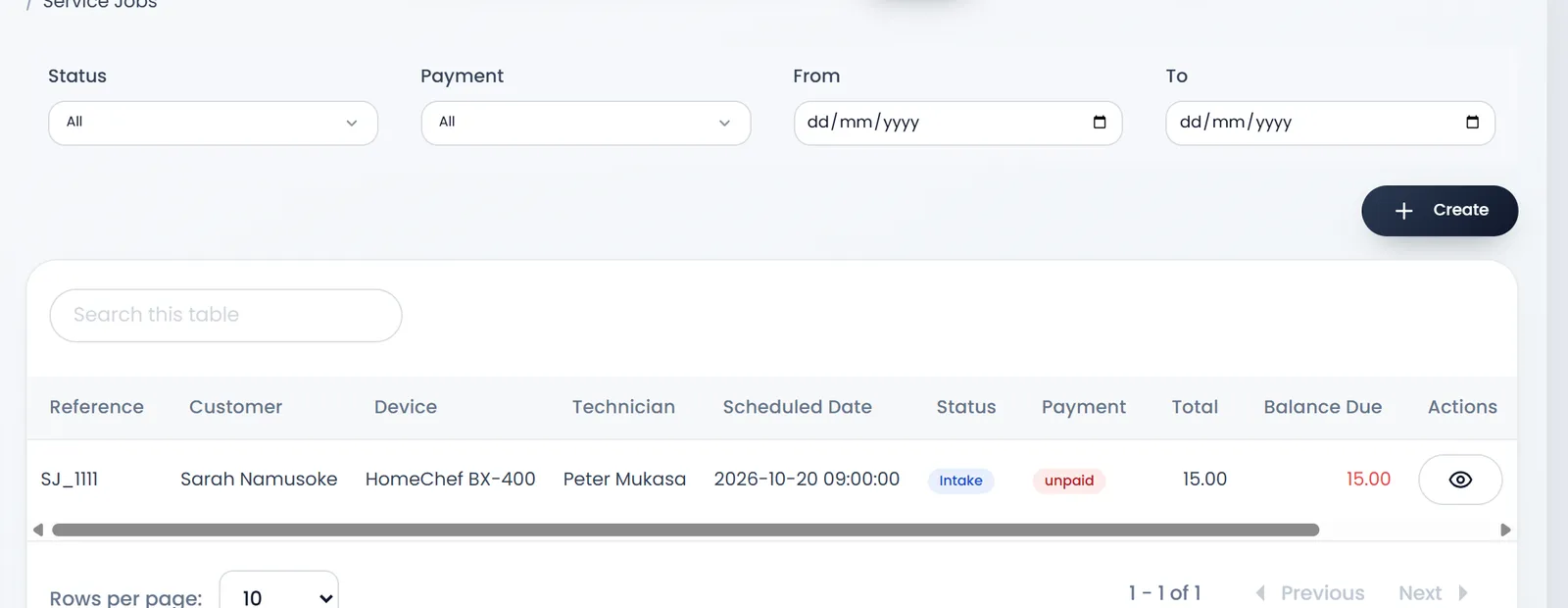
Maintenance History lists every job by customer: what came in, who worked on it, and when.
What's next
Make sure every item is checked the same way: Service checklists.
Still stuck?
Write to us and a person answers. If you already have a shop, Ask support inside it sends us the page you're on.
Contact usAsk your AI assistant
ChatGPT, Claude and Gemini can read every guide and walk you through it.
Set it up