




Names like these, in green, are pages inside your ArmPOS shop. Sign in to your shop to open them.
By the end you will have booked a customer in for a service, such as knife sharpening at 10:00 on Thursday, and found it on the calendar.
Bookings come with some plans only. If Bookings isn't under Sell in your menu, your plan or your role doesn't include it.
Make a booking
- Open Sell › Bookings › Booking List and click Create.
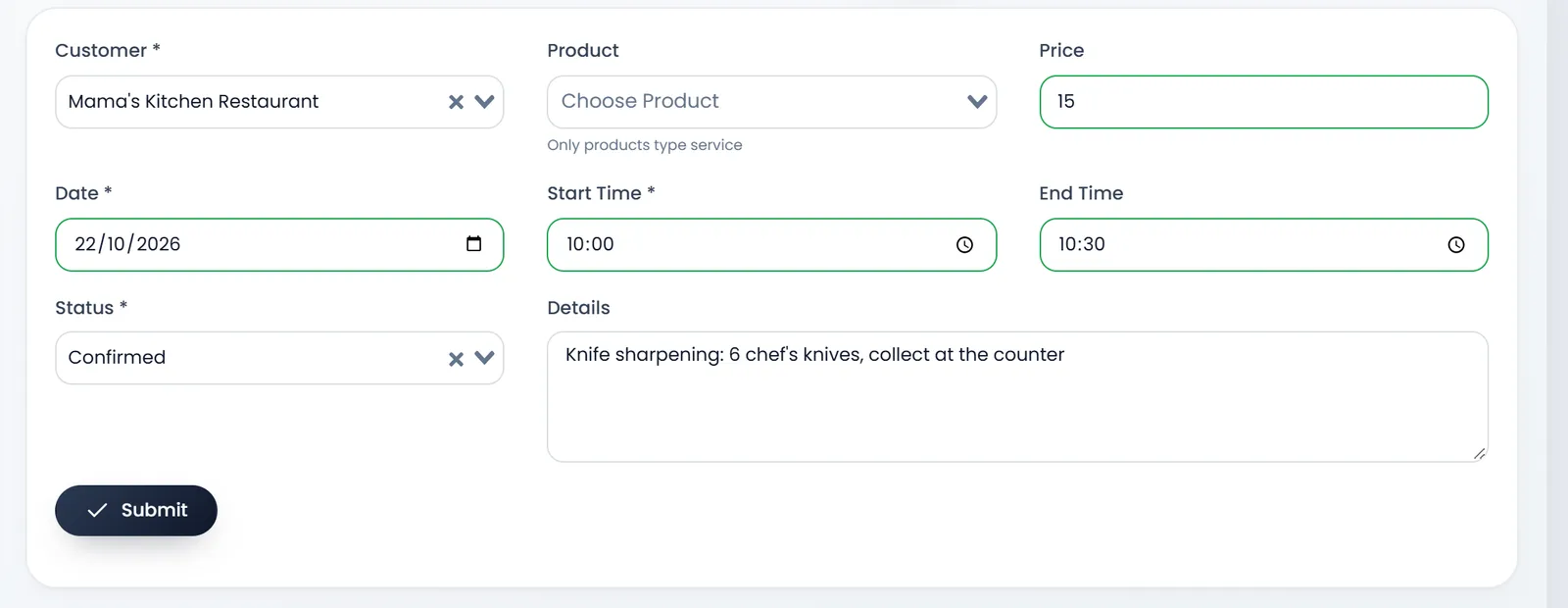
- Pick the Customer. It is required. Add a new customer first in People › Customers if needed.
- Pick the Product if the booking is for one of your services. The list shows only products of the service type; picking one fills its Price. You can leave it empty.
- Set the Price. Whole numbers only for now: a price with cents, such as 12.50, is refused with "Please fill the form correctly".
- Set the Date and the Start Time, both required, and the End Time if you know it.
- Pick the Status: Pending, Confirmed, Completed or Cancelled.
- Write the Details: what the customer wants.
- Click Submit. You land on the list, with the booking's reference (BK_ and a number).
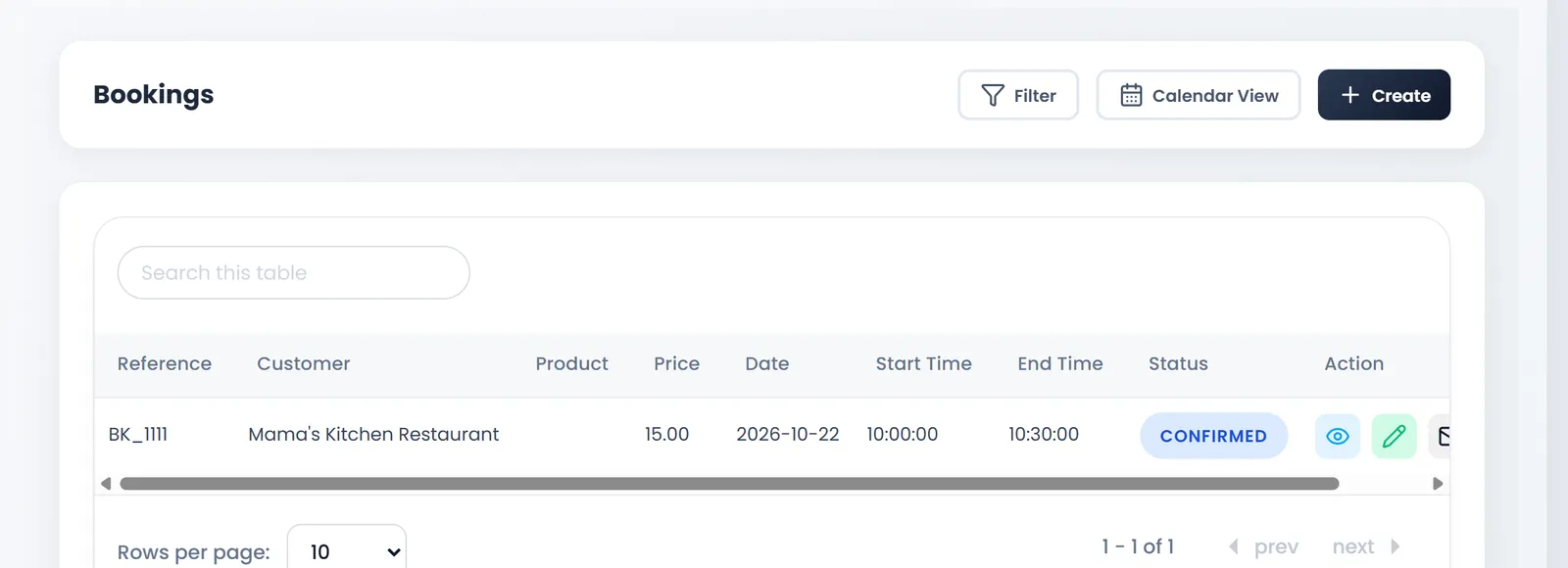
The calendar
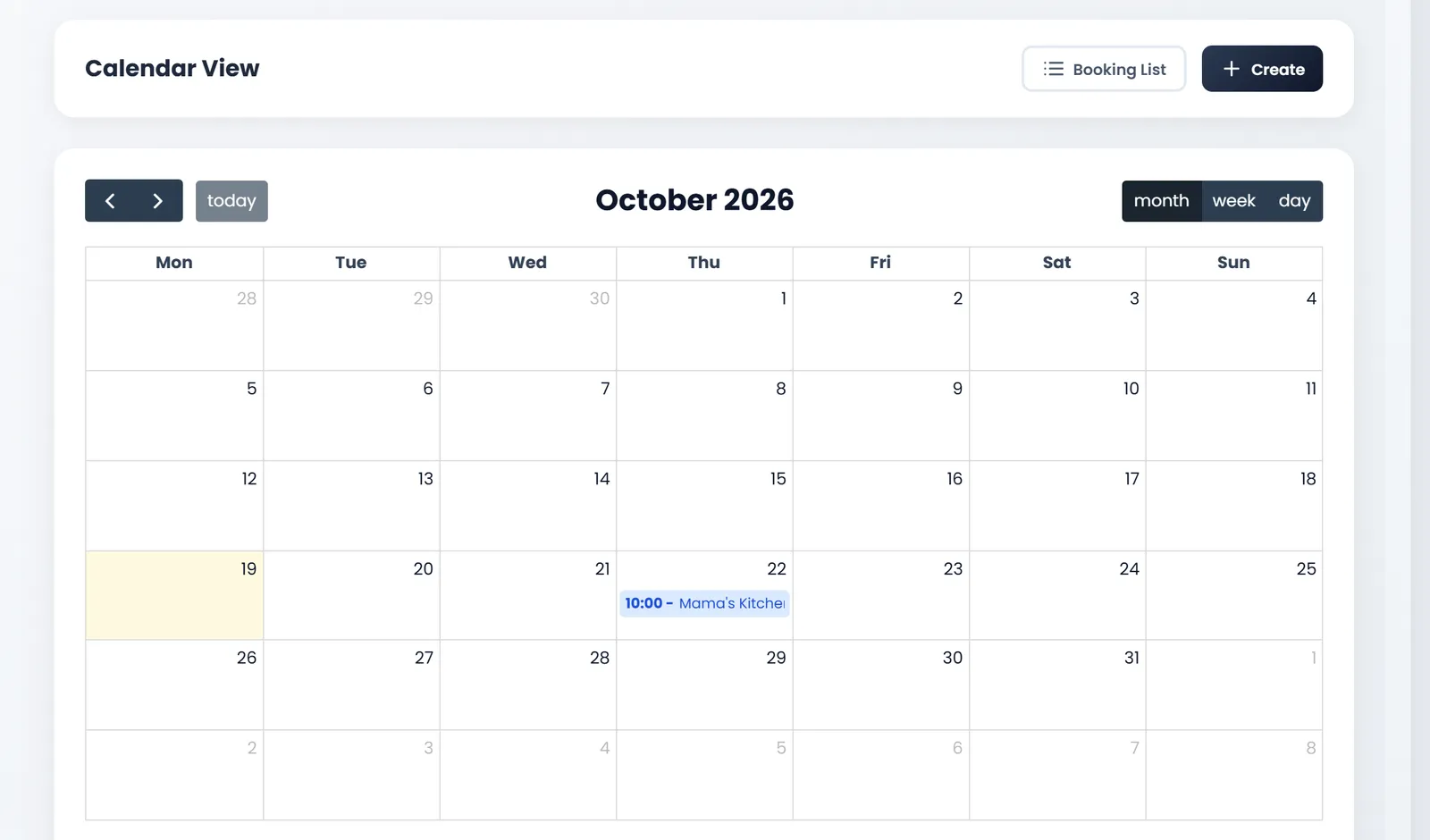
Calendar View shows your bookings by month, week or day. The arrows move through time and today comes back. Click a booking to see its details.
Tell the customer
Send Email on the booking's row emails the customer their booking, from Settings › Email Templates › Custom Template for Booking (see Email and SMS settings). The customer needs an email address on their record.
The booking email's subject says the booking is confirmed. Send it once the booking is Confirmed, or change the template's words first.
ArmPOS doesn't remind the customer before the booking. A booking makes no sale: when the customer comes, sell the service at the POS as usual.
With a Google calendar connected in Settings › System Settings, confirmed bookings also appear there, with reminders for your team.
What's next
For repairs and jobs with parts, see Service and repair jobs.
Still stuck?
Write to us and a person answers. If you already have a shop, Ask support inside it sends us the page you're on.
Contact usAsk your AI assistant
ChatGPT, Claude and Gemini can read every guide and walk you through it.
Set it up