




Names like these, in green, are pages inside your ArmPOS shop. Sign in to your shop to open them.
By the end you will have a product tracked by batch, with each batch's expiry date, and you will know how batches are picked at the till and where to see what expires soon.
Batches suit goods that go off or are recalled by lot: milk, medicine, cosmetics. Each batch has its own number, quantity and expiry date, in each warehouse.
Track a product by batch
- Open the product in Products › All Products and click Edit, or create a new one.
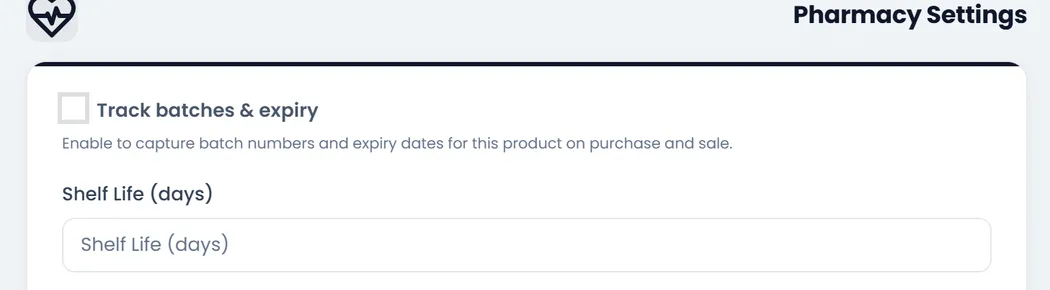
- Find Pharmacy Settings (near the bottom; ON THIS PAGE jumps to it) and switch on Track batches & expiry.
- Click Save Changes.
Stock you already have
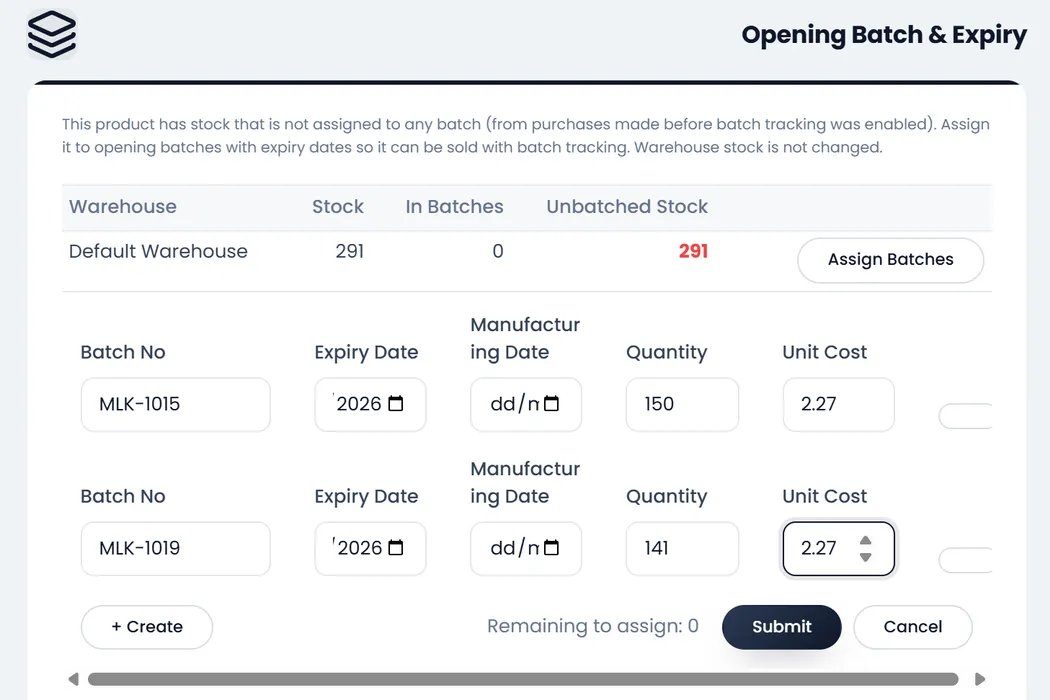
Stock the product had before you switched tracking on has no batch, and the till can't sell it until it has one. Give it its batches once:
- Open the product with Edit again. A new part, Opening Batch & Expiry, lists each warehouse's Stock, what is In Batches and the Unbatched Stock.
- Click Assign Batches on the warehouse's row.
- Fill one line per batch: Batch No, Expiry Date, Manufacturing Date if you have it, Quantity and Unit Cost. + Create adds a line.
- Check Remaining to assign reads 0, and click Submit.
New stock arrives in batches
On a purchase, a batch-tracked product's line opens a Batches table: Batch No, Expiry Date, Manufacturing Date, quantity and cost. The first line starts with the whole quantity; + Create adds another. The batch quantities must add up to the line's quantity, and every line needs a Batch No: a line left without one is dropped when the purchase is saved, and that stock can't be sold at the till.
Batches are made when the purchase is received. A batch number the product already has in that warehouse is topped up.
The Batches page
Products › Batches lists every batch with its product, Batch No, Warehouse, Expiry Date (red once expired, amber when it expires soon, green otherwise), Quantity, cost and Status. Filter by Warehouse, Status or Expiry Window (expired, Near Expiry, Valid).
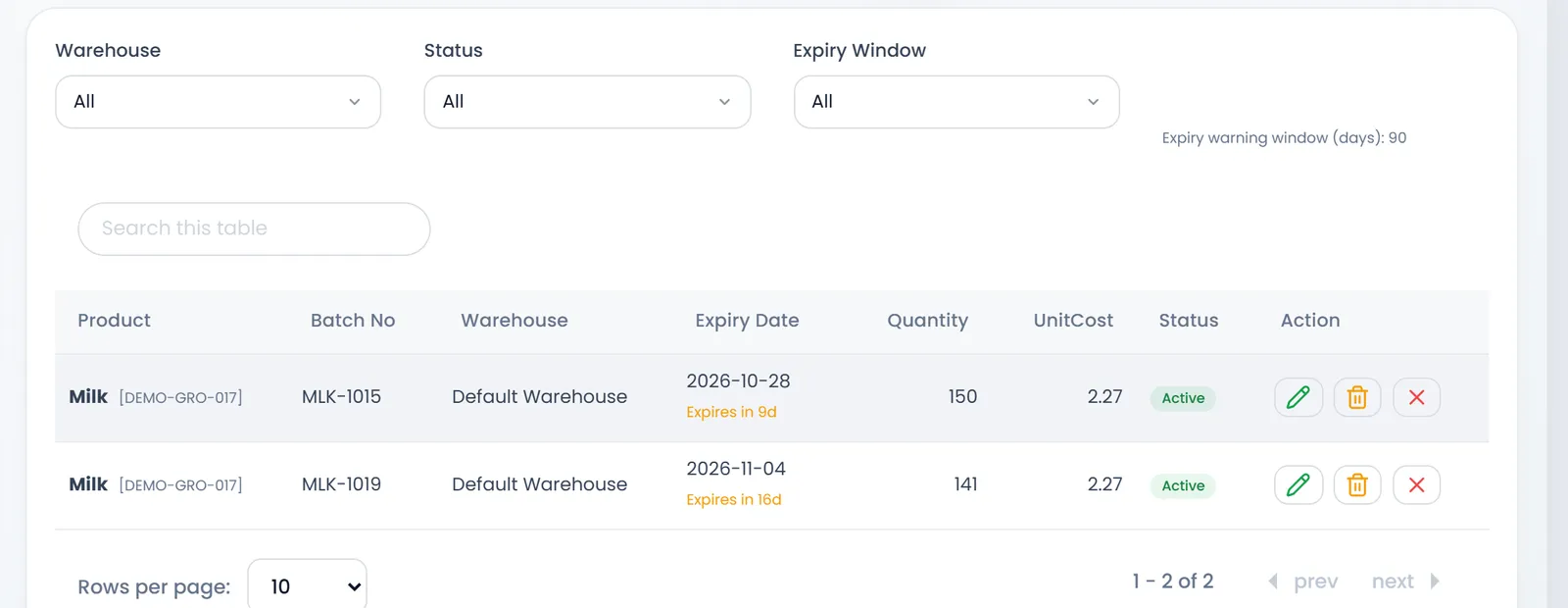
From a batch's row:
- Edit changes its number, dates, notes, quantity or Status. Changing the quantity changes the warehouse's stock by the difference. Setting Quarantined keeps it out of every sale until you set it back to Active.
- Write Off removes what is left of the batch from stock, with a reason: for spoiled or recalled goods.
Selling from a batch
At the POS, a batch-tracked line in the cart shows Batches. Pick the batch in Choose batch: the list shows each batch's expiry date and quantity, the one expiring first at the top. Set how many come from it; to take from two batches, click + Create and add a second line.
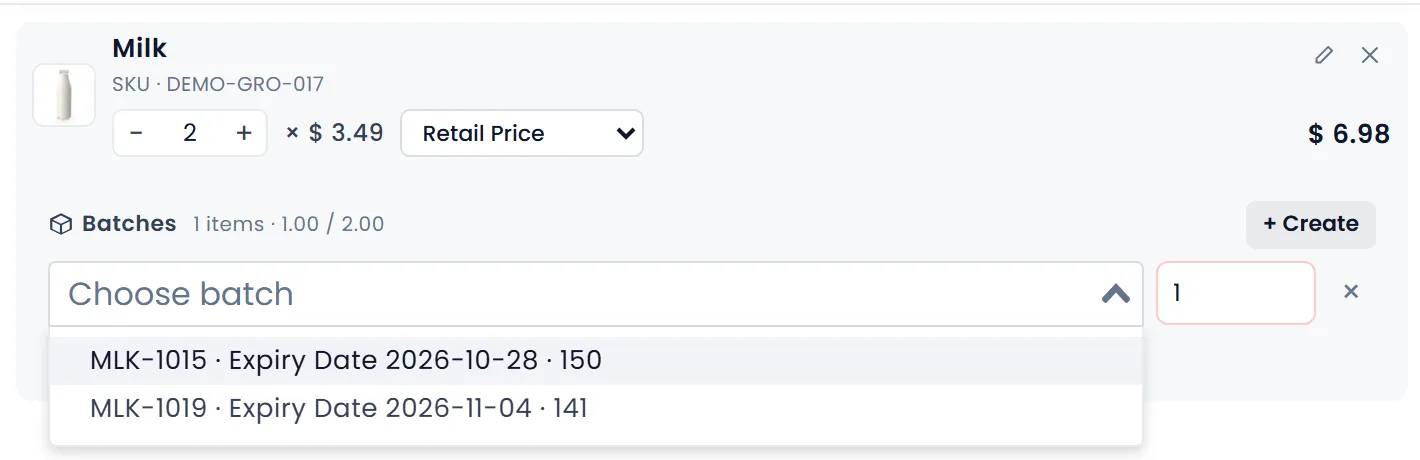
Pay Now waits until every batch line is chosen and the quantities add up to the line's.
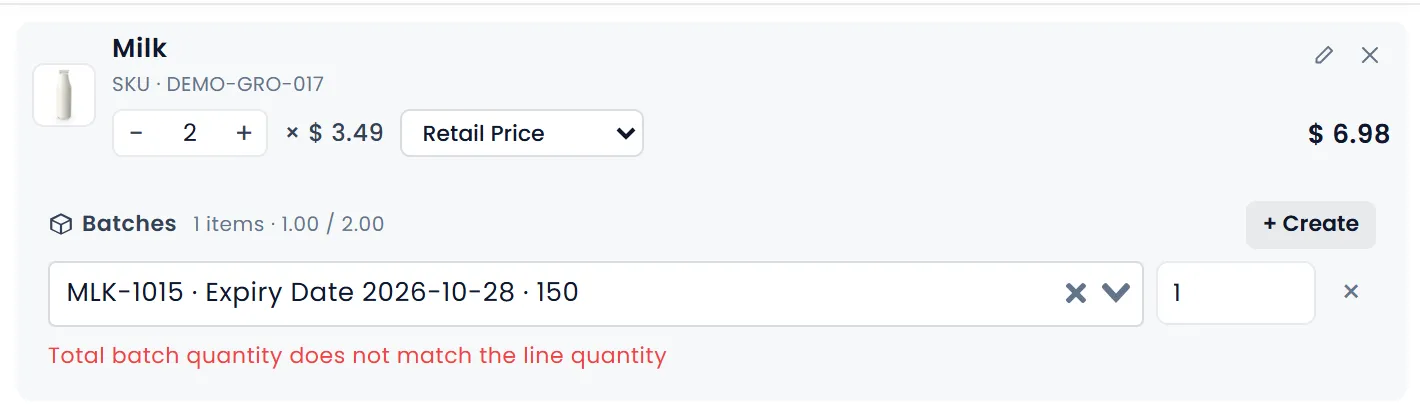
Add sale has the same picker; a batch must be chosen when the sale is Completed.
ArmPOS doesn't stop you selling a batch past its expiry date, and doesn't mark it expired by itself. Check the Expiry Report often, and Write Off or quarantine expired batches yourself.
What expires soon
Reports › Expiry Report counts the batches expired, Near Expiry (within the warning window) and Valid, with their value, and lists them. Reports › Batch Register lists every batch with its purchase and supplier; click one for its full history. You also get a notification when a batch enters the warning window.
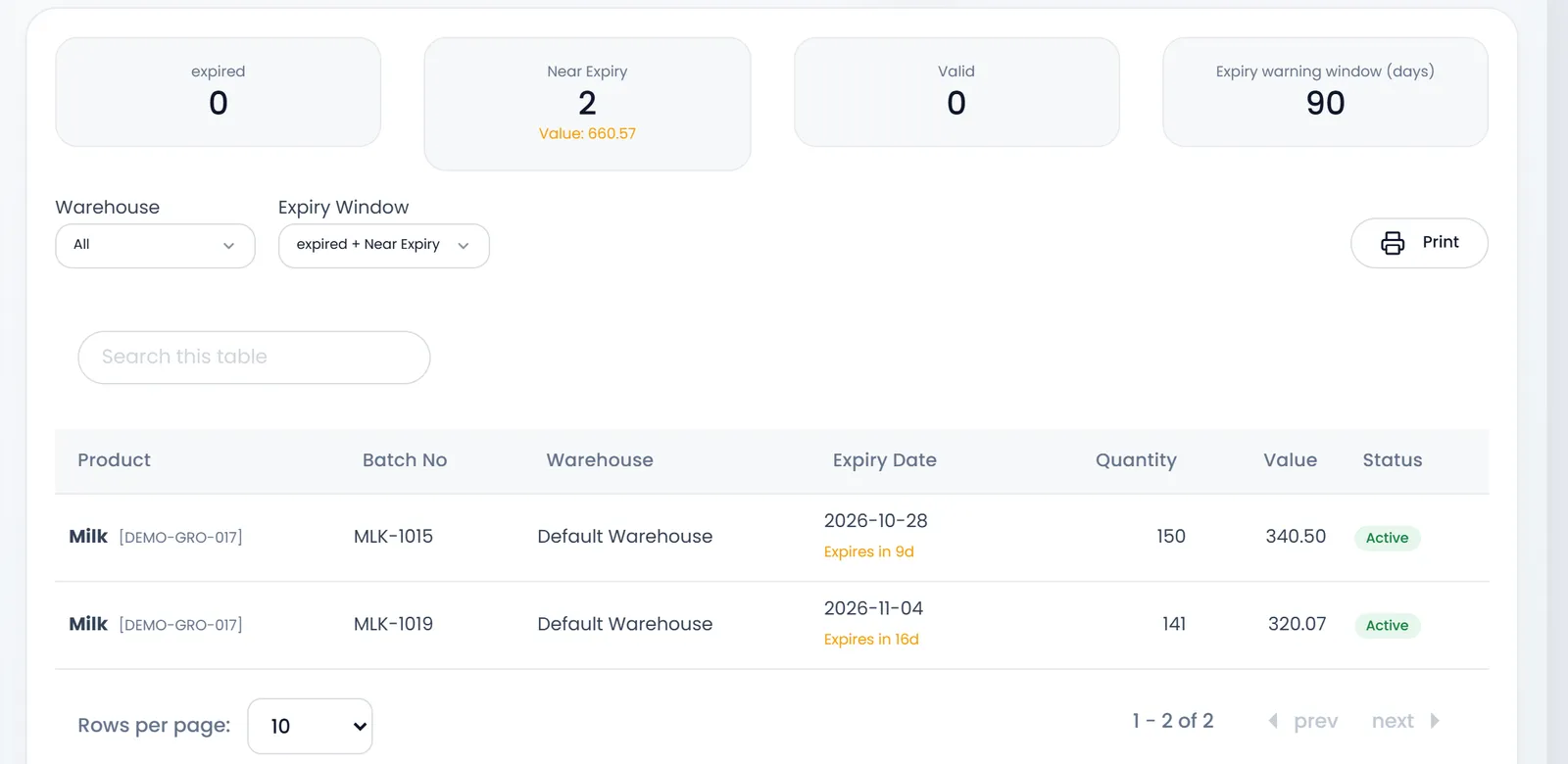
The warning window is set in Settings › System Settings, on the Pharmacy Settings tab: Expiry warning window (days).
What's next
Count and adjust stock: adjustments take from a batch you pick, or from the one expiring first.
Still stuck?
Write to us and a person answers. If you already have a shop, Ask support inside it sends us the page you're on.
Contact usAsk your AI assistant
ChatGPT, Claude and Gemini can read every guide and walk you through it.
Set it up