




Names like these, in green, are pages inside your ArmPOS shop. Sign in to your shop to open them.
By the end you will know how ArmPOS keeps a ledger of your sales, purchases and expenses, how to add an account to it, and how to write your own journal entry.
The ledger sits under Accounting, which comes with some plans only. It is for whoever keeps your books. For the day-to-day figures, the reports under Reports are enough.
How the ledger fills itself
Each time you record one of these, ArmPOS writes a journal entry for you, already posted:
| You record | The entry |
|---|---|
| A sale | Accounts Receivable up, Sales Revenue up |
| A customer's payment | Cash (or the account it went into) up, Accounts Receivable down |
| A sale return | Sales Returns up, Accounts Receivable down |
| A purchase | Inventory up, Accounts Payable up |
| A payment to a supplier | Accounts Payable down, Cash (or the account) down |
| An expense | Expenses up, the paying account down |
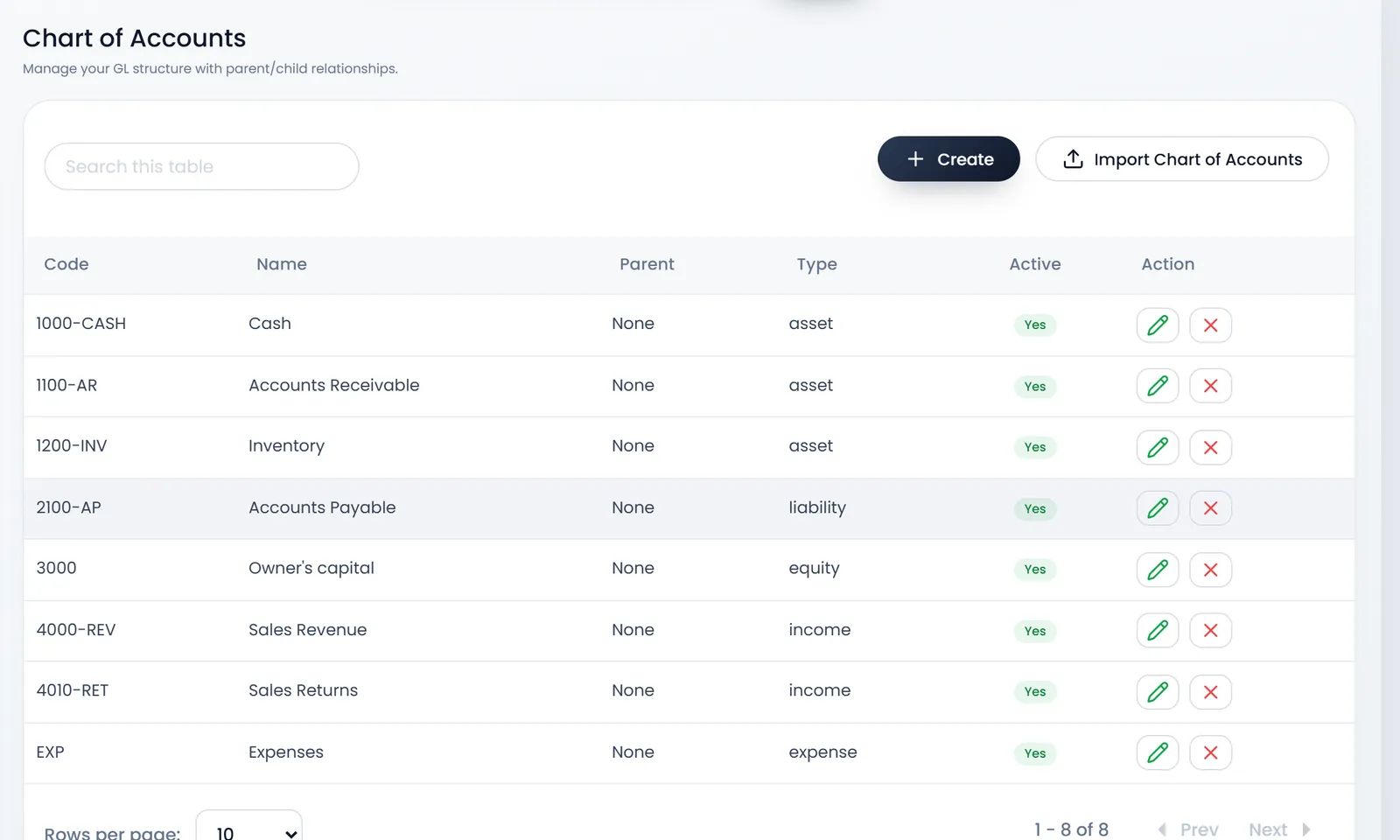
The ledger accounts these need (1000-CASH, 1100-AR, 1200-INV, 2100-AP, 4000-REV, 4010-RET, EXP) are made the first time they are used.
Deposits, transfers between your money accounts, accounts' opening balances, purchase returns and the cost of the goods you sell are not written to the ledger. Deleting or editing a sale, a payment or an expense doesn't change its entry either. Add a journal entry yourself for those.
System Settings › Feature Toggles › Automatic Journal Entries turns the automatic entries on or off. They are on for a new shop.
The chart of accounts
Accounting › Chart of Accounts lists the ledger's accounts with their Code, Name, Parent, Type and whether they are Active.
- Click Create.
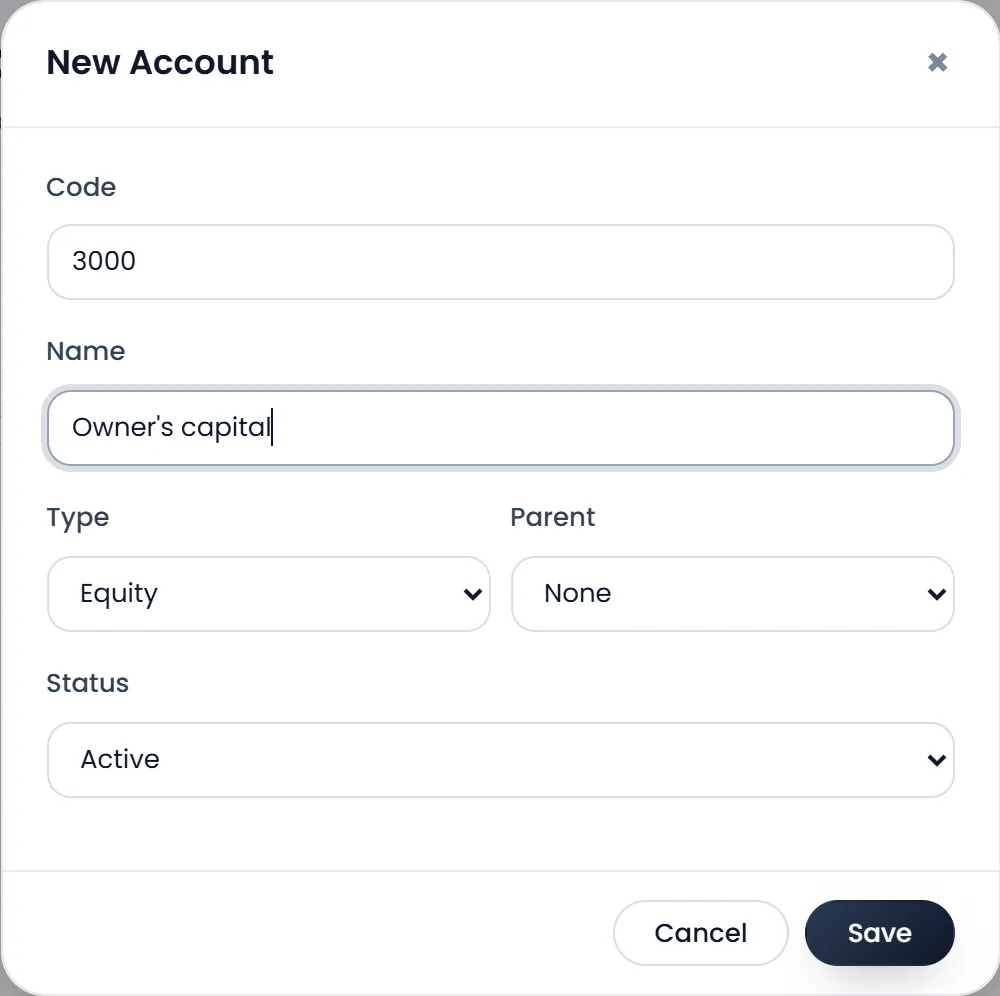
- Fill the Code and the Name. For example 3000 and Owner's capital.
- Pick the Type. Asset, Liability, Equity, Income or Expense.
- Pick a Parent if the account belongs under another one, and leave Status on Active.
- Click Save. Save waits until Code, Name and Type are filled.
Import Chart of Accounts loads many at once from a CSV with the columns code, name, type, and optionally parent_code and is_active. Download example gives a file in that shape. Rows whose code already exists are updated.
Don't rename or delete the accounts ArmPOS made (1000-CASH, 1100-AR and the others): deleting one leaves its entries pointing nowhere, and ArmPOS makes a new one the next time it needs it.
Write a journal entry
- Open Accounting › Journal Entries and click Create.
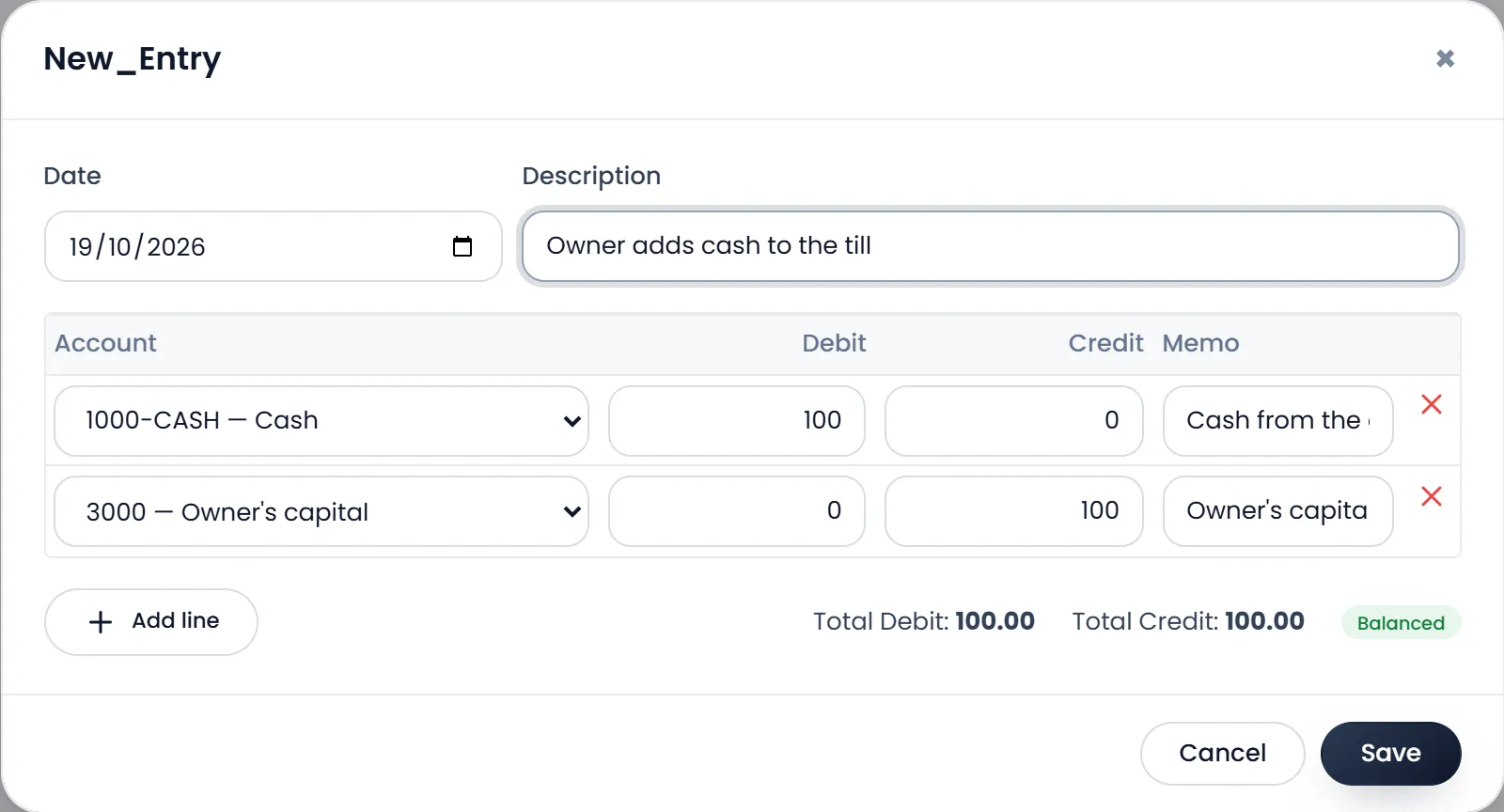
- Check the Date and write the Description. Say what happened, for example "Owner adds cash to the till".
- Fill one line per account. Pick the Account, then put the amount in Debit or in Credit, never both. Memo is optional. Add line adds more lines.
- Check the badge says Balanced. Total Debit must equal Total Credit.
- Click Save. The entry is saved as a Draft.
- Post it. On the entry's row, click the check icon. A draft that doesn't balance is refused.
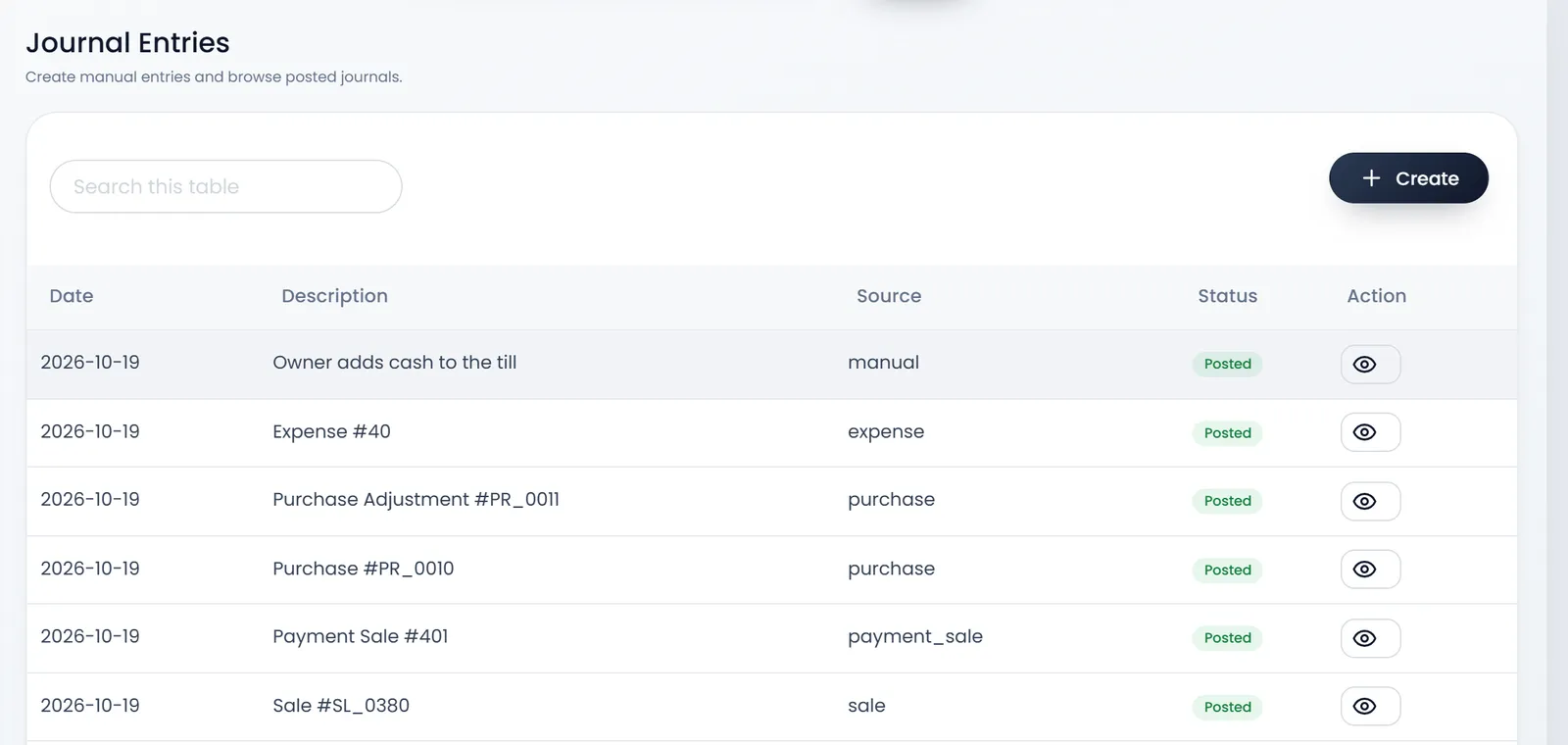
A draft can be edited or deleted. A posted entry can't: to correct one, post a new entry that reverses it.
What's next
Read the ledger's totals in Trial balance, profit and loss, balance sheet, tax.
Still stuck?
Write to us and a person answers. If you already have a shop, Ask support inside it sends us the page you're on.
Contact usAsk your AI assistant
ChatGPT, Claude and Gemini can read every guide and walk you through it.
Set it up