




Names like these, in green, are pages inside your ArmPOS shop. Sign in to your shop to open them.
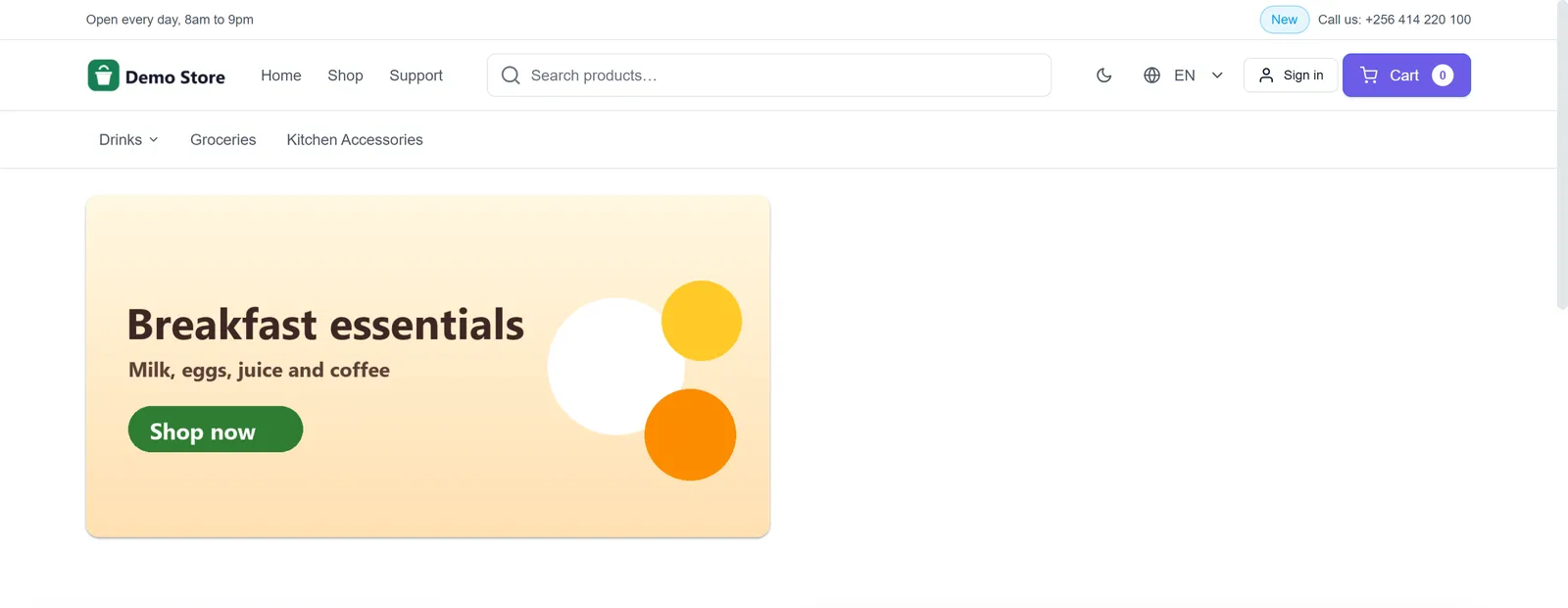
By the end your store's home page will show a banner and a row of chosen products, such as your breakfast range.
Collections
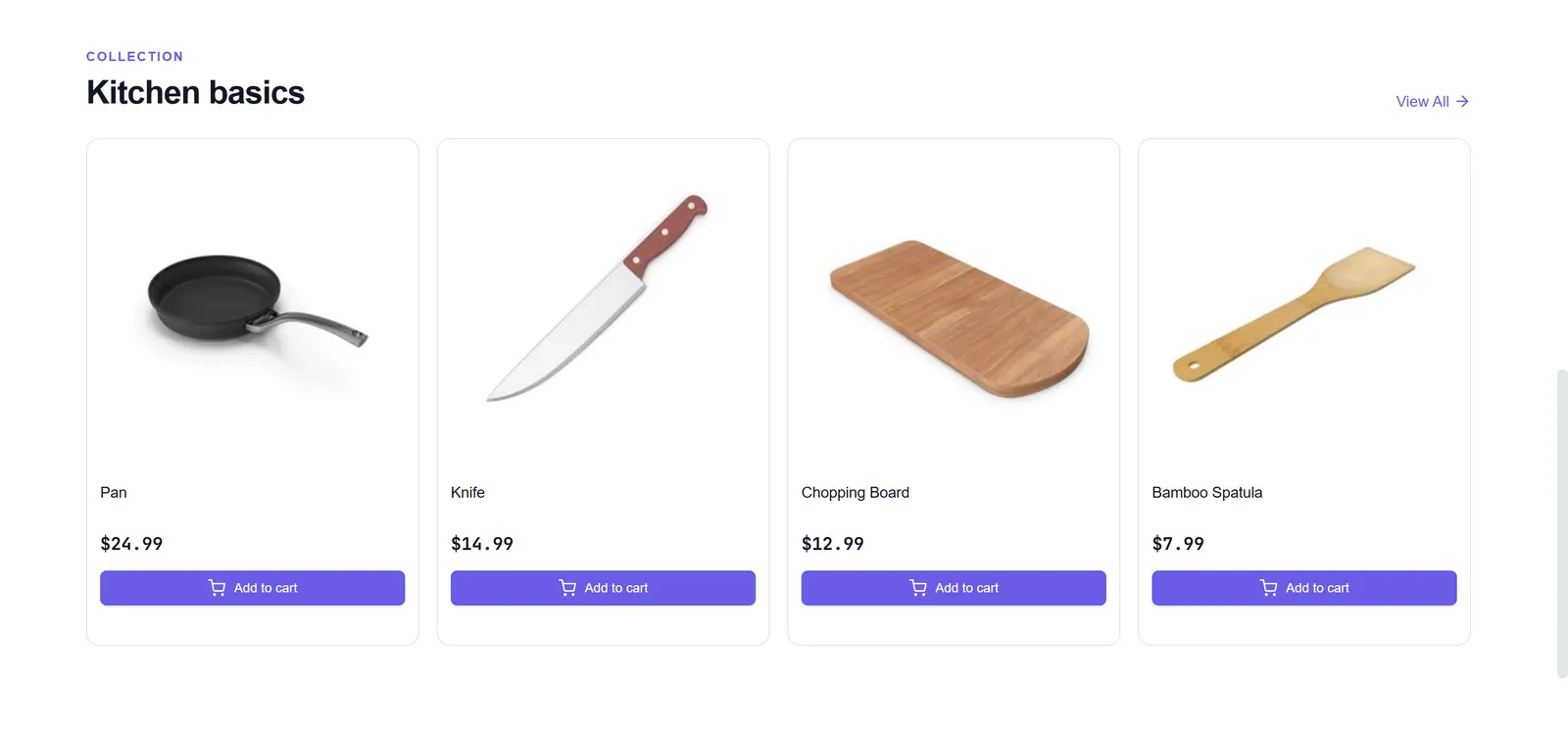
A collection is a named group of products, shown as a row on the store's home page with View All.
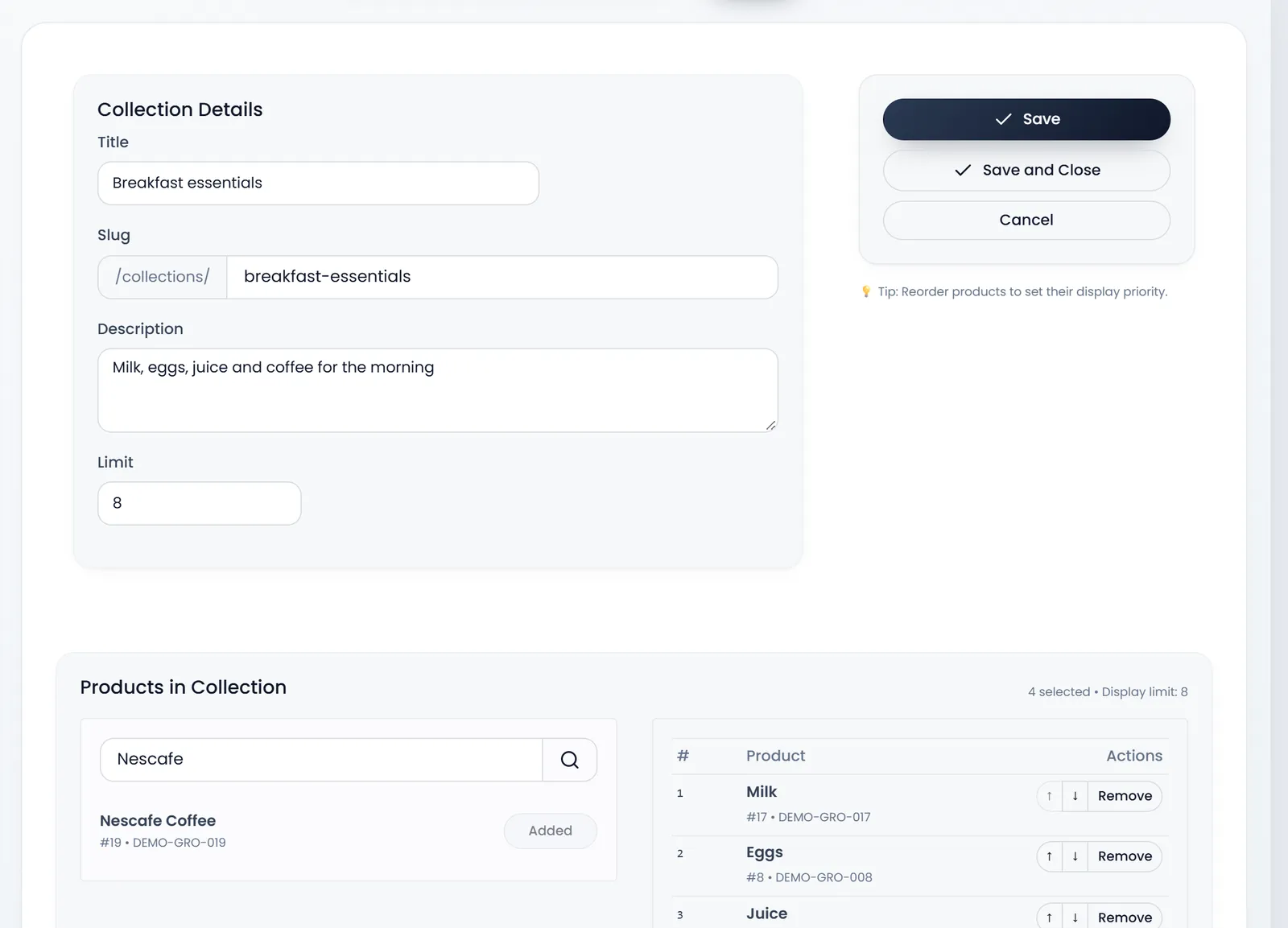
- Open Store › Collections and click New.
- Type the Title. The Slug, the collection's address, fills itself from it.
- Add a Description if you like, and set the Limit: how many products the row shows. It starts at 8.
- Click Save. Don't press Enter in the product search: it saves the form before your products are in.
- Open the collection again from the list and add the products. Type a name, a code or a number in Search products…, click the magnifier, then Create beside the product you want. It changes to Added.
- Put them in order with the arrows: the first shows first. Remove takes one out.
- Click Save.
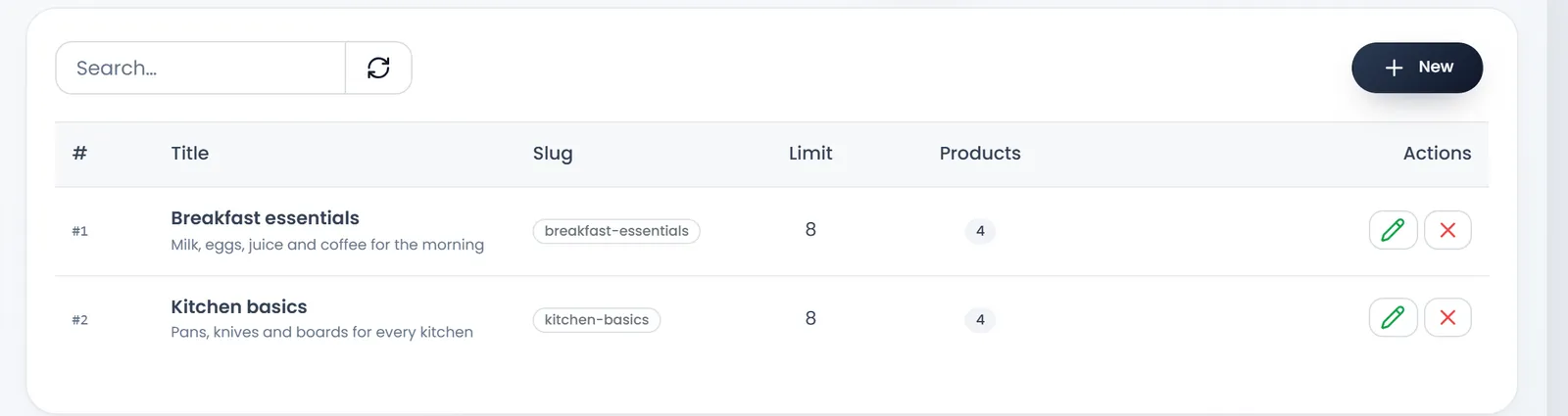
A new collection joins the home page by itself, above the newsletter. Move it or hide it in Store › Settings › Homepage blocks. A collection shows only when at least one of its products is for sale.
Banners
A banner is a picture on the home page that leads to your shop.
- Open Store › Banners and click Create.
- Type the Title. It is required, and it names the banner in your list.
- Pick the Position. Top, Center or Footer, each Left or Right.
- Choose the Image. JPG, PNG, WebP or GIF, up to 4 MB. Every position wants a picture twice as wide as it is high: 1200 × 600, or 2400 × 1200 for sharp screens. The form tells you if yours is a different shape.
- Leave Active on and click Save.
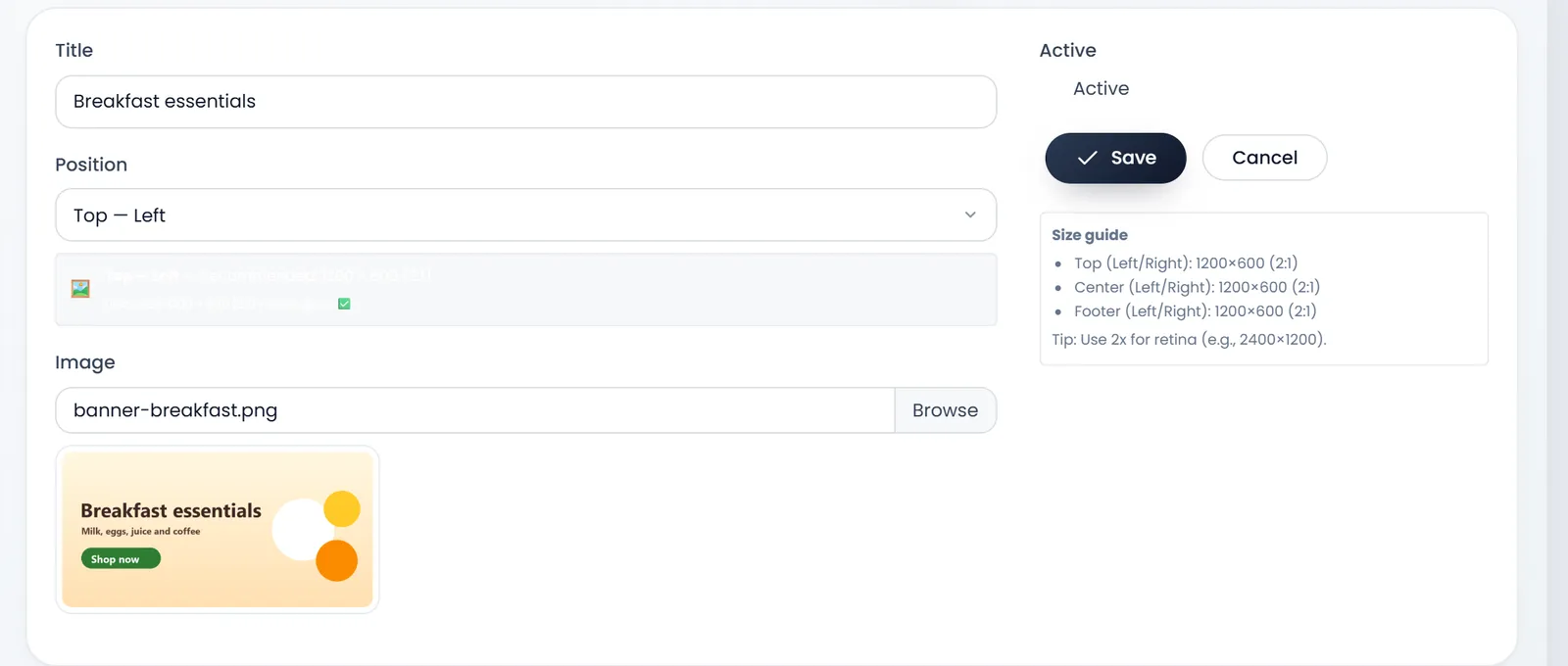
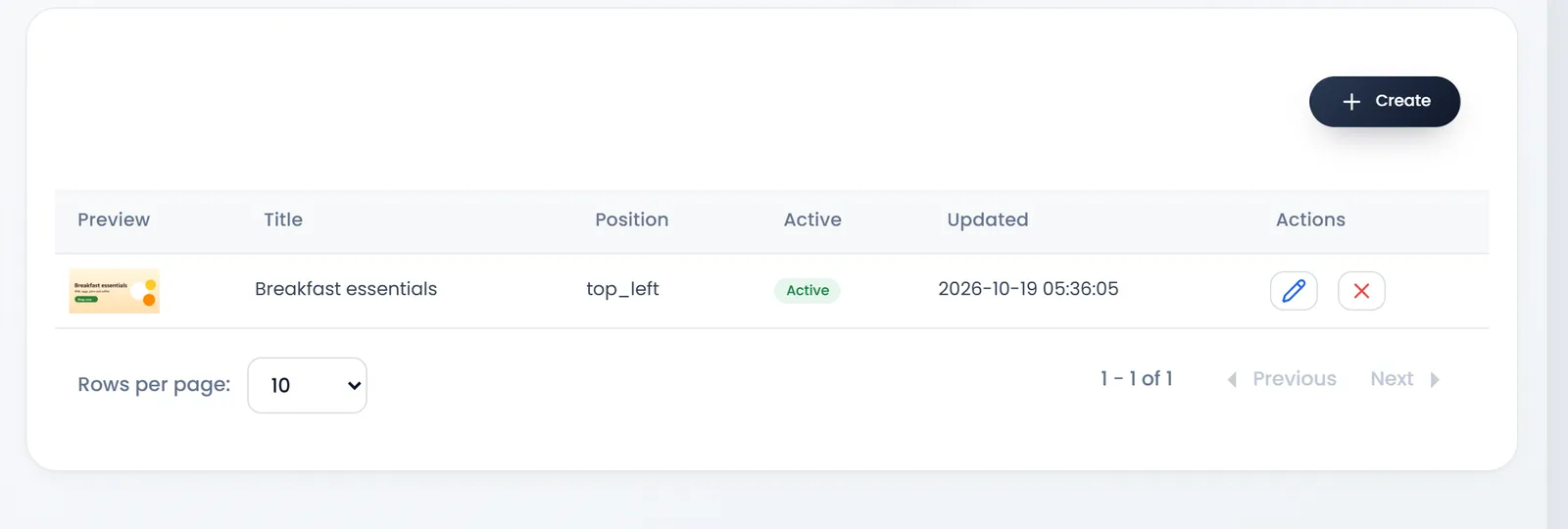
Top banners sit above everything; Center banners after the welcome; Footer banners at the bottom. A left and a right banner sit side by side. A banner leads to your shop page: it has no link of its own.
What's next
Decide who can make an account and order: Store customers, invite codes, messages and subscribers.
Still stuck?
Write to us and a person answers. If you already have a shop, Ask support inside it sends us the page you're on.
Contact usAsk your AI assistant
ChatGPT, Claude and Gemini can read every guide and walk you through it.
Set it up