




Names like these, in green, are pages inside your ArmPOS shop. Sign in to your shop to open them.
By the end you will have decided who can make an account in your online store, and you will know where their messages and newsletter sign-ups arrive.
Who can make an account
Customers order with an account in your store. Each account is also a customer in People › Customers, so their sales and what they owe sit in the same place as your till's.
Open Store › Settings and find Registration Access Control:
- Public Registration: anyone can make an account. Switched off, nobody can sign up in the store: you make the accounts yourself.
- Require Invite Code: a new customer must type a code you gave them.
- Require Admin Approval: new accounts wait for you to approve them before they can sign in.

Click Save at the bottom of the page after a change.
Approve new customers
With Require Admin Approval on, a customer who signs up sees that their account is waiting, and you get a notification.
Open Store › Pending Customers. Each one shows the Customer, Email, Phone, the Invite Code they used and when they Registered. Click Approve, or Approve All. Reject removes the sign-up; the customer record stays, so that email can't sign up again.
Store Settings also shows how many are waiting, with Review.
Invite codes
With Require Invite Code on, only people with a code can sign up.
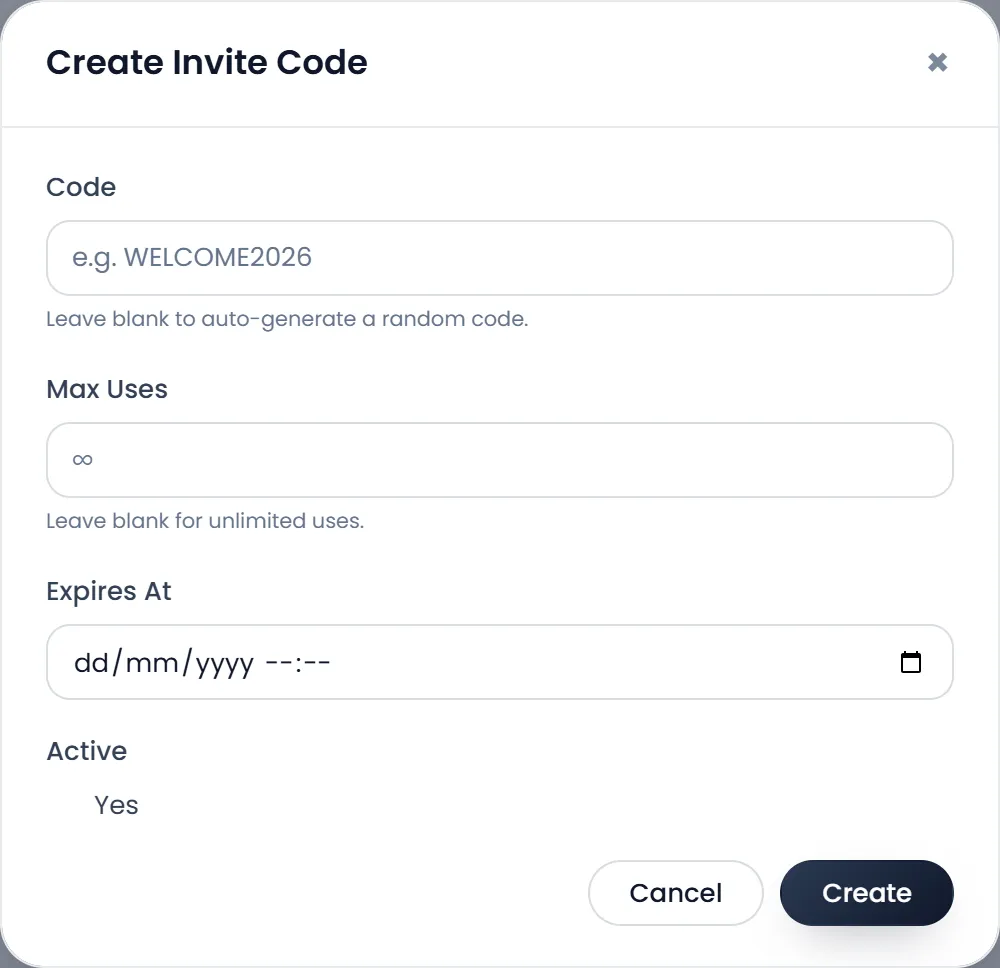
- Open Store › Invite Codes and click Create Code.
- Type a Code, such as WELCOME2026, or leave it blank for a random one.
- Set Max Uses, or leave it blank for no limit.
- Set Expires At if the code should stop working on a date.
- Click Create. Give the code to the customers you invite.
Generate Batch makes up to 50 codes at once. The list shows each code as Active, Disabled, Expired or Exhausted (all its uses taken).
Give a till customer a store account
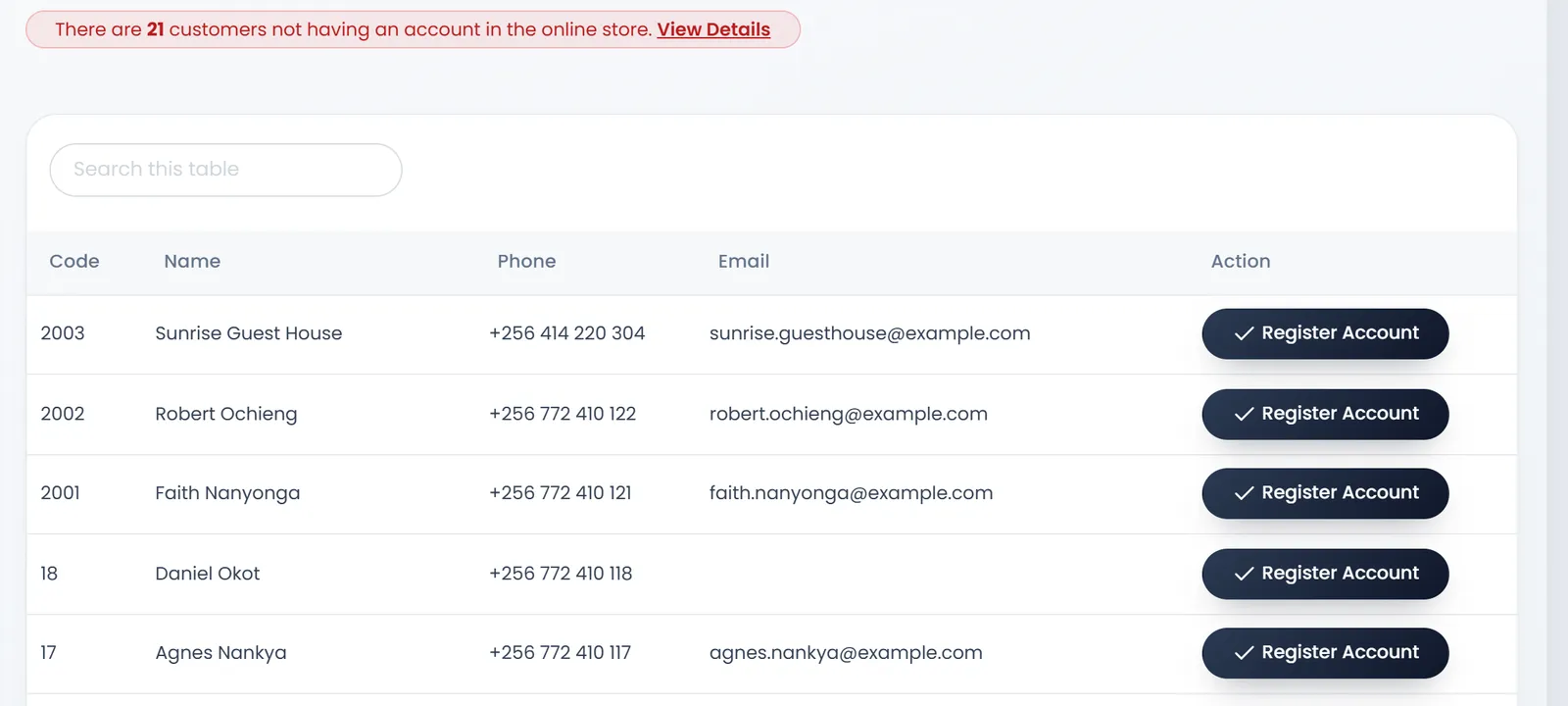
People › Customers without Login lists your customers who have no store account yet. Register Account gives one an account: type their Email and a password of 6 to 14 characters, and tell them how to sign in.
People › Customers with Login lists the accounts. Edit changes the email (also on the customer), the password or the Status: Inactive stops the account signing in. Delete removes the account only, not the customer.
Messages and newsletter
- Store › Messages receives what visitors send from the store's Contact Us page, with a notification. Open one to read it; Unread only shows the new ones. Reply from your own email or phone: ArmPOS has no reply button.
- Store › Subscribers lists the emails left in the home page's newsletter box, which shows while the Newsletter block is active. ArmPOS doesn't send them anything by itself.
What's next
Bring customers back with Promotions and promo codes.
Still stuck?
Write to us and a person answers. If you already have a shop, Ask support inside it sends us the page you're on.
Contact usAsk your AI assistant
ChatGPT, Claude and Gemini can read every guide and walk you through it.
Set it up