




Names like these, in green, are pages inside your ArmPOS shop. Sign in to your shop to open them.
By the end you will know where your online store's orders arrive, and how confirming one turns it into a sale and takes the stock.
Online orders come with the online store, which some plans include. See Set up your online store.
Where orders arrive
When a customer orders in your store, you get a notification, and the order waits in Store › Online Orders. Each order shows its number (SO- and the date), the Customer, its Status, the Payment Method, the Payment Status, the Total and the Date.
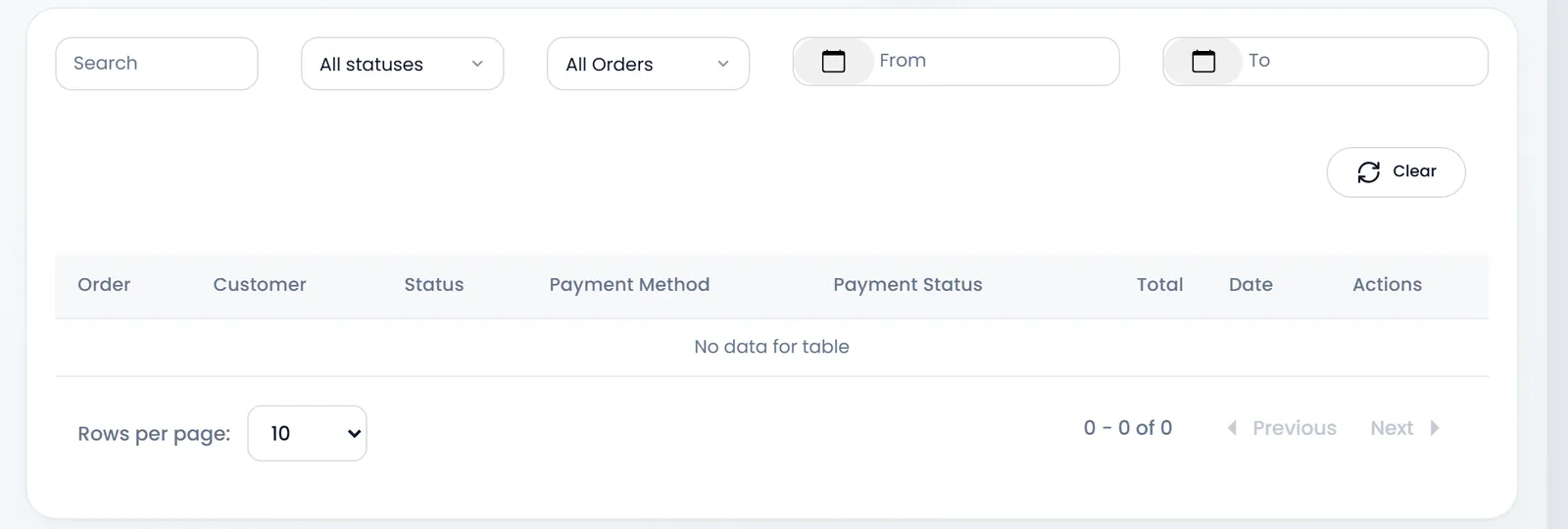
The filters at the top show one status (pending, confirmed or cancelled), orders with pre-order items, or a range of dates.
Customers order with an account in your store, and see their orders' status under their account there.
Confirm an order
A new order is pending: it has taken no stock yet.
- Check the order. Make sure you can deliver it.
- Click Confirm on its row, and confirm again. ArmPOS turns the order into a sale (SL- and a number) and takes the items out of stock.
- Deliver it. If it was paid online, the sale is already paid. If not, take the payment on delivery and add it to the sale, as in Take payments and print receipts.
ArmPOS takes the stock from the order's warehouse, otherwise the store's Default Warehouse. If something is short, it refuses with "Insufficient stock for one or more items." and lists them: receive the stock first, then confirm. Pre-order items are left out of the check.
The sale is made at the order's total. Each line keeps the price the customer paid, with its tax inside it; the sale adds no discount or delivery fee of its own.
Cancel an order
Cancel on a pending order marks it cancelled. Nothing else changes: no stock moves, and a payment the customer made online isn't refunded by ArmPOS. Refund it the way it was paid.
ArmPOS doesn't email the customer when you confirm or cancel. Call or message them yourself, or let them check their account.
This guide was written from ArmPOS's screens and code: Demo Store has no online orders yet.
What's next
Fill your store's home page with Collections and banners.
Still stuck?
Write to us and a person answers. If you already have a shop, Ask support inside it sends us the page you're on.
Contact usAsk your AI assistant
ChatGPT, Claude and Gemini can read every guide and walk you through it.
Set it up