




Names like these, in green, are pages inside your ArmPOS shop. Sign in to your shop to open them.
By the end your shop will have its own online store: your name, logo and contact details, a welcome banner, and your products for sale, with the same stock as the till.
The online store comes with some plans only. If Store isn't under Sell in your menu, your plan or your role doesn't include it.
Where your store is
Your store is at your shop's address followed by /online_store. Store › Visit Online Store in the sidebar opens it in a new tab. It sells the products you already have: no second catalogue to keep.
Store basics
- Open Store › Settings.
- Check Online Store URL is Enabled. Switched off, the store's pages can't be opened.
- Type the Store name.
- Leave Store Theme on Default Store Theme for a shop that sells products.
- Check the Default Warehouse. Online orders take their stock from it.
- Pick your colours and font if you like: Primary color, Secondary color and Font family.
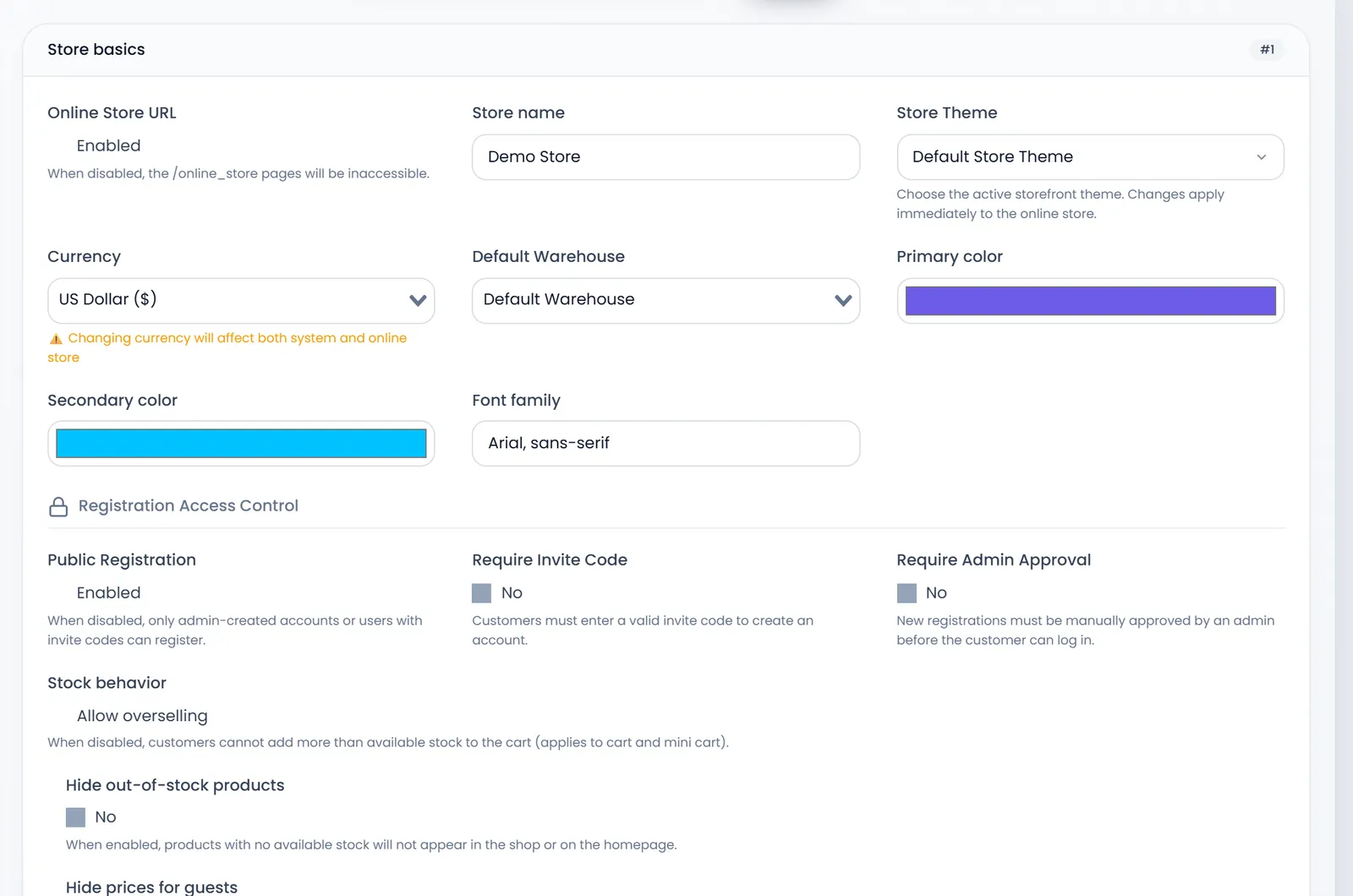
Currency here is your whole shop's currency, not only the store's: changing it changes the system's too.
Further down Store basics:
- Registration Access Control decides who can make an account to order: see Store customers, invite codes, messages and subscribers.
- Stock behavior: with Allow overselling off, customers can't put more in the cart than you have.
- Hide out-of-stock products, Hide prices for guests and Show stock availability decide what visitors see.
What the store says
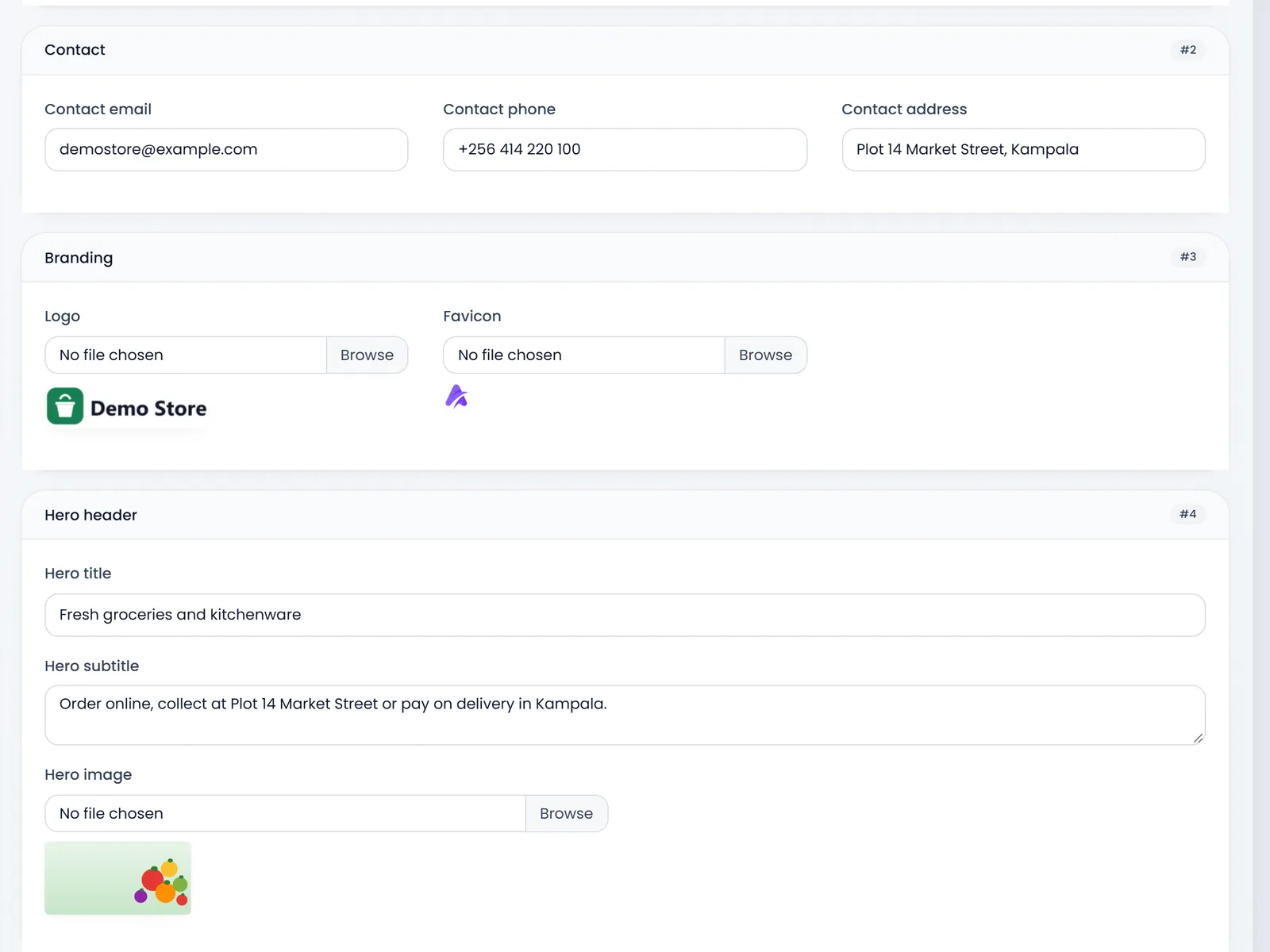
The next cards fill the store's words and pictures:
- Contact: the email, phone and address on the store's contact page.
- Branding: the Logo (JPG, PNG or WebP, up to 4 MB) and the Favicon, the small icon in the browser tab.
- Hero header: the big welcome at the top of the home page: Hero title, Hero subtitle and Hero image (up to 8 MB; a wide picture, about 1600 × 800, looks best).
- SEO: the title and description search engines show.
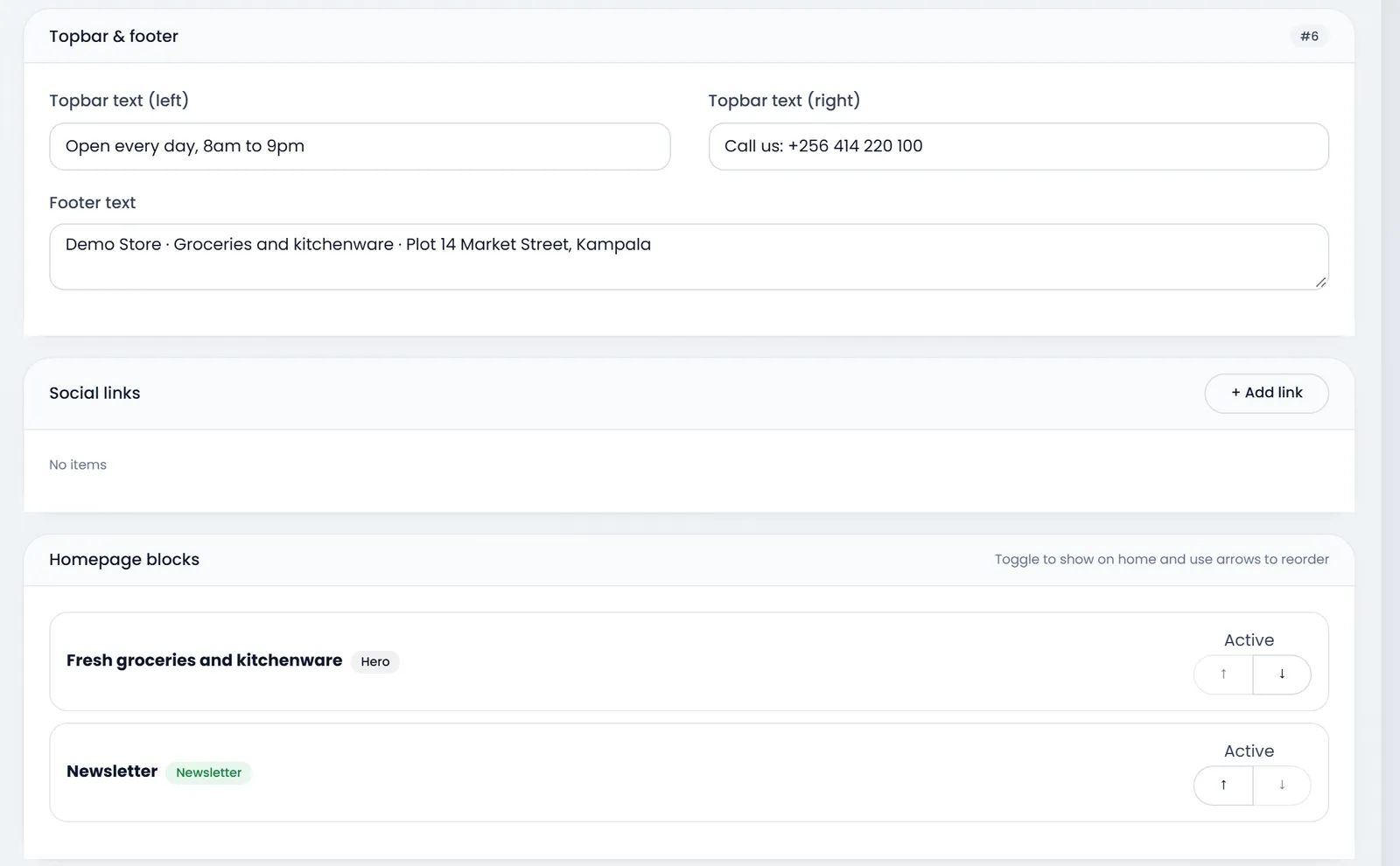
- Topbar & footer: the thin line at the very top, left and right, and the text in the footer.
- Social links: + Add link for each page you have, with its address. A new shop starts with two sample links: remove them with the cross.
The home page
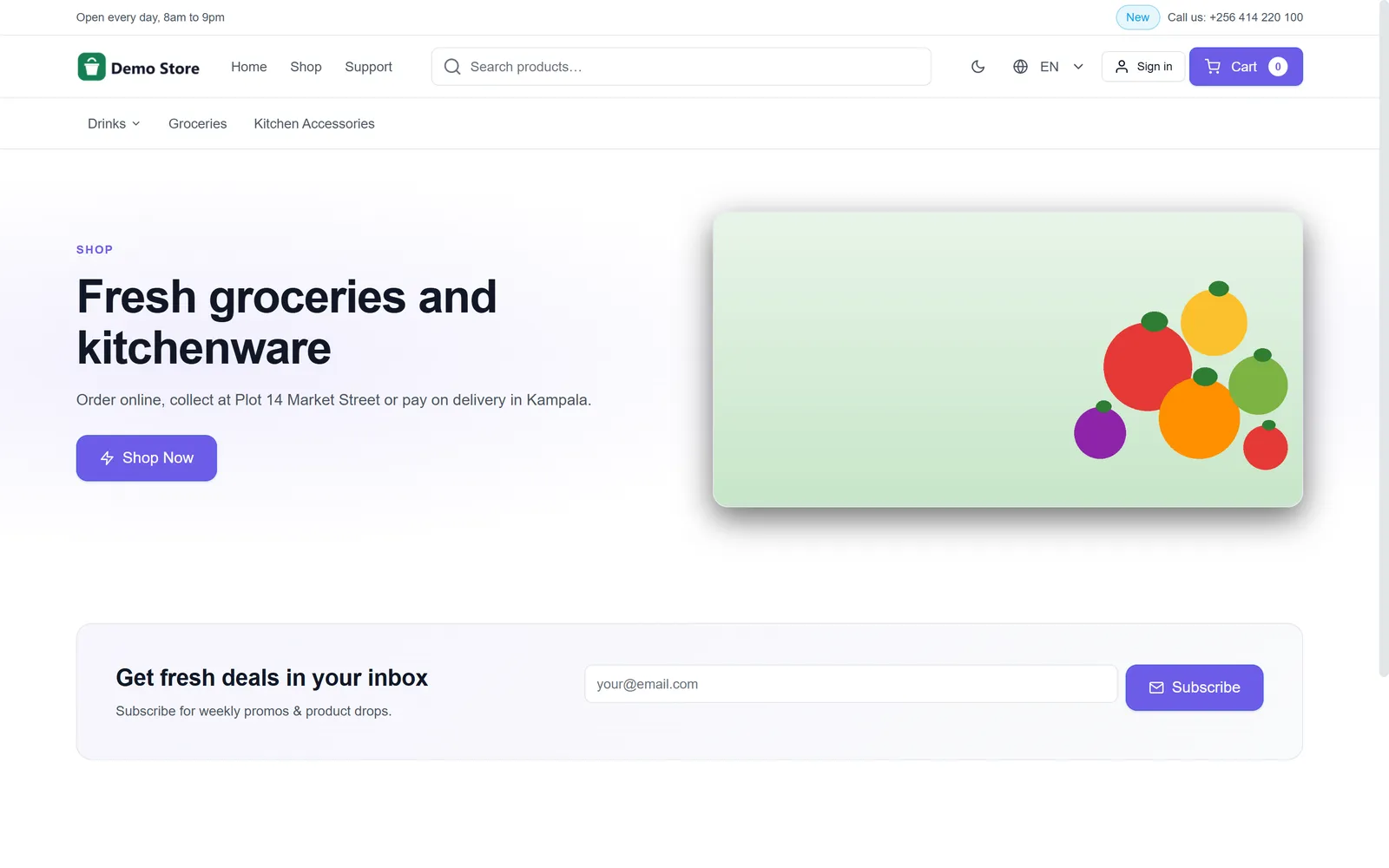
Homepage blocks lists what the home page shows, top to bottom: the Hero, each collection, and the Newsletter sign-up. Switch a block Active to show it, and use the arrows to move it. Each collection you make is added here by itself.
Click Save at the bottom right. Then open your store:
Which products are for sale
Every active product shows in the store, at its own price and with the stock of the default warehouse, unless you switch on Hide From Online Store on the product's form. Categories become the store's menu.
A product's discount comes off its store price, and its tax is added when the tax isn't already in the price. Orders are made at the price the store shows.
How customers pay
At checkout a customer picks:
- Cash on Delivery, chosen by default.
- Mobile Money, when your shop's mobile money payments are switched on: the customer gets a prompt on their phone. Otherwise the order is placed and the shop contacts them about paying.
- Credit Card, when your shop has its own card payments set up in Settings › Payment Gateway.
There are no delivery options or delivery fees: the order uses the customer's saved address. See Card and mobile money payments.
What's next
Handle what comes in: Online orders.
Still stuck?
Write to us and a person answers. If you already have a shop, Ask support inside it sends us the page you're on.
Contact usAsk your AI assistant
ChatGPT, Claude and Gemini can read every guide and walk you through it.
Set it up