




Names like these, in green, are pages inside your ArmPOS shop. Sign in to your shop to open them.
By the end you will have recorded an agreement with a customer, such as a year's supply of kitchen goods to a hotel, with its value, dates and documents.
Contracts come with some plans only. If Contracts isn't under Team & projects in your menu, your plan or your role doesn't include it.
Create a contract
- Open Team & projects › Contracts and click Create Contract.
- Pick the Party Type: Customer for an agreement with a customer, Employee for one with a member of staff. Then pick the Customer or the Employee.
- Link a Project if the contract belongs to one.
- Write the Subject, such as Kitchen supplies for 12 months. The Contract Number fills itself.
- Enter the Value and pick the Type: Service, Lease, Sales, NDA, Employment or Other.
- Set the Start date, the Finish date and the Status: Draft, Active, Expired or Cancelled.
- Write the Details, the terms, with the editor's bold, lists and links.
- Click Submit.
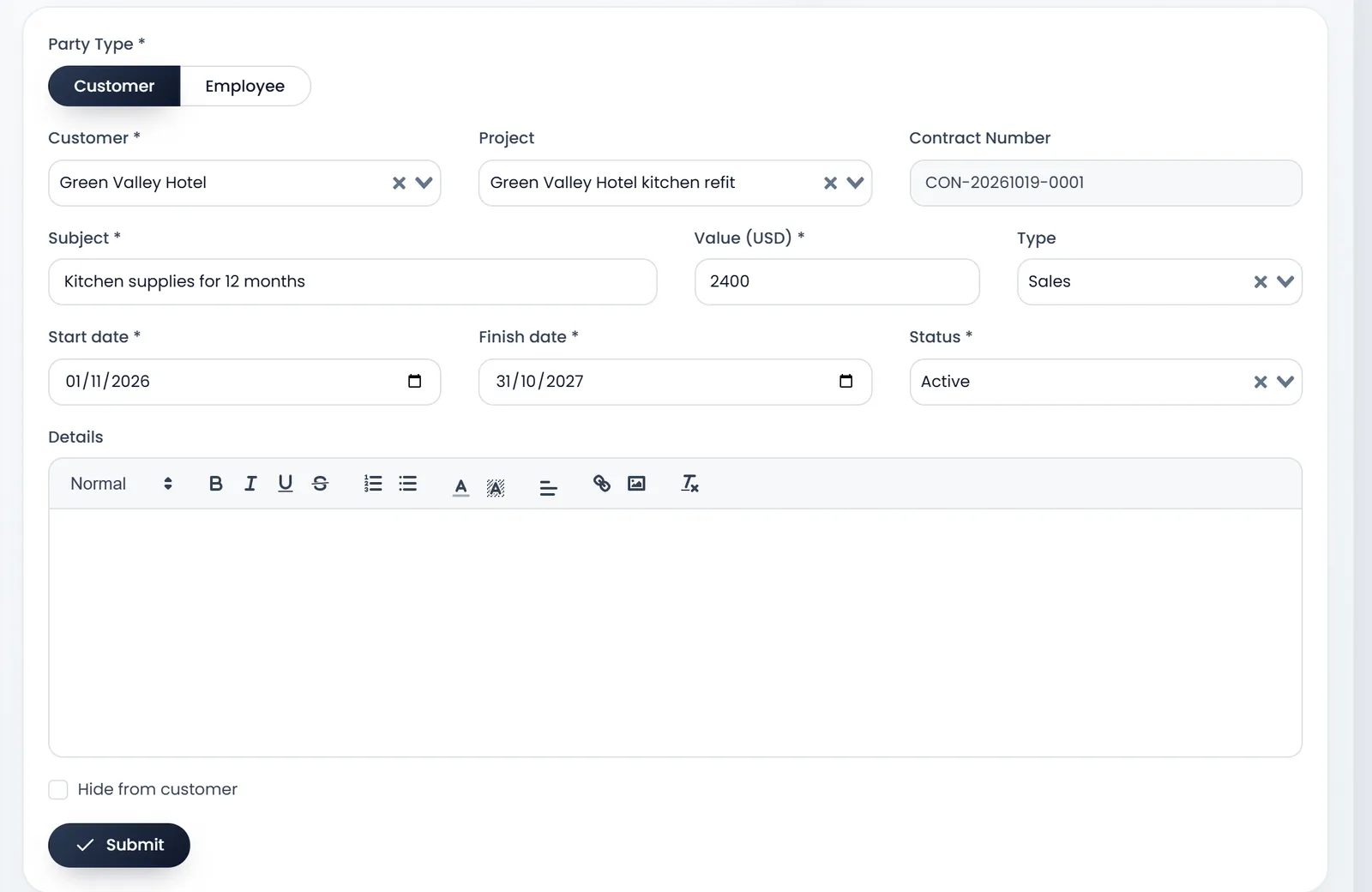
Value (USD) keeps that label whatever your currency: type the amount in your own.
The contracts page
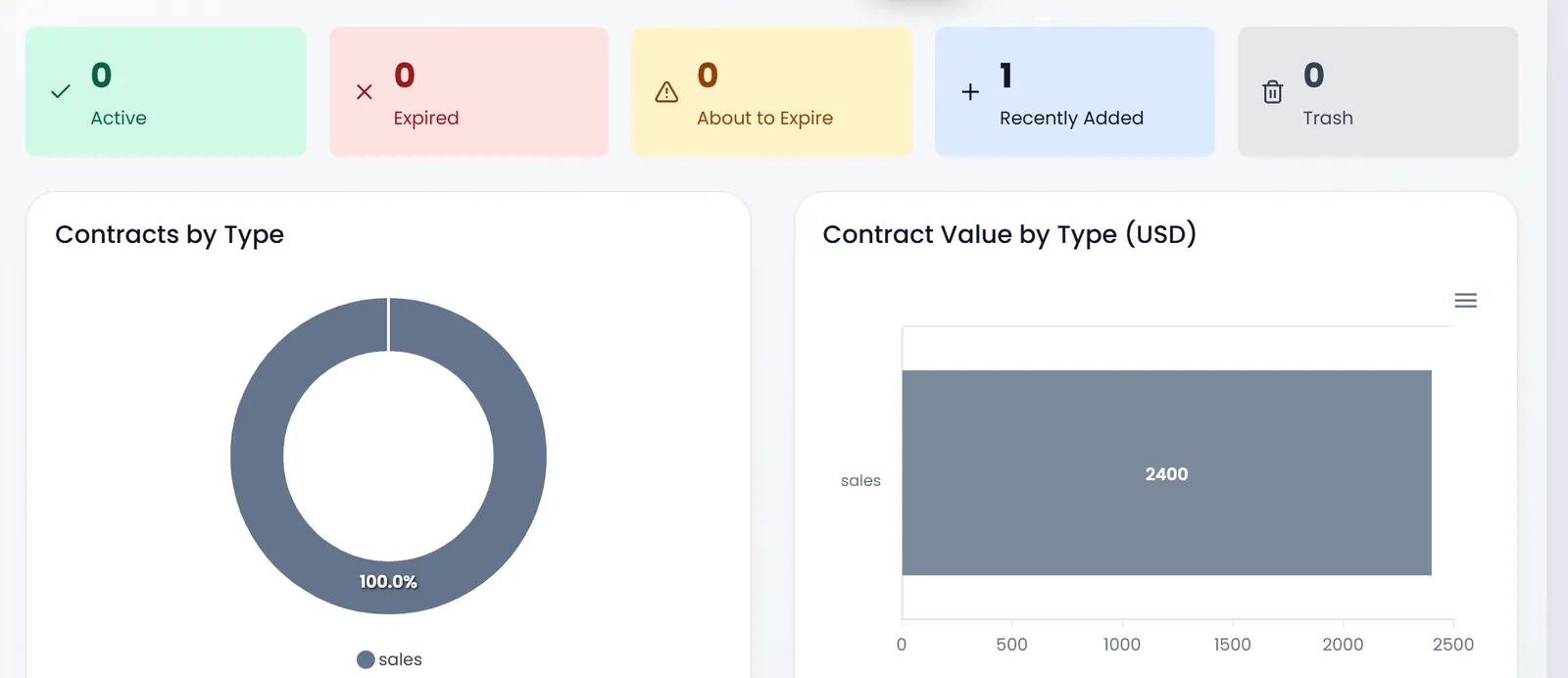
The page opens with counters (Active, Expired, About to Expire, Recently Added, Trash), charts by type and value, and the list.
Open a contract to see its tabs: the contract itself, Attachments (the signed copy), Comments, Renewal History, Tasks, Notes and Templates, and to download it as a PDF.
- ArmPOS doesn't change a contract's status by itself: set it to Expired when it ends.
- A contract records an agreement; it moves no money or stock. Invoice the customer with sales as usual.
What's next
Still stuck?
Write to us and a person answers. If you already have a shop, Ask support inside it sends us the page you're on.
Contact usAsk your AI assistant
ChatGPT, Claude and Gemini can read every guide and walk you through it.
Set it up