




Names like these, in green, are pages inside your ArmPOS shop. Sign in to your shop to open them.
By the end you will have set up a job for a customer as a project, such as refitting a hotel kitchen, split it into tasks for your staff, and followed it on a board.
Projects come with some plans only, and they use HR's company and employees: see Set up HR and Employees. If Projects isn't under Team & projects in your menu, your plan or your role doesn't include it.
Create a project
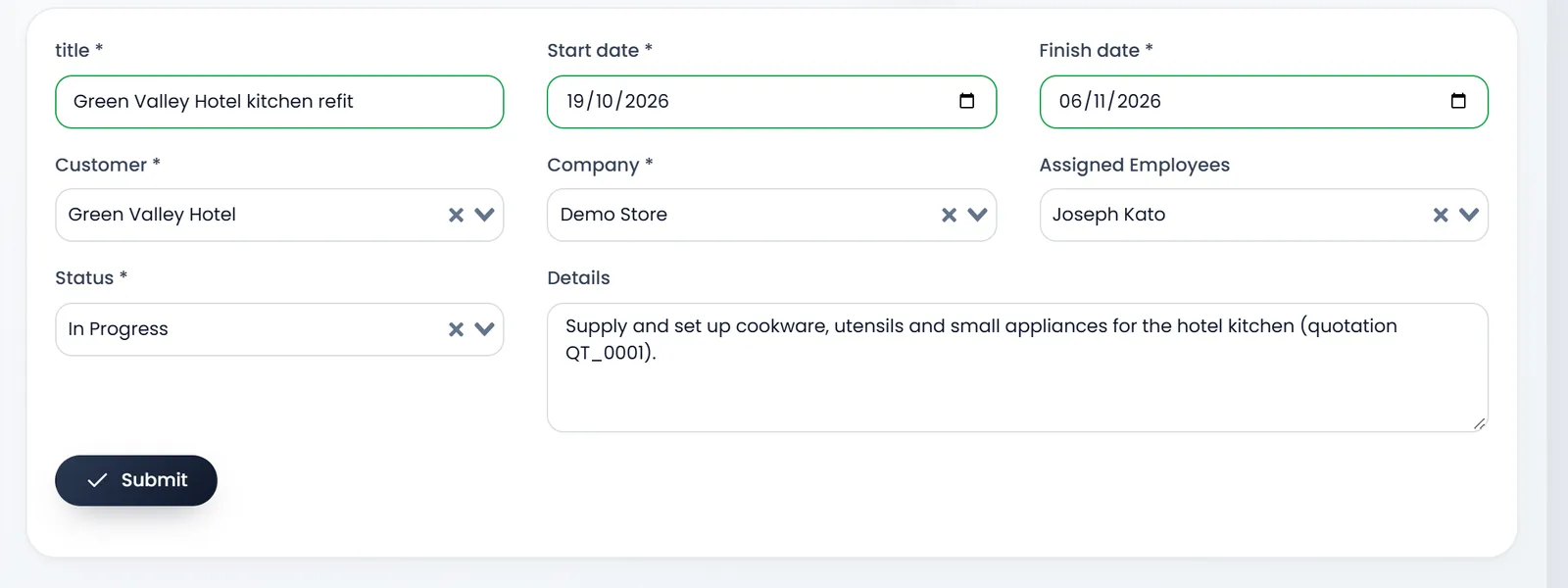
- Open Team & projects › Projects and click Create.
- Type the title, such as Green Valley Hotel kitchen refit.
- Pick the Customer and the Company.
- Pick the Assigned Employees. The list holds the company's employees. Pick at least one: the project isn't saved without, although the field shows no *.
- Pick the Status: Not Started, In Progress, On Hold, Completed or Cancelled.
- Set the Start date and Finish date, add Details, and click Submit.
Split it into tasks
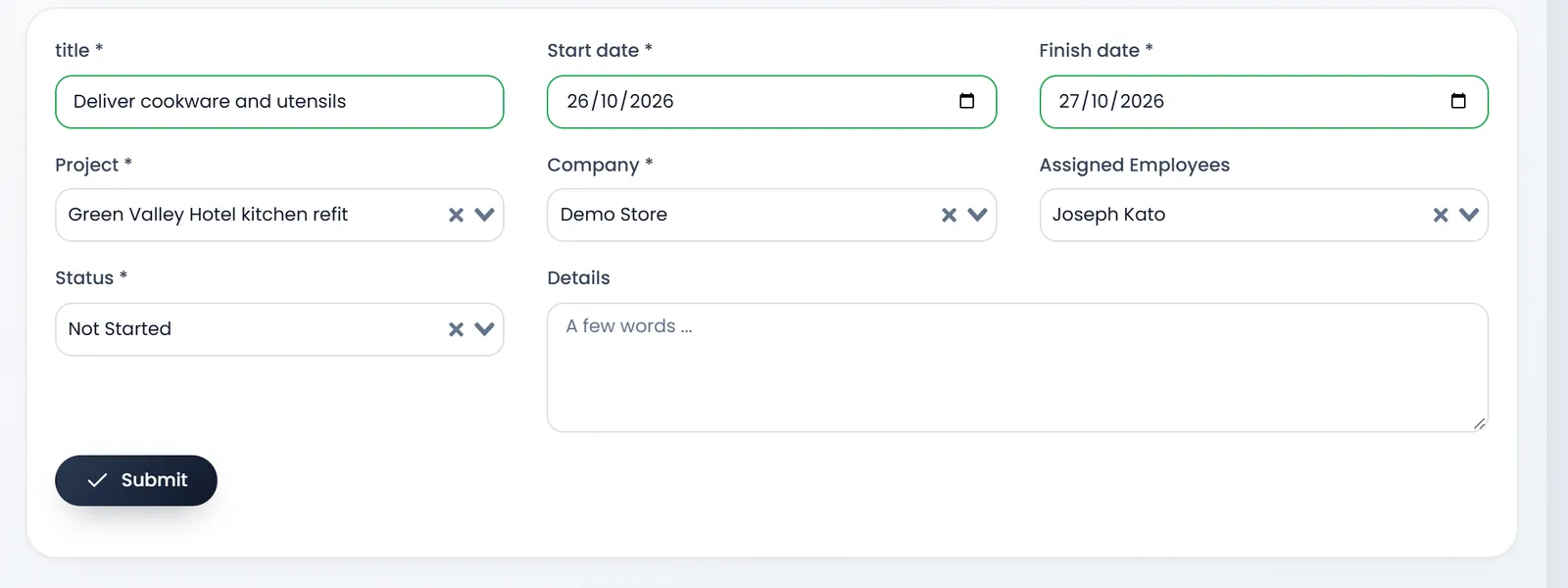
- Open Team & projects › Tasks and click Create.
- Type the title, such as Deliver cookware and utensils.
- Pick the Project and the Company, then the Assigned Employees.
- Pick the Status, set the Start date and Finish date, and click Submit.
Follow them
Projects and tasks each open with counters (Completed, Not Started, In Progress, Cancelled) and a Kanban board with a column per status. List shows them as a table instead, with Filter, PDF and EXCEL.
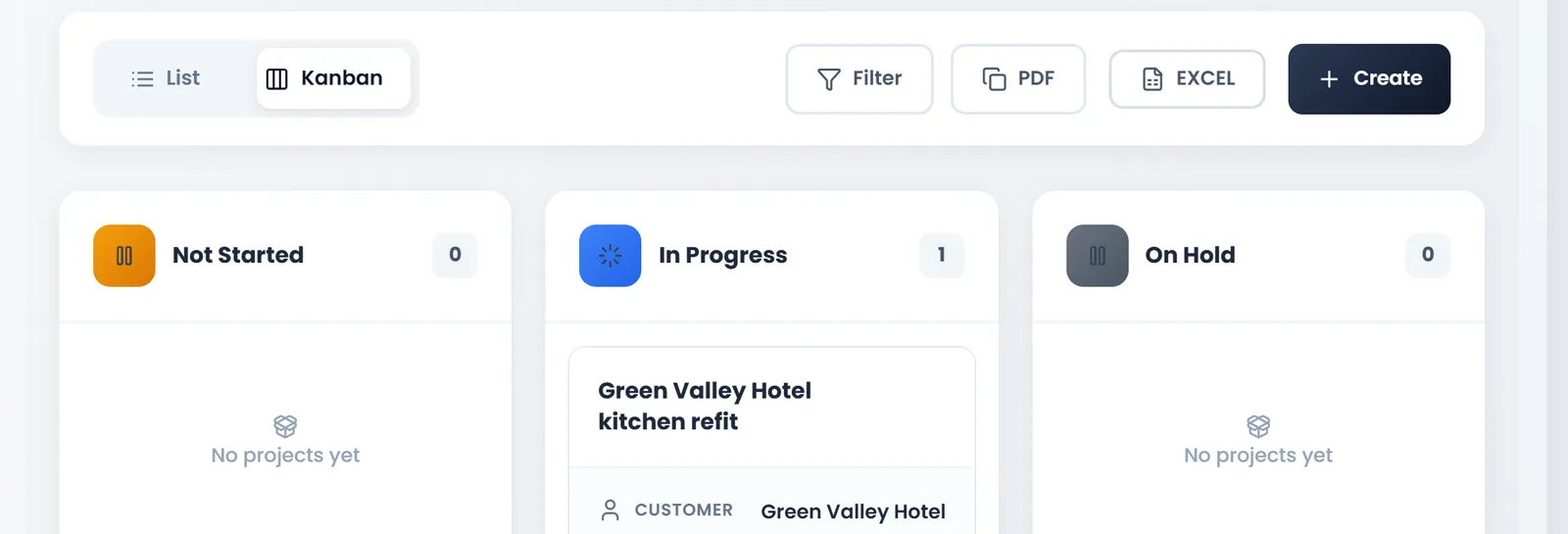
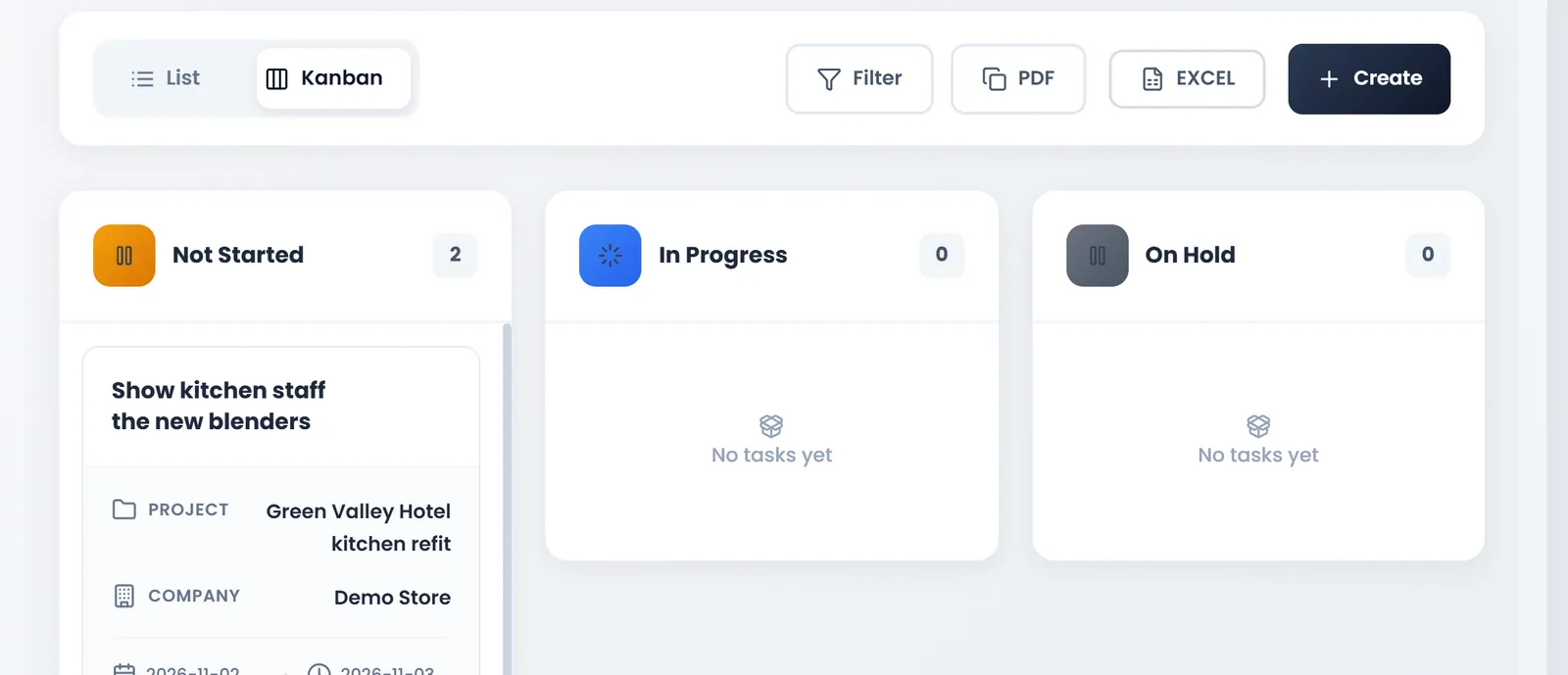
To move a project or a task along, open it with Edit and change its Status. Projects and tasks don't touch stock or money: sell what the job needs as usual, and link the money with a contract if you like.
What's next
Put the agreement in writing: Contracts.
Still stuck?
Write to us and a person answers. If you already have a shop, Ask support inside it sends us the page you're on.
Contact usAsk your AI assistant
ChatGPT, Claude and Gemini can read every guide and walk you through it.
Set it up