




Names like these, in green, are pages inside your ArmPOS shop. Sign in to your shop to open them.
By the end you will have added your staff to HR, with their job, their working hours and their yearly leave.
An employee is a record in HR, not a sign-in. Someone who also works in ArmPOS needs a user as well: see Add your team. Set up the company, departments, job titles and shifts first: see Set up HR.
Add an employee
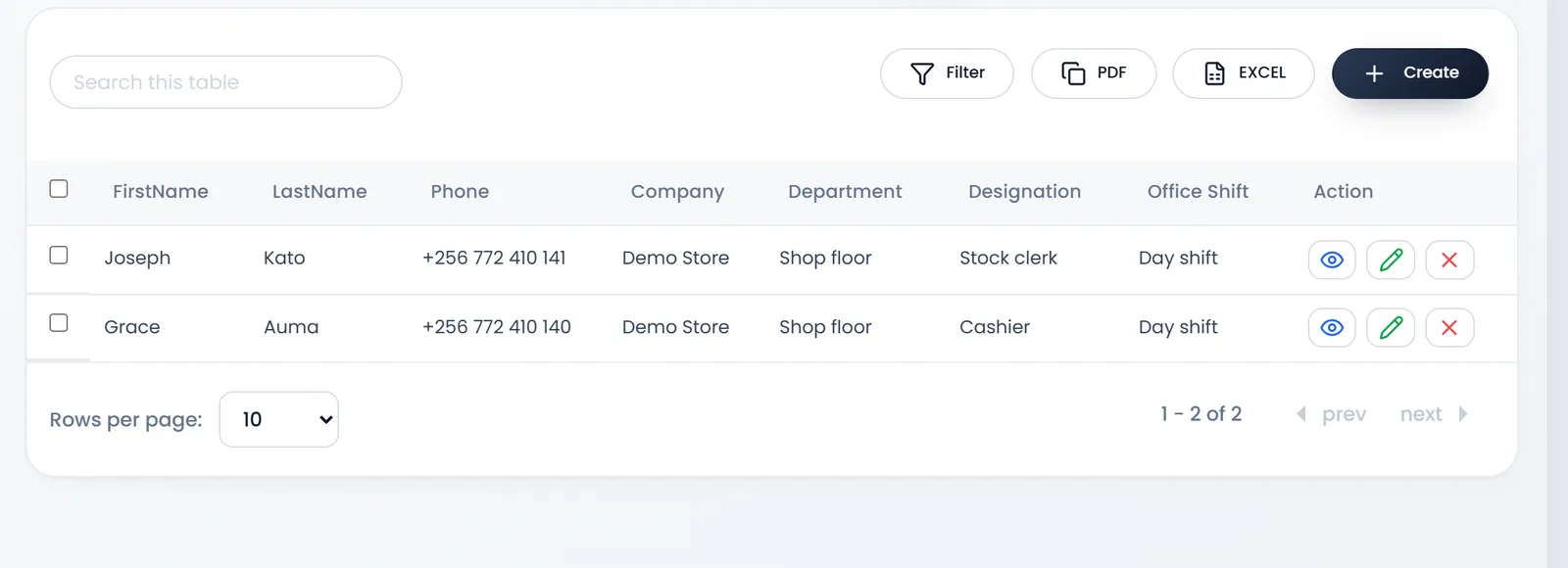
- Open HRM › Employees and click Create.
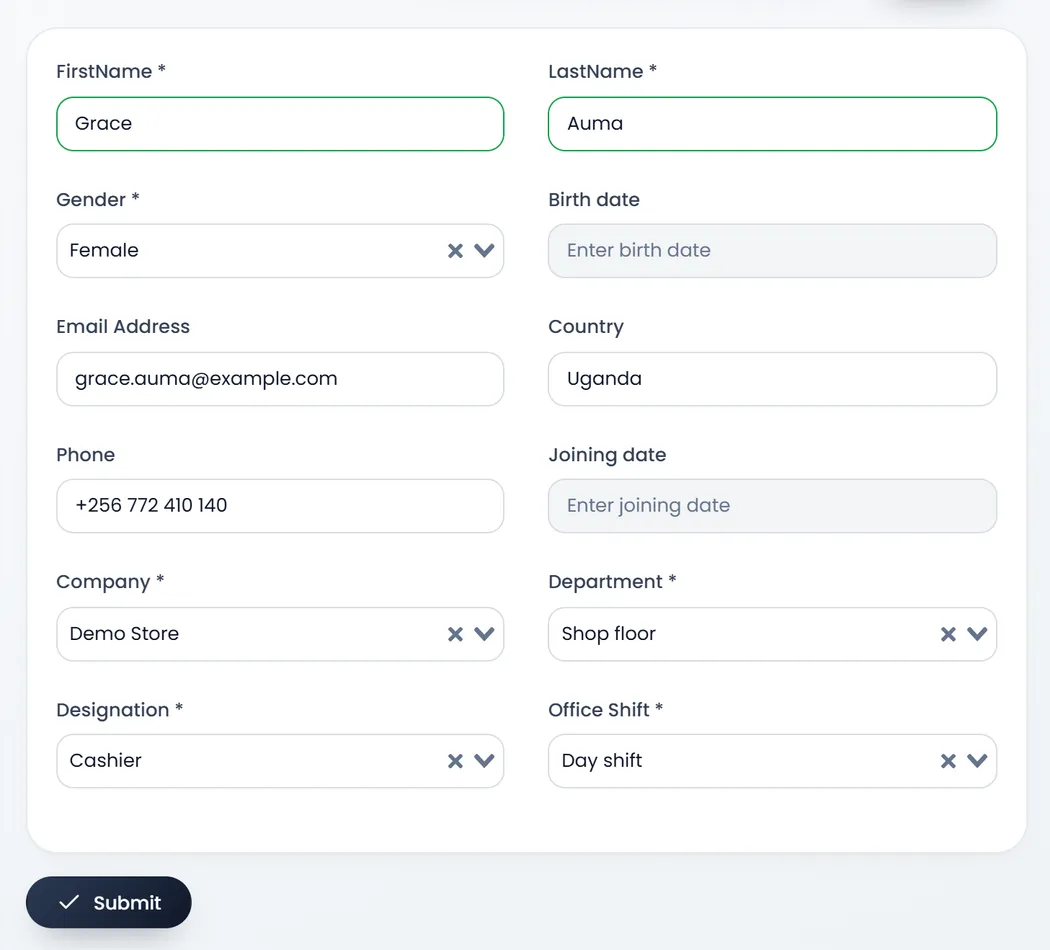
- Fill the FirstName and LastName, and pick the Gender. All three are required.
- Pick the Company, Department, Designation and Office Shift. All four are required, each list following the one before.
- Add the rest if you have it: Birth date and Joining date (click for a calendar), Email Address, Country and Phone.
- Click Submit.
Give them their leave
A new employee starts with no leave. Before they can ask for time off:
- Click Edit on their row.
- Set the Annual Leave in days, such as 21. Remaining leave follows it.
- Fill Country and Phone if they are empty: saving the edit needs them, although they show no *.
- Click Submit.
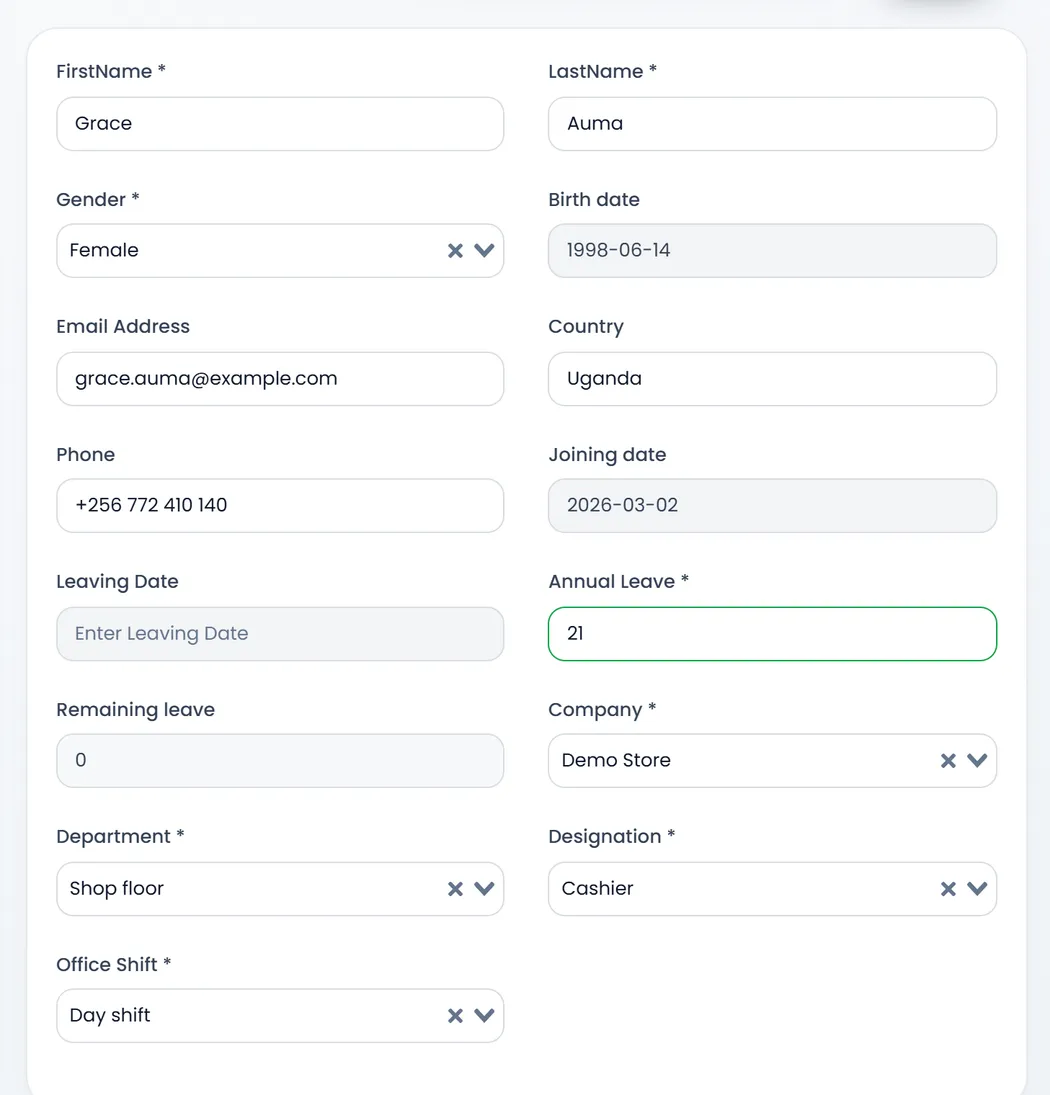
Leaving Date marks someone who has left.
Editing an employee clears the details only their profile page holds: family status, employment type, city, province, address, zip code, basic salary and hourly rate. Fill those on the profile page after any edit.
Their profile
The eye on an employee's row opens their profile, with tabs for their basic information, social media, experience and bank account, and their Basic salary and Hourly rate.
What's next
Attendance, then Leave requests and Payroll.
Still stuck?
Write to us and a person answers. If you already have a shop, Ask support inside it sends us the page you're on.
Contact usAsk your AI assistant
ChatGPT, Claude and Gemini can read every guide and walk you through it.
Set it up