




Names like these, in green, are pages inside your ArmPOS shop. Sign in to your shop to open them.
By the end you will have planned a team meeting, such as a weekly stock review, invited your team, and found it on the calendar.
Meetings come with some plans only. If Meetings isn't under Team & projects in your menu, your plan or your role doesn't include it.
Plan a meeting
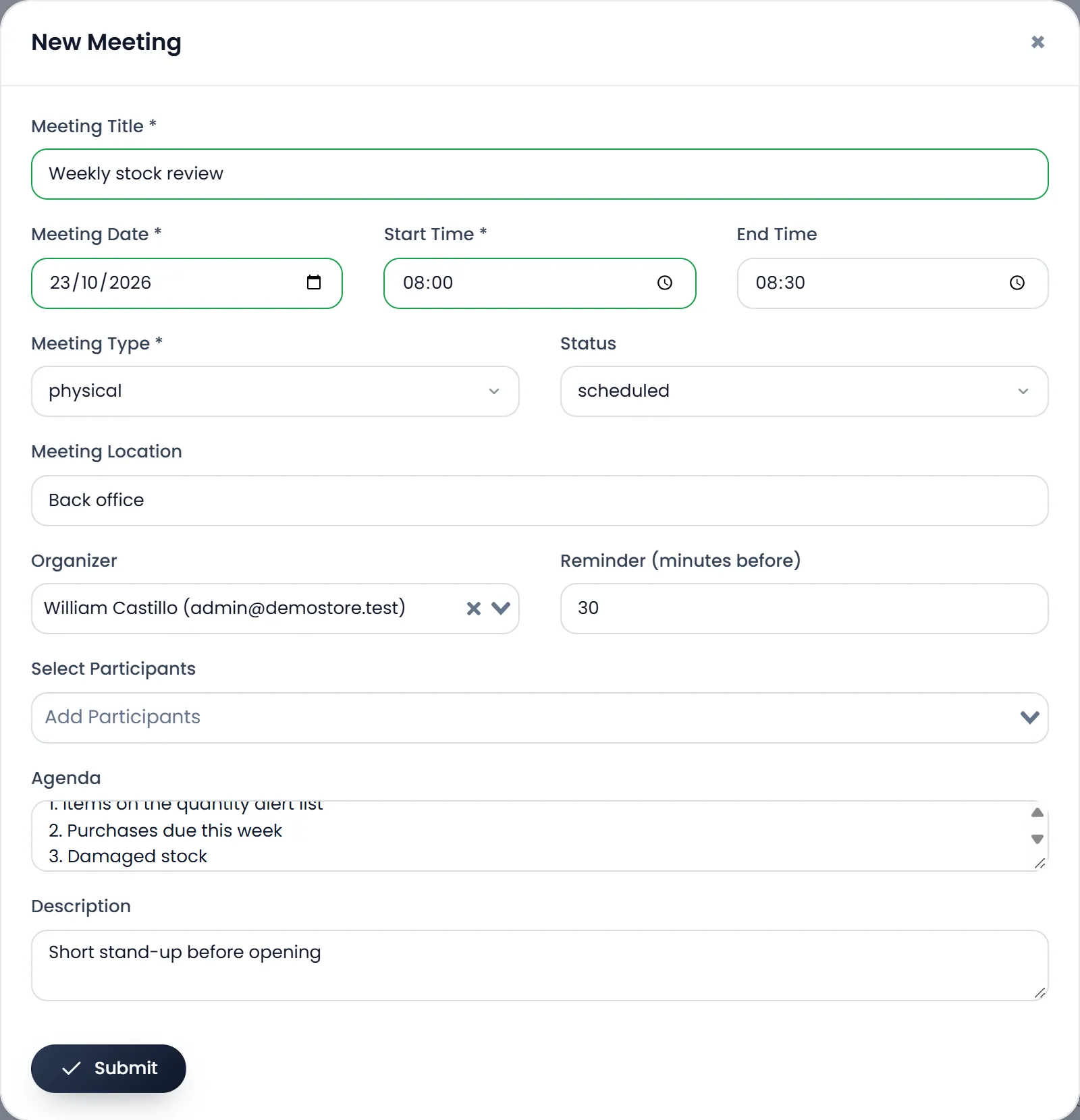
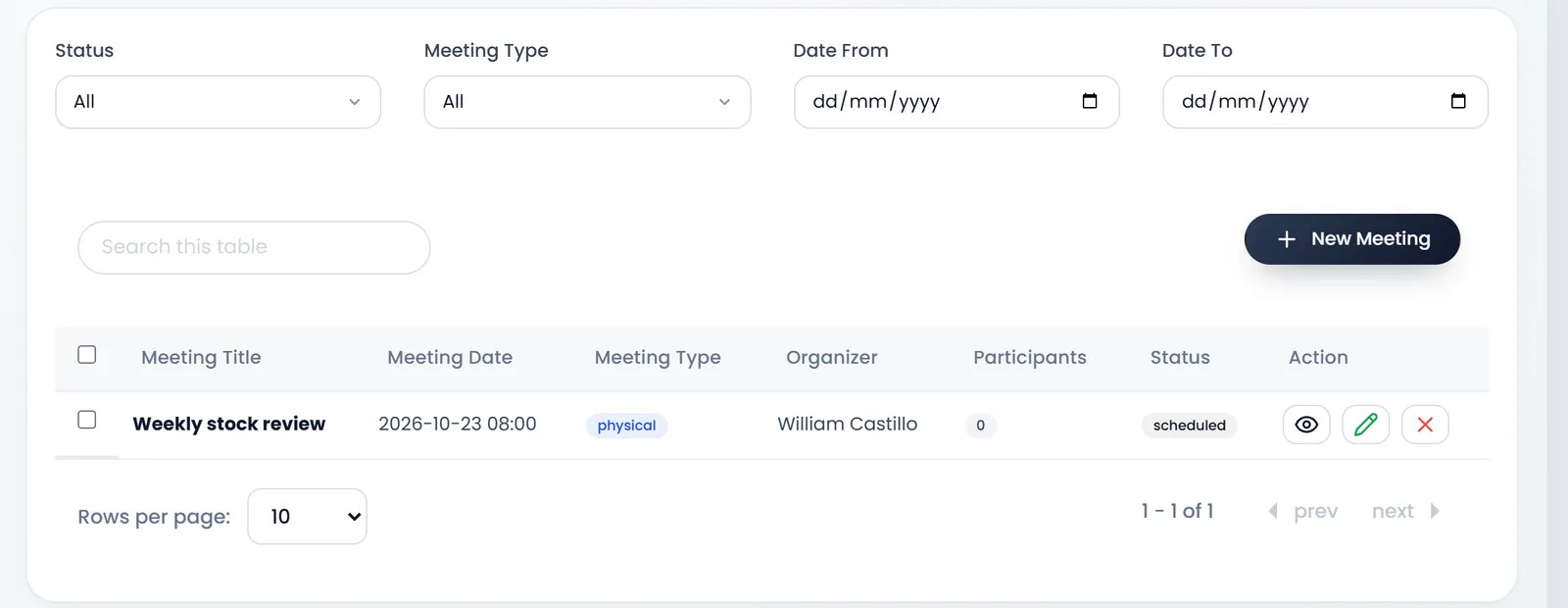
- Open Team & projects › Meetings › Meetings and click New Meeting.
- Write the Meeting Title, and set the Meeting Date and Start Time. All three are required. The End Time is optional.
- Pick the Meeting Type: physical with its Meeting Location, or online with the Platform (Zoom, Google Meet, Teams or other) and the Meeting Link you created there.
- Pick the Organizer and the participants in Select Participants: the people who sign in to your shop.
- Set the Reminder (minutes before). It starts at 30.
- Write the Agenda and a Description, and click Submit.
Invite and remind
- Send Invitations, on the meeting's page, emails each participant and sends them a notification, with the link for an online meeting. Nothing is sent before you click it.
- The reminder goes out by itself, by email, to the participants and the organiser the set number of minutes before the start.
If you move a meeting after its reminder went out, no new reminder is sent: tell your team yourself.
Calendar and reports
- Calendar shows the meetings by month.
- Dashboard and Reports count your meetings by status and type, month by month, with how many people attended and who organises most.
The meeting's page also records who attended; the attendance rate in the reports comes from it.
What's next
Put the actions into Projects and tasks.
Still stuck?
Write to us and a person answers. If you already have a shop, Ask support inside it sends us the page you're on.
Contact usAsk your AI assistant
ChatGPT, Claude and Gemini can read every guide and walk you through it.
Set it up