




Names like these, in green, are pages inside your ArmPOS shop. Sign in to your shop to open them.
By the end you will have a sales agent, a commission rule, and seen a commission worked out on a sale, ready to approve and pay.
Commissions come with some plans only. If Commissions isn't under Team & projects in your menu, your plan or your role doesn't include it.
1. Add your agents
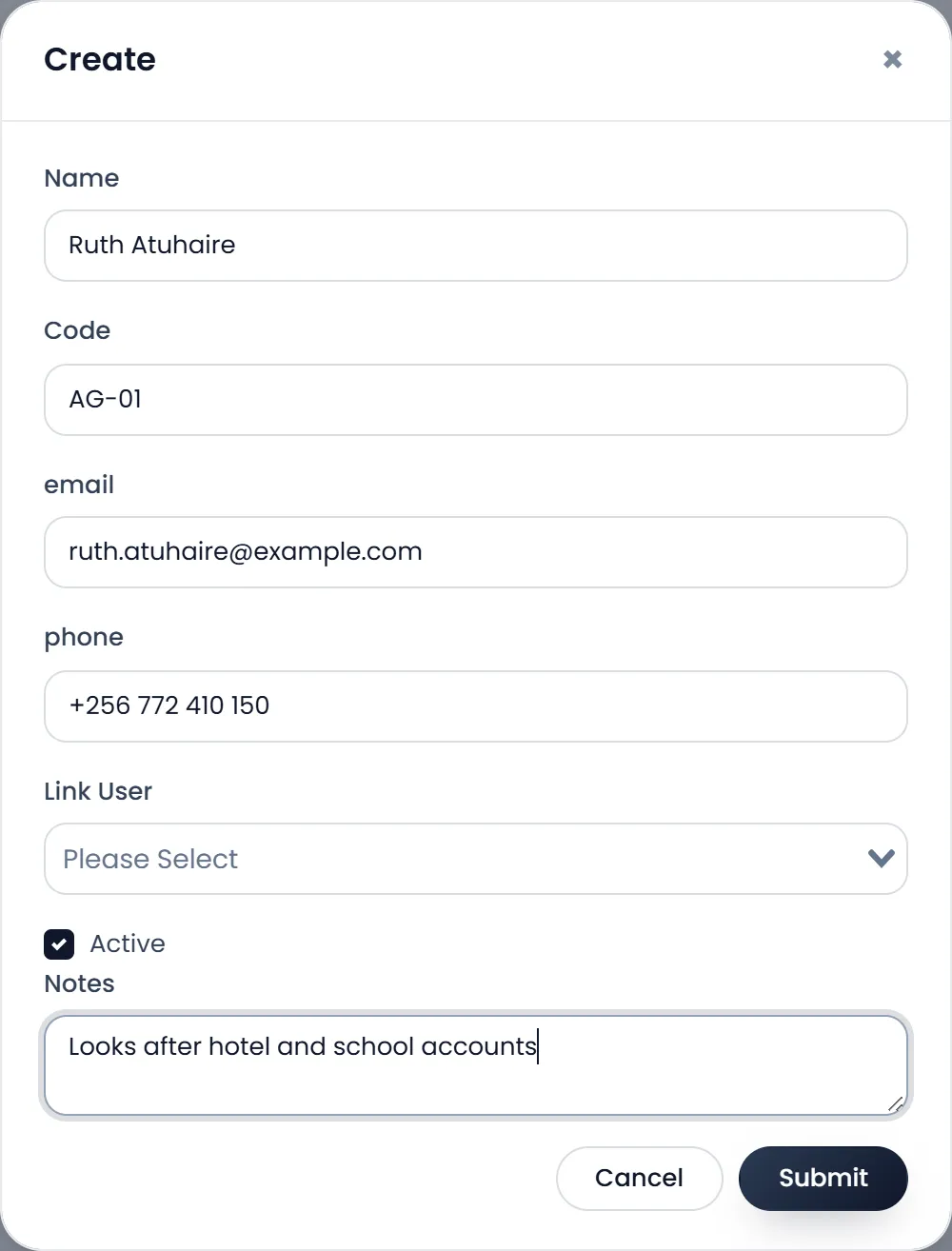
- Open Commissions › Sales Agents and click Create.
- Type the Name, and a Code, email and phone if you like.
- Link User if the agent signs in to sell: their own sales then count for them without choosing them on each sale.
- Leave Active ticked and click Submit.
2. Set the rules
A programme groups rules for a period, and each rule says how much an agent earns.
- Open Commission Programs and click Create. Name it, such as Hotel and school accounts, set Valid From and Valid To, and click Submit.
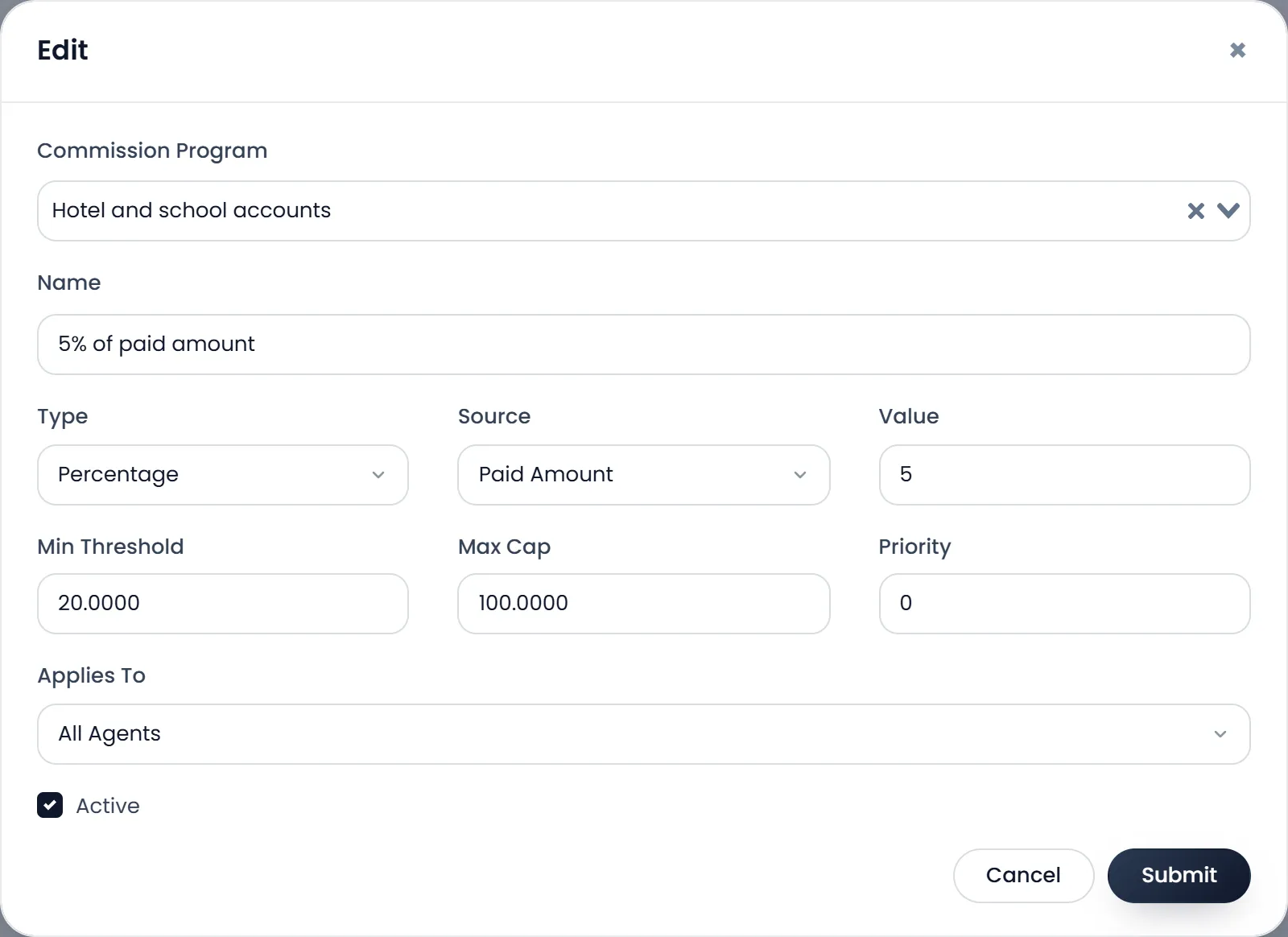
- Open Commission Rules and click Create.
- Pick the Commission Program and name the rule.
- Pick the Type and the Value: Percentage (5 for 5%) or Fixed (an amount per sale).
- Pick the Source: Sale Total or Paid Amount, what the percentage is taken of.
- Set the limits if you need them: Min Threshold (no commission below it) and Max Cap (the most per sale).
- Pick who it Applies To: All Agents, or Specific Agent and the agent. Click Submit.
Every active rule that fits a sale adds its own commission: two rules for the same agent pay twice.
3. Sell
On Sales › Add sale, pick the agent in Sales Agent. When the sale is saved as Completed, the commission is worked out and waits as pending.
- Sales made at the POS don't create commissions today: use Add sale for agents' sales.
- With Paid Amount, the commission is worked out when the sale is saved; a payment added later doesn't change it, and nor does a return or deleting the sale. Correct those in the report.
4. Approve and pay
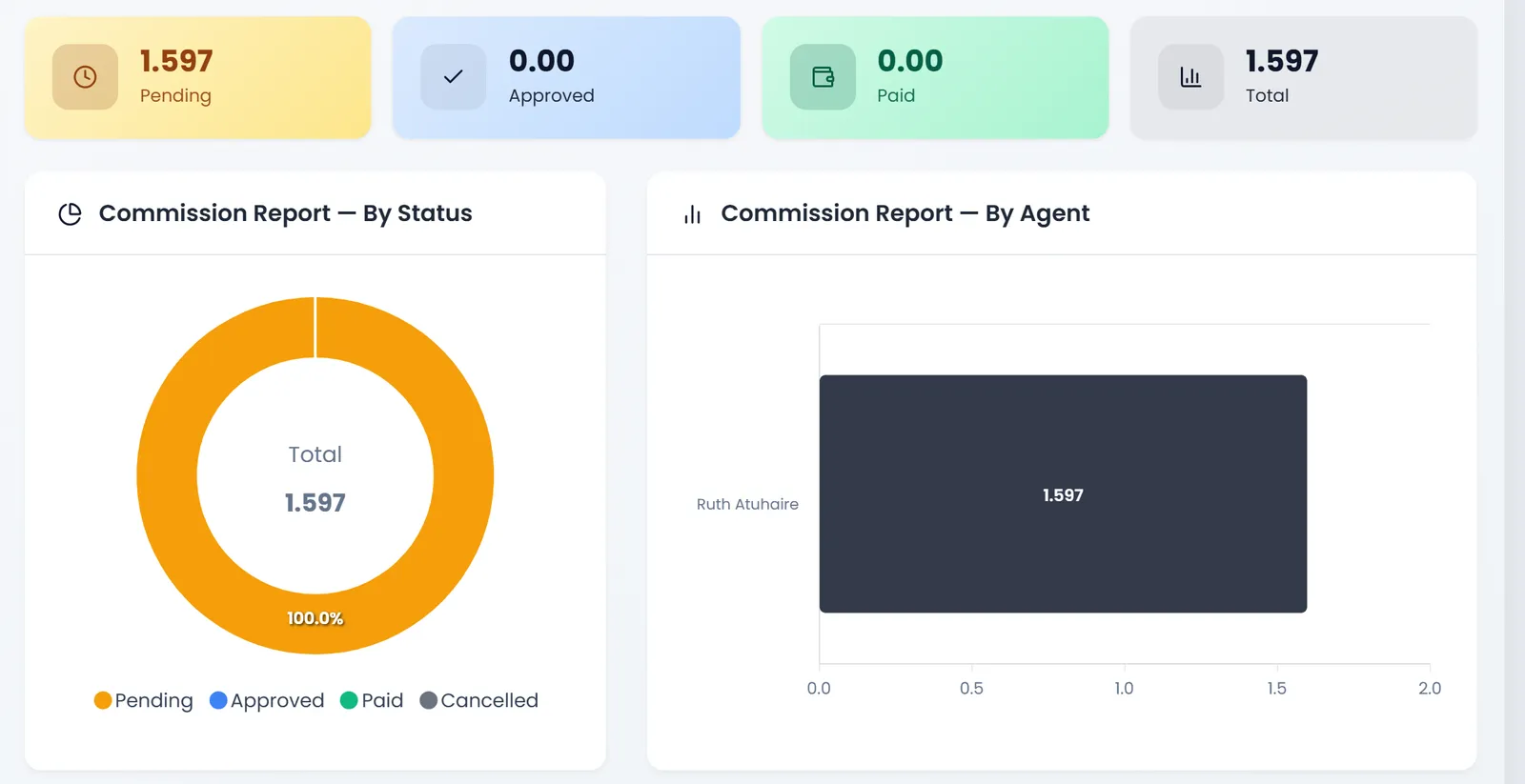
Commission Report lists every commission with its Sale Ref, Sales Agent, Program, Base Amount, Commission and Status, with totals by status and by agent. Tick the commissions to settle, then click Approve or Cancel above the list.
To pay, open Commission Receipts, click Create, pick the agent, tick their approved commissions (the total fills in), add the reference, amount, date and method, and click Submit. They are marked Paid. A receipt records the payment only: pay the agent from your till or bank as usual, and record it as an expense if you track it.
What's next
Still stuck?
Write to us and a person answers. If you already have a shop, Ask support inside it sends us the page you're on.
Contact usAsk your AI assistant
ChatGPT, Claude and Gemini can read every guide and walk you through it.
Set it up